
How to Enable CPD Points
How to Enable CPD Points
In this article:
- Overview
- How to enable CPD Points
- How to let people add their own CPD
- Setting up CPD categories
- Things to keep in mind
- FAQs
- Who can do this
Overview
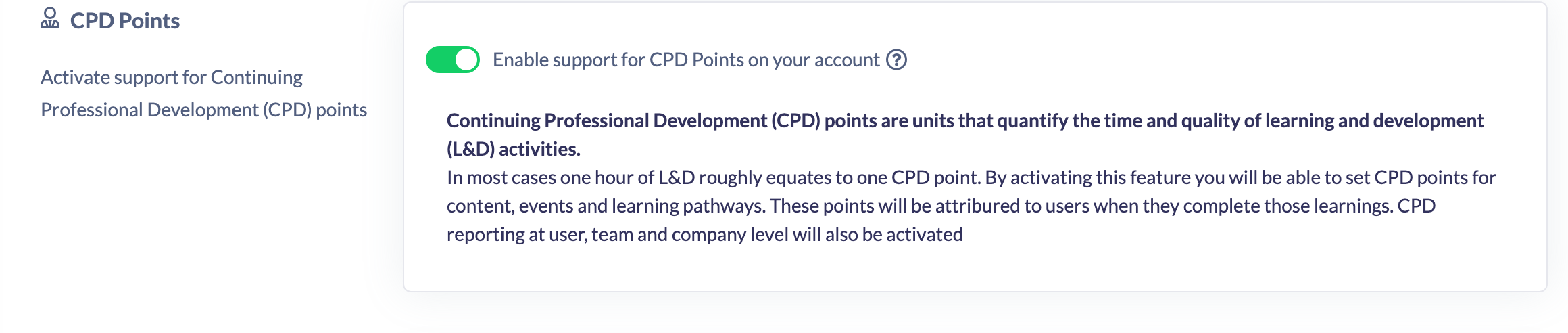
Continuing Professional Development (CPD) points are units that quantify the time and quality of your learning and development activities. In most cases one hour of L&D roughly equates to one CPD point. Enabling this feature lets you set CPD points on content, Events and learning Pathways; those points are then attributed to users when they complete that learning, and CPD reporting at user, Team and company level is activated too.
Two further options sit underneath the main toggle once it's on: letting people record CPD they earned outside SuperPath, and a category list so points can be classified the way your accrediting body expects.
The feature is switched off until an Owner or Admin turns it on.
How to enable CPD Points
- Go to Settings → Features.
- Find the CPD Points section.
- Turn on Enable support for CPD Points on your account.
- An Unsaved changes bar appears at the top of the screen. Click Save to apply your change.
How to let people add their own CPD
A lot of CPD happens off-platform — conferences, external courses, webinars, on-the-job learning. Switching this on gives people an Add CPD button on the CPD tab of a profile, so that learning can be recorded alongside the points earned in SuperPath.
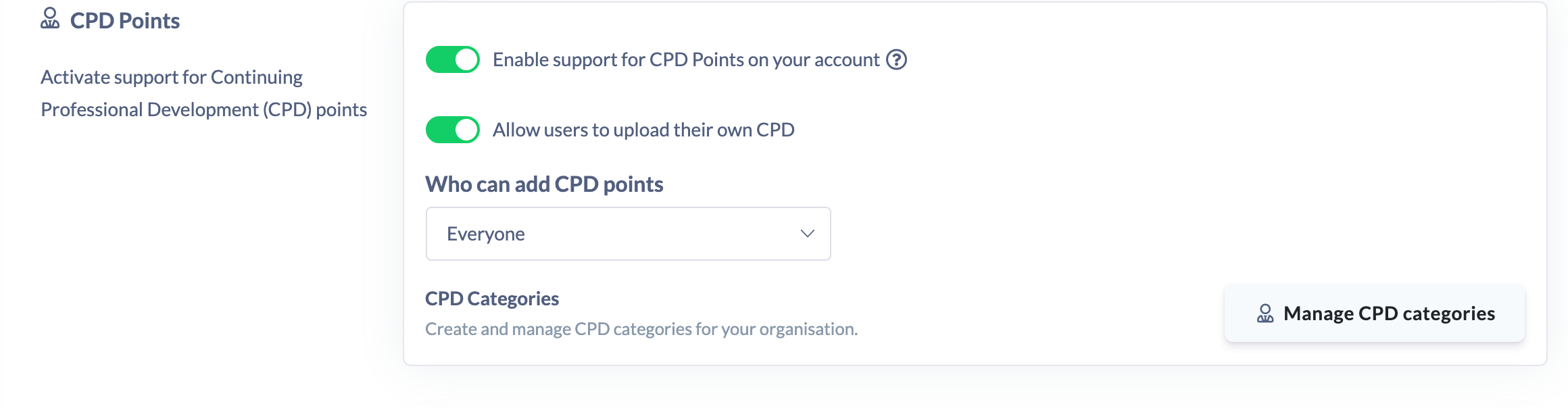
- In the CPD Points section, turn on Allow users to upload their own CPD. This option only appears once CPD Points itself is on.
- Choose Who can add CPD points:
- Everyone — any user can record their own CPD. This is the default.
- Managers & Admins — Owners, Admins, Managers, Content Managers, People Managers and Instructors.
- Admin Only — Owners and Admins.
- Click Save in the Unsaved changes bar.
Entries added this way count immediately — there's no approval or review step. See How to Manually Add CPD Points for the learner's side of this.
Setting up CPD categories
Once CPD Points is on, the section also shows a CPD Categories row with a Manage CPD categories button. Categories let you classify points — Technical, Ethics, Conferences and Seminars and so on — so both learners and reports can see how someone's points are distributed rather than just the total.
Click Manage CPD categories to build the list, then attach a category wherever you set CPD points. Categories are optional; see How to Manage CPD Categories.

Things to keep in mind
- After turning the switch on, click Save in the Unsaved changes bar for the change to take effect.
- Once enabled, you can set CPD points against content, Events and learning Pathways, and points are attributed to users on completion.
- Enabling the feature also activates CPD reporting at user, Team and company level.
- Allow users to upload their own CPD and CPD Categories both depend on CPD Points being on — they disappear if you switch the main toggle off.
- Who can add CPD points narrows who gets the Add CPD button; it doesn't switch the upload feature off. Leave it on Everyone if you want self-service CPD recording.
- If you switch Allow users to upload their own CPD off later, the Add CPD button disappears but entries already recorded stay in place and keep counting.
- If you deactivate CPD points support later, all related features (points and reporting) become unavailable, but your data is preserved.
FAQs
How many CPD points is one hour of learning?
As a rough guide, one hour of L&D equates to about one CPD point. You set the exact points on each piece of content, Event or Pathway.
Do I get reporting on CPD points?
Yes. Enabling the feature activates CPD reporting at user, Team and company level, including a category filter and a per-category breakdown in the CPD Points Report.
Does manually added CPD need approving?
No. Manual entries are treated as self-reported and count as soon as they're saved. Use Who can add CPD points if you'd rather only managers or admins recorded them.
Do I have to use CPD categories?
No — they're optional. CPD works the same without them, and points recorded without a category report as Uncategorised.
What happens to my CPD data if I turn the feature off?
Points and reporting become unavailable while the feature is off, but your data is preserved.
Who can do this
Only Owners and Admins can change feature settings. The Settings area is restricted to these two roles, and saving a change to Features requires the tenant-settings update permission, which only Owners and Admins hold. Managers, Content Managers, People Managers, Instructors, Employees and Restricted users cannot open Settings or change these toggles.
Updated on: 30/07/2026
Thank you!