
How to Enable Restricted View for Auto-Login Users
How to Enable Restricted View for Auto-Login Users
In this article:
- Overview
- How to enable restricted view
- Things to keep in mind
- FAQs
- Who can do this
Overview
Restricted View gives auto-login users a pared-back version of SuperPath, so people who arrive through an auto-login link see a focused experience. It's a companion setting to Auto Login, so it lives inside the Auto Login section of the Security settings tab and only becomes available once auto-login is switched on. For what Restricted View actually changes for the learner, see What is Restricted View for users?.
How to enable restricted view
- Go to Settings → Security.
- In the Auto Login section, make sure Enable auto login for your users is switched on. If it isn't, turn it on first (see How to Enable Auto-Login and Generate a Login Token).
- With auto-login on, the Enable restricted view for users toggle appears just below. Switch it on.
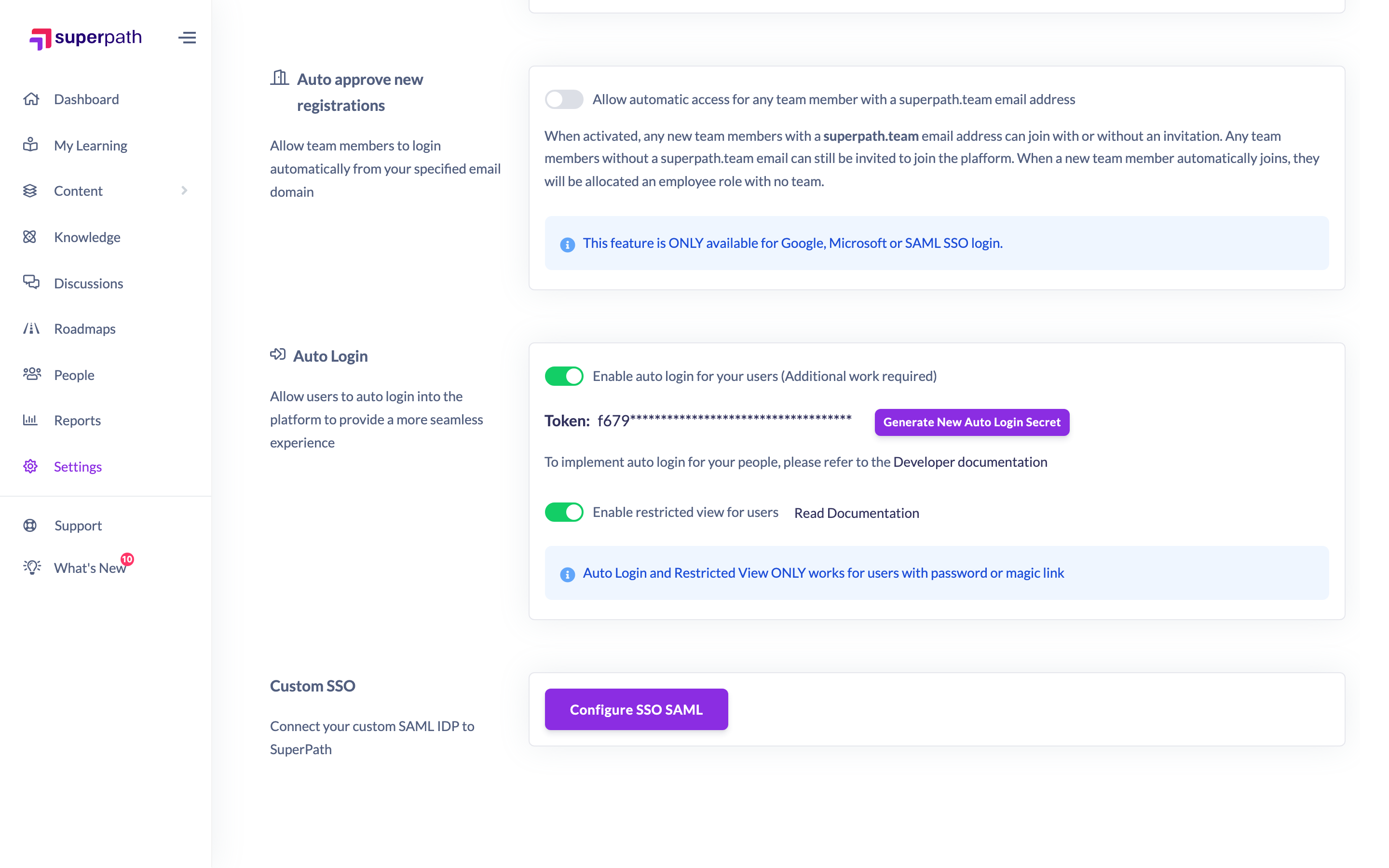
- Click Save changes on the save bar at the top of the screen to apply.
Once saved, auto-login users see the restricted experience.
Things to keep in mind
- Restricted View only appears once Auto Login is enabled — the toggle is nested inside the Auto Login section. If you turn auto-login off, restricted view is switched off with it.
- Auto Login and Restricted View only work for users who sign in with a password or magic link.
- Both are paid-account features, available on the Security tab.
- Read What is Restricted View for users? for the detail on what the restricted experience looks like to your people.
FAQs
I can't find the restricted view toggle — where is it?
It only appears when Auto Login is enabled. Switch auto-login on first and the Enable restricted view for users toggle appears directly beneath it.
What happens if I turn auto-login off?
Restricted View turns off too, because it depends on auto-login being enabled.
Who does Restricted View apply to?
It applies to your auto-login users, and only works for people signing in with a password or magic link.
Who can do this
Only Owners (and Super Admins) can enable Restricted View — the Security settings tab is restricted to Owners. Admins, Managers, Content Managers, People Managers, Instructors, Employees and Restricted users cannot. Auto Login and Restricted View are also paid-account features.
Updated on: 17/07/2026
Thank you!