
How to Enable Self-Registration
How to Enable Self-Registration
In this article:
- Overview
- Enabling Self-Registration
- Things to keep in mind
- FAQs
- Who can do this
Overview
Self-Registration lets people sign themselves up through a public registration page instead of being invited or synced in. Before that page goes live, you need to configure it and switch it on. This article covers turning it on; the related how-to articles cover the individual settings.
Enabling Self-Registration
- Go to Settings → Security.
- Find the Self-Registration card.
- Click Configure page and set up the page — its URL slug, approval mode, the role and team new sign-ups are given, and at least one sign-in method — then Save.
- Back on the card, turn on Enable self-registration.
- Save your change using the changes bar that appears.
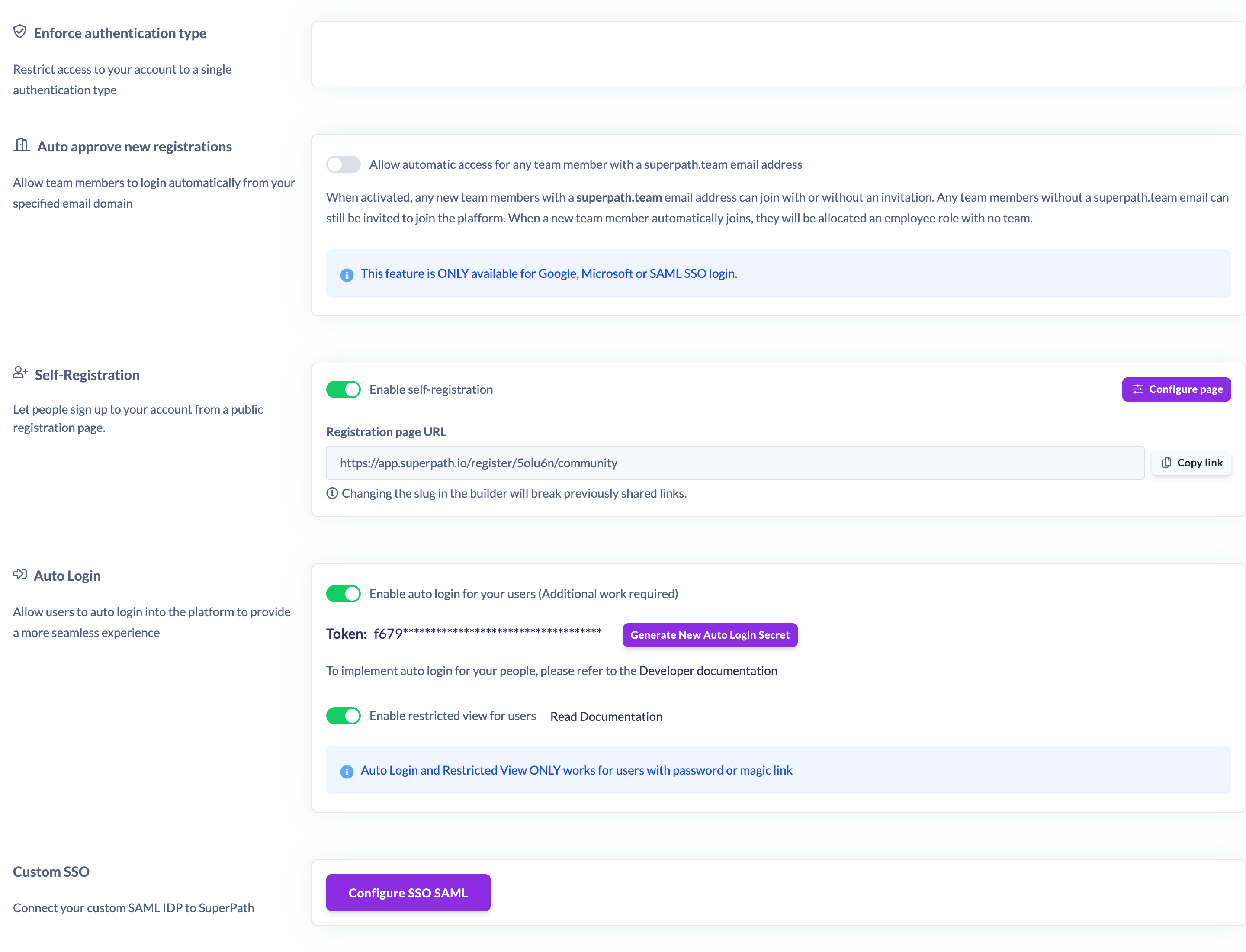
Your registration page is only live once it is both enabled and fully configured. If you try to enable it before the required settings are complete, you'll be prompted to finish them first — a valid URL slug, at least one sign-in method, a role, and a team.
Note: Turning the toggle off takes the page offline again. The link stops working until you switch it back on.
Things to keep in mind
- The page isn't live until it is enabled and configured — enabling on its own isn't enough if required settings are missing.
- There is one registration page per account, so enabling it turns on that single shared page for everyone.
- If your account is on a plan with a fixed number of seats and you've reached the limit, new sign-ups can be blocked with a licensing error even while the page is enabled. Make sure you have seats available, or contact Support to upgrade.
FAQs
Why can't I enable the page?
Enabling is blocked until the page is fully configured. Check that you've set a valid URL slug, chosen a role and a team, and selected at least one sign-in method.
Does enabling send anyone an email?
No. Enabling simply makes the registration link live. Emails are sent to people when they sign up (and, for pages that require approval, when their request is approved or rejected).
How do I share the link once it's enabled?
Use the Copy link button on the Self-Registration card. See "How to Set Your Registration Page URL and Share the Link".
Who can do this
Only the Owner can enable and configure Self-Registration, which lives under Settings → Security. Admins, Managers, People Managers, Content Managers, Instructors, Employees and Restricted users cannot set it up — though once the page is live, Admins can also review pending sign-ups (see How to Approve a Pending Registration).
Updated on: 19/07/2026
Thank you!