
How to Enable Self-Serve Learning in the Library
How to Enable Self-Serve Learning in the Library
In this article:
- Overview
- How to enable self-serve learning
- Things to keep in mind
- FAQs
- Who can do this
Overview
Self-serve learning lets your people browse the Library and assign content to themselves, rather than waiting for a Manager or Admin to assign it. SuperPath controls this separately for your two content sources: your own uploaded content (the private Library) and SuperPath's public learning content (the public Library). When self-serve is switched off for a source, people can no longer self-assign that content and it must be assigned by a Manager or Admin.
These are account-wide settings on the Library tab in Settings.
How to enable self-serve learning
- Go to Settings → Library.
- Find the Library Content section.
- To let people self-assign your own content, switch on Enable users to self serve learning content from the private library?.
- To let people self-assign public content, switch on Enable users to self serve learning content from the public library?. This option only appears once Enable public learning content in the Library? is turned on.
- A save bar appears at the top of the page — click Save.
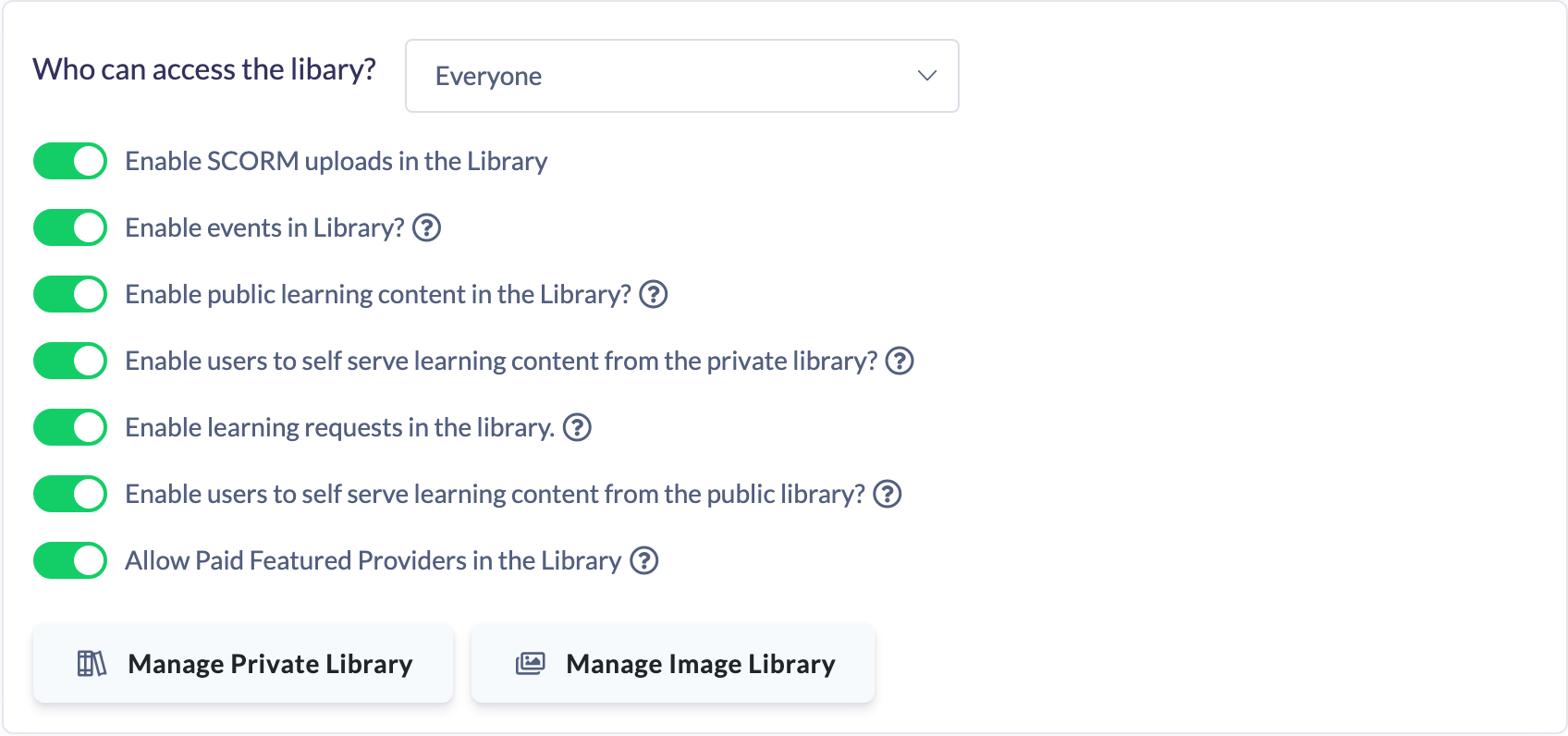
Note: The public self-serve toggle is only visible when public learning content is enabled. If you can't see it, turn on Enable public learning content in the Library? first — see How to Turn On the Public or Default Content Library.
Things to keep in mind
- Disabling private self-serve stops people self-assigning content from your private Library — all such content must then be assigned by a Manager or Admin.
- Disabling public self-serve does the same for SuperPath's public content.
- Turning on private self-serve reveals a further option, Enable learning requests in the library, which lets people request content instead of self-assigning. See How to Enable Learning Requests.
- Nothing is saved until you click Save — if you toggle a switch and leave the page without saving, the change is discarded.
FAQs
Why can't I see the public self-serve option?
It only appears when public learning content is enabled. Switch on Enable public learning content in the Library? and the public self-serve toggle will show beneath it.
Do these settings affect content that has already been assigned?
No. They control whether people can self-assign new content from the Library. Content that has already been assigned is unaffected.
Who can do this
Only Owners and Admins can change Library settings. The Settings area — where the Library tab lives — is only available to Owners and Admins, and saving a Library setting requires the same permission. Managers, Content Managers, People Managers, Instructors, Employees and Restricted users cannot.
Updated on: 17/07/2026
Thank you!