
How to Enable the Knowledge Base and Set Its Access Level
How to Enable the Knowledge Base and Set Its Access Level
In this article:
- Overview
- How to enable the Knowledge Base
- Setting who can access Knowledge
- Adding a banner and managing categories
- Things to keep in mind
- FAQs
- Who can do this
Overview
The Knowledge Base gives your organisation a central store for all its organisational knowledge — reference documents, policies and how-to guides that sit alongside your formal learning. It is switched off until an Owner or Admin activates it, so turning it on is the first step before anyone can create or read Knowledge content.
Once it is on, you can choose who in your organisation can access Knowledge, add a banner to brand the top of the Knowledge area, and manage the categories your content is organised into.
How to enable the Knowledge Base
- Go to Settings → Features.
- Find the Knowledge Base section.
- Turn on Enable the Knowledge Base on your account.
- An Unsaved changes bar appears at the top of the screen. Click Save to apply your change.
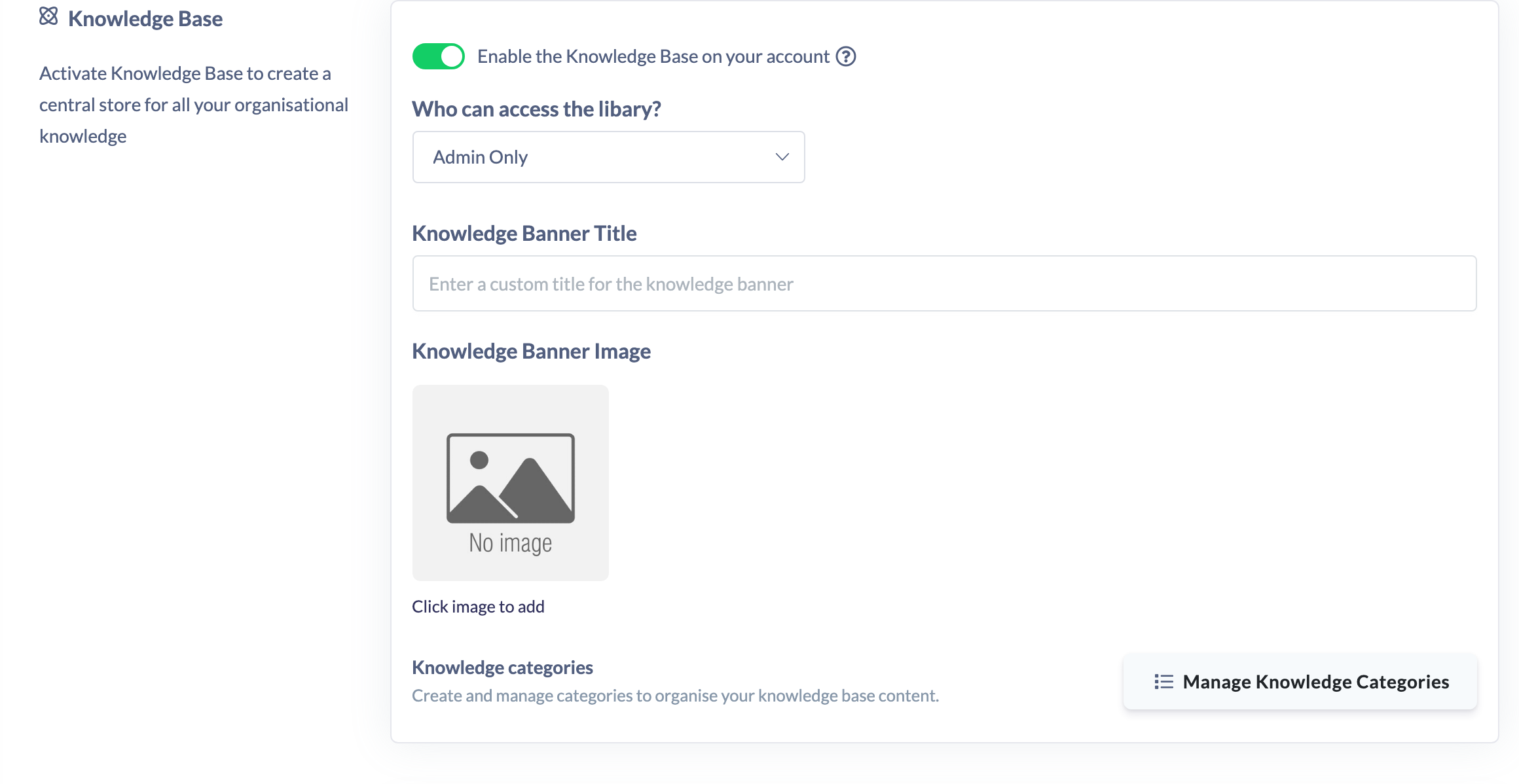
Turning the switch on immediately reveals the additional Knowledge options described below.
Setting who can access Knowledge
When the Knowledge Base is enabled, an access-level dropdown appears so you can control who can access Knowledge. Choose one of:
- Everyone — all users can access Knowledge.
- Managers & Admins — only Managers and Admins can access Knowledge.
- Admin Only — only Admins (and Owners) can access Knowledge.
Pick the level you want, then click Save.
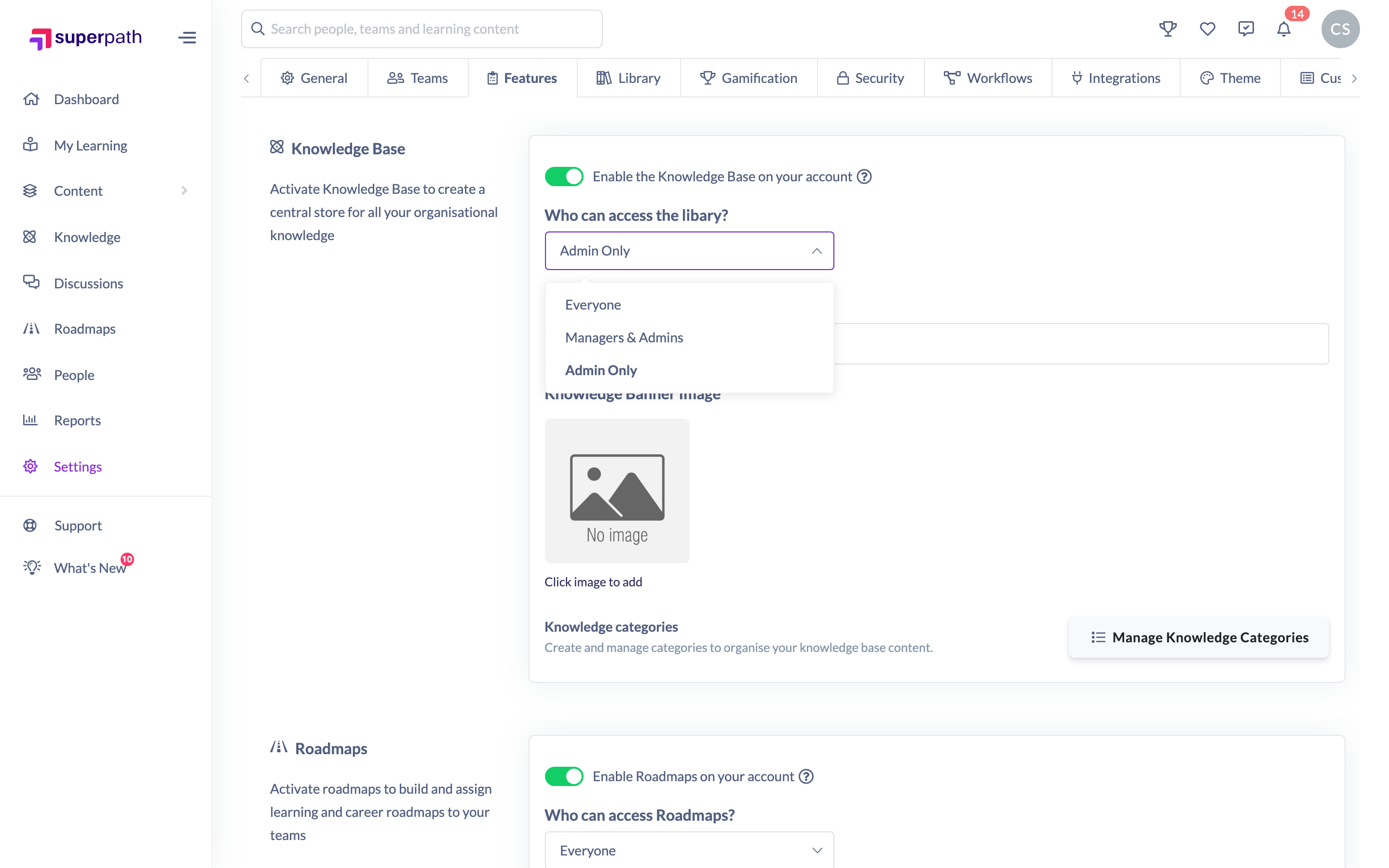
Adding a banner and managing categories
With the Knowledge Base on, you can also:
- Set a Knowledge banner title and a Knowledge banner image to brand the top of the Knowledge area.
- Open Manage Knowledge categories to organise your content into categories.
Remember to click Save after changing the banner title or image.
Things to keep in mind
- The whole change is saved together — after any edit in this section, click Save in the Unsaved changes bar for it to take effect.
- If you deactivate the Knowledge Base later, all related features become unavailable, but your existing documents are preserved and become available again if you switch it back on.
- Access control for Knowledge is separate from Roadmaps — each has its own access level. For a combined overview of access control, see Managing Access to Knowledge & Roadmaps.
FAQs
What happens to my documents if I turn the Knowledge Base off?
Nothing is deleted. All related features are hidden while it is off, and your existing documents remain stored and reappear if you re-enable the Knowledge Base later.
Does the access level change who can create Knowledge content, or just who can view it?
The access level controls who can access the Knowledge area on your account. Creating and managing content is still governed by each user's role.
Can I brand the Knowledge area?
Yes. Once the Knowledge Base is on, you can add a banner title and a banner image, and manage the categories your content is grouped under.
Who can do this
Only Owners and Admins can change feature settings. The Settings area is restricted to these two roles, and saving a change to Features requires the tenant-settings update permission, which only Owners and Admins hold. Managers, Content Managers, People Managers, Instructors, Employees and Restricted users cannot open Settings or change this toggle.
Updated on: 17/07/2026
Thank you!