
How to Export Your People List
How to Export Your People List
In this article:
- Overview
- How to export your people list
- Things to keep in mind
- FAQs
- Who can do this
Overview
You can export the people in your organisation to a CSV file — handy for reporting, sharing with another system, or keeping an offline record. You choose which columns to include, and SuperPath builds the file in your browser and downloads it.
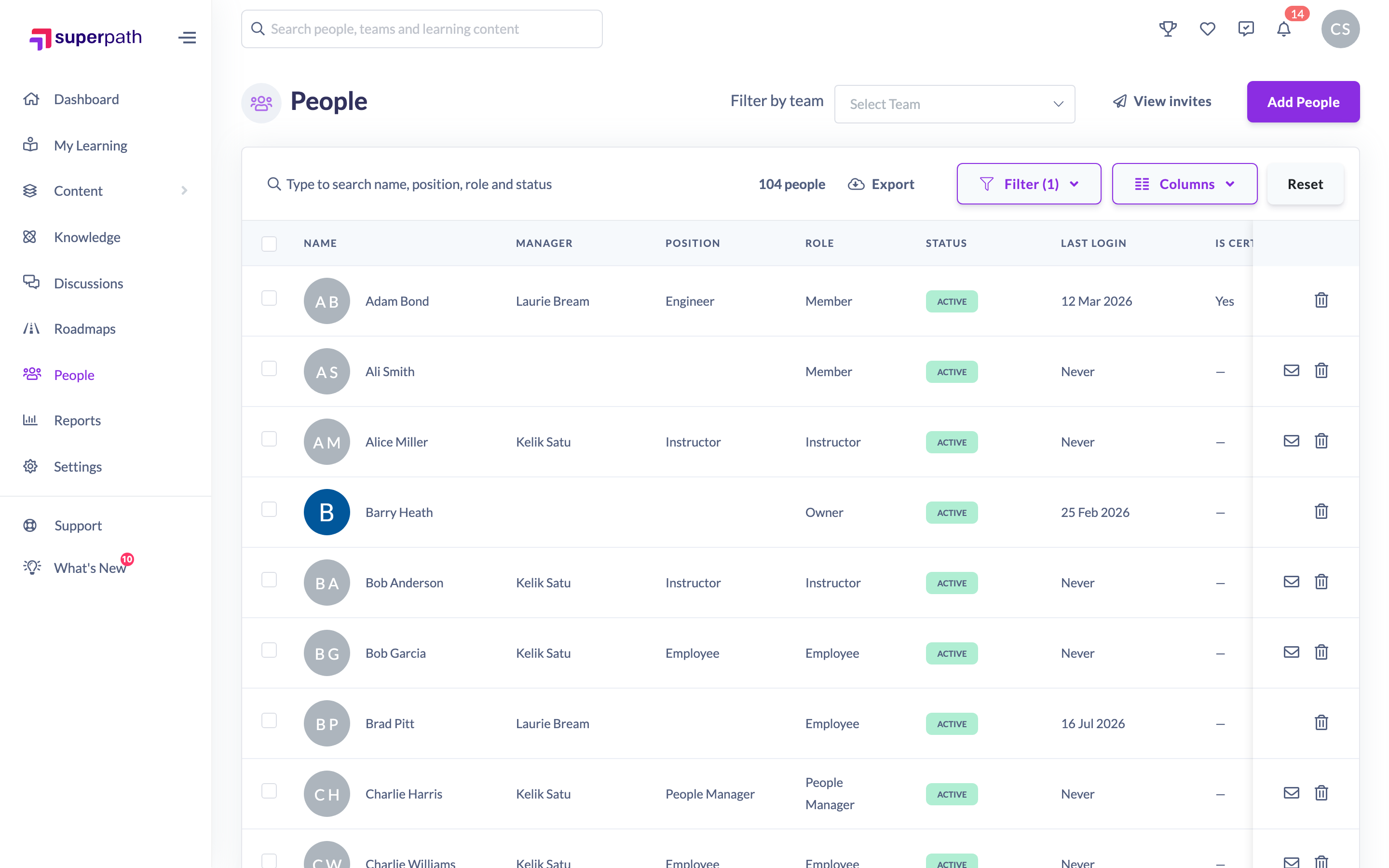
How to export your people list
- Go to People.
- Click Export in the toolbar.
- In the Export window, tick the columns you want to include (or use Select all).
- Click Export to download the CSV file.
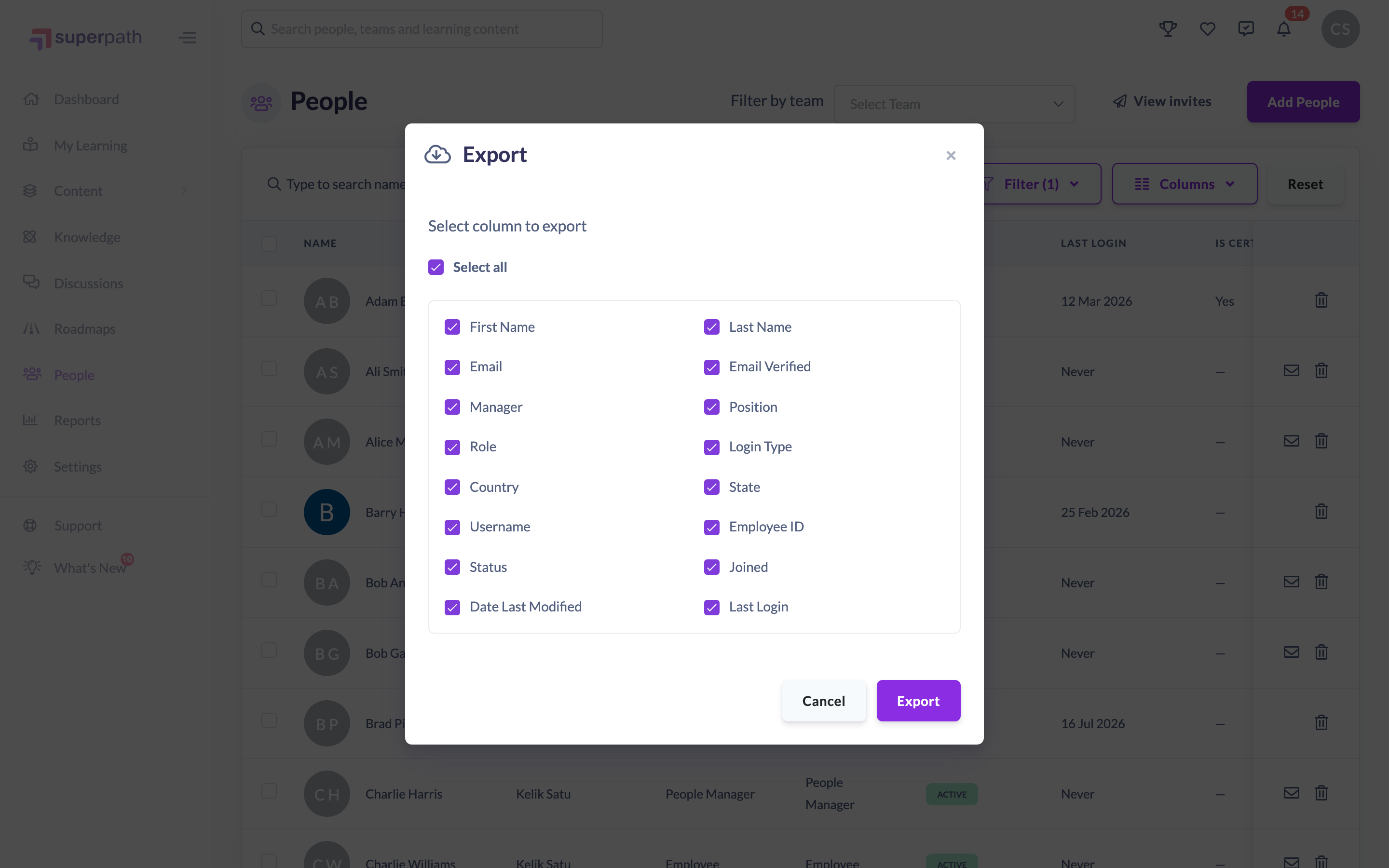
The file downloads to your device with a row for each person and a column for each field you selected.
Things to keep in mind
- Available columns include First Name, Last Name, Email, Email Verified, Manager, Position, Role, Login Type, Country, State, Username, Employee ID, Status, Joined, Date Last Modified and Last Login.
- Any Custom Fields with Show on list view turned on are also offered as columns, headed with the field's name, so the export matches the columns you see in the People list.
- The file is created in your browser and downloaded straight away — nothing is emailed or stored on the platform.
- The export contains personal data, so store and share it in line with your organisation's data-handling rules.
FAQs
What format is the export?
A CSV file, which opens in Excel, Google Sheets and most spreadsheet tools.
Can I choose which details are included?
Yes. The Export window lets you tick exactly the columns you want before downloading.
Where does the file go?
It downloads to your device like any other file. It isn't emailed or saved on SuperPath.
Who can do this
The Export button is available to Owners and Admins only. Managers, People Managers, Content Managers, Instructors, Employees and Restricted users don't see it.
Updated on: 29/09/2026
Thank you!