
How to Import Historic Learning Records
How to Import Historic Learning Records
In this article:
- Overview
- Before you start
- How to import historic records
- Track the import
- Things to keep in mind
- FAQs
- Who can do this
Overview
Historic Import lets you bring completion history from your previous LMS into SuperPath, so your compliance records and reports carry over when you switch. You import one course or Pathway at a time: pick the learning, download a CSV template, fill it from your old system's export, and SuperPath creates the records with their original dates.
The import is a five-step wizard — Prepare, Select learning, Template, Upload and Confirm — and then runs in the background, so you can leave the page while it processes. Before anything is written, SuperPath shows you a preview of exactly what will be created and what will be skipped.
Before you start
- Everyone in your file must already exist in SuperPath. The import matches rows to people by email address and never creates users. Add missing people first with a bulk people upload.
- The course or Pathway must already exist. Create the learning first — upload the SCORM package, build the course, or create the Pathway — then import its history.
- Have your old LMS export handy. You'll copy the emails, dates and scores from it into SuperPath's template. See Preparing Your Historic Import File for the full column guide.
How to import historic records
Step 1: Open Historic Import
- Go to Settings → Data Management.
- In the Historic Import section, click New historic import.
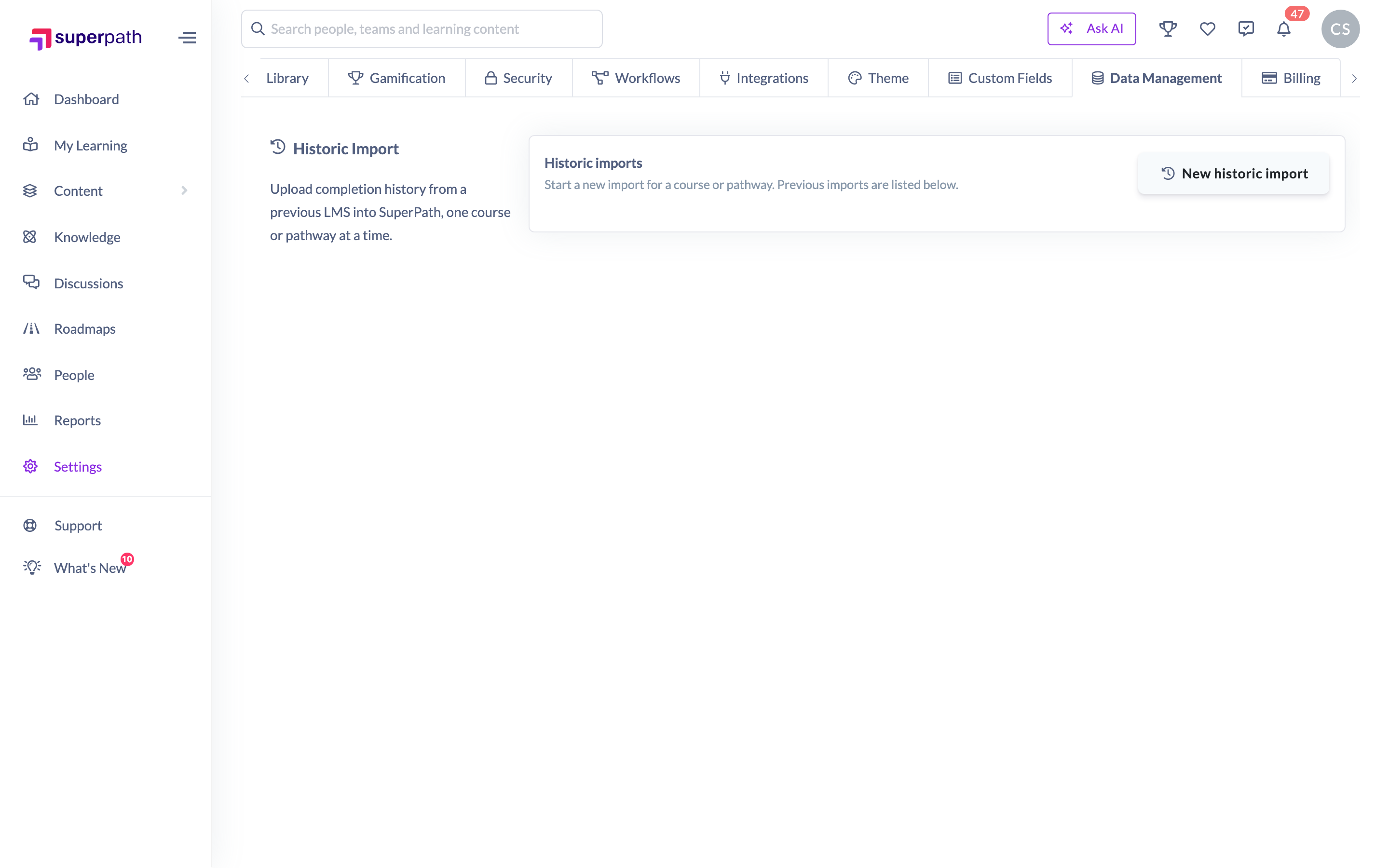
Tip: You can also jump straight into the wizard from the learning itself — an Import historic records link appears in the title bar of a course page and on a Pathway's cover for Owners and Admins. It opens the wizard with that learning pre-selected.
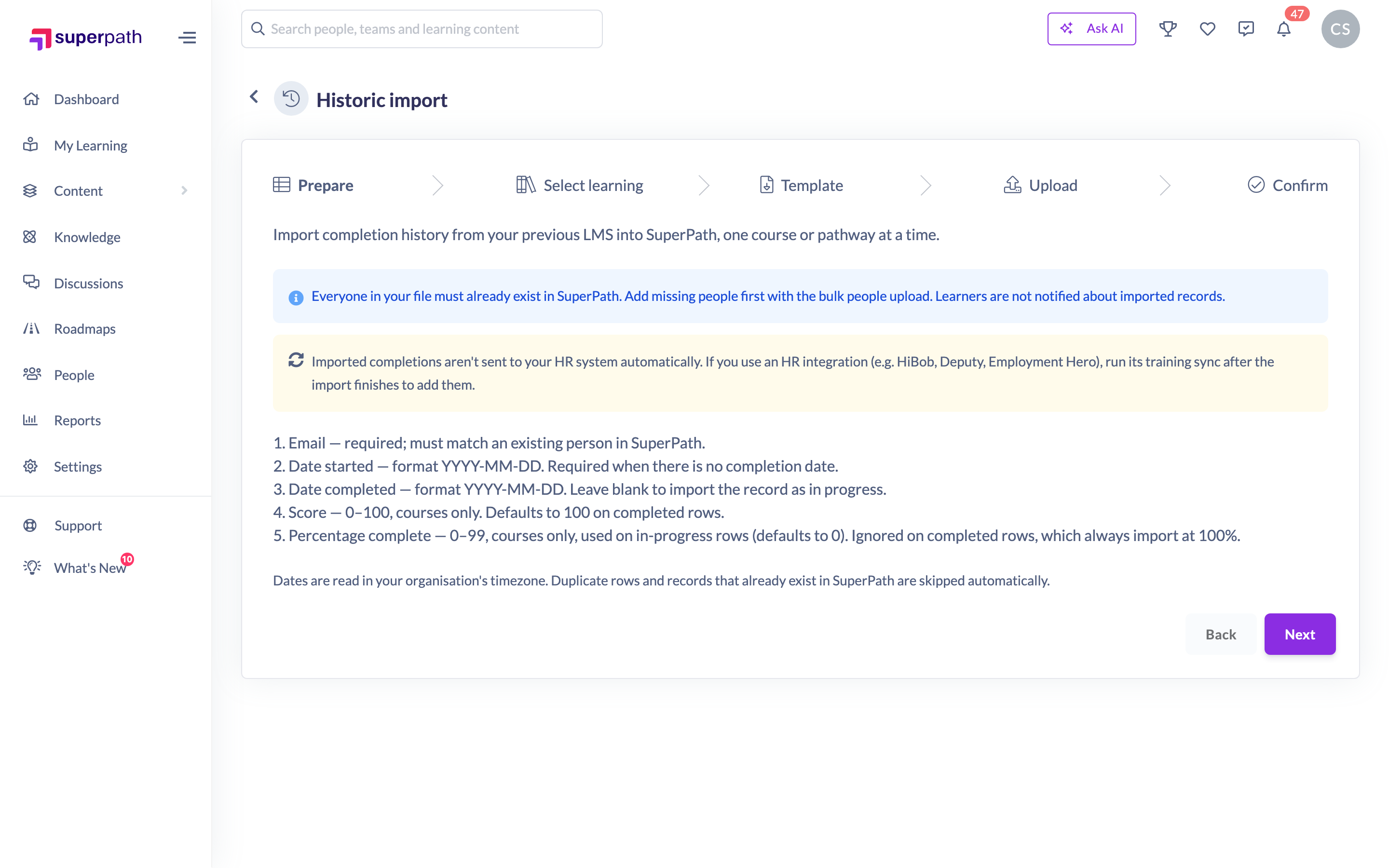
Step 2: Read the Prepare step
The Prepare step lists every column the file can contain and what each one expects. Two things to note before you continue: learners are not notified about imported records, and imported completions aren't sent to any connected HR system automatically — you can run your HR integration's training sync afterwards to add them.
Step 3: Select the learning
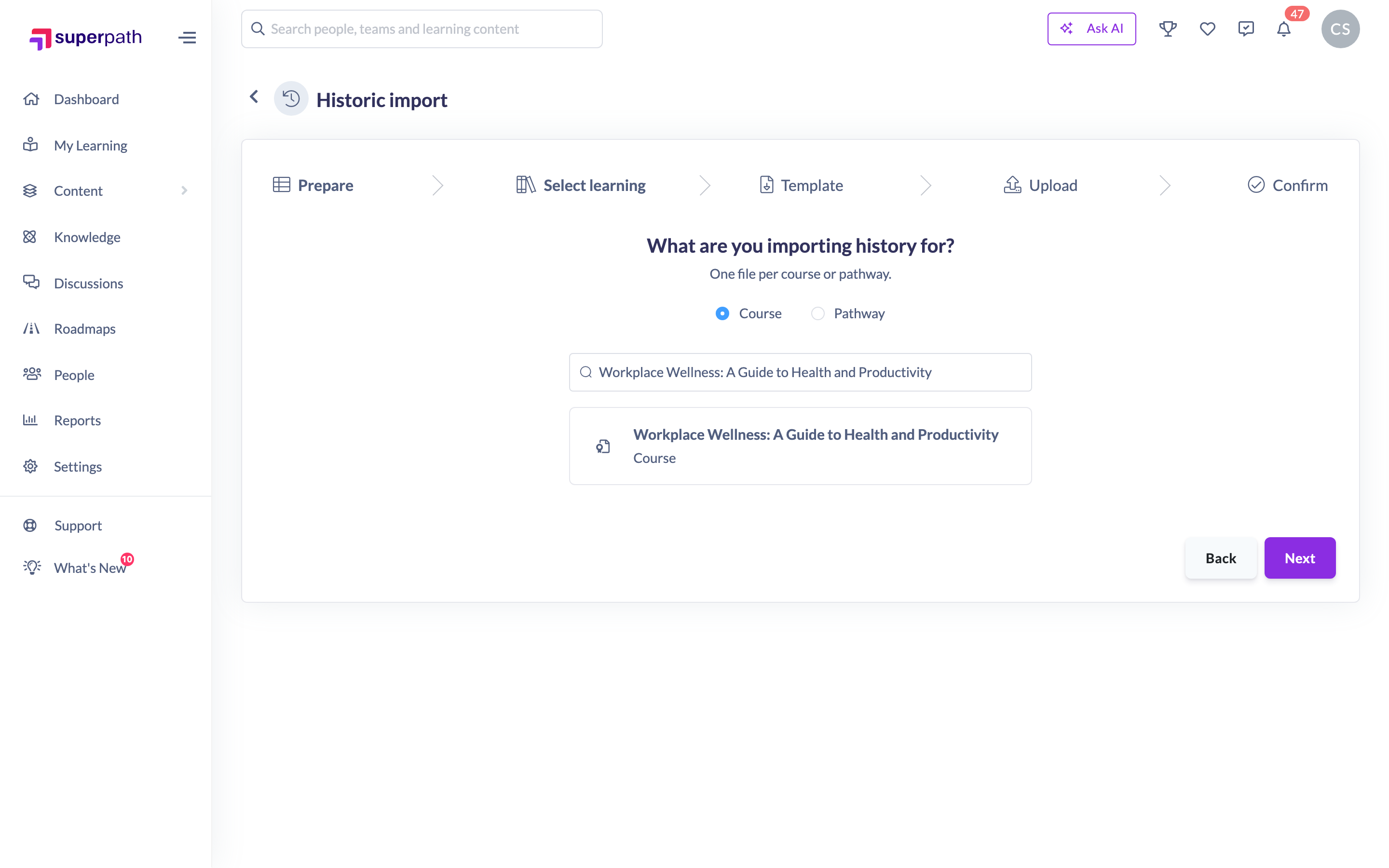
- Choose Course or Pathway.
- Search for the learning and select it. For a course, the search covers everything in your Library — SCORM packages, documents, videos and AI-built courses. For a Pathway, pick from the list of your organisation's Pathways.
Step 4: Download the template
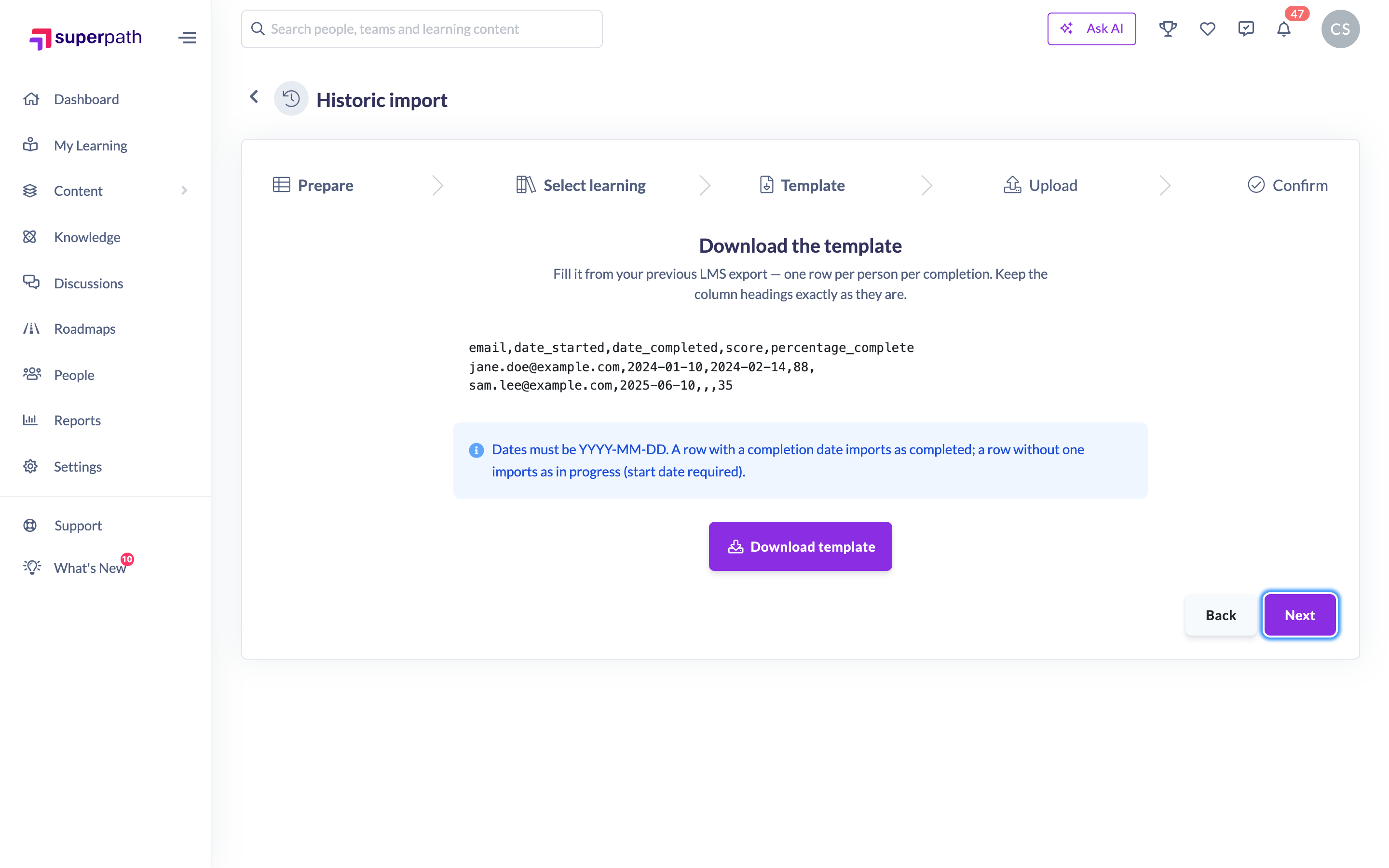
Click Download template. The CSV is named after the learning you selected and includes two example rows — one completed record and one in-progress record — so you can see the expected format. Replace the examples with your own data and save the file as a .csv.
Fill one row per person per completion. The columns are covered in detail in Preparing Your Historic Import File; the short version: email is required, dates are YYYY-MM-DD, a row with a completion date imports as completed, and a row without one imports as in progress.
Step 5: Upload and fix any errors
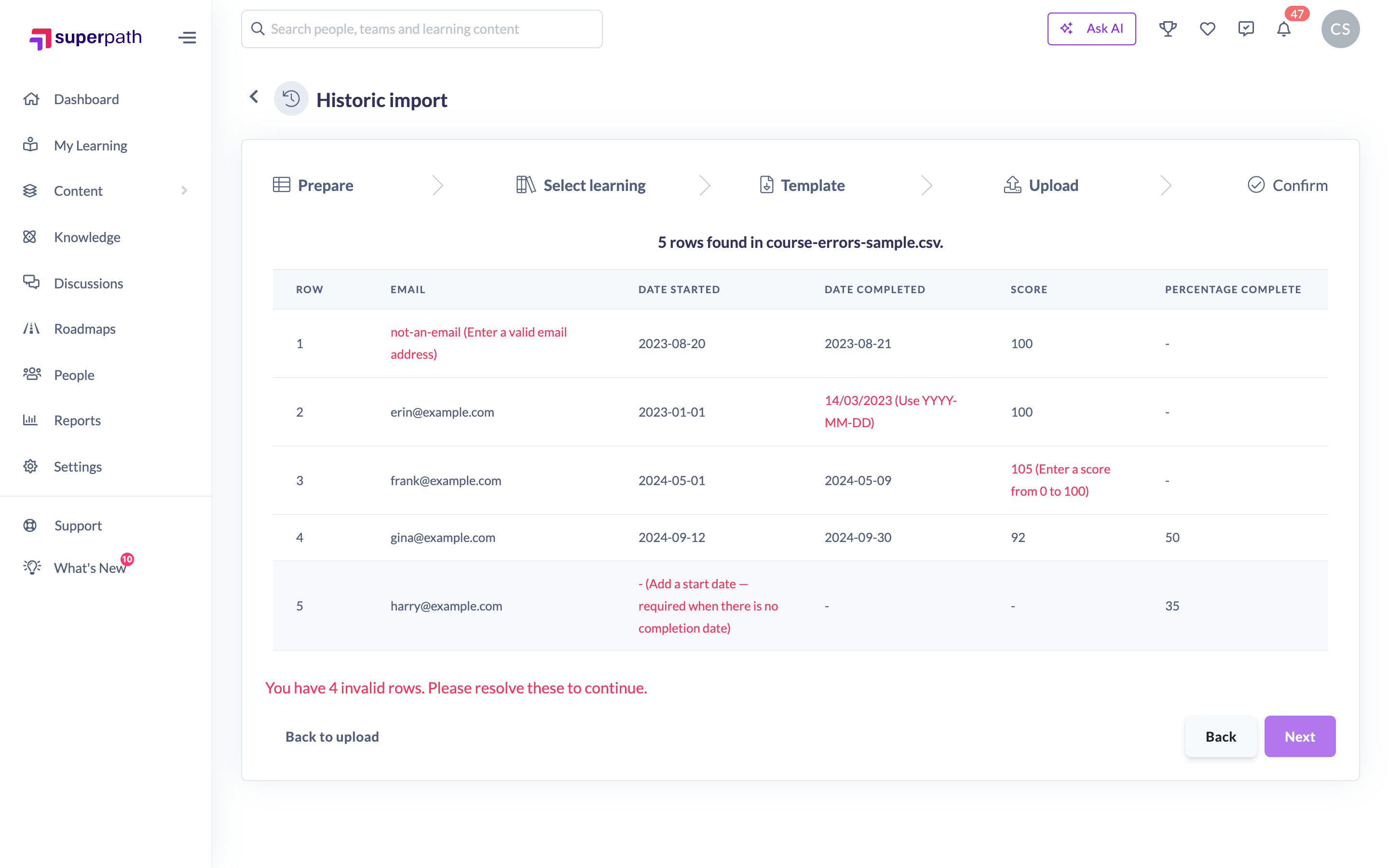
Drag your CSV into the upload area — or click click to upload and browse for it. SuperPath parses the file in your browser and shows every row in a table. Cells with problems are highlighted in red with the reason, for example (Use YYYY-MM-DD) or (Invalid email). Fix the file in your spreadsheet tool and upload it again; Next stays disabled until the file is clean.
Step 6: Confirm and start the import
The Confirm step runs a full server-side check and shows you the plan under "Here's what will happen": how many completed and in-progress records will be created, and how many rows will be skipped — duplicates within the file, records that already exist in SuperPath, and people who couldn't be found. Click view next to any line to see the affected rows.
When you're happy with the plan, click Start import.

Track the import
After you start the import you land on its progress page, which updates live as rows are processed and shows the total, success and failure counts. You don't need to stay — the import continues in the background, and the admin who started it receives a notification (including by email) when it finishes.
You can revisit any import later from Settings → Data Management, where the Historic Import table lists every import in your organisation with its status, record count and who ran it. Click a row to reopen its progress page.
Things to keep in mind
- Imports are one course or Pathway at a time — repeat the wizard for each learning you're migrating.
- Each file is capped at 5,000 rows. Larger exports need to be split into multiple files.
- Re-uploading the same file is safe: records that already exist are skipped, never duplicated.
- Learners are not notified about imported records, and imported completions don't award points or issue Certificates — see What Happens When You Import Historic Records.
- Imported completions reach a connected HR system (e.g. HiBob, Deputy, Employment Hero) only when you run that integration's training sync afterwards.
FAQs
Can I import records for people who aren't in SuperPath yet?
No — rows whose email doesn't match an existing person are skipped (the Confirm step lists them). Add those people with a bulk people upload first, then upload the same file again; the rows that already imported are skipped automatically.
Can I import partially-completed learning?
Yes. Leave date_completed blank and the record imports as in progress. For a course you can include a percentage_complete; for a Pathway the person is enrolled with their steps still to complete.
What happens if I pick the wrong course?
Nothing is written until you click Start import on the Confirm step, and the selected learning is shown there — check it before confirming. If you've already imported against the wrong learning, contact support to help remove the records.
How long does an import take?
It runs in the background and most files finish quickly, but you don't need to wait — you'll get a notification when it's done, and the progress page updates live.
Who can do this
Owners and Admins can import historic records and see the Data Management tab and the Import historic records links. Managers, Content Managers, People Managers, Instructors, Employees and Restricted users cannot — the Historic Import screens are hidden for them and the underlying API rejects the requests.
Updated on: 07/08/2026
Thank you!