
How to Manage CPD Categories
How to Manage CPD Categories
In this article:
- Overview
- Before you start
- How to add a CPD category
- How to edit a CPD category
- How to delete a CPD category
- Creating a category while you set CPD points
- Things to keep in mind
- FAQs
- Who can do this
Overview
Most accrediting bodies don't just ask how many CPD points someone earned — they ask what kind of learning those points came from, and often set a minimum in particular areas. CPD categories let you classify your points to match that framework: Technical, Ethics, Conferences and Seminars, In-House Learning, Self-Directed, or whatever your profession uses.
You curate the list of categories once for your organisation. From then on you can attach a category wherever you set CPD points — on Library Learning, Events and Pathways — and the category follows the points through to each learner's CPD record, their CPD transcript, and the CPD Points Report.
Categories are optional. If you don't create any, CPD carries on working exactly as it does today and points are simply recorded without a category.
Before you start
CPD categories live inside the CPD Points feature, so CPD Points needs to be enabled for your organisation first — see How to Enable CPD Points. If CPD Points is switched off, the CPD Categories option doesn't appear in Settings → Features.
How to add a CPD category
- Go to Settings → Features.
- Find the CPD Points section and click Manage CPD categories.

- Click Add category.
- Enter a Display label — the name learners and reports will see, for example Technical. This is required and can be up to 80 characters.
- Optionally add a Description to explain what belongs in the category. This is for your own reference and can be up to 200 characters.
- Click Add.
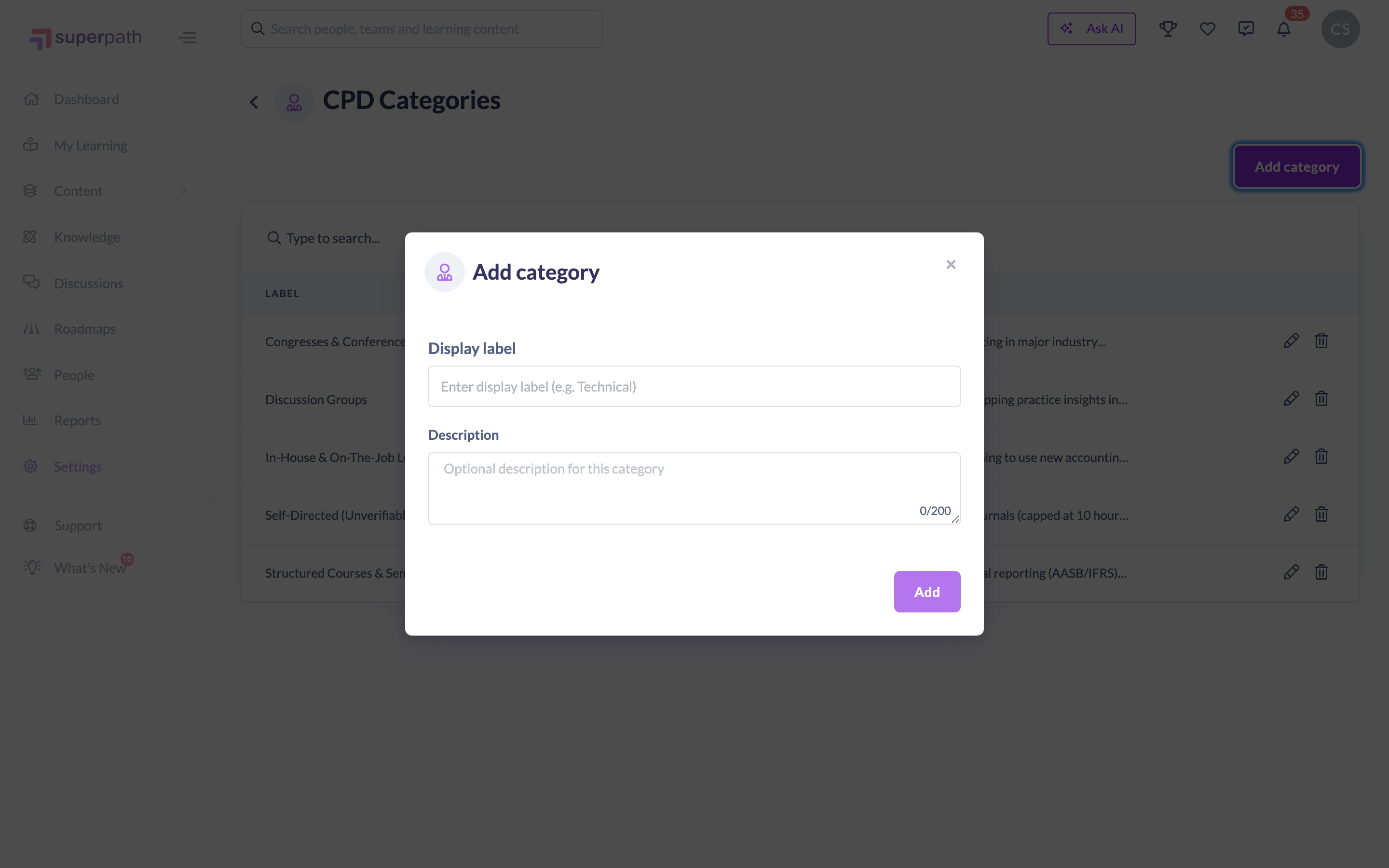
The new category appears in the list straight away and is immediately available in every CPD category picker.
How to edit a CPD category
- Go to Settings → Features → CPD Categories.
- Find the category in the list — use the search box if you have a long list.
- Click the pencil icon (Edit category) at the end of the row.
- Change the Display label and/or the Description.
- Click Save.
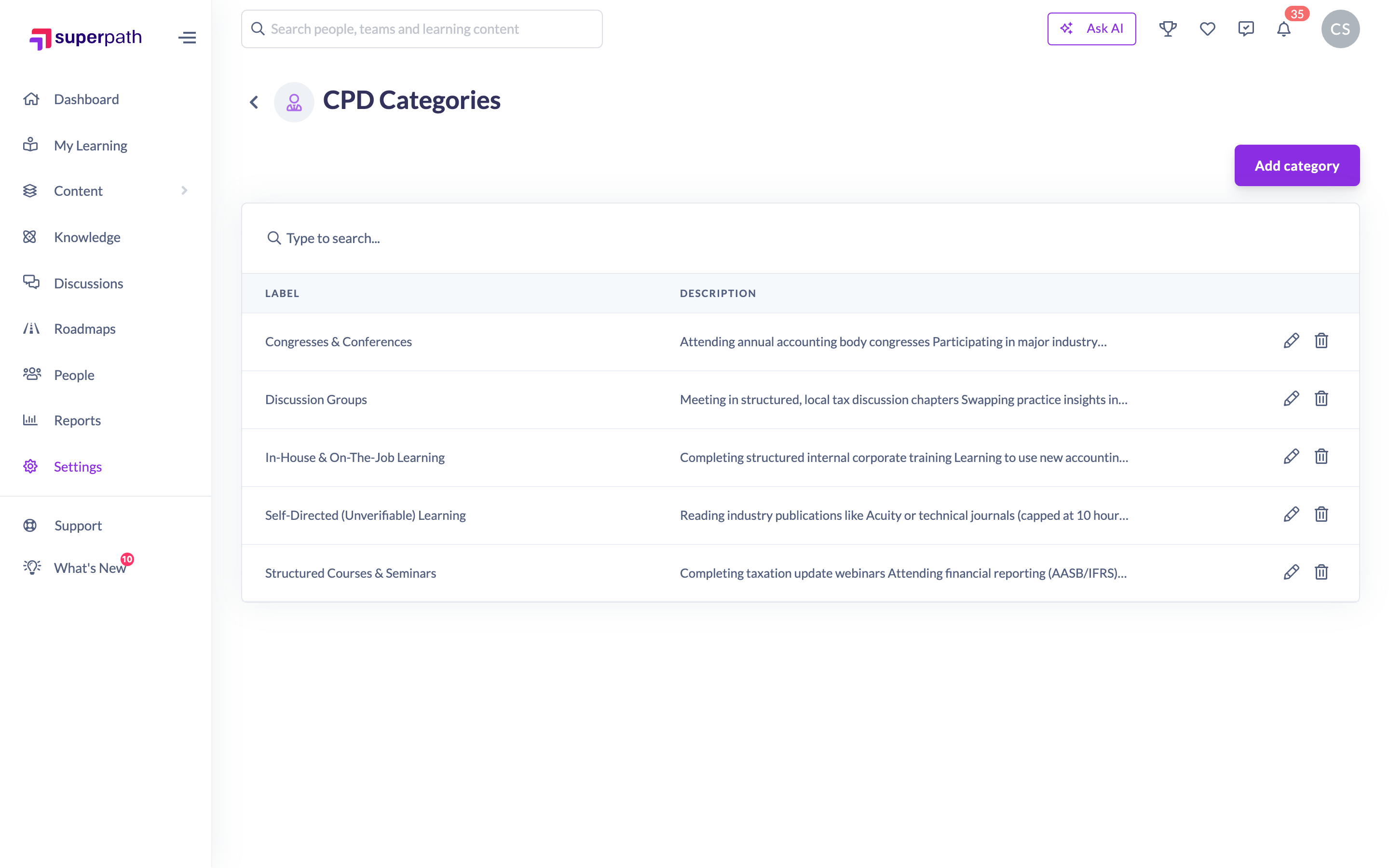
Note: Renaming a category does not rewrite history. CPD points that were already earned keep the category name they were recorded with, so an old transcript still reads the way it did when it was issued. The new name applies to the pickers and to points earned from now on.
How to delete a CPD category
- Go to Settings → Features → CPD Categories.
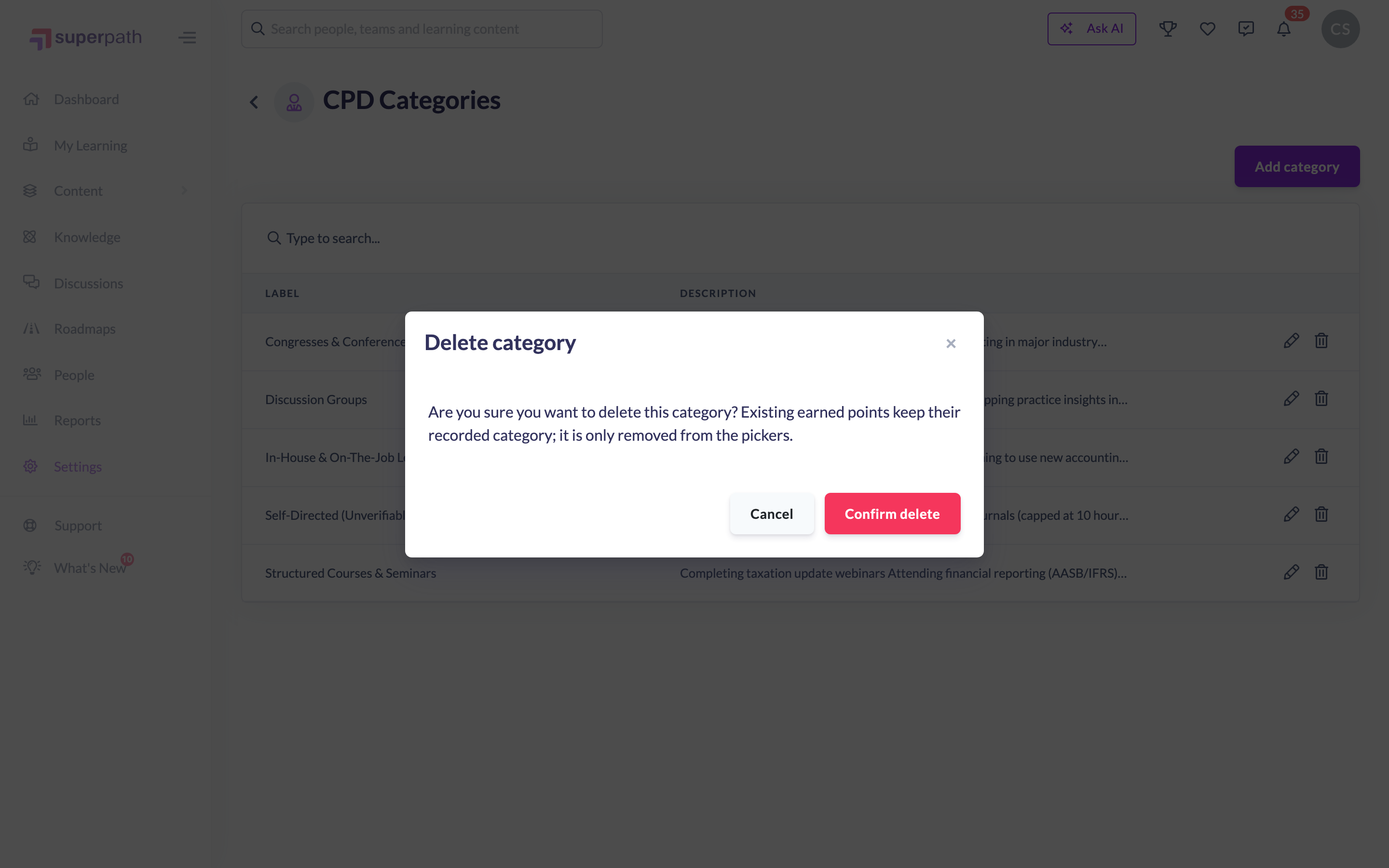
- Click the trash icon (Delete category) at the end of the row.
- Read the confirmation — it explains that existing earned points keep their recorded category and that the category is only removed from the pickers.
- Click Confirm delete.
Creating a category while you set CPD points
You don't have to come back to Settings every time you need a new category. Wherever you set CPD points — on a Library Learning, an Event or a Pathway — the CPD Points section has a Category picker with two ways to create one on the spot:
- Click Add category above the picker to open the same modal you get in Settings (Display label plus optional Description).
- Or type a new name straight into the Category picker and select it. The category is created and selected in one step, with no description.
Either way the new category is added to your organisation's list and is available everywhere from that moment on.
Things to keep in mind
- The list is ordered alphabetically by label, and the search box above the table filters it.
- Category names don't have to be unique. If you add one that matches an existing name you'll see the warning "A CPD category already exists with this name." — but SuperPath will still create it as a separate category, because categories are identified internally rather than by their name. Check the list before adding to avoid two identical labels.
- Each Learning, Event or Pathway carries one category. Points from a single item can't be split across two categories.
- Deleting a category only removes it from the pickers. If a Learning, Event or Pathway is still pointing at the deleted category, future completions of it record points with no category until you choose a live one.
- CPD points that a learner earns by completing a Learning or Event as a step inside a Pathway are recorded without a category. The category carries through when the Learning or Event is assigned on its own, and a Pathway's own category applies to the Pathway's points.
- Points that were earned before you started using categories show as Uncategorised in the CPD Points Report and on transcripts. There's no bulk way to reclassify them.
- The CPD Categories page needs a desktop or tablet — on a phone it asks you to switch device.
FAQs
Do I have to use CPD categories?
No. The Category field is optional everywhere it appears, and CPD points work exactly as before without it. Add categories when your accrediting body asks for points to be broken down.
What happens to points already earned if I rename a category?
Nothing changes for them. Each CPD record stores the category name it was earned with, so historic records and transcripts stay as they were. The new name applies to the pickers and to points earned from then on.
What happens if I delete a category that's been used?
Points already earned under it keep that category and keep appearing under that name in reporting. The category just disappears from the pickers.
Can two categories have the same name?
Yes — you'll be warned, but it will be created. Two categories with the same label report separately, which is usually not what you want, so it's worth checking the list first.
Can learners create their own categories?
No. When someone without permission types a new name into a Category picker, the entry is simply saved without a category. Learners can only pick from the categories you've created.
Where do learners see the category?
On the CPD tab of their profile — as a Category column, and as a filter — and in the Category column of their downloaded CPD transcript.
Who can do this
The CPD Categories page sits under Settings, and SuperPath only lets Owners and Admins open Settings at all — so in practice Owners and Admins manage the category list. The permission behind the create, rename and delete actions is manage on UserPoints, which Managers and People Managers also hold, but they cannot reach the page. The Add category button beside the Category picker on Learning, Event and Pathway editors is shown to Owners and Admins only. Content Managers, Instructors, Employees and Restricted users cannot create, rename or delete categories. Everyone in your organisation can read the category list, because the pickers, table filters and report filters need it.
Updated on: 30/07/2026
Thank you!