
How to Mark a Roadmap Level as Complete
How to Mark a Roadmap Level as Complete
In this article:
- Overview
- How to mark a level as complete
- Setting a completion date
- Things to keep in mind
- FAQs
- Who can do this
Overview
When a team member has finished the work for their current Roadmap level, an Admin or Owner can mark that level complete. Completing a level records it against the person's progress, notifies them, and — if it's the final level on the Roadmap — completes the whole Roadmap. You can optionally back-date the completion to when the work was actually finished.
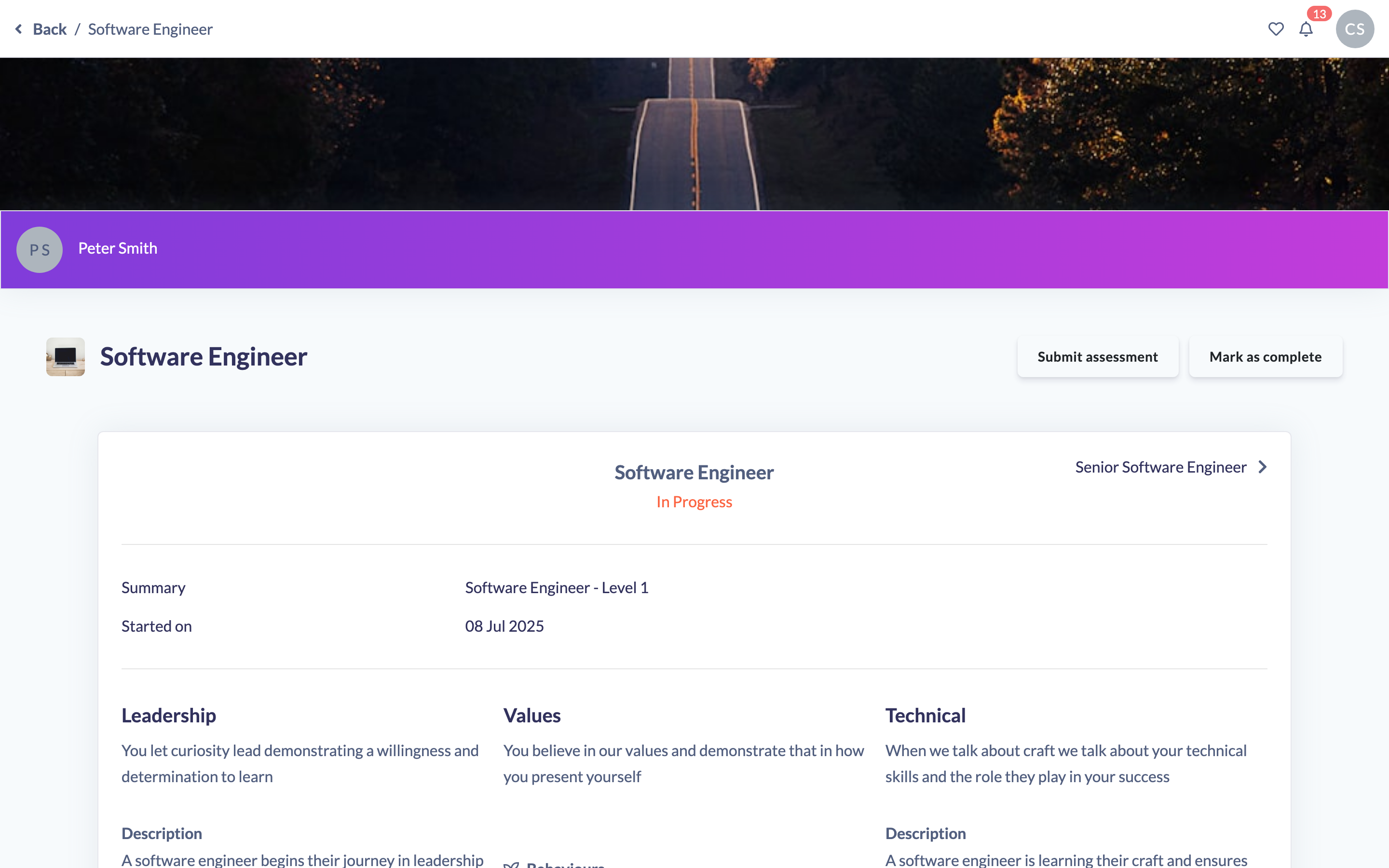
How to mark a level as complete
- Open the team member's Roadmap and make sure you're on their current level.
- Click Mark as complete in the top-right of the level's title row.
- In the Mark roadmap as complete dialog, review the prompt: "Are you sure you want to mark this level as complete?" The dialog reminds you that the person will be notified that the level has been completed.
- Optionally set a Completion Date (see below).
- Click Mark as complete to confirm, or Cancel to close without changes.
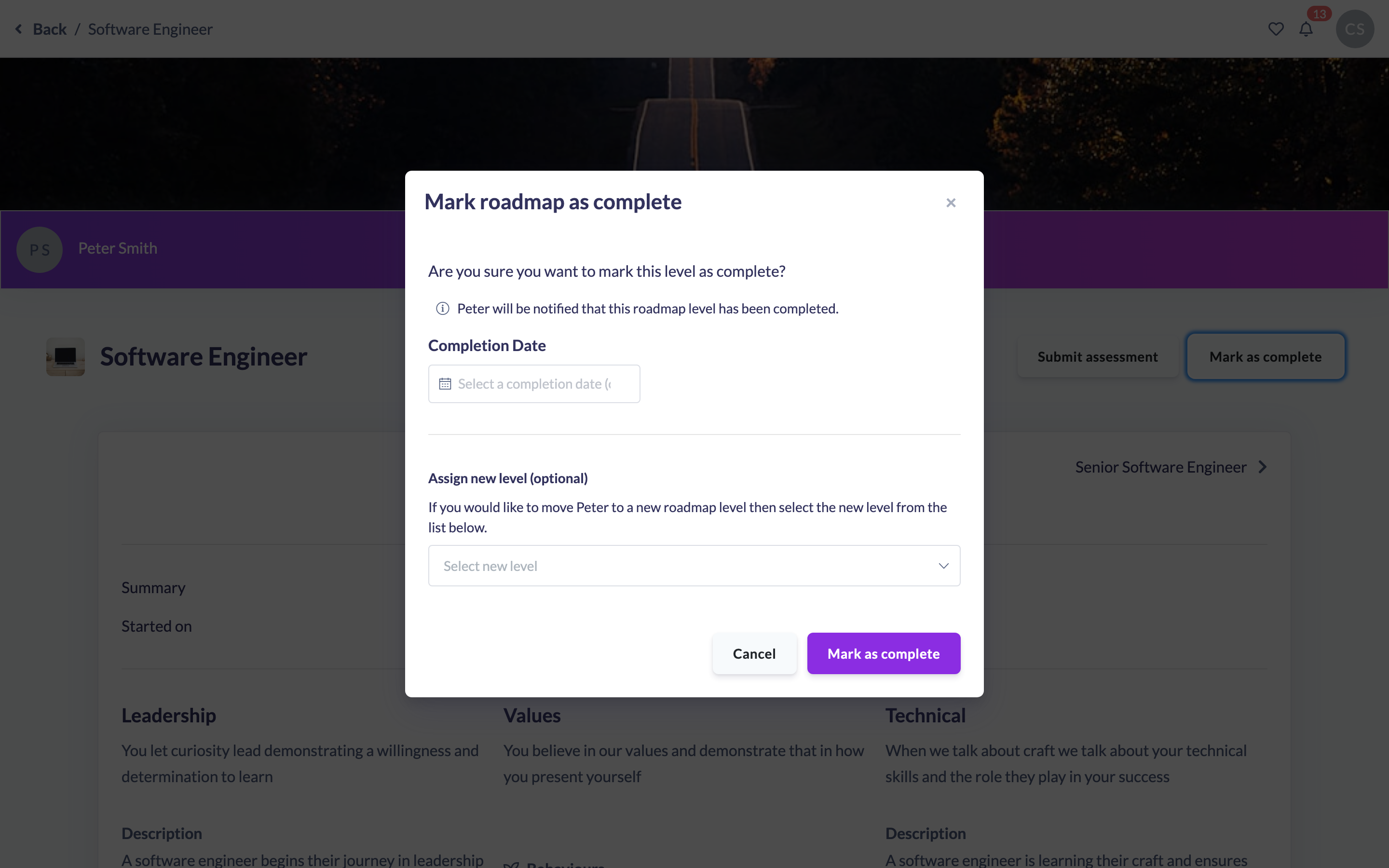
Good to know: The dialog also has an Assign new level (optional) section, which lets you move the person straight on to another level as part of completing this one. That's covered in How to Progress a Learner to the Next Roadmap Level.
Setting a completion date
The Completion Date field is optional. Leave it blank and SuperPath records the completion as today; set a date to back-date it to when the work was actually finished.
You can only pick today or a date in the past — future dates are disabled in the picker, since a level can't be completed ahead of time.
Things to keep in mind
- Marking a level complete notifies the team member that the level has been completed.
- If the level being completed is the last level on the Roadmap, completing it also completes the whole Roadmap.
- If a level is already complete, marking it again has no effect — the original completion date is preserved rather than overwritten.
- You can't mark your own current level complete from this screen; the Mark as complete button only appears when you're viewing someone else's Roadmap.
- Once a level is complete, its assessments are locked and the Submit assessment button no longer appears on it.
FAQs
Can I back-date a completion?
Yes. Use the Completion Date field to set today or any past date. Future dates aren't allowed.
What happens to the person when I mark their level complete?
They're notified that the level has been completed, and the completion is recorded against their progress. If it was the final level, their whole Roadmap is marked complete too.
Can I mark my own level complete?
Not from this screen — the Mark as complete button is hidden on your own Roadmap. An Admin or Owner marks it for you.
I marked a level complete by mistake — can I reopen it?
Re-marking a completed level does nothing, and there's no reopen control on this screen. Contact your Admin or SuperPath support if a level was completed in error.
Who can do this
Only Admins and Owners can mark a Roadmap level complete. The Mark as complete button appears only for those roles (and only when viewing another person's current, not-yet-completed level), and the completion request itself is rejected for any role other than Admin or Owner. Managers, People Managers, Instructors, Employees and Restricted users cannot mark levels complete.
Updated on: 16/07/2026
Thank you!