
How to Preview SuperPath as a Learner
How to Preview SuperPath as a Learner
In this article:
- Overview
- How to view the Library as an Employee
- What the preview does and doesn't change
- Can I log in as a specific person?
- Things to keep in mind
- FAQs
- Who can do this
Overview
When you set up learning for your people, it helps to check how it looks from their side. SuperPath's View as Employee preview lets you see your Library the way an Employee would — with admin-only and restricted content hidden — so you can sanity-check what your learners actually see. This article shows how to turn the preview on and off, explains exactly what it changes, and answers the request we hear most: can I log in as a specific person to see their view?
How to view the Library as an Employee
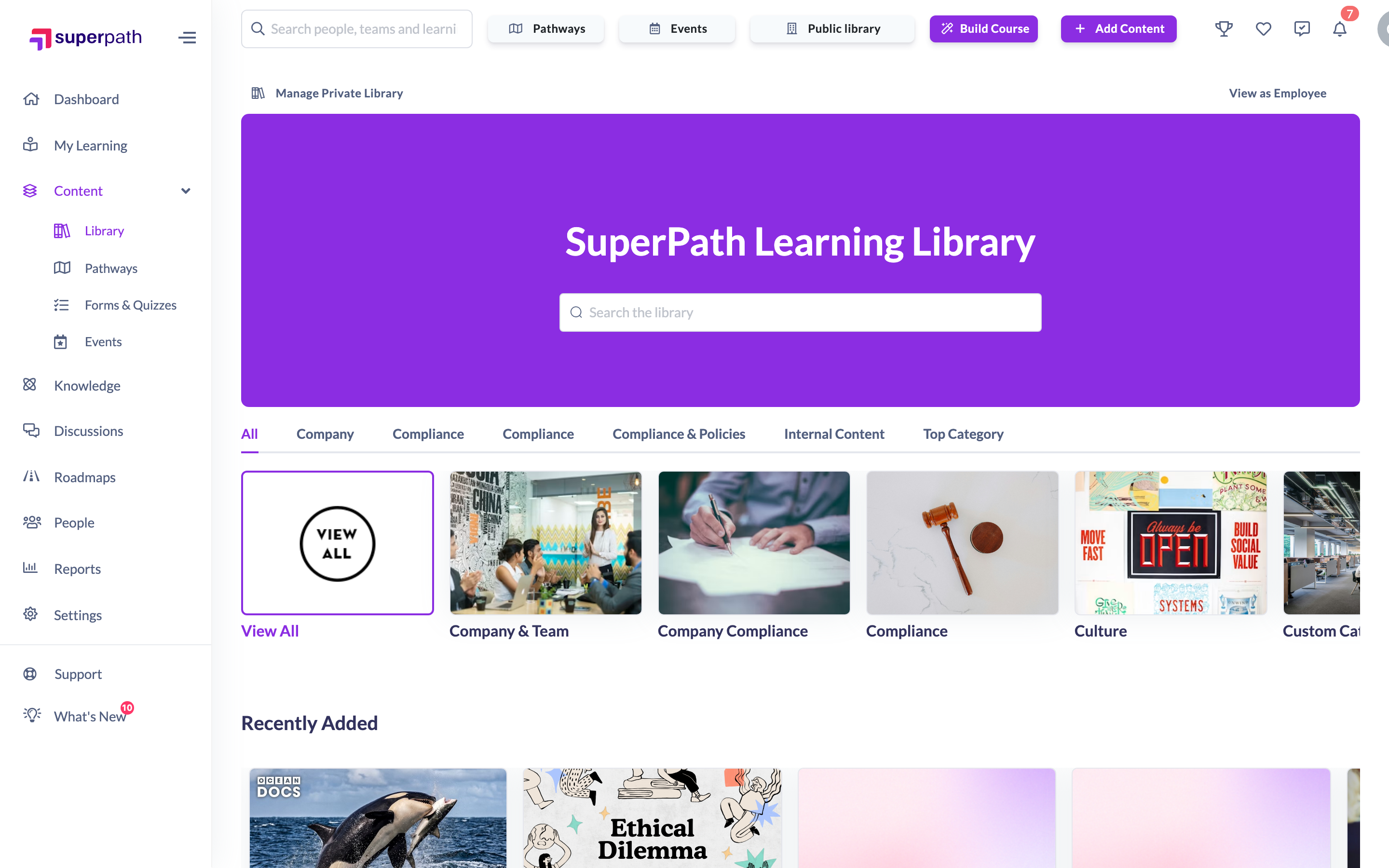
- Go to the Library.
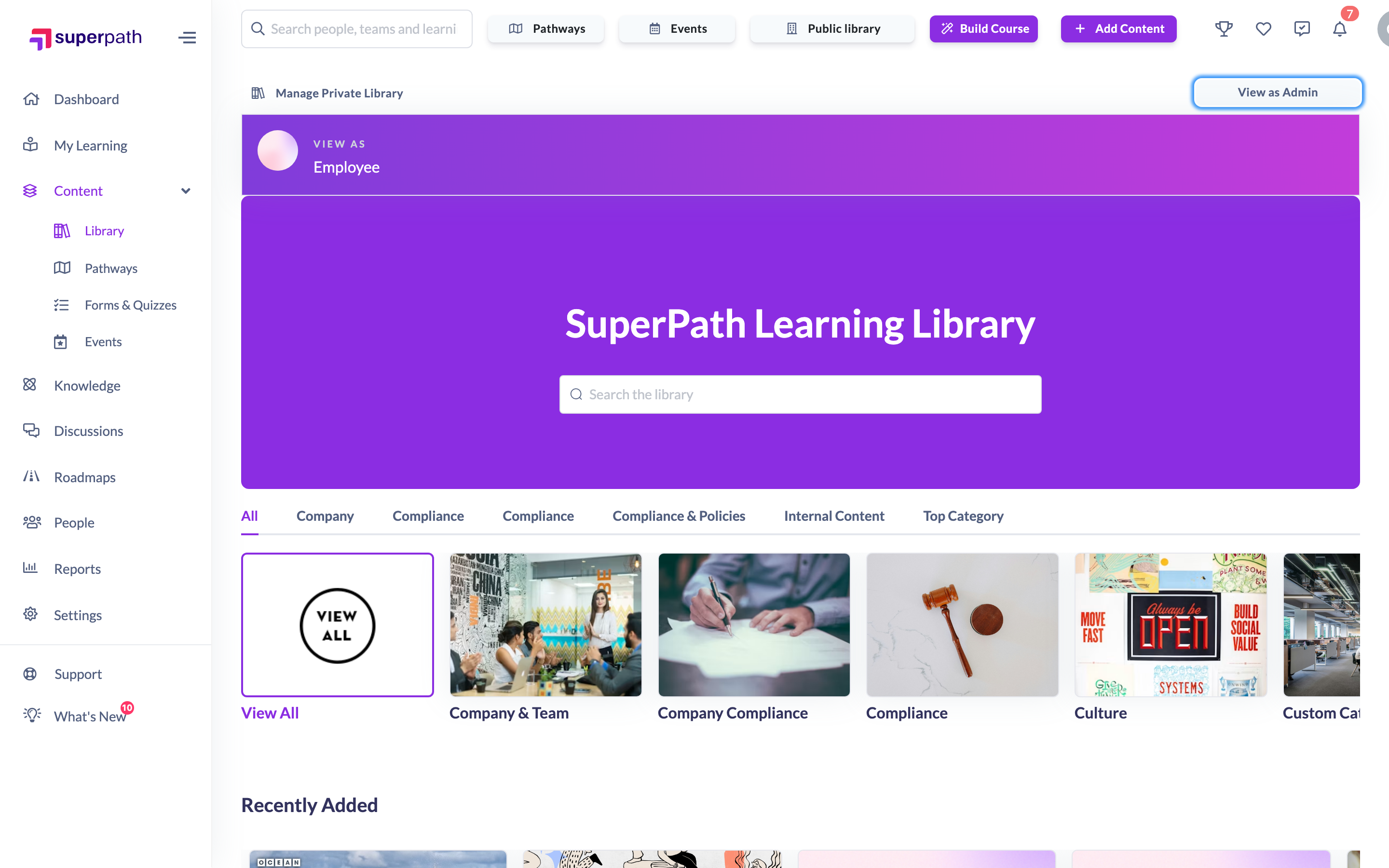
- In the top-right of the toolbar, click View as Employee.
- A banner appears confirming you're viewing as an Employee, and the Library re-filters to hide content an Employee wouldn't see.
- To switch back, click the same button — it now reads View as Admin.
What the preview does and doesn't change
The preview is a quick, visual filter of the Library — not a change to your account or permissions.
It changes:
- The Library content lists, hiding team-restricted content you're not on and any content marked as restricted, so you see roughly what an Employee sees.
- It adds a banner so it's clear you're in preview mode.
It doesn't change:
- Your navigation, admin sidebar or the Library toolbar — those stay visible.
- Your role, session or any permission — nothing is saved, and it resets when you refresh or leave the page.
- Anything outside the Library — the preview is Library-only. It doesn't preview the dashboard, the Pathway player or other screens.
Note: The preview filters by your own team memberships, so it reflects a general Employee view based on the teams you're on — not exactly what one specific person on different teams would see.
Can I log in as a specific person?
This is a common request, so to be clear: SuperPath does not let you log in as, or impersonate, a specific individual user. There's no way to step into a named person's session and browse as if you were them.
View as Employee is the supported alternative. It gives you a generic learner's-eye view of the Library so you can check visibility and presentation, without needing to sign in as anyone.
If you're trying to understand what a particular person has been assigned or how they're progressing, open their profile from People instead — you can view their assignments and learning there directly.
Things to keep in mind
- The preview doesn't persist — refreshing the page or navigating away turns it off, and you'll need to click View as Employee again.
- Because it filters by your own teams, it's a guide to the Employee experience rather than a pixel-perfect match of any individual's view.
- The preview only covers the Library, so it won't show you how other areas of SuperPath appear to a learner.
FAQs
Can I log in as one of my users to see exactly what they see?
No. SuperPath doesn't offer logging in as, or impersonating, a specific person. Use View as Employee in the Library for a learner's-eye preview, and open a person's profile from People to see their assignments and progress.
Where is the View as Employee button?
It's in the top-right of the Library toolbar. Click it to preview as an Employee; click it again (it will read View as Admin) to switch back.
Why does the preview still show my admin menus?
The preview only re-filters the Library content — it intentionally leaves your navigation and admin controls in place so you can toggle back easily. It isn't a full simulation of an Employee's account.
Does the preview show what a specific team or person sees?
It filters by your own team memberships, so it's a general Employee view rather than a match for one specific person. Two admins on different teams may see slightly different previews.
Who can do this
Only Owners and Admins see and can use the View as Employee preview in the Library. Managers, People Managers, Content Managers, Instructors, Employees and Restricted users don't see the toggle.
Updated on: 16/07/2026
Thank you!