
How to Progress a Learner to the Next Roadmap Level
How to Progress a Learner to the Next Roadmap Level
In this article:
- Overview
- How to progress a learner to a new level
- What happens when you assign a new level
- Things to keep in mind
- FAQs
- Who can do this
Overview
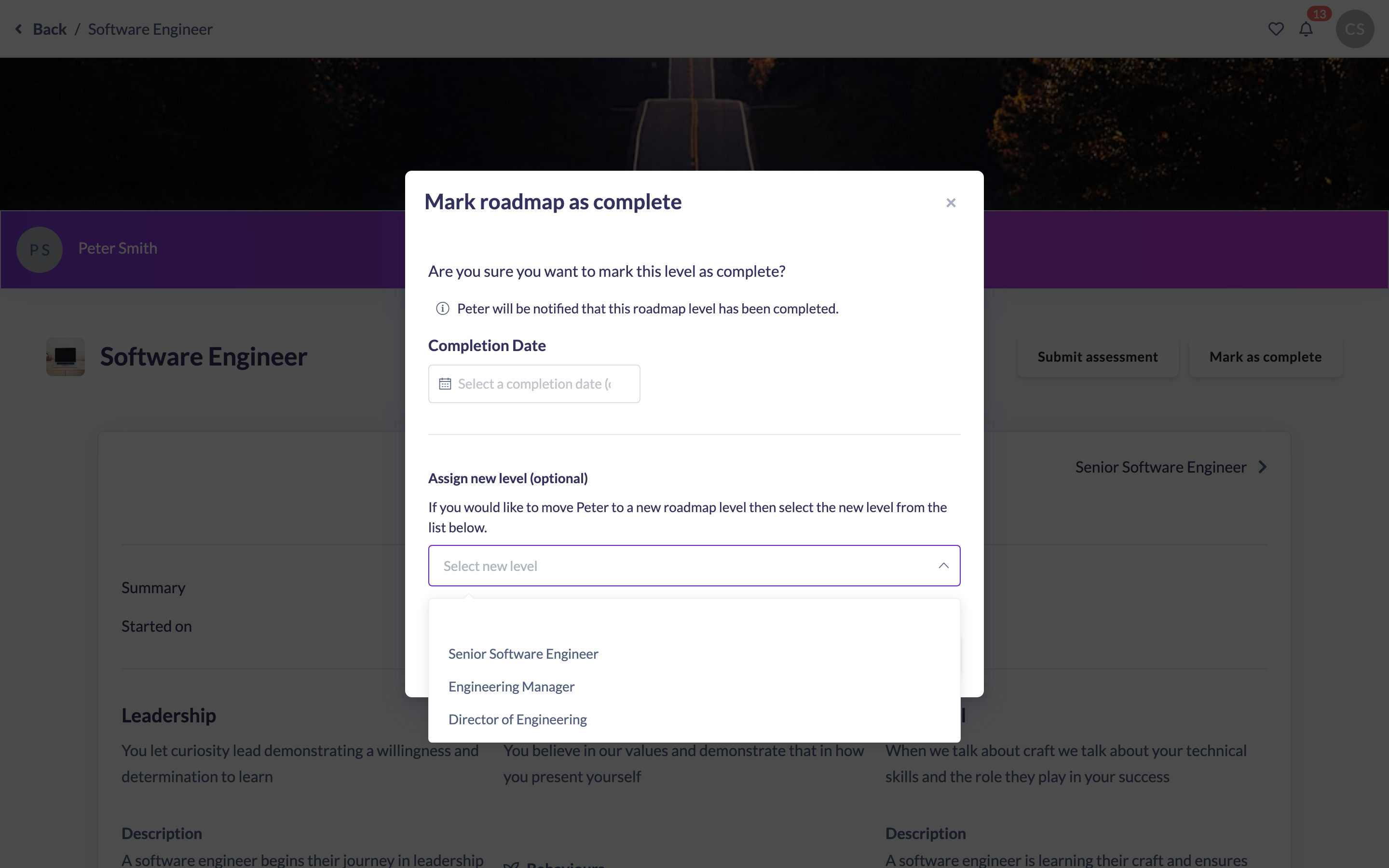
When a team member has completed their current Roadmap level, an Admin or Owner can move them on to the next level in the same action. This is done from the Mark roadmap as complete dialog: as you complete the current level you can optionally assign the level they should move to next, so progression happens in one step.
How to progress a learner to a new level
- Open the team member's Roadmap and make sure you're on their current level.
- Click Mark as complete in the top-right of the level's title row.
- In the Mark roadmap as complete dialog, optionally set a Completion Date for the level they're finishing.
- Under Assign new level (optional), open the Select new level dropdown and choose the level to move the person to. The list contains the Roadmap's other levels — this is usually the next level up, but you can pick any level.
- Click Mark as complete to confirm.

Note: Leaving Assign new level blank simply completes the current level without moving the person on. Choosing a level completes the current one and starts them on the level you picked.
What happens when you assign a new level
- The person's current level is completed and a new level is started for them in the same Roadmap.
- Any in-progress level the person still has open on that Roadmap is closed off as completed, so they're only ever working on one level at a time.
- If the new level has learnings set to auto-assign, those Pathways, Courses or other items are assigned to the person automatically.
- You'll see a confirmation: "This roadmap is completed and a new level has been assigned."
Things to keep in mind
- Progression is part of the Mark as complete flow — there's no separate "next level" button on this screen. You assign the new level while completing the current one.
- The dropdown lets you pick any other level on the Roadmap, not strictly the next one in sequence, so you can move someone up (or to a different level) as needed.
- Because this runs through Mark as complete, it's only available on someone else's current level — not your own — and only to Admins and Owners.
- Moving to a new level doesn't fire a separate "roadmap completed" event, since the person is continuing within the same Roadmap.
FAQs
Do I have to assign a new level when I complete one?
No. The Assign new level section is optional. Skip it to just complete the current level.
Can I move someone to any level, or only the next one?
Any level on the Roadmap. The dropdown lists all the other levels, so you're not restricted to the very next one.
Does the current level get completed when I assign a new one?
Yes. Assigning a new level completes the level they were on and starts the new one in a single action.
What if the learning items on the new level should be assigned automatically?
Any items on the new level that are set to auto-assign are assigned to the person as part of starting that level.
Who can do this
Only Admins and Owners. Progression runs through the Mark roadmap as complete dialog, whose button appears only for those roles and only when viewing another person's current level. Managers, People Managers, Instructors, Employees and Restricted users cannot progress a learner to a new level from this screen.
Updated on: 16/07/2026
Thank you!