
How to Reactivate a Person
How to Reactivate a Person
In this article:
- Overview
- How to reactivate a person
- Things to keep in mind
- FAQs
- Who can do this
Overview
When a person has been deactivated, their account is disabled and they can't sign in — but all their data is kept. Reactivating switches their account back to active so they can access your platform again. This is the counterpart to deactivating (see How to deactivate a person).
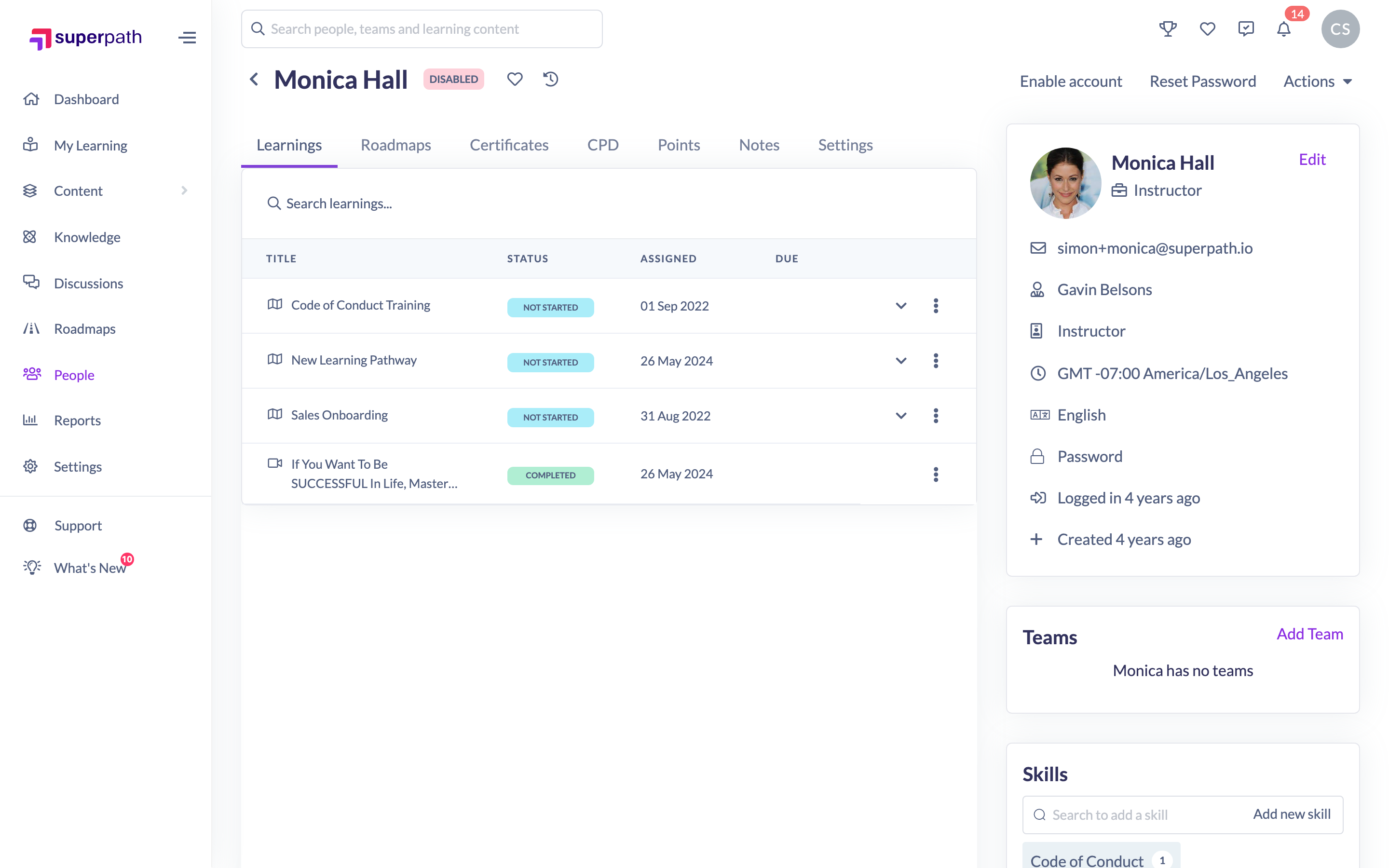
How to reactivate a person
- Go to People and open the profile of the deactivated person. Their status shows as disabled.
- Click Enable account.
- In the confirmation, click Enable to confirm.
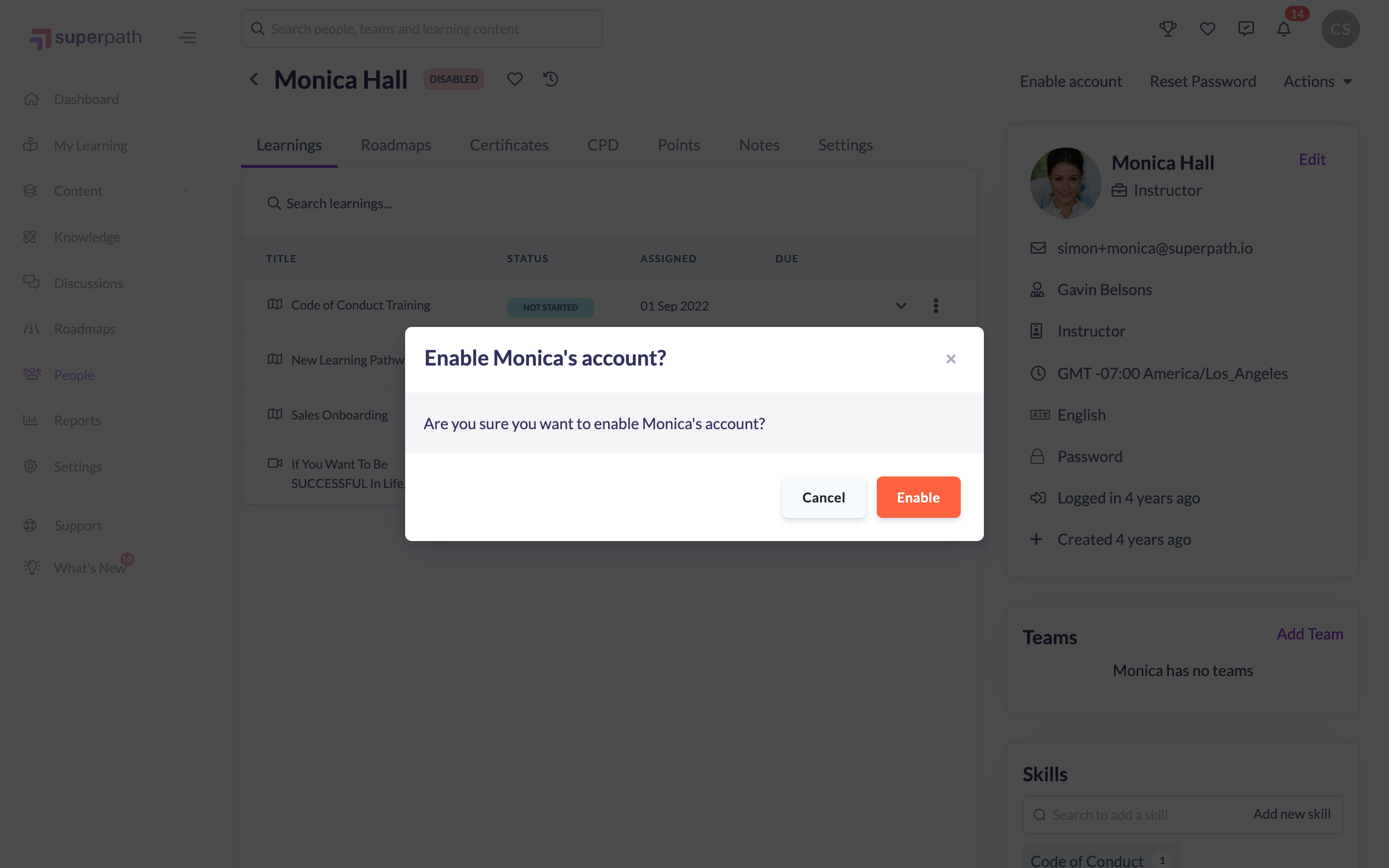
The person's status returns to active and they can sign in again.
Tip: By default the People list shows active people only. To find a deactivated person, change the status filter to show disabled (or all) people, or search for them by name.
Things to keep in mind
- Reactivating restores access only — the person keeps all the data and history they had before.
- If a person was deactivated because their access expiry date passed, reactivating prompts you to set a new expiry date (or leave it clear for permanent access).
- You can't change your own status from this screen.
FAQs
Where has the deactivated person gone?
The People list defaults to active people. Switch the status filter to disabled or all, or search by name, to see deactivated people.
Will their learning history come back?
Deactivating never removes data, so everything the person had is still there when you reactivate them.
What if their access had expired?
You'll be asked to set a new access expiry date when you reactivate. Clear the date if you want to give them permanent access.
Who can do this
Owners and Admins can reactivate any person. Managers and People Managers can reactivate people who report to them. Content Managers, Instructors, Employees and Restricted users cannot reactivate other people.
Updated on: 17/07/2026
Thank you!