
How to Regenerate a Certificate
How to Regenerate a Certificate
In this article:
- Overview
- When you'd regenerate a Certificate
- How to regenerate a Certificate
- Why the Regenerate button might be greyed out
- Things to keep in mind
- FAQs
- Who can do this
Overview
When a Certificate uses a custom template, SuperPath generates a personalised PDF at the moment it's awarded — printing the recipient's name, and optionally the certificate title, date and score, onto your design. That PDF is a snapshot: it reflects the template as it was on the day it was issued.
Regenerating re-renders that PDF against the template as it is now. If you fix a typo in your design, change a font colour, upload corrected artwork or switch on an extra field, the people who already hold the Certificate keep their old file until you regenerate it for them.
When you'd regenerate a Certificate
Typical reasons:
- You spotted a mistake in the template artwork after a handful of Certificates had already gone out.
- You changed the font size or colour because the text was overlapping your design.
- You switched on Show certificate title or Show score and want existing holders to get the fuller version.
- You replaced the template PDF entirely — new branding, new layout.
- Someone's name changed and you've updated their profile; regenerating prints the corrected name.
How to regenerate a Certificate
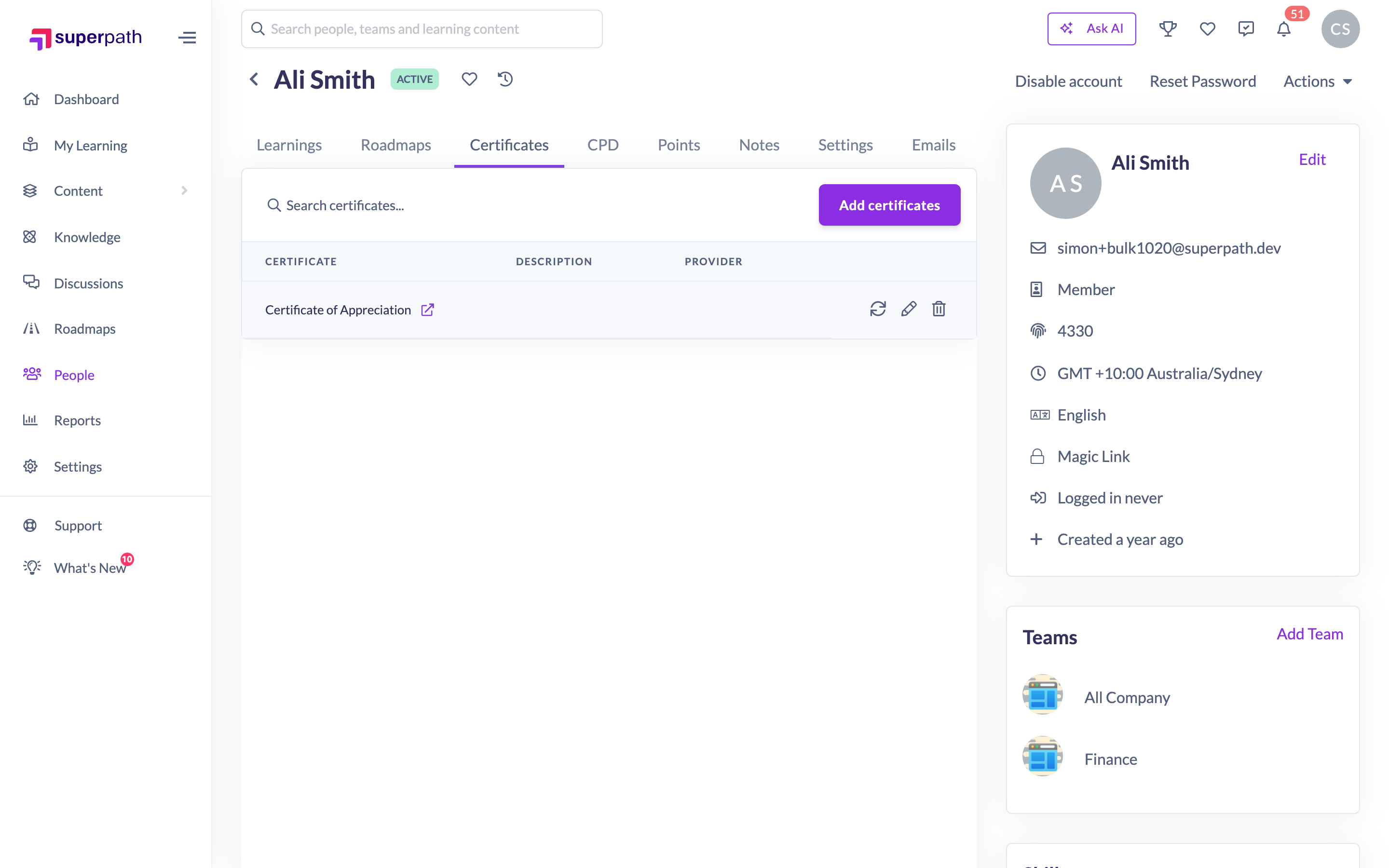
- In the left-hand menu, click People.
- Select the person whose Certificate you want to regenerate.
- Open the Certificates tab on their profile.
- Find the Certificate in the list and click the Regenerate icon in its row.
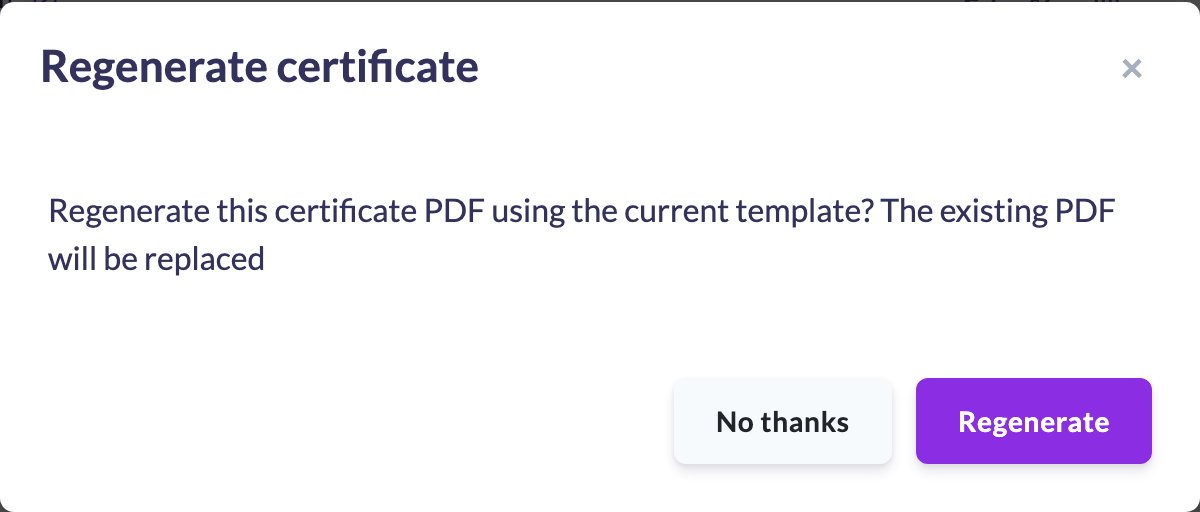
- In the confirmation, read the warning — "Regenerate this certificate PDF using the current template? The existing PDF will be replaced" — and click Regenerate.
The new PDF replaces the old one straight away. The person's existing link to their Certificate keeps working and now opens the updated file.
Note: Regenerating changes the PDF and nothing else. The date awarded, expiry date and score stay exactly as they were, and the person isn't notified — so you can quietly correct a template without emailing everyone who already has it.
Why the Regenerate button might be greyed out
The button stays visible but disabled when the Certificate can't be re-rendered, and hovering over it tells you why:
- "This certificate has no template uploaded" — the Certificate has no PDF template on its Advanced tab, so there's nothing to render against.
- "Name on template is not enabled for this certificate" — the Certificate has a template file, but Generate name on template is switched off, so SuperPath never personalises it.
- "This certificate file was uploaded manually and cannot be regenerated" — the file on this record was uploaded by hand rather than generated by SuperPath. Regenerating would overwrite somebody's scan or evidence document, so it's blocked.
- "This certificate's details are unavailable, so it cannot be regenerated" — the underlying Certificate can't be found. This is normal for a Certificate that was added manually and isn't linked to one of your Certificate definitions.
Things to keep in mind
- Regeneration is per person, per Certificate. There's no bulk "regenerate for everyone" action, so for a template used widely you'll be working through the holders one at a time.
- The PDF is rebuilt from the person's current name and the Certificate's current template. Everything else — the award date, the expiry date, the score — comes from the existing record and is untouched.
- Nobody is notified. The Certificate Awarded notification only fires when a Certificate is first awarded, not when its file is replaced.
- The previous PDF isn't deleted from storage, but nothing in SuperPath links to it any more.
- Manually added Certificates generally can't be regenerated — there's no template behind them.
FAQs
Will the learner know I regenerated their Certificate?
No. No email, no in-app notification. The next time they open their Certificate they simply get the updated file.
Does regenerating change the award date or expiry?
No. Only the PDF is replaced. The date awarded, expiry date and any recorded score stay exactly as they were.
Can I regenerate every Certificate at once after changing a template?
Not currently — regeneration is done per record from the person's Certificates tab.
Someone changed their surname. Will regenerating fix their Certificate?
Yes, as long as their SuperPath profile has been updated first. The PDF is rendered from their current name.
I uploaded a file against their Certificate by hand and now Regenerate is greyed out.
That's deliberate. SuperPath won't overwrite a file a person uploaded, because regenerating would destroy it. If you want a generated Certificate instead, remove the uploaded file first.
Why can't I see the Regenerate icon at all?
Regenerating is limited to Managers and above. If you can see a Certificate but not the icon, your role doesn't include it — see below.
Who can do this
Regenerating is available to the Manager tier and above: Owners, Admins, Managers, People Managers, Content Managers and Instructors see the action. Employees, Members and Restricted users do not, including on their own profile.
Which records they can actually regenerate depends on permission. Owners and Admins can regenerate any Certificate in the account. Managers and People Managers can regenerate Certificates for the people who report to them. Content Managers and Instructors hold permission only over Certificates they added for themselves — and because a self-added Certificate has no template behind it, in practice they'll find the action disabled.
Updated on: 11/08/2026
Thank you!