
How to Remove a Person From a Team
How to Remove a Person From a Team
In this article:
- Overview
- How to remove a person from a team
- Things to keep in mind
- FAQs
- Who can do this
Overview
You can remove someone from a static Team directly from the team's member list. This takes them out of that one team only — it doesn't deactivate or delete their account, and it doesn't affect any other teams they belong to. Dynamic Teams work differently: their membership is set by rules, so there's no manual remove option.
How to remove a person from a team
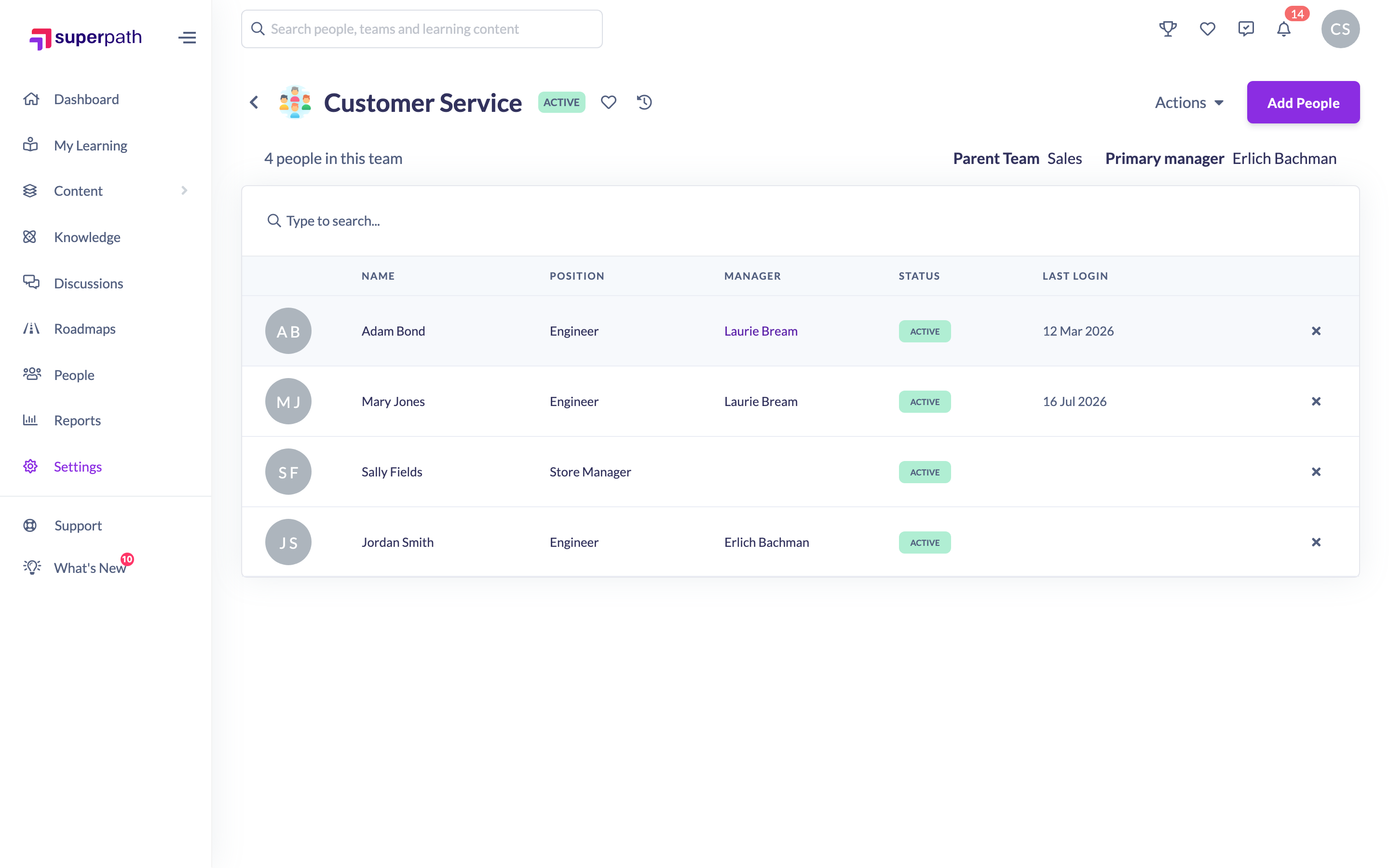
- Go to Settings → Teams.
- Open the team.
- In the members table, find the person and click the remove (X) icon on their row.
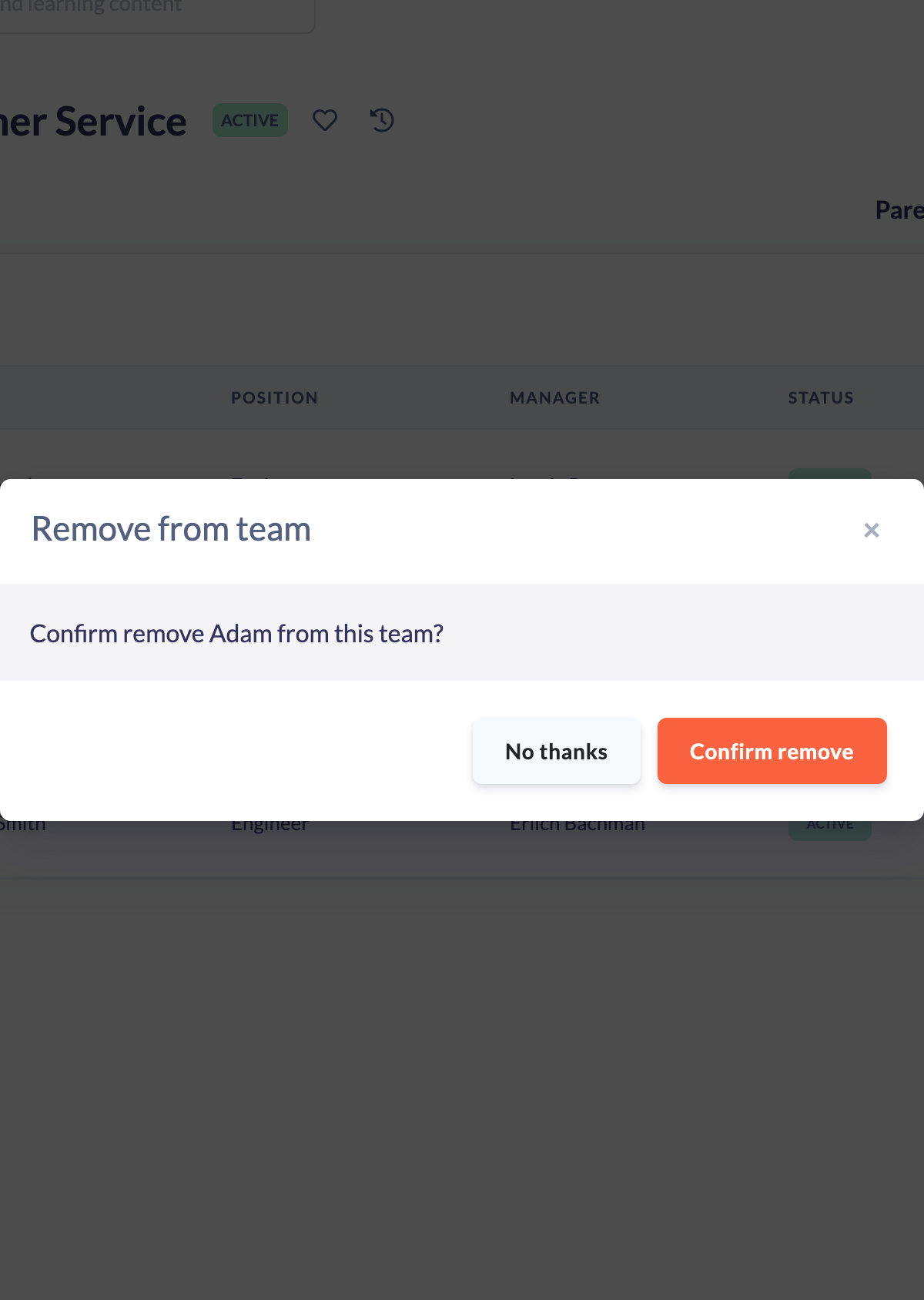
- In the confirmation window, click Confirm remove.
Things to keep in mind
- This option is available for static Teams only. Dynamic Teams have no remove action — to change who's in a Dynamic Team, edit its rules (see the How to Set Up Dynamic Team Rules article).
- Removing someone from a team doesn't deactivate or delete them — they stay in your People list.
- It removes their membership of this team only; other teams they belong to are unaffected.
- To add people instead, see the Adding people to a team article.
FAQs
There's no remove icon on my team's members — why?
That team is a Dynamic Team, where membership is rule-driven. Edit its criteria instead of removing people by hand.
Does removing someone from a team delete their account?
No. They remain in your account and in any other teams they belong to.
How do I add someone back?
Use Add People on the team page — see the Adding people to a team article.
Who can do this
Owners and Admins can remove people from teams. Managers, People Managers, Content Managers, Instructors, Employees and Restricted users cannot remove people from teams.
Updated on: 17/07/2026
Thank you!