
How to Reorder Levels in a Roadmap
How to Reorder Levels in a Roadmap
In this article:
- Overview
- How to reorder Levels
- Things to keep in mind
- FAQs
- Who can do this
Overview
Levels are the columns of a Roadmap, running left to right across the grid. They usually represent a progression — from earlier stages on the left to more advanced ones on the right — so their order matters. If a Level ends up in the wrong place, you can move it left or right without recreating it. This article shows you how.
How to reorder Levels
- Go to Roadmaps and open the Roadmap you want to edit.
- Hover over the Level (column) you want to move. A row of icons appears above its title, with a left arrow and a right arrow either side of the trash icon.
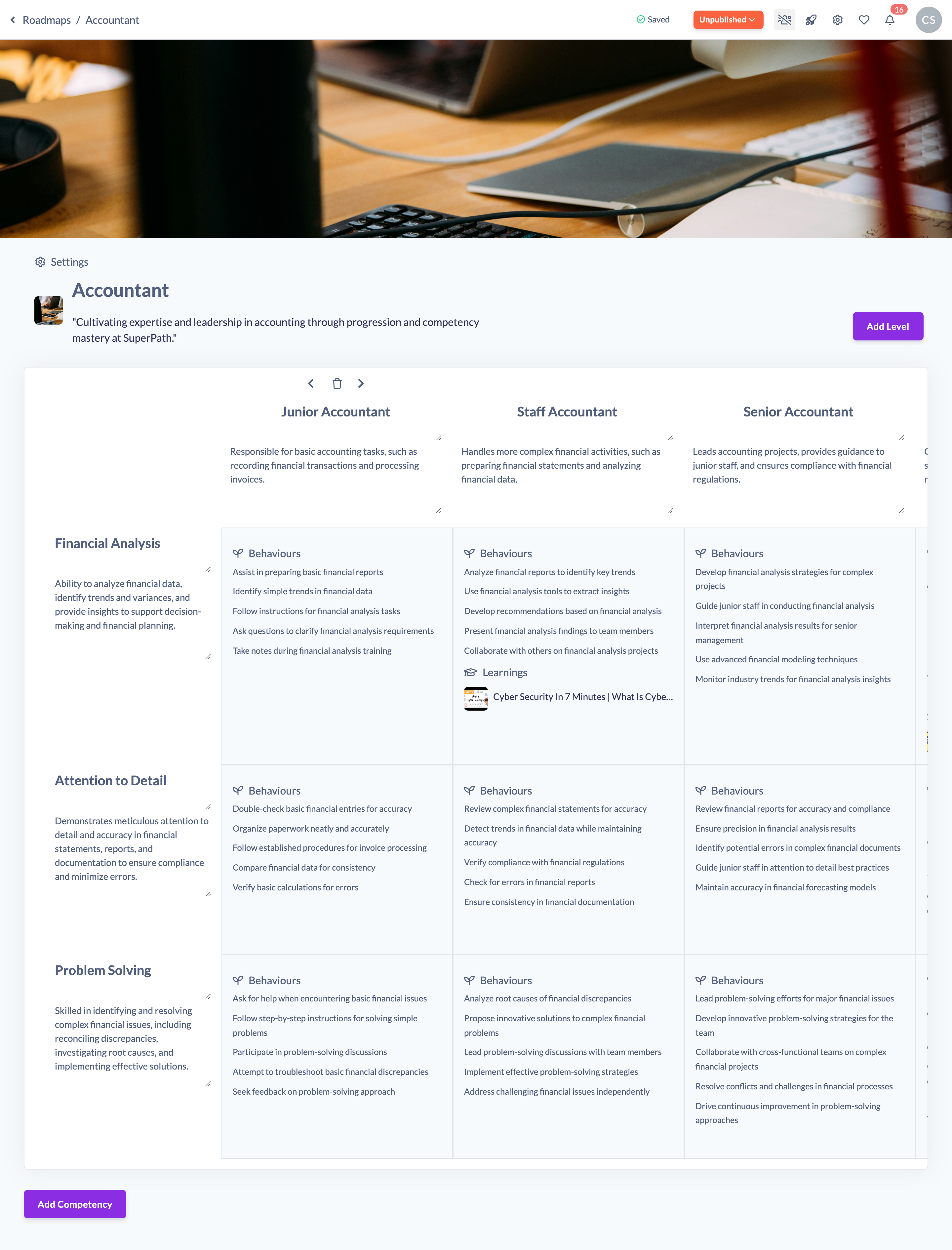
- Click the left chevron (Move level left) to move the Level one position towards the start, or the right chevron (Move level right) to move it one position towards the end.

- Repeat until the Level is where you want it. Each move saves automatically and the grid re-orders straight away.
Things to keep in mind
- Levels move one position at a time. To shift a Level several places, click the arrow more than once.
- The first Level can't move further left and the last Level can't move further right — the arrows in those directions simply do nothing.
- Reordering moves the whole column, including all the cell content beneath it. Nothing is lost.
- The action icons only appear when you hover over a Level.
- If the Roadmap was published, reordering Levels moves it back to Unpublished. Re-publish when you're ready.
FAQs
Can I drag and drop Levels to reorder them?
No. Levels are reordered using the left and right arrows that appear when you hover over a Level, one position per click.
Will reordering change the content of my Levels?
No. Only the order changes. Each Level keeps its title, description and all the cell detail beneath it.
Do I need to save after reordering?
No. Each move saves automatically.
Who can do this
Owners, Admins, Managers and Content Managers can reorder Levels in a Roadmap. People Managers, Instructors, Employees and Restricted users have read-only access to Roadmaps and cannot.
Updated on: 19/07/2026
Thank you!