
How to Resend an Invitation
How to Resend an Invitation
In this article:
- Overview
- How to resend an invitation
- Things to keep in mind
- FAQs
- Who can do this
Overview
When you invite someone to join your organisation, they receive an email invitation. If they miss it or it expires before they accept, you can resend the invitation from the Invited People list without having to invite them again from scratch.

How to resend an invitation
- Go to People and click View invites to open the Invited People list.
- Find the person's invitation. You can search by email, role or who invited them.
- In the actions column of their row, click the resend icon.
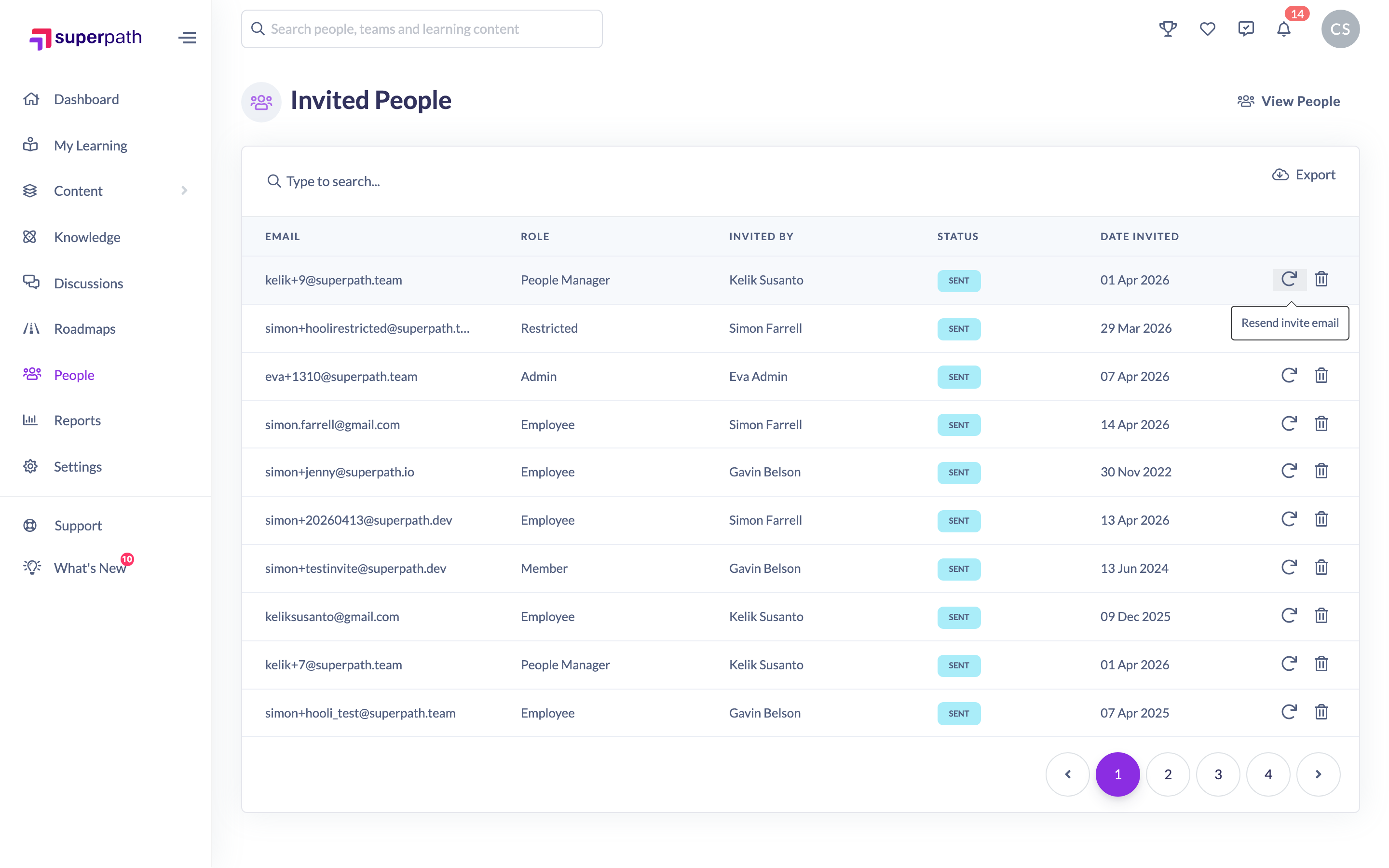
The invitation email is sent again and you'll see an Invite resent confirmation.
Things to keep in mind
- You can only resend invitations that are still pending — once someone has accepted, their invite shows as completed and can't be resent.
- Resending sends the same invitation email again to the same address; it doesn't create a new person.
- To reach the Invited People list, open People and click View invites.
FAQs
Where is the Invited People list?
On the People page, click View invites. The list shows everyone with an outstanding or completed invitation.
Why can't I resend a particular invite?
Invitations that have already been accepted show as completed, and the resend option isn't available for them.
Does resending change the invitation?
No. It simply emails the same invitation again to the same address.
Who can do this
Owners and Admins can resend invitations. Managers, People Managers, Content Managers, Instructors, Employees and Restricted users cannot.
Updated on: 17/07/2026
Thank you!