
How to Set a Roadmap Cover Image
How to Set a Roadmap Cover Image
In this article:
- Overview
- How to set a cover image
- How to reposition the cover
- How to remove the cover
- Things to keep in mind
- FAQs
- Who can do this
Overview
The cover image is the banner that appears across the top of a Roadmap. Setting a cover gives the Roadmap a distinct look and helps people recognise it at a glance. Until you choose one, SuperPath shows a default cover.
How to set a cover image
- Go to Roadmaps and open the Roadmap you want to update.
- Hover over the cover banner at the top of the Roadmap. A Cover button appears in the bottom-right of the banner.
- Click Cover to open the picker menu, then choose one of:
- Upload an image — upload a file from your device.
- Choose from library — pick an image already in your asset Library.
- Choose from Unsplash — search free stock photography (where available).
- Choose from Canva — design or pick an image in Canva (shown only when the Canva integration is enabled for your account).
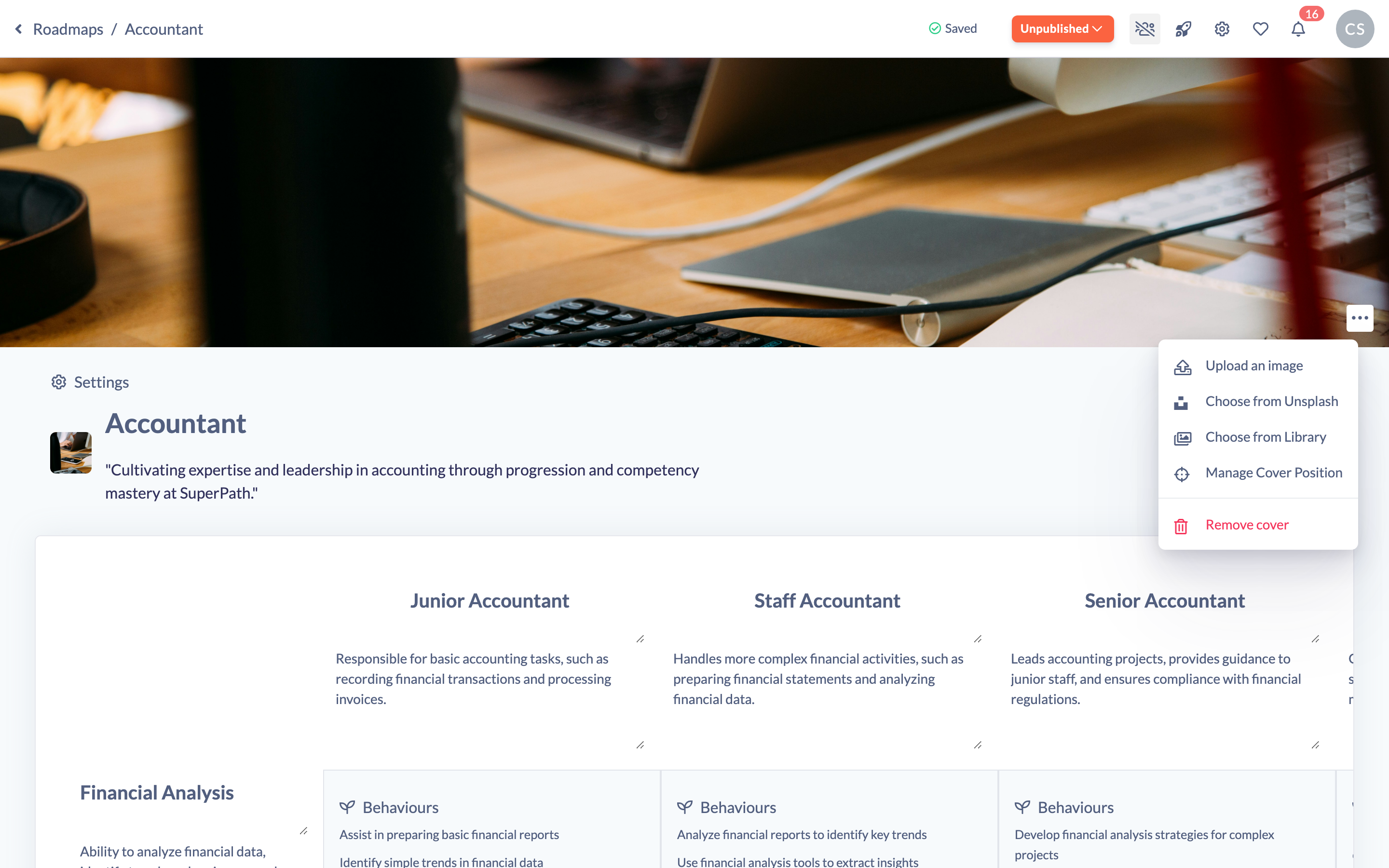
- Once you select an image it saves automatically and appears as the banner.
Note: Accepted image formats are JPEG, JPG, PNG, GIF and WebP.
How to reposition the cover
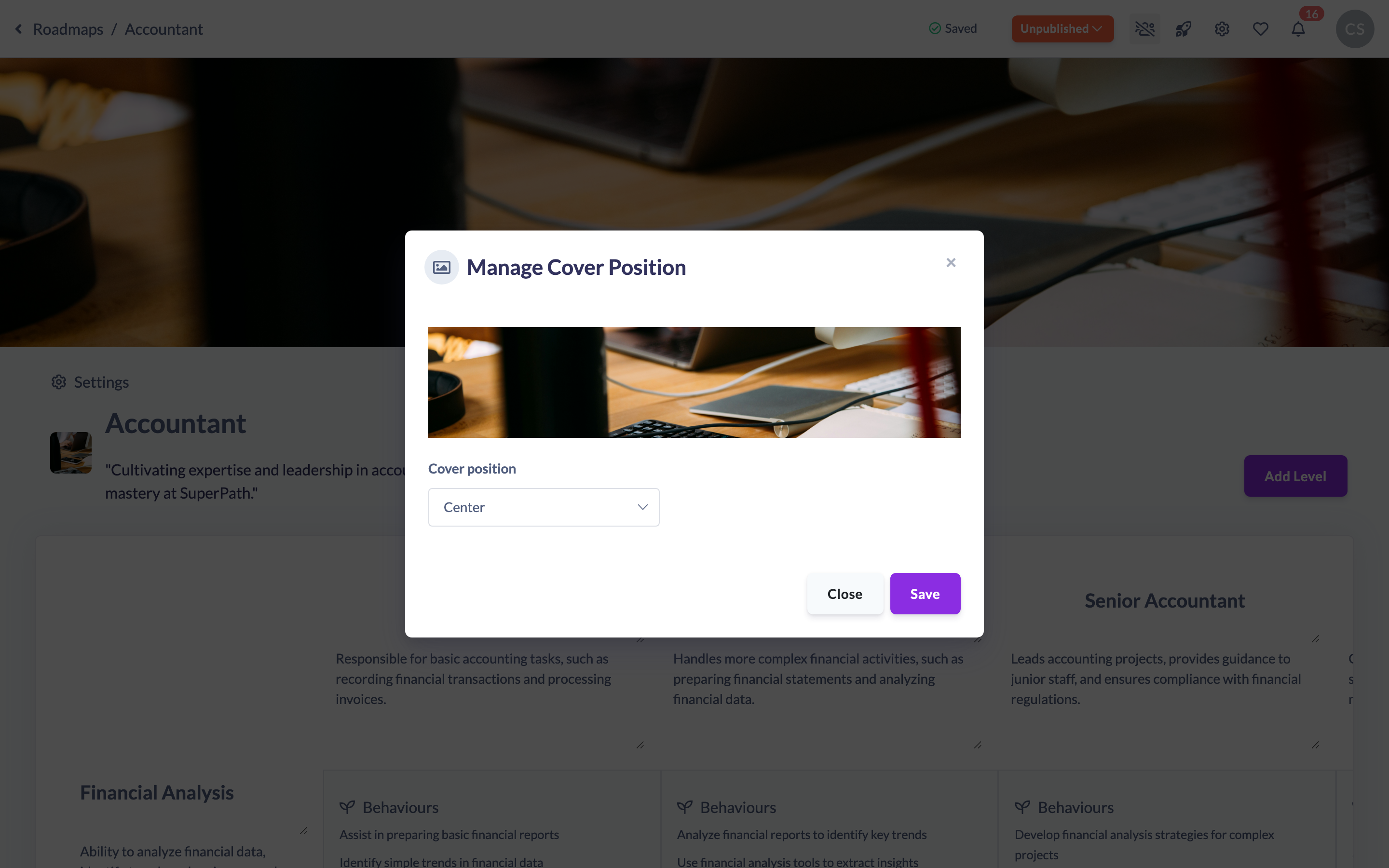
- Hover over the cover banner and click Cover.
- Choose Manage position.
- Adjust the image to top, centre or bottom so the important part of the image is visible, then save.
How to remove the cover
Hover over the cover, click Cover, and choose Remove cover. The Roadmap reverts to the default cover.
Things to keep in mind
- The cover banner is edited on desktop; on mobile the cover is shown but not editable.
- The cover image is separate from the small Roadmap thumbnail used in lists — changing one does not change the other.
- Choosing a new image from your Library, Unsplash or an upload resets the cover position to centre.
FAQs
Which image formats can I use?
JPEG, JPG, PNG, GIF and WebP files are supported.
Why can't I see the Canva option?
The Choose from Canva option only appears when the Canva integration is enabled for your account.
Can I control which part of a tall image shows?
Yes. Use Manage position to set the cover to top, centre or bottom.
Who can do this
Owners, Admins, Managers and Content Managers can set a Roadmap cover image (governed by the "update" permission on the Roadmap subject). People Managers, Instructors, Employees and Restricted users cannot.
Updated on: 19/07/2026
Thank you!