
How to Set the Rating Scale for a Roadmap
How to Set the Rating Scale for a Roadmap
In this article:
- Overview
- How to set the rating scale
- Things to keep in mind
- FAQs
- Who can do this
Overview
The rating scale sets how many points are available when a Roadmap level is assessed. A larger scale gives assessors finer gradations; a smaller scale keeps assessment quick and simple. The scale is set per Roadmap, so different Roadmaps can use different scales.
How to set the rating scale
- Go to Roadmaps and open the Roadmap you want to change.
- In the top nav, click the Settings (cog) icon to open the Roadmap Settings panel.
- Find the Rating Scale field and set the number using the stepper (the − and + controls) or by typing a value.
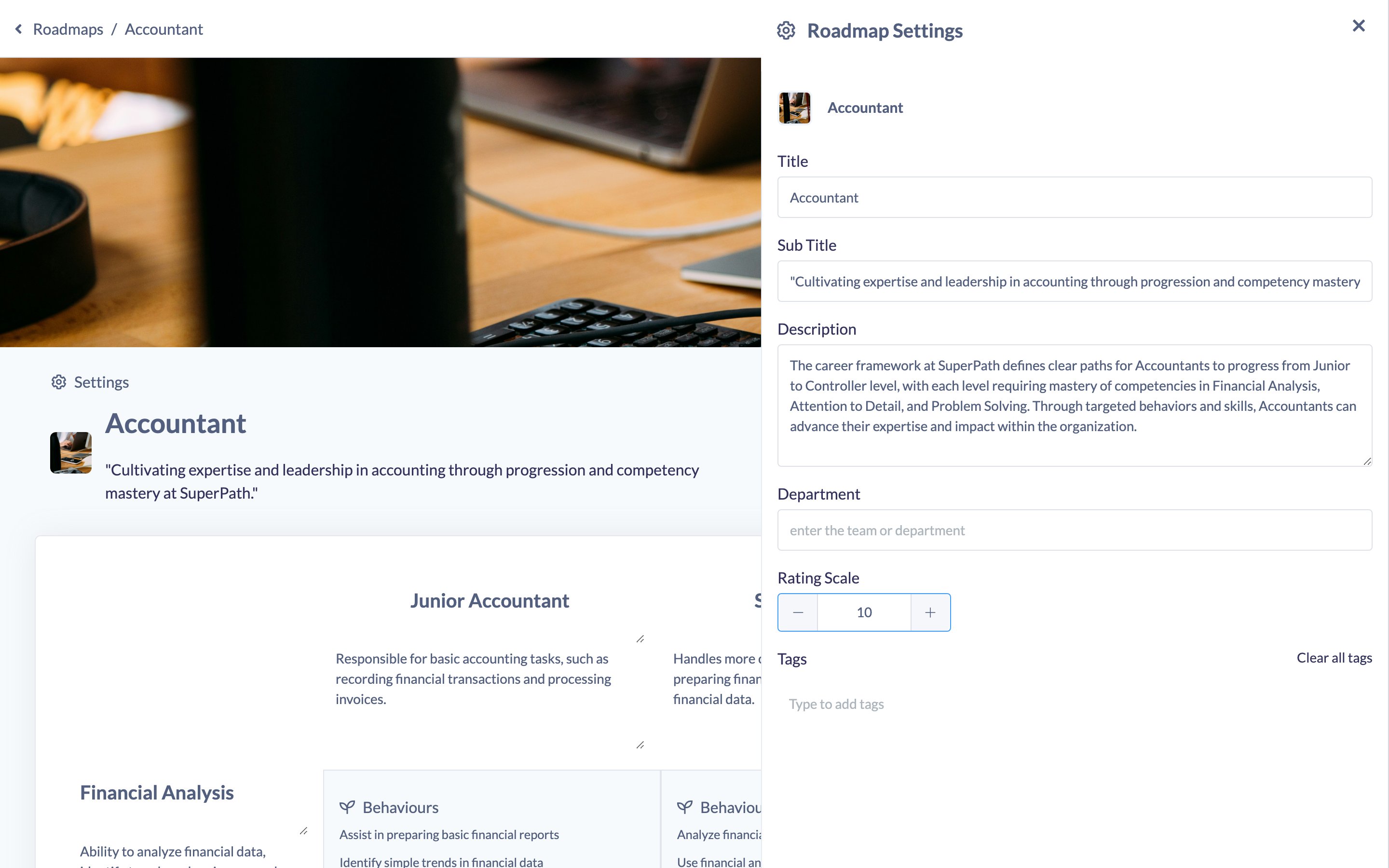
- The value saves automatically. Close the panel when you are done.
Things to keep in mind
- The rating scale must be between 3 and 10.
- New Roadmaps start with a rating scale of 5 by default.
- The scale saves automatically as you change it — there is no separate save button.
FAQs
What is the smallest and largest scale I can use?
The rating scale can be set anywhere from 3 to 10.
What scale does a new Roadmap start with?
New Roadmaps default to a rating scale of 5 until you change it.
Who can do this
Owners, Admins, Managers and Content Managers can set the rating scale (governed by the "update" permission on the Roadmap subject). People Managers, Instructors, Employees and Restricted users cannot.
Updated on: 19/07/2026
Thank you!