
How to Set Up Dynamic Team Rules
How to Set Up Dynamic Team Rules
In this article:
- Overview
- Why combine rules
- Available criteria
- How to add a rule
- How to match several values with "is any of"
- How to choose whether people match all or any
- Examples
- Things to keep in mind
- FAQs
- Who can do this
Overview
A Dynamic Team's membership is defined by its rules, the Criteria you set when creating or editing the team. Each rule describes something a person must match, such as completing a specific Pathway or having a particular job title. You decide how the rules combine: people can be required to match every rule, or just one of them. SuperPath continuously includes everyone who matches, so the team stays current without any manual upkeep.
Why combine rules
Before these options, every rule had to match, so an audience such as "Nurses, Carers and Enrolled Nurses" needed a separate team for each job title. Now one team can describe it.
- Fewer teams to maintain. One team replaces a team per job title, location or induction. When a new job title appears, you update one rule instead of building another team.
- Assign once. Assign a Pathway, Event or Form to one team rather than to several, so nobody is missed and nobody is assigned twice.
- Cleaner reporting. Filter your reports and the Engagement Dashboard by a single team that covers the whole audience.
- Everyone counted once. A person who matches more than one rule is still one member of the team.
Available criteria
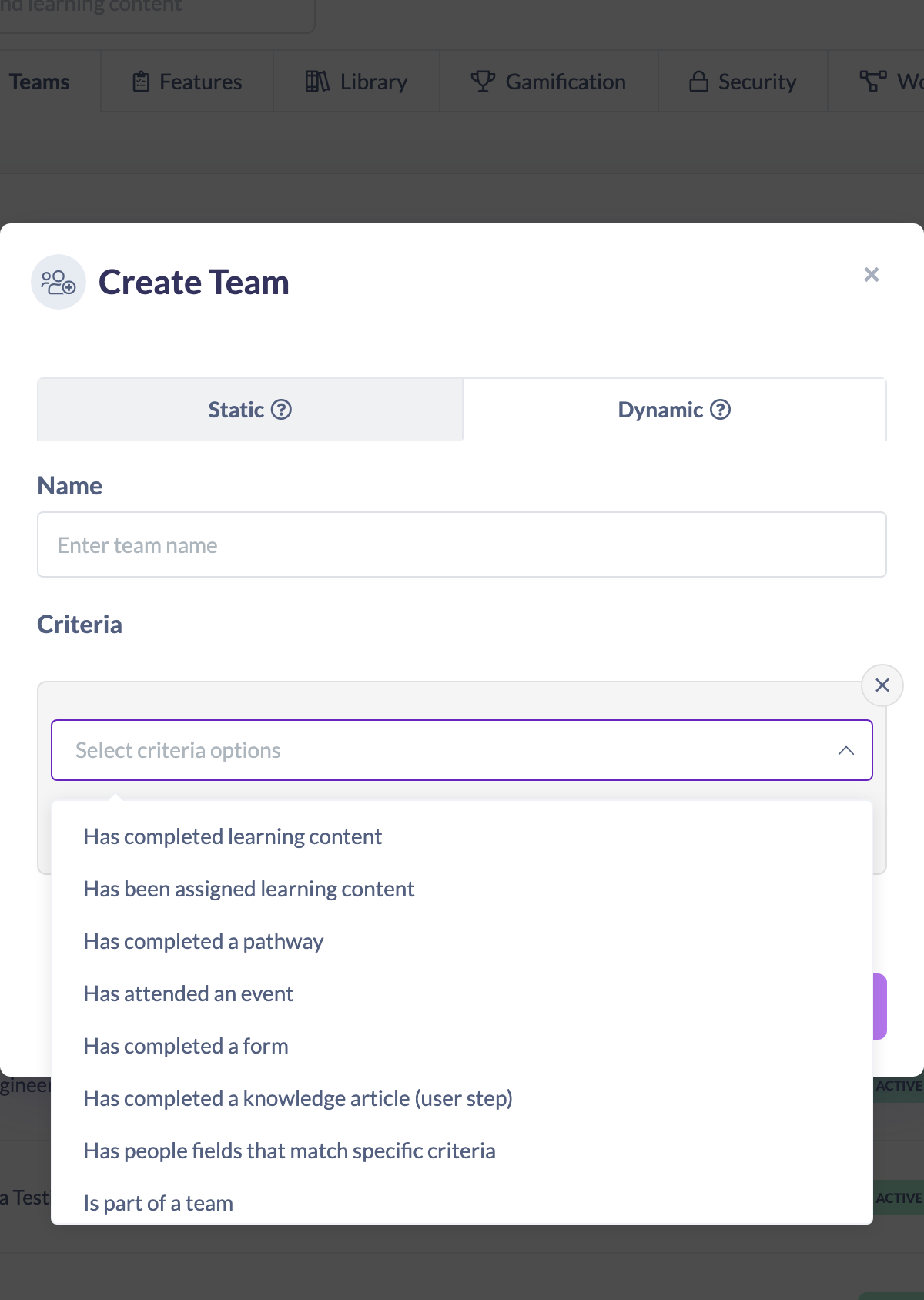
When you add a rule, you choose from these criteria types:
- Has completed learning content: the person has completed a specific piece of Library content.
- Has been assigned learning content: the person has been assigned a specific piece of content.
- Has completed a pathway: the person has completed a specific Pathway.
- Has attended an event: the person has attended a specific Event.
- Has completed a form: the person has completed a specific Form.
- Has completed a knowledge article (user step): the person has completed a specific Knowledge article.
- Has people fields that match specific criteria: the person's profile matches conditions you set on Position, Role, Manager, Country or State, or on any of your Custom Fields. See How to Use Custom Fields in Workflows and Dynamic Teams.
- Is part of a team: the person is a member of a specific Team.
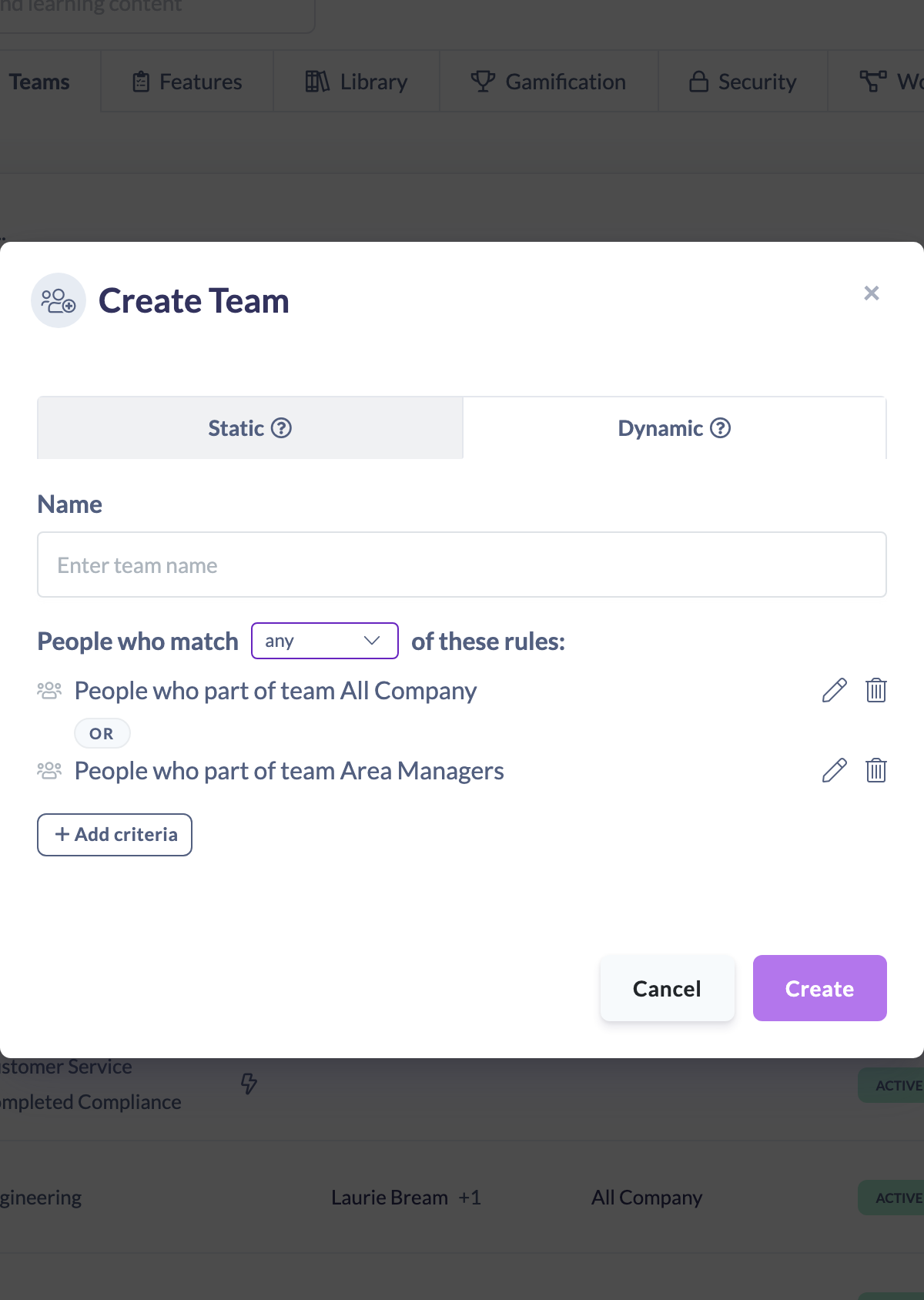
Each rule shows an icon for its type in the rule list, so you can scan a long list at a glance.
How to add a rule
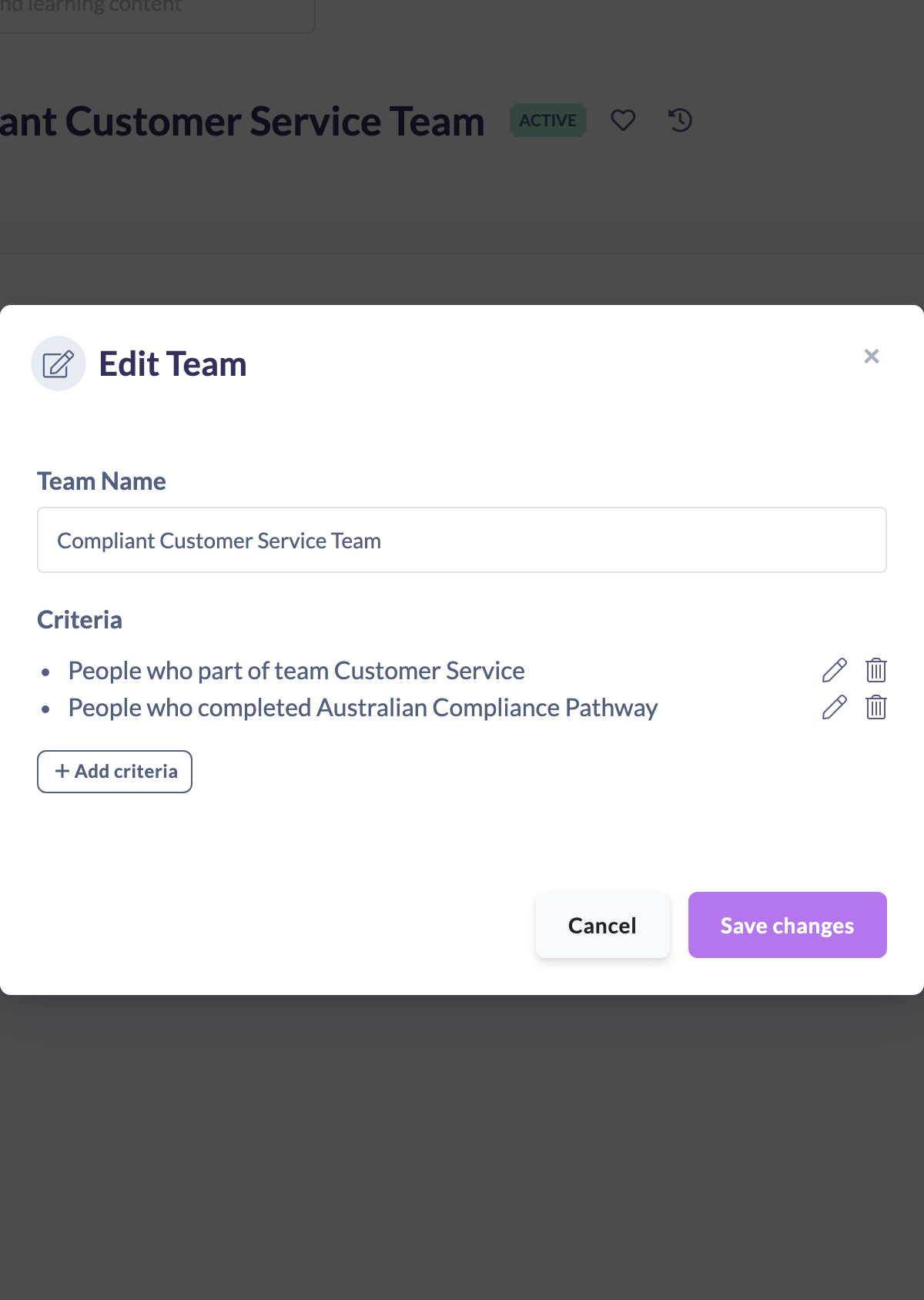
- In the Create Team or Edit Team window for a Dynamic Team, click Add criteria.
- From Select criteria options, choose the type of rule.
- Complete the rule for the type you picked:
- For content, Pathway, Event, Form, Knowledge or Team rules, select the specific item (for learning content and Knowledge, search your Library).
- For Has people fields that match specific criteria, build one or more conditions. For each one, pick a field, then an operator, then the value, and click the + button. Every field offers Equals and Is any of. Position and State also offer Contains and Is not.
- Click Save to add the rule (the button reads Update when you're editing an existing rule).
- Repeat Add criteria for each additional rule. Use the pencil icon to edit a rule, or the trash icon to remove one.

How to match several values with "is any of"
Use Is any of when one field can hold any of several values, for example several job titles that all belong in the same team.
- In a Has people fields that match specific criteria rule, pick the field, then choose Is any of as the operator.
- Add the values:
- For Position and State, type a value into the box and press Enter. Repeat for each value.
- For Role, Manager and Country, pick each value from the list.
- Each value appears as a chip under the box, with a count such as 3 of 10. Click the x on a chip to remove it.
- Click the + button to add the condition.
The saved condition carries an ANY OF badge and reads as a sentence, for example Position is Nurse, Carer or Enrolled Nurse.

How to choose whether people match all or any
You make this choice in two places. Both use the same small list with two options:
- all: every condition has to be true. This is the default.
- any: one condition is enough.
Across the rules in a team
As soon as a team has two or more rules, the Criteria heading becomes a sentence: People who match [all] of these rules:. Choose any to include everyone who matches at least one rule. The word between the rules in the list changes from and to or so you can read the team back as a sentence.
Across the conditions inside a people fields rule
As soon as a Has people fields that match specific criteria rule has two or more conditions, a sentence appears above them: A person must match [all] of these conditions:. Choose any if matching one condition is enough, for example a Position or a Country.
Examples
You want | How to set it up |
|---|---|
Nurses, Carers and Enrolled Nurses in one team | One people fields rule: Position is any of Nurse, Carer, Enrolled Nurse |
Nurses who work in Australia | One people fields rule with two conditions, Position equals Nurse and Country equals Australia, matching all |
Anyone who is a Nurse or works in New Zealand | One people fields rule with two conditions, Position equals Nurse and Country equals New Zealand, matching any |
Everyone in either of two Teams | Two Is part of a team rules, with the team matching any of these rules |
Anyone who has completed either induction Pathway | Two Has completed a pathway rules, with the team matching any of these rules |
Members of the Clinical team who are Managers | An Is part of a team rule and a people fields rule (Role equals Manager), with the team matching all of these rules |
Nurses in New South Wales, or Carers in Victoria | Two people fields rules, each with its own two conditions matching all, and the team matching any of these rules |
Everyone in the Clinical or Allied Health department | One people fields rule: the Custom Field Department is any of Clinical, Allied Health |
Everyone who started in the last 30 days | One people fields rule: the Custom Field Start date is within the last 30 days. The team updates itself every day |
Things to keep in mind
- Teams match all of their rules and conditions unless you choose any. Every team built before these options existed still matches all, so nothing changes until you edit it.
- The all or any choice applies to the whole list. You can't mix "and" and "or" within one list. To say "(this and this) or that", put each group in its own people fields rule and set the team to match any of its rules, as in the last example above.
- A condition using Is any of can list up to 10 values. A list with a single value is saved as an ordinary Equals condition.
- Is part of a team includes everyone in the selected Team. To narrow it, for example to Managers only, add a separate people fields rule and keep the team on all.
- The Has people fields that match specific criteria type needs at least one condition before it can be saved.
- Entity based rules (content, Pathway, Event, Form, Knowledge, Team) require you to select the specific item before you can save the rule.
- Rule changes take effect once you save the team.
FAQs
How many rules can I add?
There's no set limit. Add as many as you need to describe your audience.
How do the rules combine, AND or OR?
You choose. With two or more rules, pick all (AND) or any (OR) in the sentence above the rule list. Inside a people fields rule you make the same choice for its conditions.
What's the difference between "is any of" and matching "any"?
Is any of lists several values for one field, such as three job titles. Matching any combines different conditions or rules, such as a job title or a country.
Will switching between all and any change who's in the team?
Yes, as soon as you save. Matching any usually brings more people in, and matching all usually leaves fewer. Check the team's member list after saving.
Can I change or remove a rule later?
Yes. Open the team, then use the pencil icon to edit a rule or the trash icon to remove it, and save.
Who can do this
Owners and Admins can create teams and set their rules. A Manager who is set as a team's Primary Manager can edit that team's rules. Employees and Restricted users cannot.
Updated on: 27/10/2026
Thank you!