
How to Set Your Registration Page URL and Share the Link
How to Set Your Registration Page URL and Share the Link
In this article:
- Overview
- Understanding the page URL
- Setting the URL slug
- Copying and sharing the link
- Things to keep in mind
- FAQs
- Who can do this
Overview
Your Self-Registration page has its own web address that you share with the people you want to sign up. The end of that address — the slug — is yours to customise, and you can copy the full link to share at any time.
Understanding the page URL
The registration page URL follows this pattern:
https://your-superpath-address/register/your-account-id/your-slug
The address is your SuperPath web address, or your custom domain if you have one set up. The account ID is fixed, and the slug is the part you control. When you first open the settings, we suggest a slug based on your platform name, which you can change.
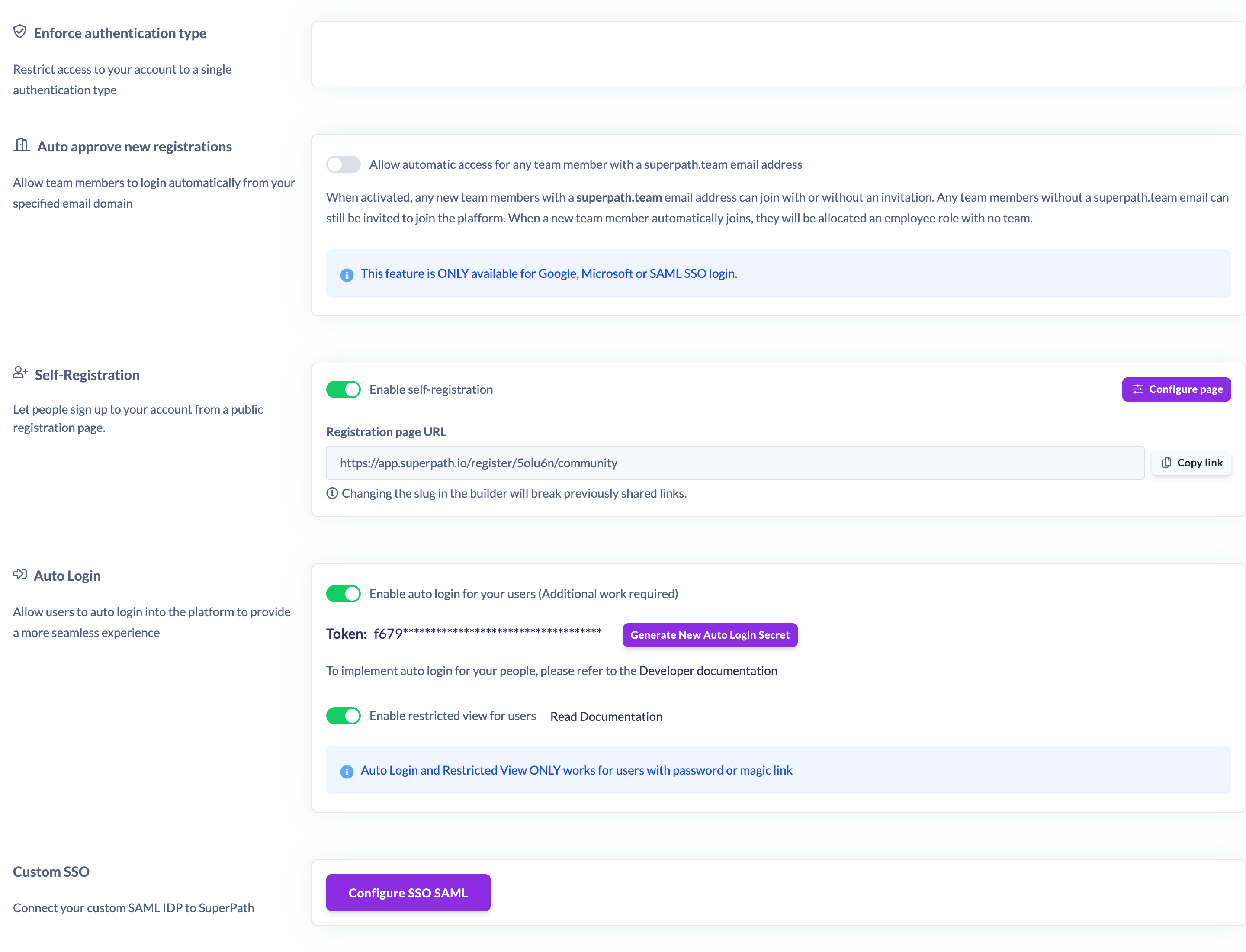
Setting the URL slug
- Go to Settings → Security and find the Self-Registration card.
- Click Configure page to open the settings panel.
- In the URL field, edit the slug at the end of the address. Everything before the slug is fixed and can't be changed.
- Click Save.
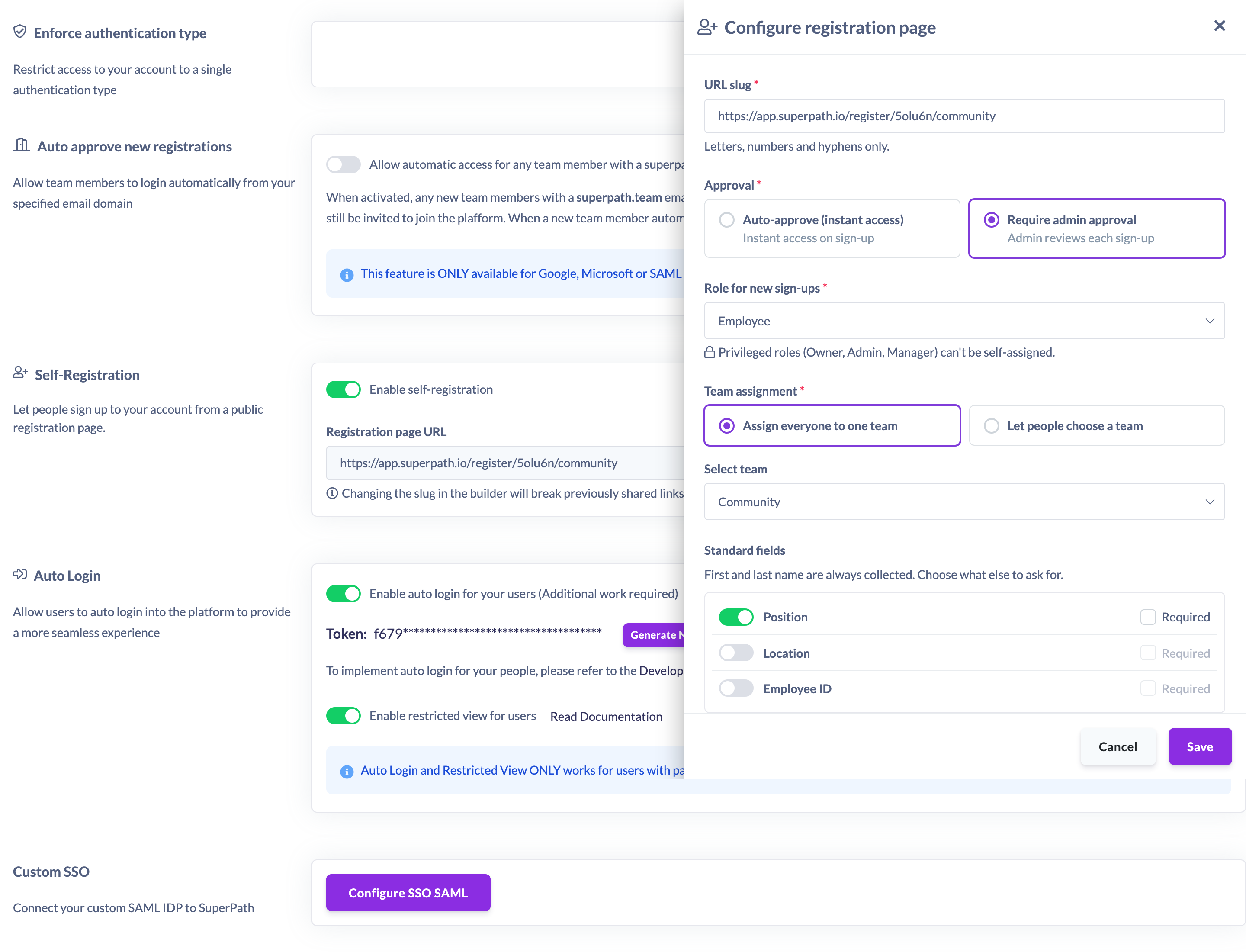
Slugs can only contain lowercase letters, numbers and hyphens, must start with a letter or number, and must be between 2 and 50 characters. Anything you type is tidied to fit these rules automatically, and the slug is checked again when you save.
Copying and sharing the link
On the Self-Registration card, the full registration URL is shown as a preview. Click Copy link to copy it to your clipboard, then share it wherever you like — an email, an intranet page, a QR code, or a chat message. Anyone who opens the link can sign up (subject to any email-domain restriction you've set).
Note: The link only works when the page is enabled. See "How to Enable Self-Registration".
Things to keep in mind
- The slug is part of your registration link, so if you change it after sharing, any previously shared links will stop working and people who use them will reach a page that's no longer available. Only change the slug when you're ready to reshare the new link.
- There is one registration page per account, so there's one URL to manage and share.
FAQs
Can I use my own domain in the link?
Yes. If your account has a custom domain set up and active, the registration link uses it automatically. Otherwise it uses your standard SuperPath address.
What happens to people who used my old link after I changed the slug?
They'll reach a page that's no longer available. Share the updated link so people always have the current address.
Where do I find the link to share?
On the Self-Registration card in Settings → Security. The full URL is shown next to a Copy link button.
Who can do this
Only the Owner can set the registration page URL and copy the link, as it's configured under Settings → Security. Admins, Managers, People Managers, Content Managers, Instructors, Employees and Restricted users cannot.
Updated on: 19/07/2026
Thank you!