
How to Submit a Self-Assessment on Your Roadmap
How to Submit a Self-Assessment on Your Roadmap
In this article:
- Overview
- How to submit a self-assessment
- Where your self-assessment appears
- Things to keep in mind
- FAQs
- Who can do this
Overview
A self-assessment lets you reflect on how you're tracking against your current Roadmap level — you give yourself a rating against the roadmap's rating scale and write a short evaluation in your own words. It's the learner's own view, sitting alongside any assessment your Manager or Admin adds, so together you build a rounded picture of where you are.
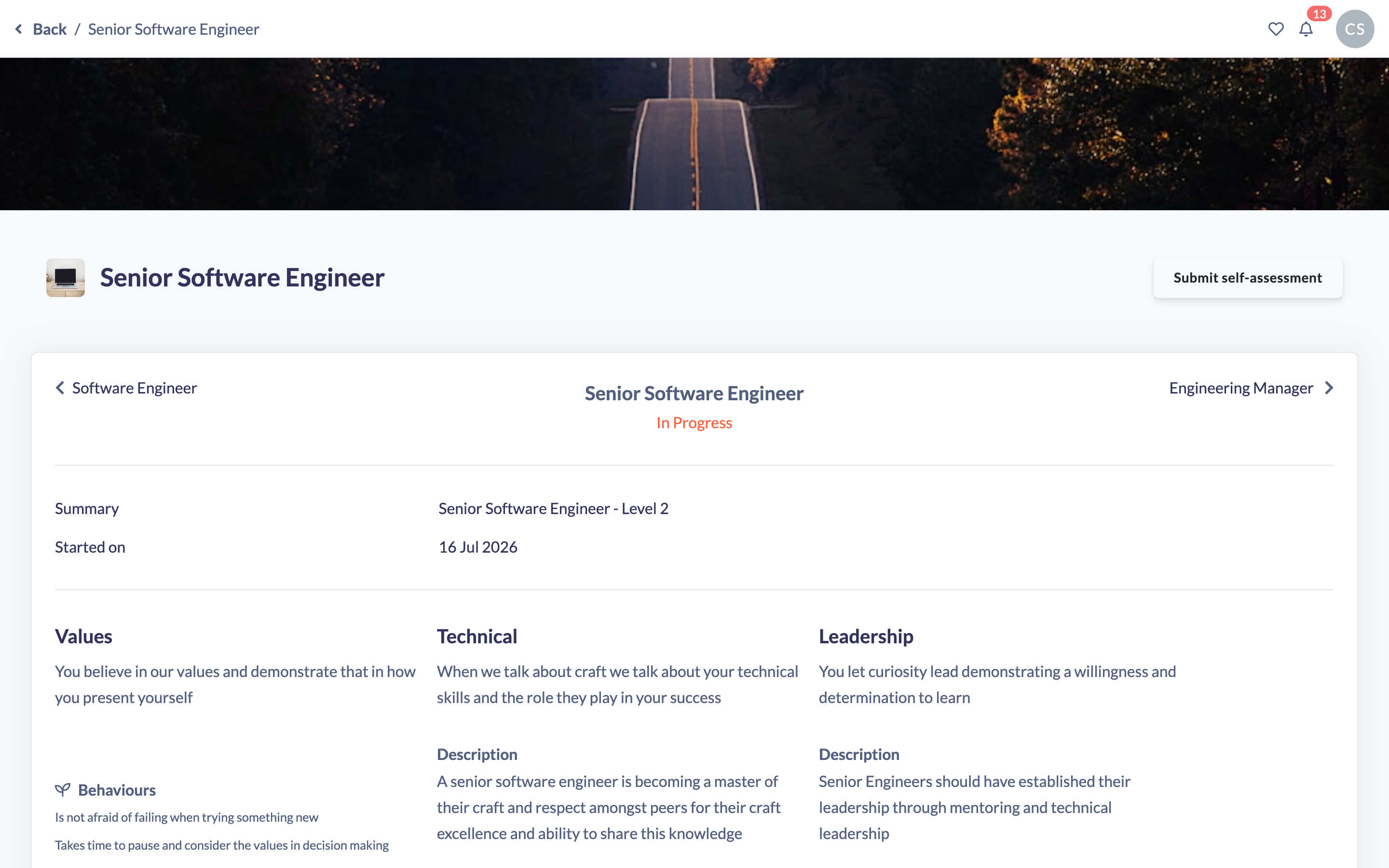
How to submit a self-assessment
- Click your profile image or initials in the top right, go to My Profile, and open the Roadmaps tab. Click the Roadmap you want, and make sure you're viewing your current level (the level you're actively working on).
- Click Submit Self-assessment in the top-right of the level's title row.
- In the Submit Self-assessment dialog, answer What is your self evaluation? in the text box — this is where you describe your progress, evidence and reflections.
- Choose a Rating from the dropdown. The available numbers run from 0 up to the rating scale configured on the Roadmap (10 by default).
- Click Submit Assessment to save.
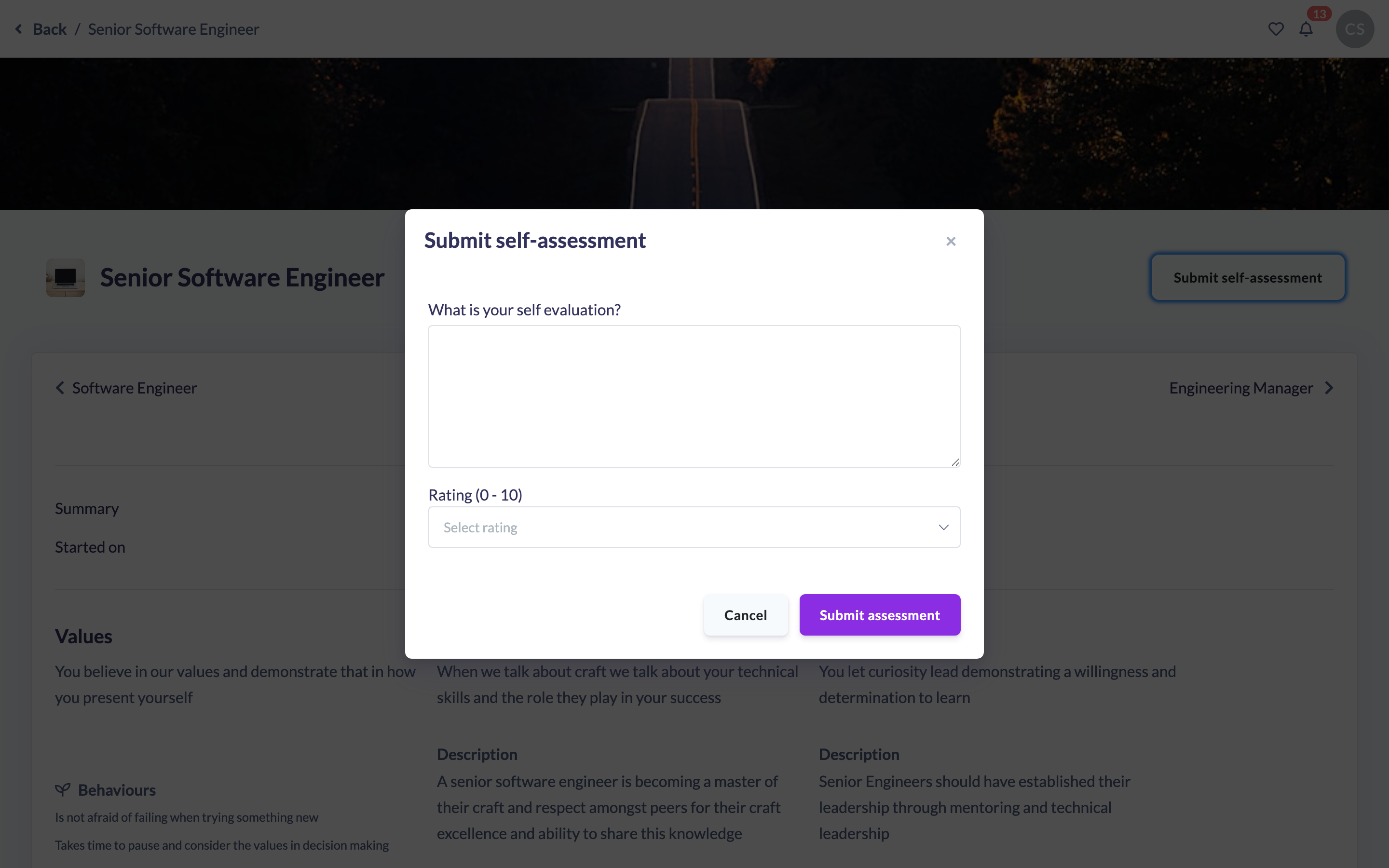
Note: The rating is optional — you can leave it blank and submit an evaluation on its own if you'd rather not put a number to it yet.
Where your self-assessment appears
Your submitted self-assessment shows in the Assessments section further down the level page, labelled with your name and "Submitted self-assessment". Anyone who can view your Roadmap level — for example your Manager or an Admin — sees it there, alongside their own assessments of you.
Things to keep in mind
- You can only submit a self-assessment against your current roadmap level, not levels you've already completed or haven't reached yet.
- Once a level is marked complete, the Submit button disappears and you can no longer add or change assessments on it.
- There's no limit on how many self-assessments you can add to a level — each is saved as its own entry, so you can log your reflections more than once as you progress.
- A self-assessment is different from an assessment submitted by a Manager or Admin on your behalf — both can exist on the same level and are shown separately.
FAQs
What's the difference between a self-assessment and an assessment?
A self-assessment is the one you submit about your own progress. An assessment is submitted by someone else — typically your Manager, Admin or Owner — evaluating you. On your own current level the button reads Submit Self-assessment; when a Manager or Admin views your level it reads Submit Assessment.
Do I have to give myself a rating?
No. The rating is optional. You can submit just your written evaluation if you prefer.
What rating range can I choose from?
From 0 up to the maximum set on the Roadmap's rating scale (10 by default). The exact top of the scale is decided by whoever built the Roadmap.
Can I edit my self-assessment after submitting it?
Yes, while the level is still in progress. See How to Edit or Delete a Roadmap Assessment.
Who can do this
Any learner with a Roadmap assigned can submit a self-assessment against their own current level — the Submit Self-assessment button appears for all roles when you're viewing your own in-progress level, and the API permits every role to create roadmap assessments. The button is hidden once the level is completed.
Updated on: 25/07/2026
Thank you!