
How to Turn Comments On or Off
How to Turn Comments On or Off
In this article:
- Overview
- How to turn comments on or off
- The four comment settings
- Things to keep in mind
- FAQs
- Who can do this
Overview
Comments let your users make comments on learning Pathways, assignments and Library content. SuperPath gives you four independent toggles in the Comments section of your feature settings, so you can switch comments on or off separately for the Library, Learning Assignments, Learning Pathways and the dashboard feed.
How to turn comments on or off
- Go to Settings → Features.
- Find the Comments section.
- Turn each of the four switches on or off to suit your organisation.
- An Unsaved changes bar appears at the top of the screen. Click Save to apply your changes.
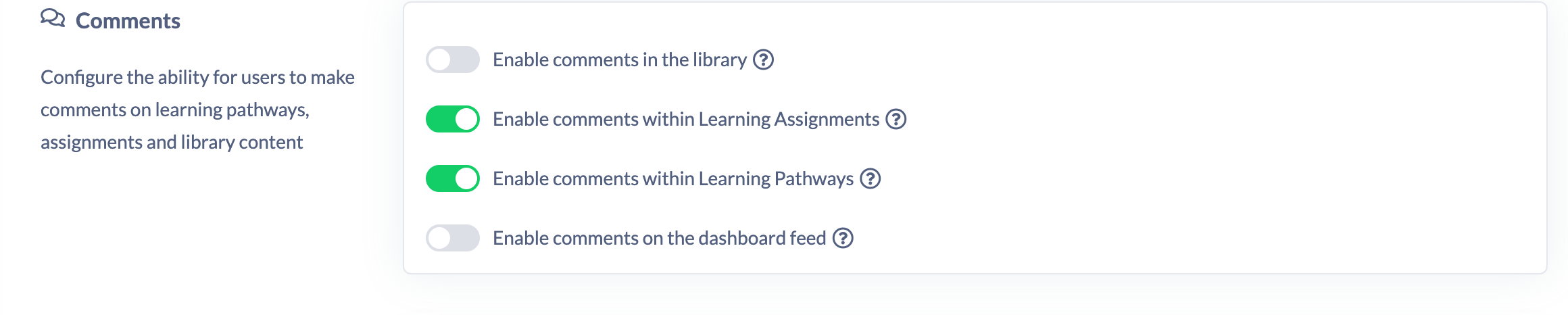
The four comment settings
- Enable comments in the library — lets users comment on any content in your private or the public Library. Comments are only visible to your organisation.
- Enable comments within Learning Assignments — lets users add comments from a learning assignment to help communicate with their Manager or learning administrators.
- Enable comments within Learning Pathways — lets users comment within learning Pathways.
- Enable comments on the dashboard feed — lets users add comments to feed items to encourage communication within your organisation.
Things to keep in mind
- The four toggles are independent — turning one on or off does not affect the others.
- After changing any switch, click Save in the Unsaved changes bar for it to take effect.
- Library comments are only ever visible to your own organisation.
FAQs
Can I allow comments in some places but not others?
Yes. Each of the four areas — Library, Learning Assignments, Learning Pathways and the dashboard feed — has its own toggle, so you can mix and match.
Who can see comments made in the Library?
Only people in your own organisation. Library comments are not shared beyond your account.
Who can do this
Only Owners and Admins can change feature settings. The Settings area is restricted to these two roles, and saving a change to Features requires the tenant-settings update permission, which only Owners and Admins hold. Managers, Content Managers, People Managers, Instructors, Employees and Restricted users cannot open Settings or change these toggles.
Updated on: 17/07/2026
Thank you!