
How to Turn Off Automatic Notification Emails
How to Turn Off Automatic Notification Emails
In this article:
- Overview
- Turn off a notification type for everyone (account level)
- Turn off notifications for one person
- Stop a specific email address receiving anything
- What about Workflow notifications?
- Things to keep in mind
- FAQs
- Who can do this
Overview
SuperPath sends a range of automatic notifications — welcome, assignment, reminder, completion, approval, certificate and more — across email, Slack and in-app. If your people are getting more than they need, you can reduce the noise in three ways: switch off a notification type across the whole account, mute types for an individual, or exclude a specific email address from all emails.
Turn off a notification type for everyone (account level)
This is the main control for reducing notifications across your organisation:
- Go to Settings → Features.
- Find the Communications section.
- You'll see notification types grouped under User & Social, Learning Approvals, Learning Progress and Certification & Achievements — for example Welcome Emails, Learning Assigned, Learning Completed, Learning Reminders, Due date changed, Event Registration, Assessment Ready and Certificate Expiry.
- Toggle off any type you don't want sent. Hover the ? beside a type to see what it does.
- If a type is important to your learning flow (such as an approval notification), you'll see a warning before you save.
- Save your changes. The setting applies across your entire account.
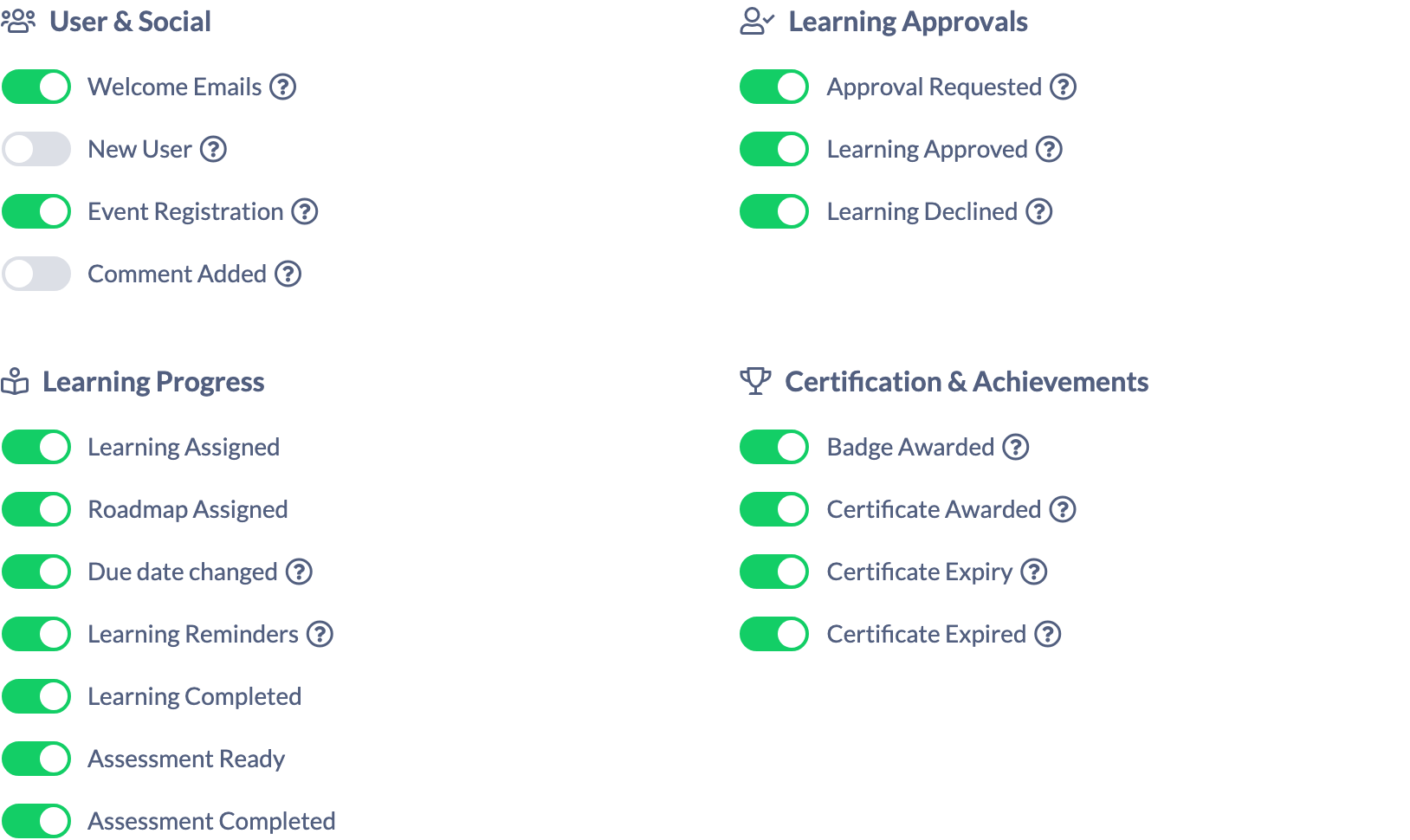
Note: Switching a type off here stops both the email and the in-app version of that notification for everyone.
Turn off notifications for one person
Sometimes you only need to quieten things for a single person — for example a manager receiving too many completion alerts:
- Go to People and open that person's profile.
- Find the Communications card.
- Toggle off the notification types they don't need. Changes save automatically.

You can use this to mute a user entirely or just remove a few types they don't need.
Stop a specific email address receiving anything
If you have a shared or system mailbox (for example learning@yourcompany.com) that shouldn't receive any emails, add it to the exclusion list:
- Go to Settings → Features.
- Find the Email Exclusions section.
- Add the email addresses that should never receive email notifications.
- Save.

Good to know: This suppresses emails only — matching is by exact email address, and in-app notifications are still created. There's no domain or wildcard matching, so add each address individually.
What about Workflow notifications?
Notifications sent by a Workflow's Send a notification action are separate from the Communications toggles above and don't have their own on/off switch in the Communications list. To stop them, pause or edit the Workflow itself in Settings → Workflows. The Email Exclusions list still applies to Workflow emails, so an excluded address won't receive them.
Things to keep in mind
- The Communications toggles control notifications across all channels for that type (email and in-app), not email alone.
- Turning off certain notifications (such as approval requests) can affect learning workflows — that's why SuperPath warns you before saving those.
- The per-person Communications card is only shown to admins editing another person's profile.
- To silence a Workflow's messages, manage the Workflow directly; the account-level Communications toggles won't switch it off.
FAQs
Where do I turn off automatic emails for the whole account?
Go to Settings → Features → Communications and toggle off the notification types you don't want. This applies to everyone.
Can I keep emails on for some people but off for others?
Yes. Leave the type on at the account level, then mute it for specific people via People → their profile → Communications.
How do I stop a shared mailbox getting emails?
Add its address to Settings → Features → Email Exclusions. It stops all email notifications to that exact address.
Does turning a type off also remove the in-app notification?
Yes. The Communications toggles cover both the email and the in-app notification for that type.
How do I stop a Workflow's notifications?
Edit or pause the Workflow in Settings → Workflows — they aren't governed by the Communications toggles. The Email Exclusions list does still block Workflow emails to excluded addresses.
Who can do this
Owners and Admins can change the account-level Communications toggles and the Email Exclusions list, and can mute notifications on another person's profile — all of these live under Settings or require admin access. Managers, People Managers, Content Managers, Instructors, Employees and Restricted users cannot change these settings.
Updated on: 16/07/2026
Thank you!