
How to Update a Person's Custom Field Values
How to Update a Person's Custom Field Values
In this article:
- Overview
- How to update a person's custom field values
- Things to keep in mind
- FAQs
- Who can do this
Overview
Custom Fields let your organisation store extra information against a person — a staff number, a department, a start date and so on. Once an Admin has created the fields (see Managing Custom Fields), you set each person's values on their profile. This article covers editing the values for one person; to create or configure the fields themselves, see Managing Custom Fields.
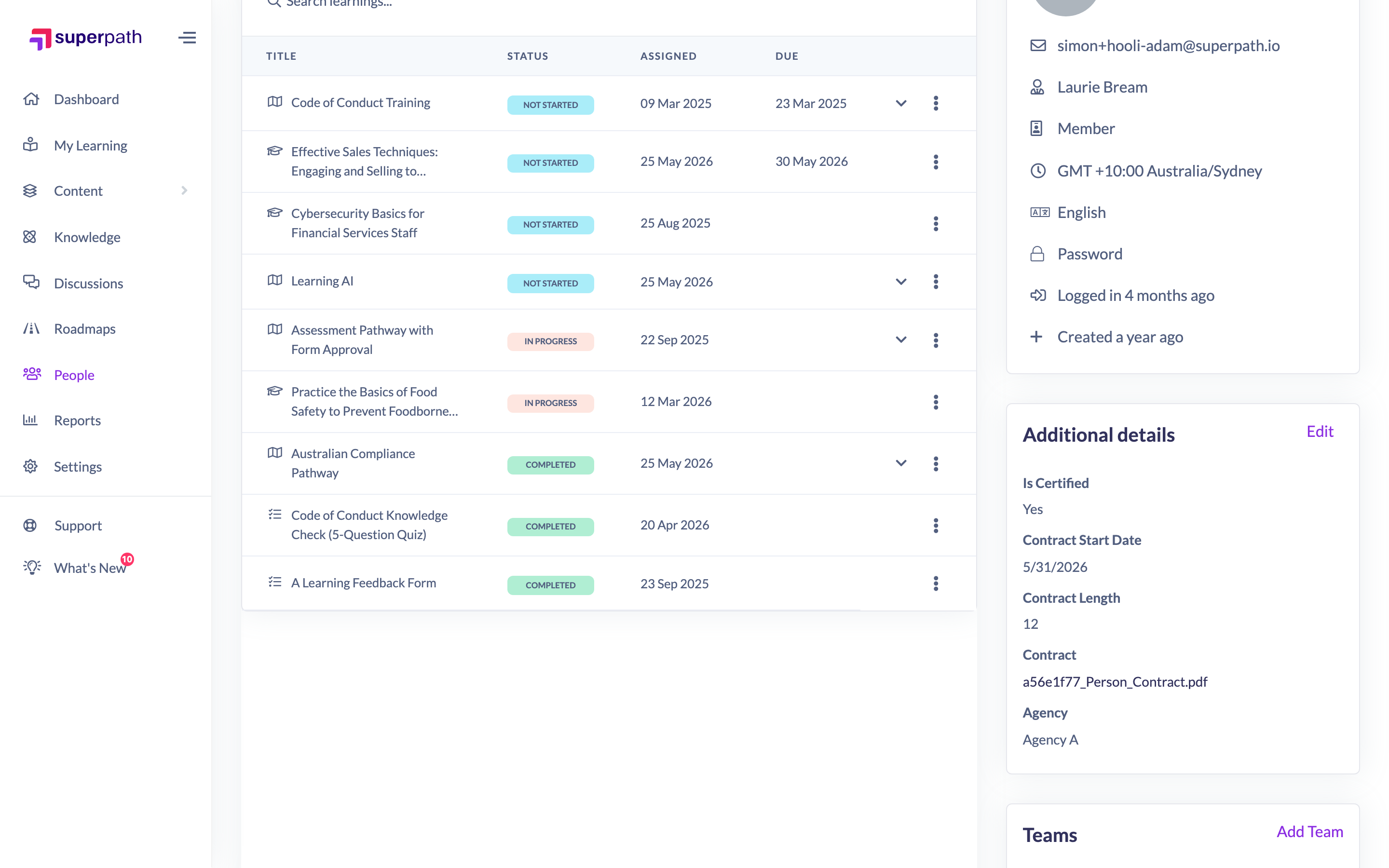
How to update a person's custom field values
- Go to People and open the person's profile.
- Open the Additional details tab: either click Edit on the Custom Fields card in the right-hand column, or click Actions → Edit account and switch to the Additional details tab.
- Update the values. Each field matches its type — a text box, a number, a date picker, a dropdown, a yes/no switch or a file upload.
- Click Save changes.

Things to keep in mind
- The Additional details tab only appears when your organisation has Custom Fields set up.
- You'll only see the fields your role is allowed to view and edit — each Custom Field has its own access settings, so some may be hidden or read-only for you.
- For file fields, use Upload file to attach a document, or Clear to remove the current one.
- If a field was removed by an Admin after you opened the page, saving may fail — reopen the person and try again.
FAQs
Where do I create the Custom Fields themselves?
Custom Fields are created and configured in Settings by an Admin — see Managing Custom Fields. This article is only about setting the values for a person.
Why can't I see a particular field?
Each Custom Field has access settings that control which roles can see and edit it. If a field is hidden or greyed out for you, your role doesn't have access to it.
Can I update these fields for lots of people at once?
Yes — use bulk edit from the People list. See How to Bulk Edit Users.
Who can do this
Owners and Admins can update custom field values for any person. Managers and People Managers can update them for people who report to them. Content Managers, Instructors, Employees and Restricted users can only update their own. In every case, each Custom Field's own access settings decide which fields a role can actually see and edit.
Updated on: 17/07/2026
Thank you!