
How to Update Existing Users With a CSV
How to Update Existing Users With a CSV
In this article:
- Overview
- How to update existing people with a CSV
- Things to keep in mind
- FAQs
- Who can do this
Overview
The bulk upload doesn't only add new people — it also updates people who already exist. When a row's email address matches someone already on your platform, their profile is updated with the fields in your CSV rather than a duplicate being created. That makes a CSV upload a fast way to update details like position, manager, Teams or custom fields across many people at once.
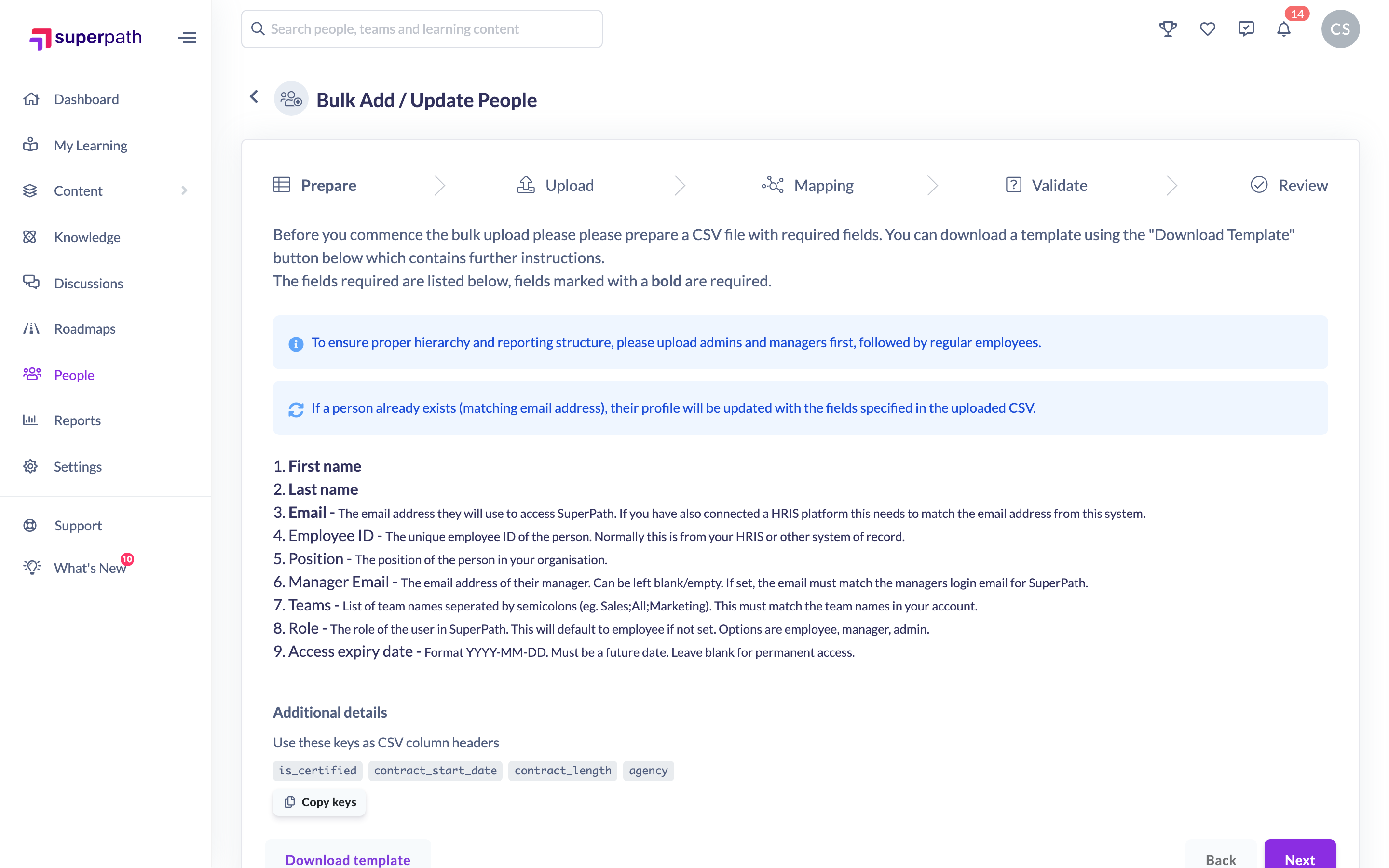
How to update existing people with a CSV
- Go to People, click Add people and choose Bulk Add / Update People.
- On the Prepare step, review the guidance. If you don't already have a file, click Download template and fill it in — matching each person by their Email.
- Click Next to reach Upload, then drag your CSV onto the upload area or click to choose it.
- On the Mapping step, match each field to the right column in your file. First Name, Last Name and Email must be mapped.
- On the Validate step, review the preview. Any rows with problems are highlighted so you can fix and re-upload them.
- On the Review step, choose a Login Type (required), optionally set a Default Role, and decide whether to Send Welcome Email.
- Click Upload.
The upload runs in the background. Click Monitor Upload to follow its progress and see the result for each row.
Note: The upload matches people by email address. If a person with that email already exists, their profile is updated with the fields in your CSV; if not, a new person is created.
Things to keep in mind
- Matching is by email address. A blank cell in your CSV generally leaves that field unchanged rather than clearing it.
- An existing person's Owner or Admin role is preserved — the upload won't downgrade it, even if the CSV specifies a different role.
- Teams listed in the CSV are added to the person; the upload doesn't remove them from Teams they're already in.
- If access expiry is enabled, an expiry date is only applied when the CSV row provides one. An empty cell leaves the person's existing date untouched, and dates must be in the future (format YYYY-MM-DD).
- Uploads process people one at a time in the background, so individual rows can succeed or fail independently — use Monitor Upload to check the outcome.
FAQs
Will uploading a CSV create duplicate people?
No. When a row's email matches an existing person, that person is updated instead of a new one being created.
Which fields get updated?
The fields you include and map in your CSV. Empty cells generally leave the existing value in place, so you can update just the columns you need.
Can I change someone's role this way?
You can, except that existing Owners and Admins keep their role — the upload won't downgrade them.
How do I know if it worked?
After uploading, click Monitor Upload to see the progress and the per-person result, including any rows that failed.
Who can do this
Updating people with a CSV is done from the Bulk Add / Update People page, reached from the Add people menu on the People list. Owners and Admins can add and import people. Managers, People Managers, Content Managers, Instructors, Employees and Restricted users don't have access to this page.
Updated on: 17/07/2026
Thank you!