
How to use Roadmaps in Workflows
How to Use Roadmaps in Workflows
In this article:
- Overview
- Where Roadmaps appear in Workflows
- How to assign a Roadmap when someone joins
- How to assign a Roadmap when someone's profile changes
- How to run an action when a Roadmap level is completed
- Best practices
- Things to keep in mind
- FAQs
- Who can do this
Overview
Workflows let you automate learning across your organisation using a simple When … Then … rule. Because Roadmaps are wired into Workflows both as a trigger and as an action, you can put career progression on autopilot — assigning the right Roadmap level to the right people as they join or change role, and kicking off the next piece of learning when they complete a level.
Prefer to watch? Here's a quick walkthrough:
Where Roadmaps appear in Workflows
Workflows currently offers eight triggers and eight actions. Two of them relate to Roadmaps:
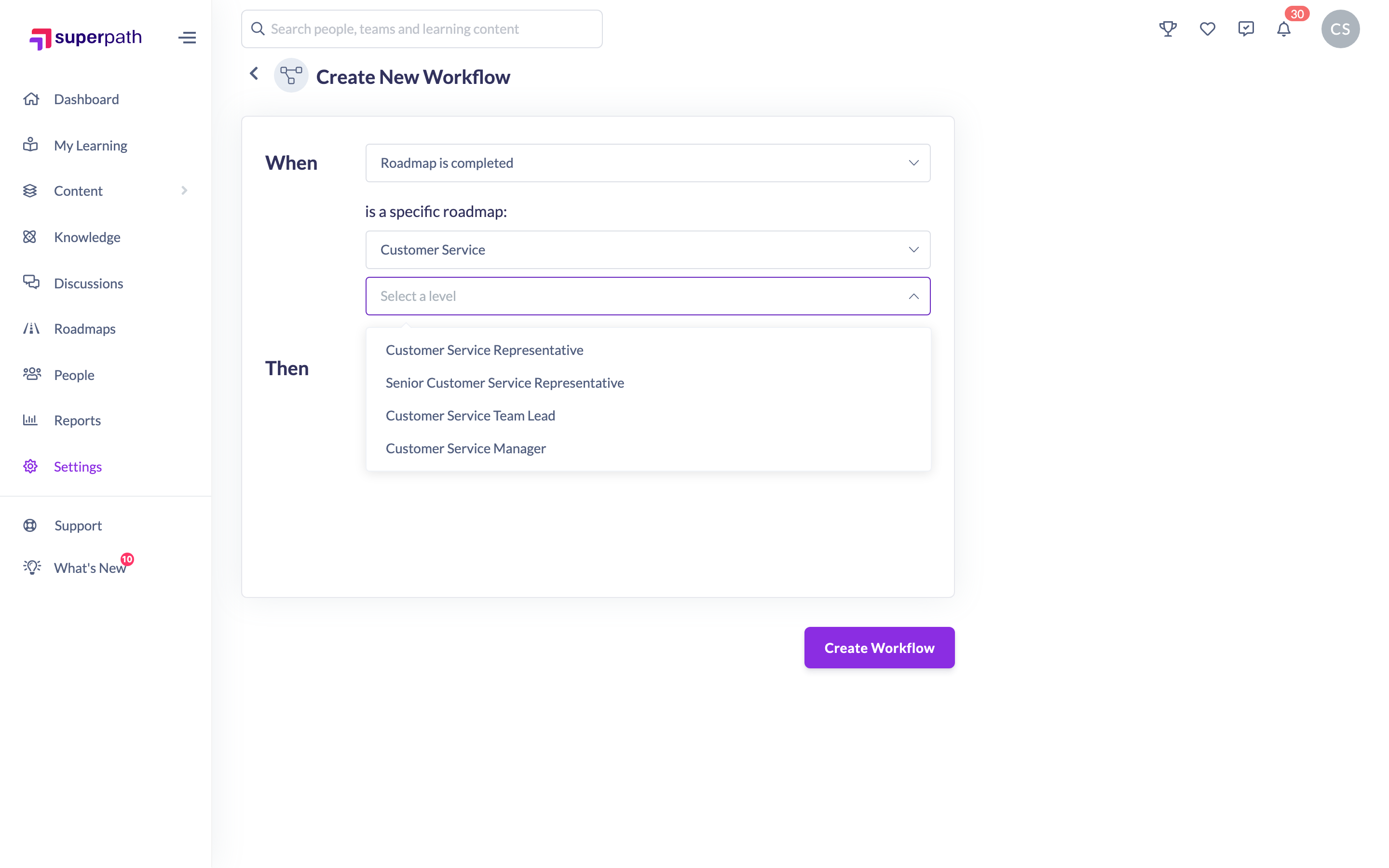
- Trigger — Roadmap is completed. Fires when a person's Roadmap level is marked complete. You choose the Roadmap and then the specific level, so the Workflow only runs for that step of the journey.
- Action — Assign a roadmap. Assigns a Roadmap to the person who set the Workflow off. You choose the Roadmap and then the level they should start on.
Any trigger can be paired with the Assign a roadmap action, and the Roadmap is completed trigger can be paired with any action — so the two combine freely with the rest of the Workflows library.
How to assign a Roadmap when someone joins
- Go to Settings → Workflows.
- Click Create Workflow.
- Under When, select the trigger Person joins.
- Optionally narrow who it applies to under matching the following criteria. You can match on Position, Role, Manager, Country and State, list several values in one condition with Is any of, and choose whether a person must match all or any of the conditions.
- Under Then, select the action Assign a roadmap.
- Choose the Roadmap, then choose the level the person should start on.
- Leave Notify people on assignment switched on if you want the new starter to be notified, and switch on Due date if the level should have a deadline.
- Click Create Workflow.

Every matching new starter is now given that Roadmap level automatically.
How to assign a Roadmap when someone's profile changes
- Go to Settings → Workflows and click Create Workflow.
- Under When, select the trigger Profile is updated.
- Add the criteria that describe the change you care about, for example a Position or Role value that marks a step up. If several job titles mark the same step, list them in one condition with Is any of rather than building a Workflow for each.
- Under Then, select Assign a roadmap, then choose the Roadmap and the level.
- Click Create Workflow.
People move onto the right Roadmap level as their profile is updated, without anyone having to assign it by hand.
How to run an action when a Roadmap level is completed
- Go to Settings → Workflows and click Create Workflow.
- Under When, select the trigger Roadmap is completed.
- Choose the Roadmap, then choose the level whose completion should set the Workflow off.
- Under Then, choose what should happen next — for example Assign a roadmap (to move the person on to the next level), Assign a pathway, Add to team, Change user role or Send a notification.
- Click Create Workflow.
Tip: Chaining a Roadmap is completed trigger to an Assign a roadmap action is the cleanest way to walk someone up a Roadmap level by level automatically.
Best practices
- Use clear, consistent Position and Role values on your people records, so your criteria match the people you expect.
- Start simple. Get one Workflow working end to end before layering more on top.
- Test with a small group — or a single test person — before you rely on a Workflow for everyone.
- Chain Roadmaps thoughtfully so people are not handed more learning than they can absorb at once.
- Publish the Roadmap first, so the same Roadmap can also be assigned by hand from the Roadmaps list.
Things to keep in mind
- A Workflow is active as soon as you create it — it starts responding to matching events straight away. Use the pause icon on the Workflows list if you need to stop it, and the play icon to reactivate it.
- Both the Roadmap trigger and the Roadmap action are level-specific. Selecting the Roadmap alone is not enough; pick the level too.
- Assigning a Roadmap creates a Roadmap level record against the person, not a normal learning assignment — it appears on their Roadmaps tab rather than in their assignments.
- A person can only be on one Roadmap level at a time. If they already have a level in progress, assigning a new one automatically marks the in-progress level as complete. Bear this in mind when you chain Workflows together.
- If the level's competency cells have Auto Assign switched on, the learning attached to those cells is assigned at the same time. Knowledge articles are the exception — they cannot be assigned.
- Only the Notify people on assignment and Due date options apply to the Roadmap action. Start date, the For people who already have this learning choice and recurring schedules are not offered for Roadmaps.
- Workflows must be switched on for your organisation before the area appears in Settings.
FAQs
Do I have to activate the Workflow after creating it?
No. New Workflows are created active. If you would rather it did not run yet, pause it from the Workflows list.
Can I trigger a Workflow when a whole Roadmap is finished, rather than a level?
The trigger works at level granularity — you pick a Roadmap and one of its levels. To act on "the end of the Roadmap", choose the final level.
Does the person get told when a Workflow assigns them a Roadmap?
Yes, if Notify people on assignment is switched on. They receive a notification saying a new learning Roadmap has been assigned, which links straight to it.
What happens if they are already on a different Roadmap?
Their current in-progress level is marked complete and the new level becomes their active one.
Where do I see whether a Workflow has fired?
The Workflows list shows each Workflow's status, and the Roadmap itself shows who has been assigned it — see How to View Learners on a Roadmap.
Who can do this
Workflows live under Settings, which is restricted to Owners and Admins — they are the only roles that can create, edit, pause or delete a Workflow, and the only roles holding the manage permission on the Workflow subject. Managers, Content Managers, People Managers, Instructors, Employees and Restricted users cannot access Workflows, even where they are allowed to build or assign Roadmaps themselves.
Updated on: 26/09/2026
Thank you!