
How to View and Export Registration Requests
How to View and Export Registration Requests
In this article:
- Overview
- Opening the registration queue
- What the columns show
- Searching and filtering
- Seeing who reviewed a request
- Exporting to CSV
- Things to keep in mind
- FAQs
- Who can do this
Overview
Every sign-up through your registration page is recorded in one queue, whether your page approves people automatically or holds them for review. From here you can see who has registered, check the status of each request, search and filter the list, and export it to a spreadsheet for your records or to share with a colleague.
The queue lives under People → Pending. To act on requests, see "How to Approve a Pending Registration" and "How to Reject a Pending Registration".
Opening the registration queue
- Go to People.
- Click the Pending button near the top of the list. When requests are waiting, it shows a count, for example Pending (3).
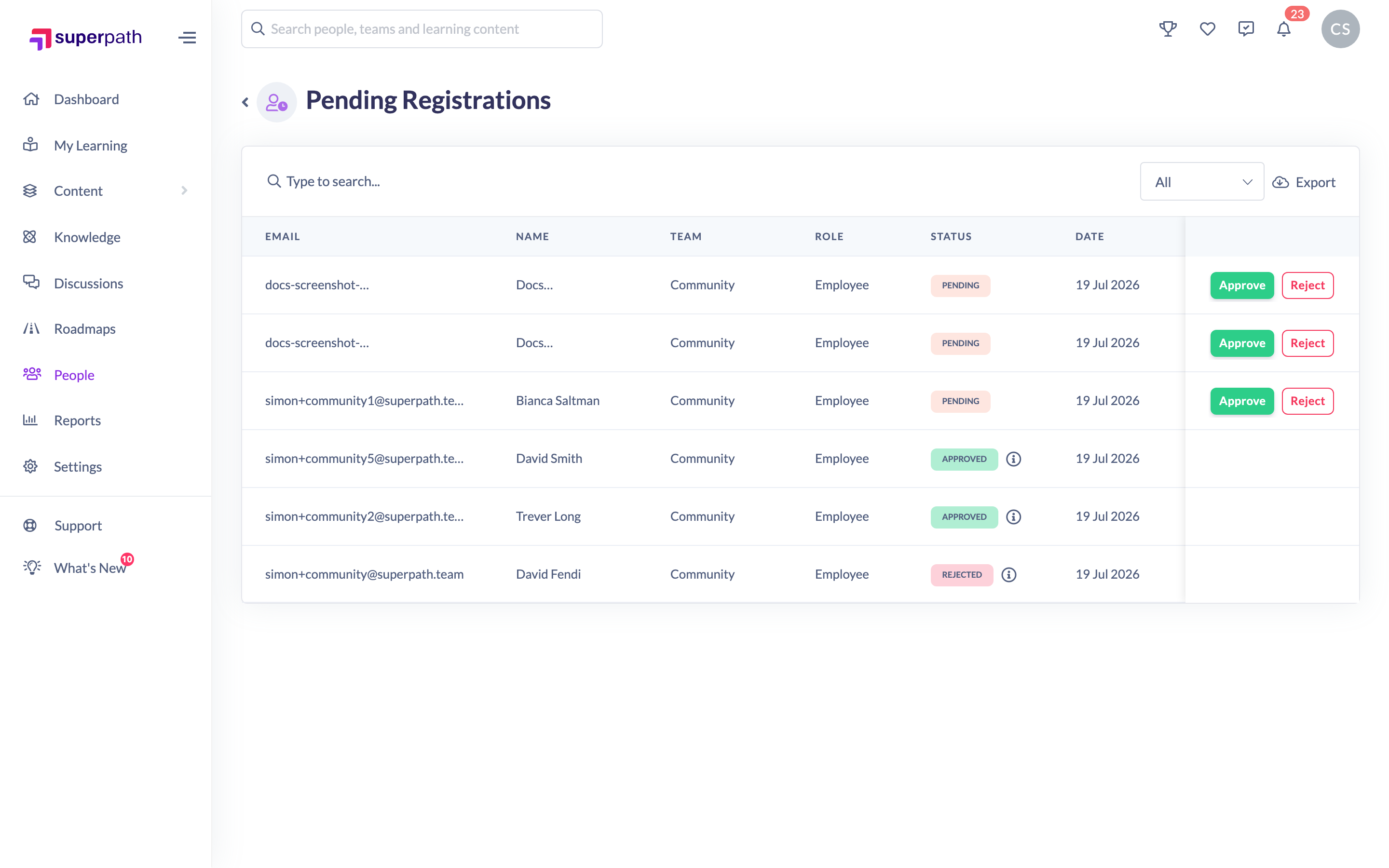
- The Pending Registrations queue opens, listing pending requests first, followed by those already approved or rejected.
What the columns show
Each row is one registration, with these columns:
- Email — the email the person registered with.
- Name — their first and last name.
- Team — the team set for the registration (a dash if none).
- Role — the role that will be, or was, assigned.
- Status — Pending, Approved or Rejected.
- Date — when the person registered.
Searching and filtering
- Use the search box to find a request by email, name, team, role or status. The search is fuzzy, so close matches are shown too.
- Use the status filter to narrow the list to a single status. The options are All, Pending, Approved and Rejected. Clear the filter to see everything again.
Seeing who reviewed a request
For any request that has already been approved or rejected, an information icon appears beside its status. Hover over it to see who reviewed the request and when. For a rejected request, the reason (if one was given) is shown there too.
Exporting to CSV
- Open the Pending Registrations queue.
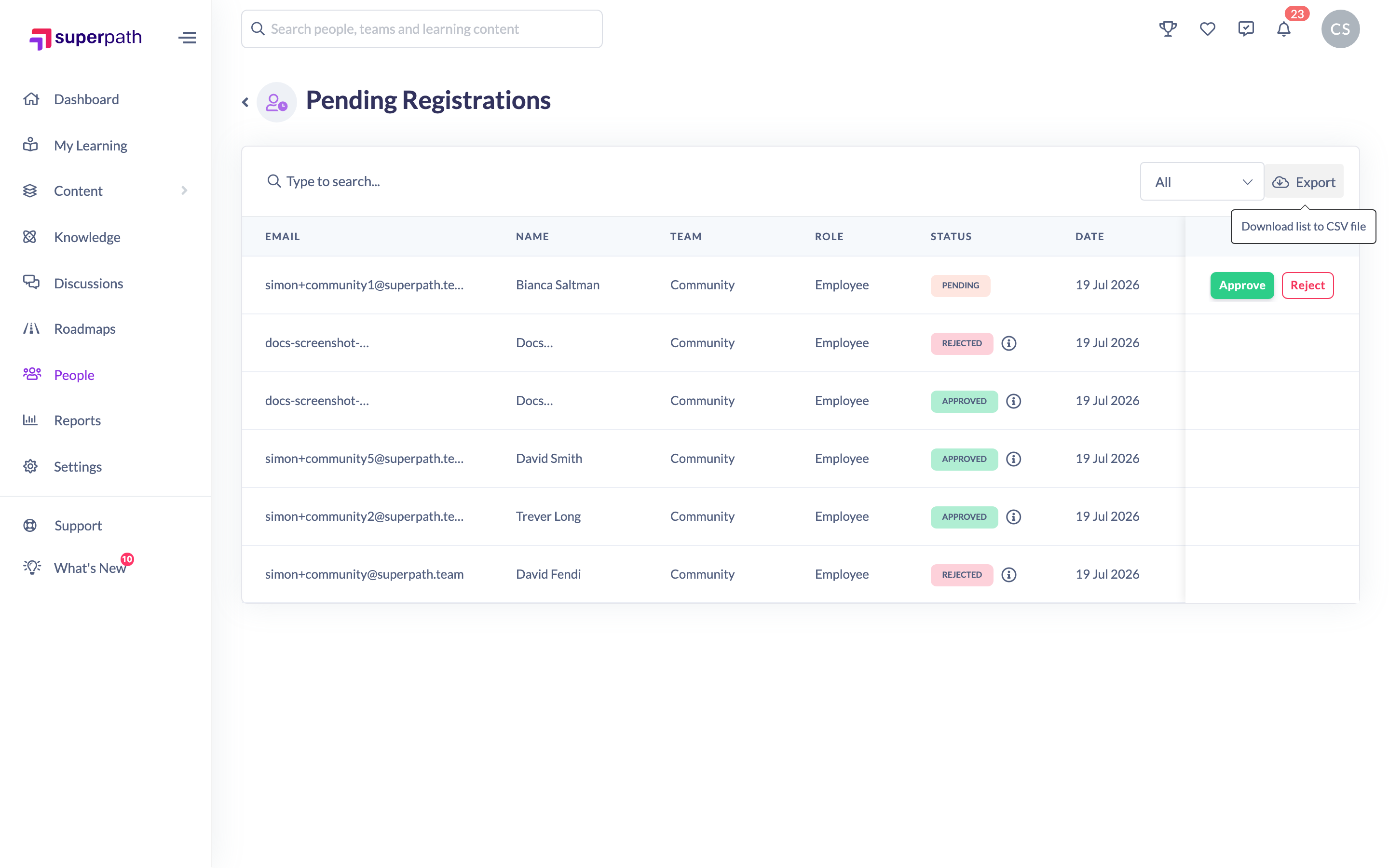
- Click the Export button at the top of the list.
- A CSV file downloads containing the registrations, including email, name, team, role, date registered, status, who reviewed each one, and the values for any custom fields collected on your registration page.
Note: The export button isn't available on mobile — export from a desktop browser.
Things to keep in mind
- The queue always shows pending requests first, then approved and rejected ones by most recent registration date.
- The CSV reflects the list as it stands, including approved and rejected requests — not just those still pending.
- Custom-field values are included as their own columns in the export, named after each custom field.
FAQs
Does the queue only show pending requests?
No. It shows every registration — pending, approved and rejected — with pending ones listed first. Use the status filter to focus on one status.
What's in the CSV export?
Email, name, team, role, date registered, status, who reviewed the request, and a column for each custom field collected on your registration page.
Why can't I see the export button?
The export option isn't shown on mobile. Open the queue on a desktop browser to export.
Who can do this
Owners and Admins can view and export registration requests from People → Pending, reached through the Pending button on the People page. Managers, People Managers, Content Managers, Instructors, Employees and Restricted users cannot — they don't see the queue.
Updated on: 19/07/2026
Thank you!