
Managing AI Features
Managing AI Features
In this article:
- Overview
- What's in the AI features section
- The AI Assistant
- Making the AI Assistant the default home page
- AI guidelines
- The AI course builder
- The AI forms & quiz generator
- AI text & image generation in content editors
- Things to keep in mind
- FAQs
- Who can do this
Overview
All of SuperPath's AI capabilities are controlled from one place: the AI features section of Settings → Features. From there you decide which AI capabilities are available on your account and, for the two that support it, which roles can use them. You also set the standing guidelines the AI follows whenever it writes anything for your organisation.
Changes apply to all users immediately once you save.
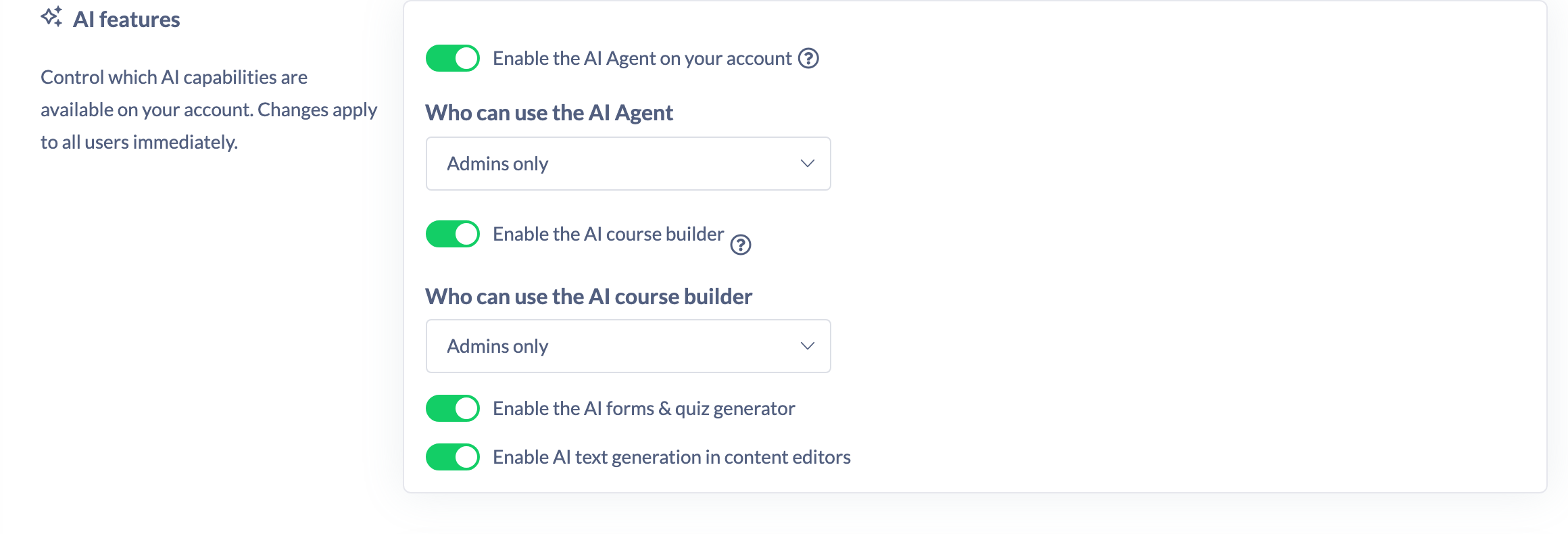
What's in the AI features section
Setting | What it does | Default | Has a "who can use it" setting? |
|---|---|---|---|
Enable the AI Assistant on your account | The AI Assistant answers questions about your data and how to use the platform, and carries out changes people approve | On | Yes |
Make the AI Assistant the default home page | Anyone who can use the Assistant lands on it after signing in instead of the dashboard | Off | No |
AI guidelines | Standing rules the AI follows whenever it generates content for you | Empty | No |
Enable AI Course Builder | Build interactive courses with AI | On for accounts created from September 2026, off for older ones | Yes |
Enable the AI forms & quiz generator | Generate Forms and quizzes with AI | Off | No |
Enable AI text & image generation in content editors | AI-assisted writing and images inside the content editors | On | No |
Every change here works the same way: flick the switch, change the dropdown or type into the box, then click Save in the Unsaved changes bar that appears at the top of the screen. Nothing takes effect until you save.
The AI Assistant
The AI Assistant answers questions about your organisation's learning data and about how to use the platform, and it carries out changes. It can assign learning, invite people, manage Team membership, update a person's details, build draft Pathways and Roadmaps, change catalogued settings and branding, and create Workflows.
Every one of those is prepared as a preview and does nothing until a person clicks Confirm. The Assistant has no way to confirm its own work. Completed changes can usually be undone for seven days, and all of them are recorded in an activity log. It only ever sees and does what each user's own permissions allow. See How to Use the AI Assistant and How the AI Assistant Makes Changes.
- Go to Settings → Features and find the AI features section.
- Turn on Enable the AI Assistant on your account. It's on by default where it's available for your account.
- Choose Who can use the AI Assistant:
- Admins only covers Owners and Admins. This is the default.
- Admins and managers covers Owners, Admins, Managers and People Managers.
- Click Save.
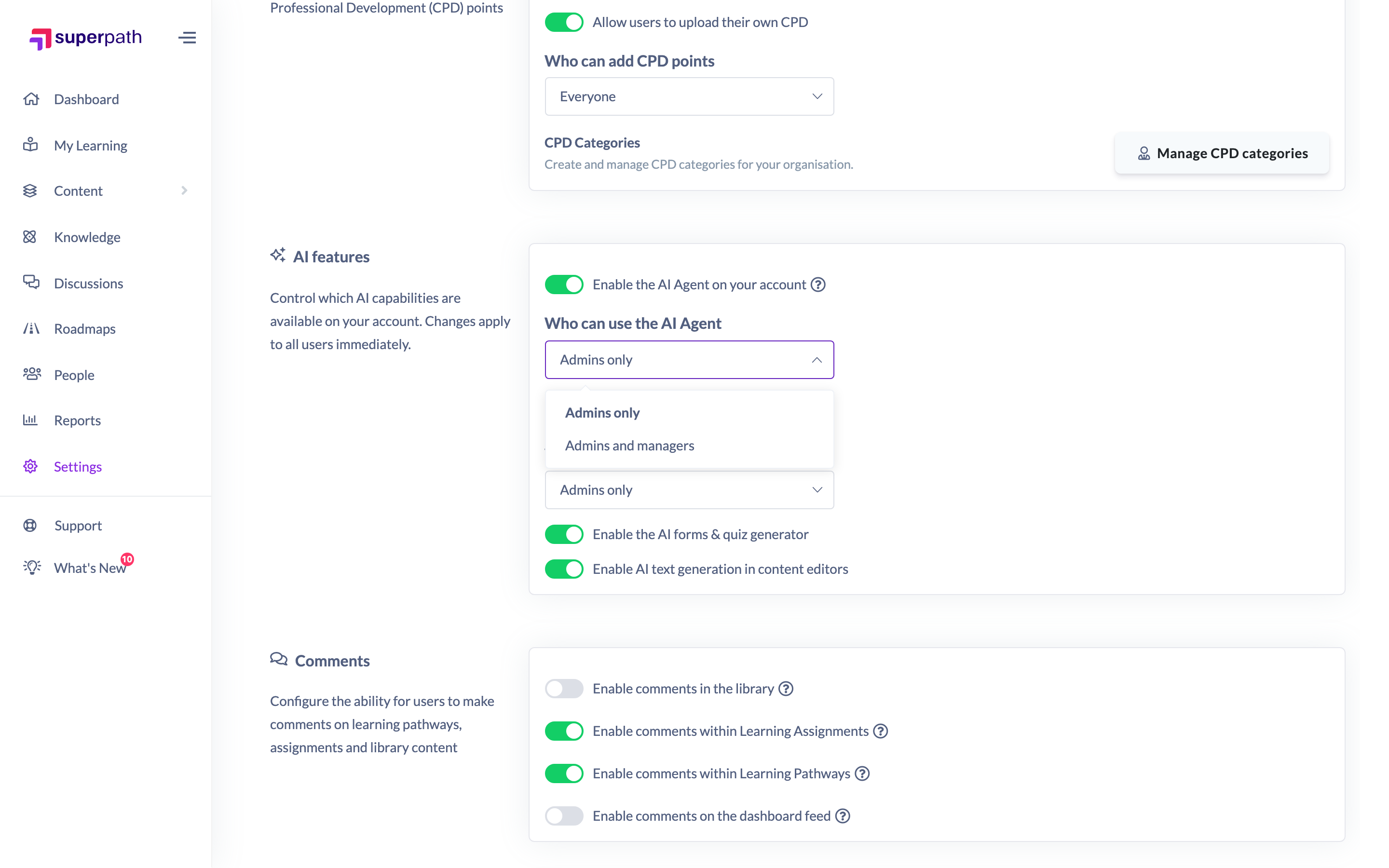
Anyone whose role isn't covered doesn't see the AI Assist menu item or the Ask AI button, and the same rule is enforced on the server. Narrowing this genuinely removes access rather than just hiding the button.
Note: Content Managers are deliberately not part of Admins and managers for the AI Assistant. The role manages content rather than people, so it has no team of direct reports to scope per-person answers to. Instructors are excluded for the same reason.
Making the AI Assistant the default home page
Turn on Make the AI Assistant the default home page and anyone who can use the Assistant lands on it after signing in, instead of the dashboard.
This is your organisation's default, not a rule. Each person can choose for themselves from a switch at the bottom of the Assistant home page, and their own choice always wins in both directions. See The AI Assistant Home Page.
Note: If your organisation has turned the dashboard off entirely, people who can use the Assistant land on it regardless of this setting, and everyone else lands on My Learning.
AI guidelines
AI guidelines is a free-text box of standing rules the AI follows whenever it generates content for your organisation: Pathways, Roadmaps, Forms and drafts. Leave it empty if you have none.
This is the most direct control you have over how AI-written content sounds. Use it for house style, for the words your organisation uses about its people, and for anything the AI should never say.
Tip: Write plain instructions, one per line. For example: "Write in Australian English. Call our people team members, not employees. Never mention competitor products."
The box holds up to 2,000 characters. Guidelines apply to generated content across the AI features, and where the AI Assistant builds something from them it tells you it applied your organisation's guidelines.
The AI course builder
The AI course builder lets your team build interactive courses with AI. It is available to Owners, Admins and Managers, and your account's admins decide which of those roles gets it. See the AI Course Builder section of the help centre for how to use it.
Accounts created from September 2026 start with it on and set to Admins only. Accounts created before then start with it off, so check the switch before looking for the feature.
- In the AI features section, turn on Enable AI Course Builder if it is not already on.
- Choose Who can use the AI course builder:
- Admins only covers Owners and Admins. This is the default.
- Admins and managers also covers Managers, People Managers and Content Managers.
- Click Save.
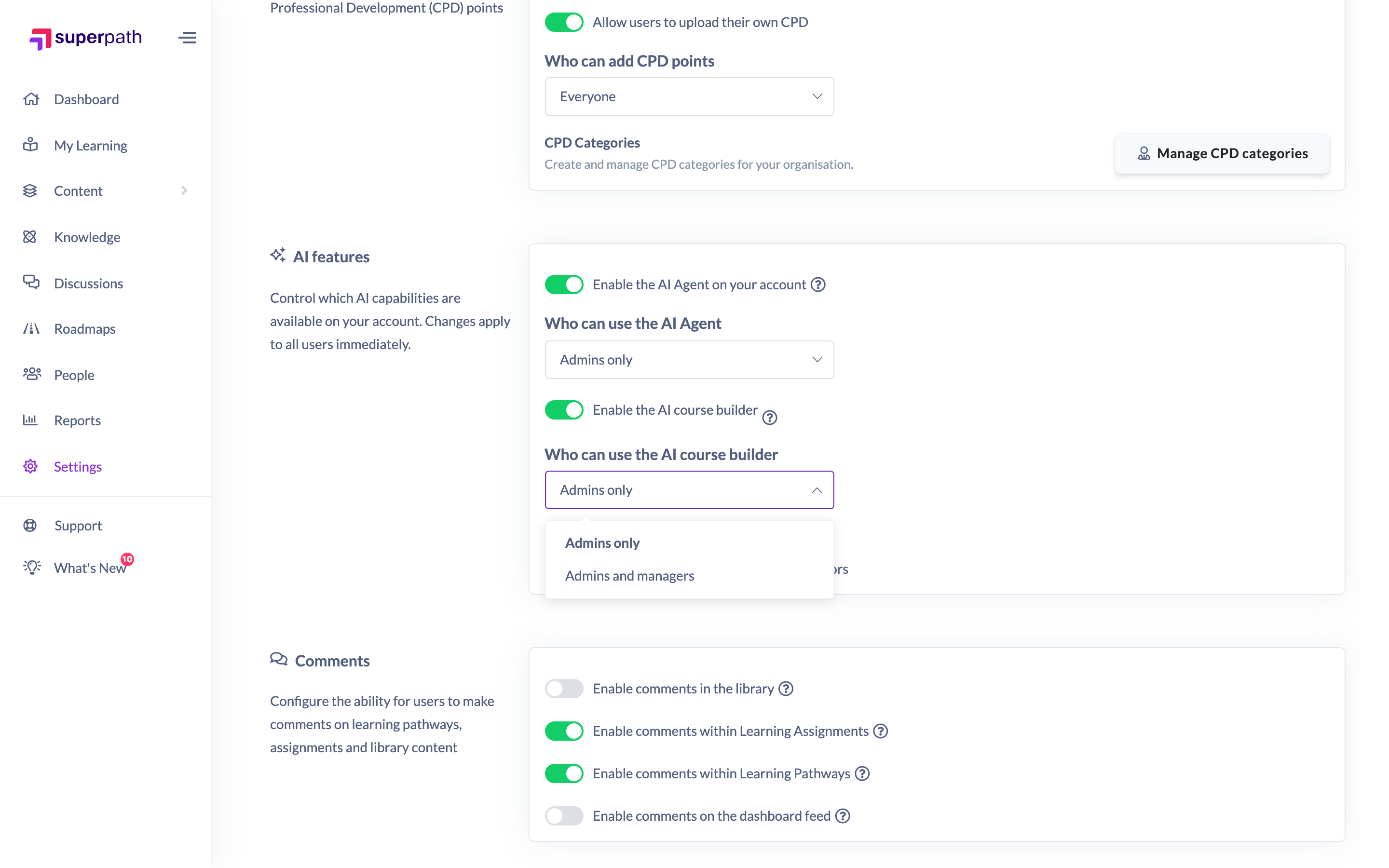
This setting controls who can create and edit courses with AI once the feature is on.
Note: Admins and managers means a slightly different set of roles here than it does for the AI Assistant, because it includes Content Managers. Building courses is exactly what that role is for.
Good to know: The AI course builder is available to Owners, Admins and Managers. There is no per-user licence and nothing to buy per person, so nobody needs to be assigned a seat. Which of those roles can actually use it is your account's own choice: Who can use the AI course builder starts at Admins only, and any Owner or Admin can widen it to Admins and managers whenever they like.
The AI forms & quiz generator
This uses AI to help you build Forms and quizzes. It's a single on/off toggle with no access-level dropdown. Once it's on, anyone who can already build a Form can use it.
- In the AI features section, turn on Enable the AI forms & quiz generator.
- Click Save.
See How to Use AI Forms to Instantly Generate Quizzes.
AI text & image generation in content editors
This controls whether AI-assisted writing and image generation are offered inside SuperPath's content editors. It's on by default, and it's a single on/off toggle with no access-level dropdown.
- In the AI features section, turn Enable AI text & image generation in content editors on or off.
- Click Save.
Turning it off removes the AI writing and image options from the content editors for everyone. See How to Use AI Generated Text in SuperPath.
Things to keep in mind
- Every change needs Save in the Unsaved changes bar. Flicking a switch on its own does nothing.
- The two access-level dropdowns only appear once their toggle is on.
- Not every AI feature is available to every account. The AI Assistant and AI Course Builder settings are only shown where SuperPath has made them available to your account. If you can't see one you'd expect, contact SuperPath Support.
- Admins and managers covers different roles depending on the feature. Content Managers are included for the AI course builder and excluded for the AI Assistant.
- Narrowing the AI Assistant to Admins only takes it away from Managers and People Managers immediately. Their existing conversations remain, but they can't open the Assistant.
- The AI Assistant makes changes only when somebody confirms them, and every change is recorded. See The AI Assistant Activity Log.
- AI Assistant usage limits are fixed rather than configurable: 100 messages a day across your whole organisation resetting at midnight UTC, 50 confirmations per person per day of actions that affect a group of people, 20 prepared actions per conversation, and at most 500 people affected by any single action.
- AI Assistant conversations are private to each user and are kept for 90 days. The activity log of changes is separate and is visible to Owners and Admins.
FAQs
Where is the AI Assistant setting? I'm looking for "AI Agent".
It's Enable the AI Assistant on your account, in the AI features section of Settings → Features. It used to be labelled "AI Agent" and was renamed to match what people see in the app.
Which AI features are on by default?
The AI Assistant and AI text & image generation in content editors are on where available. The AI course builder is on for accounts created from September 2026, set to Admins only, and off for accounts created before then. The AI forms & quiz generator is off until you turn it on, and it is a separate switch: having the course builder on does not turn it on. Making the Assistant the default home page is off.
Why can't I see the AI Assistant or AI Course Builder settings at all?
Those two are only shown where SuperPath has enabled them for your account. Contact SuperPath Support if you'd expect to have them.
Can the AI Assistant change things in our account?
Yes, but only changes a person has approved. It prepares a change, shows exactly what will happen, and waits for a Confirm click. It cannot confirm its own work, most changes can be undone for seven days, and everything is recorded in the activity log.
Does the AI Assistant let people see data they otherwise couldn't?
No. It's scoped to each user's own permissions. Owners and Admins get account-wide answers. Managers and People Managers only ever see the people who report directly to them.
Can I stop it making changes but keep it answering questions?
Not as a separate switch. Access is controlled by role through Who can use the AI Assistant, and every change already requires a person to confirm it. Some changes, such as account settings and branding, are restricted to Owners and Admins whatever the access level.
Do Managers need a licence for the AI course builder?
No. It is available to Owners, Admins and Managers with nothing to buy per person. Set Who can use the AI course builder to Admins and managers and the Build Course button appears for Managers, Content Managers and People Managers straight away.
Do the guidelines apply to the AI Assistant as well as the course builder?
Yes. They apply wherever the AI generates content for your organisation.
Do the forms generator and text generation have their own access settings?
No. Both are simple on/off toggles for the whole account.
Can people override the default home page setting?
Yes. Each person has their own switch on the AI Assistant home page, and it wins over the organisation default either way.
What happens to AI Assistant conversations if I turn the feature off?
Users lose access straight away. Conversations aren't deleted by the change and are removed on the normal 90-day schedule. Anything the Assistant already changed stays changed, and stays in the activity log.
Who can do this
Only Owners and Admins can change these settings. The Settings area is restricted to those two roles, and saving a change to Features requires the tenant-settings update permission, which only Owners and Admins hold. Managers, Content Managers, People Managers, Instructors, Employees and Restricted users cannot open Settings or change any of these toggles.
This is separate from the two Who can use… dropdowns, which decide who can use each feature once it's switched on.
Updated on: 09/09/2026
Thank you!