
What Is Self-Registration?
What Is Self-Registration?
In this article:
- Overview
- When to use Self-Registration
- How it works
- Approval modes
- Setting it up
- Things to keep in mind
- FAQs
- Who can do this
Overview
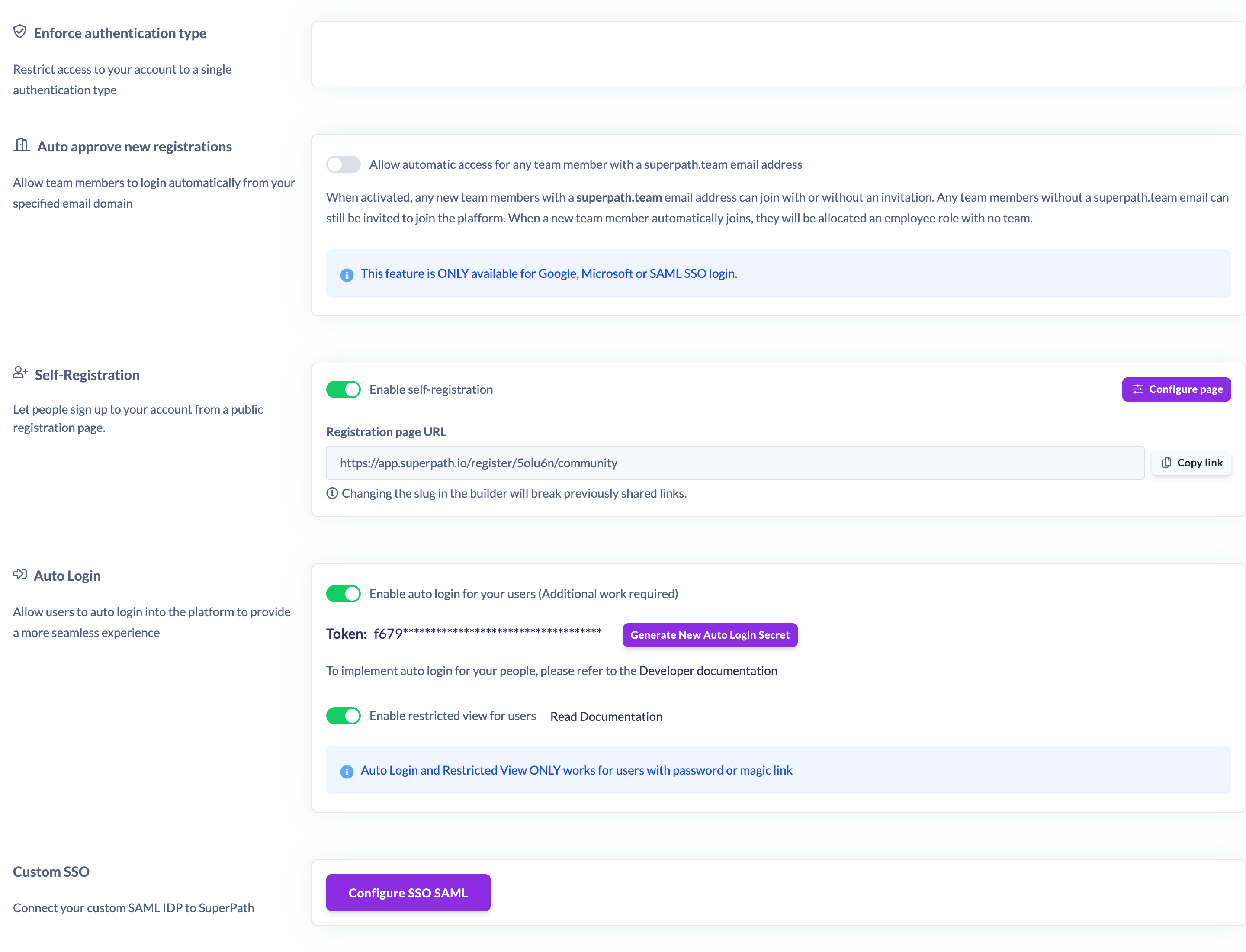
Self-Registration lets you publish a single public registration page for your account, so people can sign themselves up rather than waiting for an admin invite or an HR system sync. You share one link, and anyone who opens it can create their own account and land in your platform as a member of the team and role you've chosen.
It's an alternative to the usual ways of adding people (inviting them one by one, adding them manually, or syncing from a connected HR system) — useful whenever you don't have a fixed list of users to invite up front.
When to use Self-Registration
Self-Registration works best when you want people to join without you knowing exactly who they are in advance. For example:
- Customers or partners who should be able to sign up for your training on their own.
- Contractors or temporary staff who aren't in your HR system.
- Open course sign-up, where anyone with the link (optionally limited to certain email domains) can join.
If you already know exactly who needs access and want tight control over each account, inviting people or syncing from an HR system may suit you better.
How it works
You set up one registration page per account and control what it does: the page's web address, which team and role new sign-ups are given, which sign-in methods they can use, and what details they're asked for. When the page is enabled, anyone with the link can complete it and request access. You can also restrict sign-ups to specific email domains.
There is one registration page per account. Configuring the page changes that single shared link and its behaviour for everyone.
Approval modes
Every registration page uses one of two approval modes:
- Auto-approve (instant access) — the person's account is created as soon as they submit the form, and they go straight into your platform.
- Require admin approval — instead of creating an account immediately, the sign-up becomes a pending request that an admin reviews under People → Pending, then approves or rejects.
You choose the mode when you configure the page. See "How to Choose Auto-Approve or Require Approval for Sign-Ups" for the details of each, and "How to Approve a Pending Registration" for the review step.
Setting it up
Self-Registration is configured in Settings → Security, in the Self-Registration card. Only Owners and Admins can open Settings and set it up. The related how-to articles walk through each part:
- How to Enable Self-Registration — turn the page on.
- How to Set Your Registration Page URL and Share the Link — set the page's web address and copy the link to share.
- How to Choose Auto-Approve or Require Approval for Sign-Ups — pick how sign-ups are handled.
Things to keep in mind
- There is one registration page per account, and it isn't live until you enable it (and it has been fully configured).
- If your account is on a plan with a fixed number of seats and you've reached that limit, new sign-ups (and approvals) can be blocked with a licensing error. Make sure you have seats available, or contact Support to upgrade.
- Restricting sign-ups to specific email domains is optional — leave the restriction off to allow any email address.
FAQs
Do I need to invite people once Self-Registration is on?
No. That's the point of the feature — people use your registration link to sign themselves up, so you don't have to invite them individually.
Can I have more than one registration page?
No. Each account has a single registration page. Changing its settings changes that one shared page for everyone.
Will someone get access the moment they sign up?
That depends on your approval mode. With auto-approve, yes. With require admin approval, they'll wait until an admin approves their pending request.
Who can do this
Only the Owner can set up and configure Self-Registration, under Settings → Security. Once the page is live, both Owners and Admins can review pending sign-ups under People → Pending (approve or reject). Managers, People Managers, Content Managers, Instructors, Employees and Restricted users cannot. (The registration page itself is public — anyone with the link can sign up, subject to any email-domain restriction you set.)
Updated on: 19/07/2026
Thank you!