
How to Add a Discussion Category
How to Add a Discussion Category
In this article:
- Overview
- How to add a discussion category
- Things to keep in mind
- FAQs
- Who can do this
Overview
Discussion categories group your Discussions into topics so members can find and post in the right place. Each category has a name and can carry a short description, an icon and an image to make it easy to recognise. This article covers creating a new category from your account settings.
How to add a discussion category
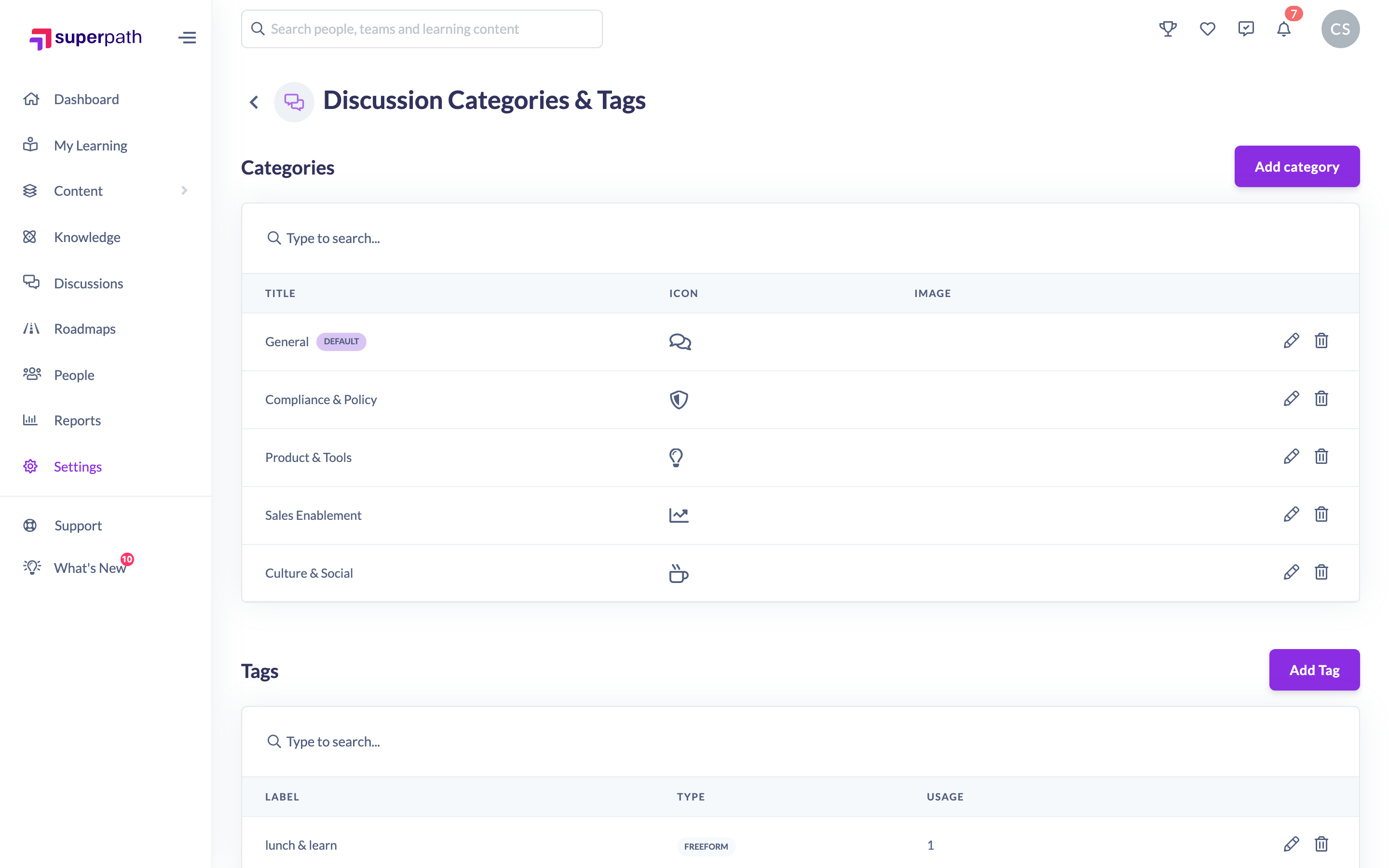
- Go to Settings → Features → Discussion Categories & Tags.
- In the Categories section, click Add category.
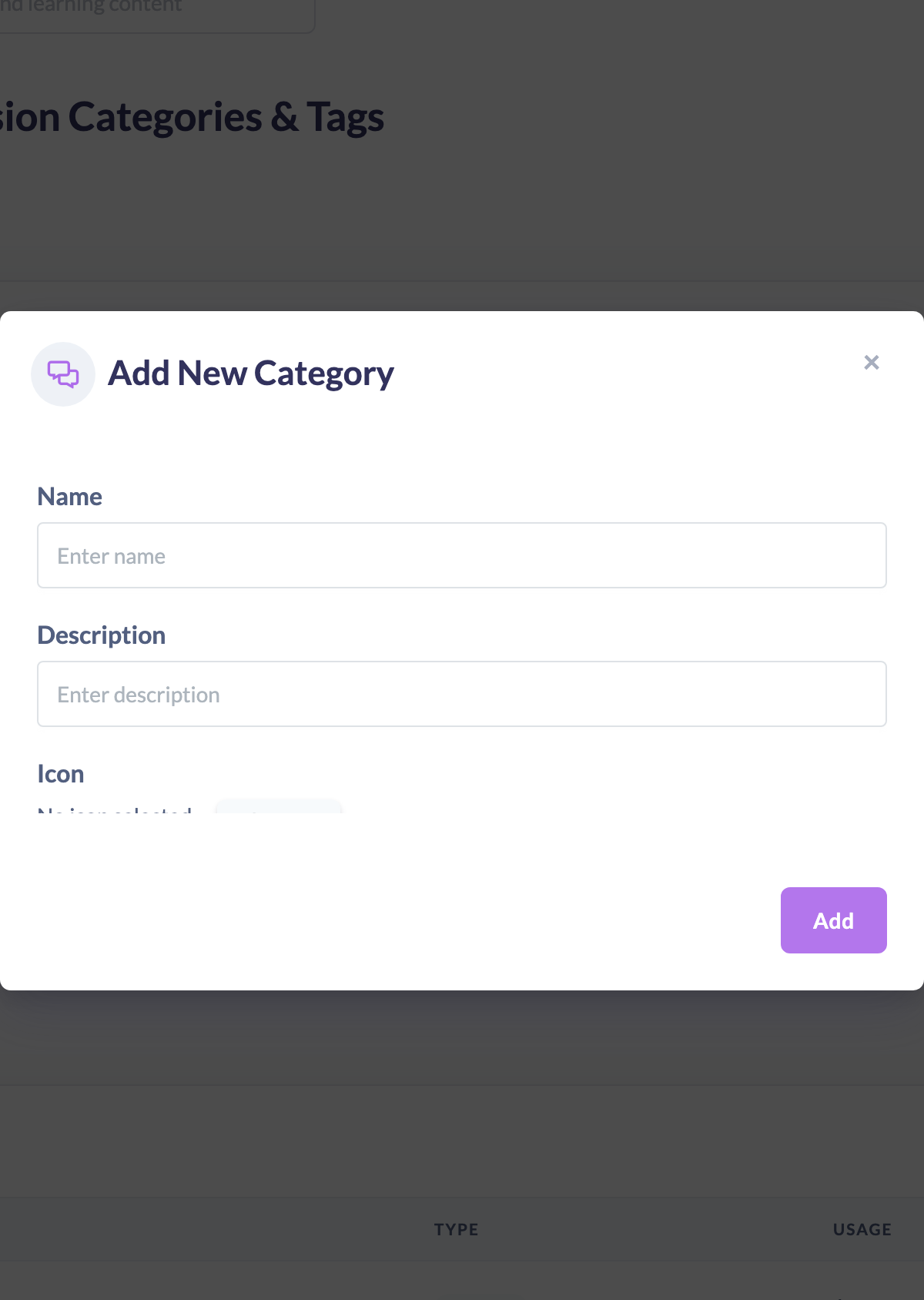
- Enter a Name for the category (this is the only required field).
- Optionally add a Description.
- Optionally choose an Icon using Select Icon, and an Image by clicking the image picker.
- Optionally turn on Set as default category to make this the category new Discussions fall back to.
- Click Add to save.
Note: The first category you ever create is automatically set as the default, whether or not you turn on the toggle — every account must always have one default category.
Things to keep in mind
- Only Name is required. The description, icon and image are all optional.
- Turning on Set as default category makes this category the default and removes the default flag from whichever category held it before — there is always exactly one default.
- New categories appear in the list immediately, and you can search the list by title using the search box.
FAQs
What happens if I set a new category as the default?
The category that was previously the default is automatically demoted, so only one category is ever the default at a time.
Can I reorder categories?
There is no control on this screen to change the display order of categories.
Do I have to add an icon or image?
No. Both are optional and can be added or changed later by editing the category.
Who can do this
Owners and Admins can add discussion categories. Content Managers and People Managers can view the categories list but cannot add, edit or delete categories — those actions are blocked by the platform. Other roles do not have access to this screen.
Updated on: 16/07/2026
Thank you!