
How to Manage Featured Discussions
How to Manage Featured Discussions
In this article:
- Overview
- How to open the Featured Discussions page
- How to reorder featured discussions
- How to toggle the Hub banner spotlight
- How to remove a discussion from the featured list
- Things to keep in mind
- FAQs
- Who can do this
Overview
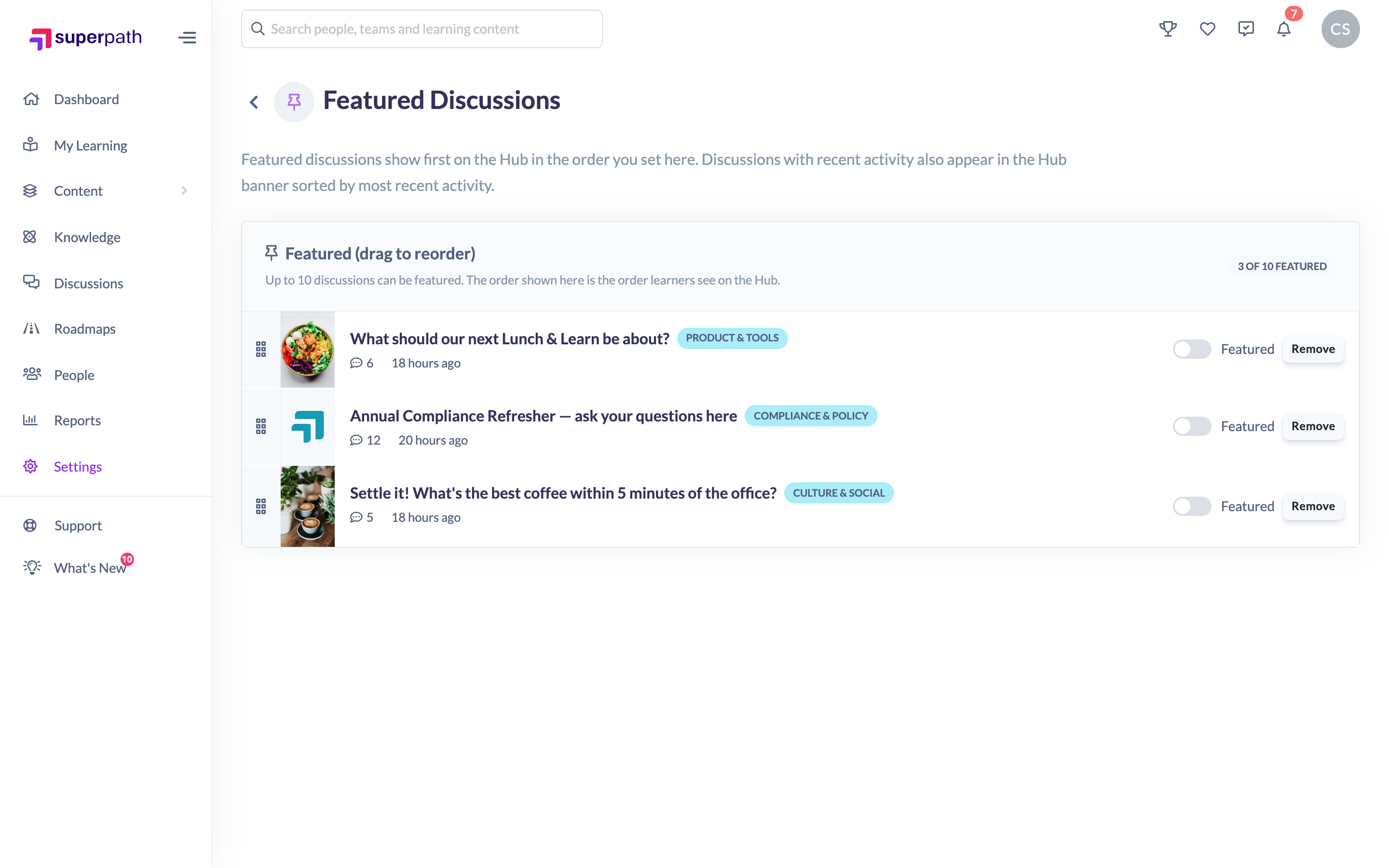
The Featured Discussions page is where you curate the Discussions that appear at the top of the Hub. From here you can set the order learners see, toggle whether each one is spotlighted in the Hub banner, and remove Discussions from the featured list. It works hand in hand with the one-click feature control on each discussion page (see How to feature a discussion).
How to open the Featured Discussions page
- Go to Settings → Features.
- Scroll to the Discussions section.
- In Featured Discussions, click Manage Featured.
You'll land on the Featured Discussions page (/settings/features/discussions/featured), which lists your featured Discussions under Featured (drag to reorder).
How to reorder featured discussions
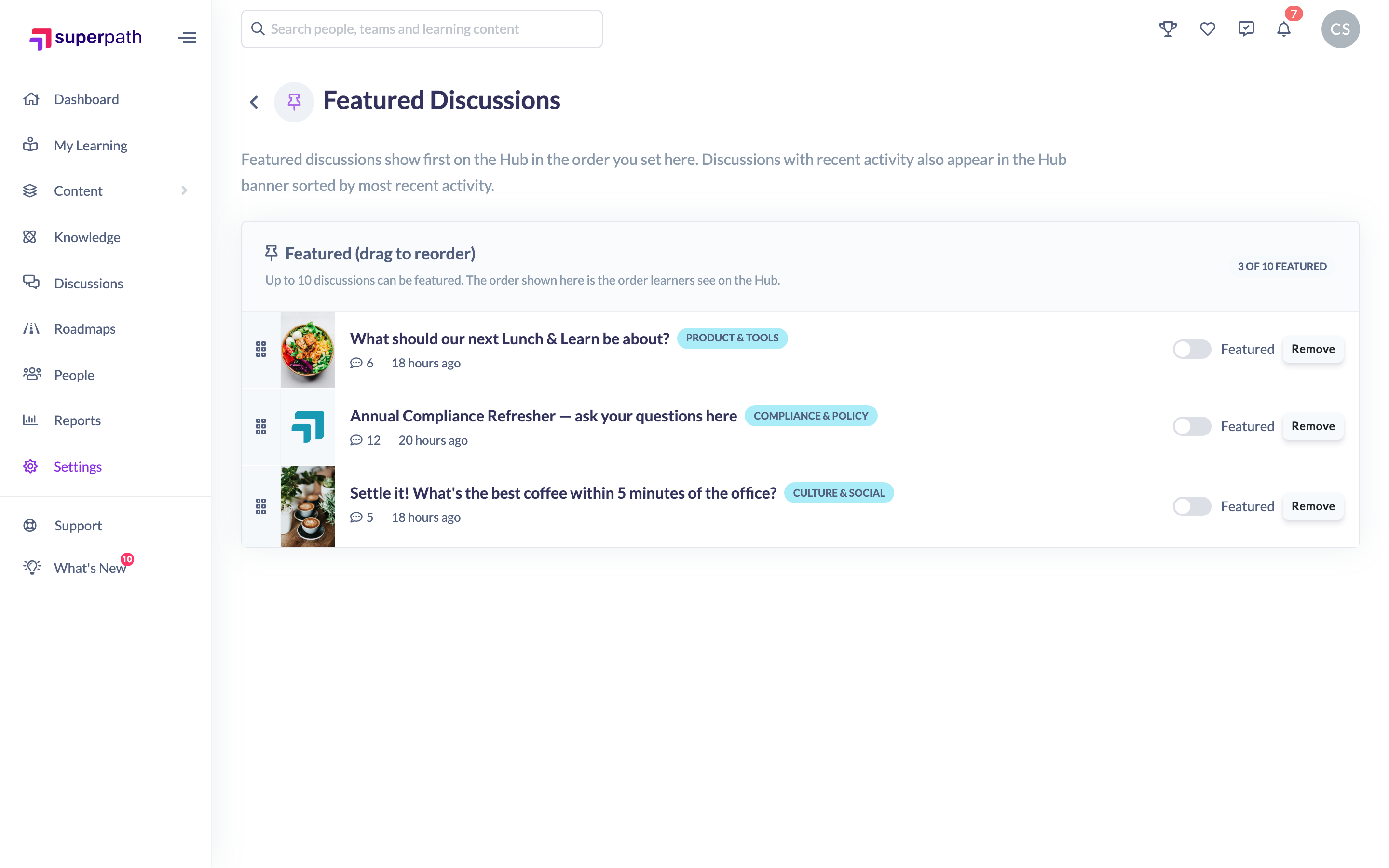
- On the Featured Discussions page, find the drag handle (the grip icon) on the left of each row.
- Drag a row up or down to change its position.
- Release it to save — the new order is the order learners see on the Hub.
How to toggle the Hub banner spotlight
Each row has a Featured switch. Turning it on spotlights that Discussion in the Hub banner (and notifies the creator the first time it's switched on); turning it off removes the banner spotlight while keeping the Discussion in your featured list.

How to remove a discussion from the featured list
- On the row you want to remove, click Remove.
- The Discussion drops off the featured list and the Hub immediately.
Removing a Discussion here also clears its spotlight in the same action, so it can never be left half-featured.
Things to keep in mind
- Up to 10 Discussions can be featured at once across your tenant.
- A Discussion is only ever featured while it's in this list — removing it here (or unfeaturing it from its own page) takes it off the Hub entirely.
- Archived Discussions can't be featured. Archiving a Discussion automatically removes it from this list.
- Changes are saved as you make them; there's no separate Save button.
FAQs
How is this different from featuring a discussion from its own page?
The discussion page gives you a quick one-click way to add or remove a single Discussion. This admin page is where you manage the whole set — ordering them and controlling the Hub banner spotlight. Both act on the same featured list.
What does the order here control?
It's the exact order featured Discussions appear on the Hub. Drag rows to set it.
Why doesn't a discussion I archived show here anymore?
Archiving removes a Discussion from the featured list automatically, because an archived thread is read-only and shouldn't sit in the Hub spotlight. Unarchive it and feature it again if you want it back.
Who can do this
Owners and Admins can manage featured Discussions. The page sits under Settings and is available only to Owners and Admins — Managers, Content Managers, People Managers, Instructors, Employees and Restricted users can't reach it.
Updated on: 16/07/2026
Thank you!