
How to Close a Poll
How to Close a Poll
In this article:
- Overview
- How to close a poll
- Things to keep in mind
- FAQs
- Who can do this
Overview
Closing a poll ends voting and locks in the result. The tally stays visible to everyone, but no further votes can be cast. Close a poll once you have the responses you need, or when a decision has been reached.
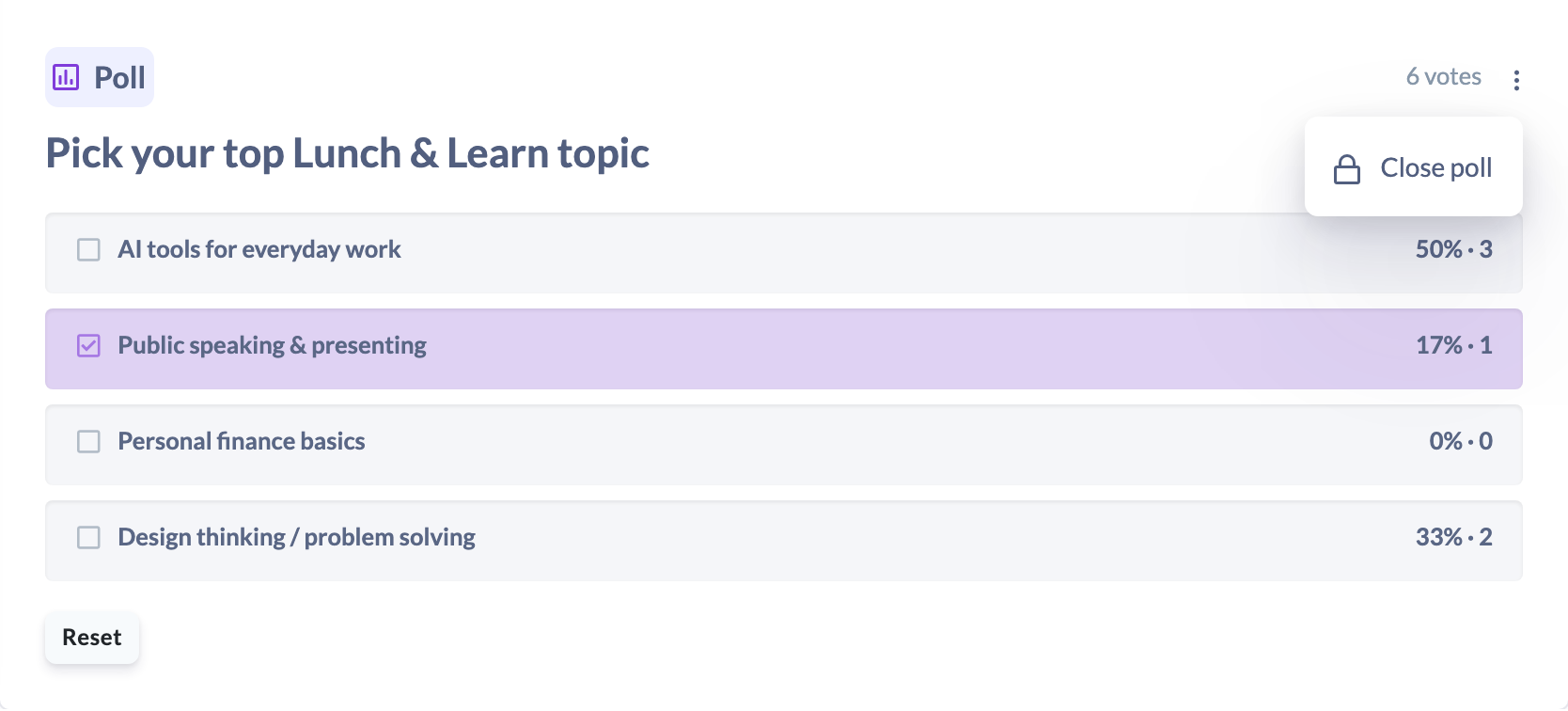
How to close a poll
- Open the discussion from the Discussions hub and find the Poll card, just below the opening statement.
- Click the three-dot menu at the top-right of the poll card.
- Choose Close poll.
The poll immediately shows a Closed badge and stops accepting votes. There is no confirmation step, and closing cannot be undone from the poll card.
Note: A poll can also close automatically if it was given a scheduled close time when it was set up. Once that time passes, the poll behaves as closed even if no one closed it manually.
Things to keep in mind
- Closing is final — there is no reopen option on the poll card, so only close once voting really is finished.
- The three-dot menu only appears to people who are allowed to close the poll, and only while the poll is open and the discussion is active.
- Results remain visible after closing; closing stops votes, it does not hide the poll.
FAQs
Can I reopen a poll after closing it?
No. Closing is final from the poll card. If you need to gather fresh responses, create a new poll on a new discussion.
What happens to votes already cast when I close the poll?
They are kept and stay reflected in the final percentages and counts.
Why don't I see the option to close the poll?
The close control is only shown to the discussion's author and to moderators, and only while the poll is open on an active discussion.
Who can do this
The person who created the discussion can close its poll. So can moderators — Owners, Admins, Managers and Content Managers, who can manage all Discussions. People Managers, Instructors and Employees can close a poll only on a discussion they created themselves; Restricted users cannot close polls.
Updated on: 16/07/2026
Thank you!