
How to React to a Comment
How to React to a Comment
In this article:
- Overview
- How to add a reaction
- How to remove a reaction
- Things to keep in mind
- FAQs
- Who can do this
Overview
Reactions are a quick, lightweight way to respond to a comment without writing a reply. A thumbs-up or a celebration emoji lets people acknowledge each other and show agreement at a glance.
How to add a reaction
- Find the comment or reply you want to react to.
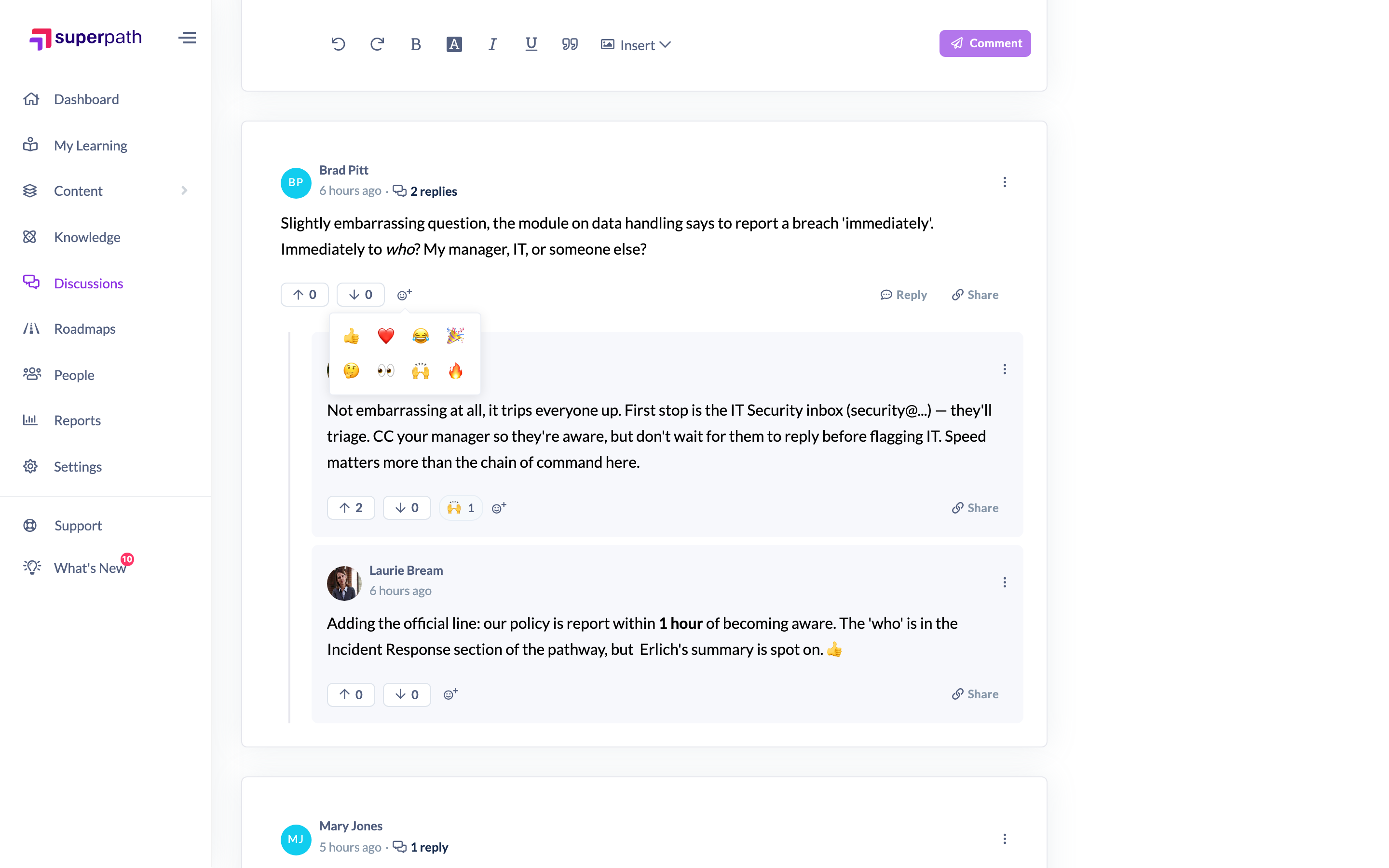
- Click the Add reaction button (the smiley-face icon) in the comment's action row.
- Pick an emoji from the picker. Your reaction appears as a chip beneath the comment with a running count.
How to remove a reaction
- Find the reaction chip you added — reactions you've made are highlighted.
- Click the highlighted chip to remove your reaction. The count goes down by one, and the chip disappears if you were the only person who used that emoji.
Tip: Hover over a reaction chip to see who reacted with that emoji.
Things to keep in mind
- You can add more than one different emoji to the same comment, but each emoji counts once per person — reacting again with the same emoji removes it.
- The set of available emoji is chosen by your organisation. If no custom set has been configured, the default set is 👍 ❤️ 😂 🎉 🤔 👀 🙌 🔥.
- Reactions update live — when someone else reacts, the chips and counts refresh without a page reload.
- Reactions can only be added while the discussion is active; on a closed or archived discussion the existing chips stay visible but can't be changed.
FAQs
Can I react with any emoji?
You choose from the set your organisation has made available (or the default set shown above). It isn't a free emoji keyboard.
Can I take back a reaction?
Yes. Click your highlighted reaction chip again to remove it.
Who can see that I reacted?
Anyone can hover a reaction chip to see the names of the people who reacted with that emoji.
Who can do this
Anyone who can see a discussion can react to its comments — Owners, Admins, Managers, Content Managers, People Managers, Instructors, Employees and Restricted users.
Updated on: 16/07/2026
Thank you!