
How to Add a Poll to a Discussion
How to Add a Poll to a Discussion
In this article:
- Overview
- How to add a poll
- Things to keep in mind
- FAQs
- Who can do this
Overview
A poll turns a discussion into a quick vote. It's a good way to gather opinions, make a group decision or gauge sentiment alongside the conversation. You add a poll while you're creating the discussion, and everyone who can see the discussion can then cast their vote.
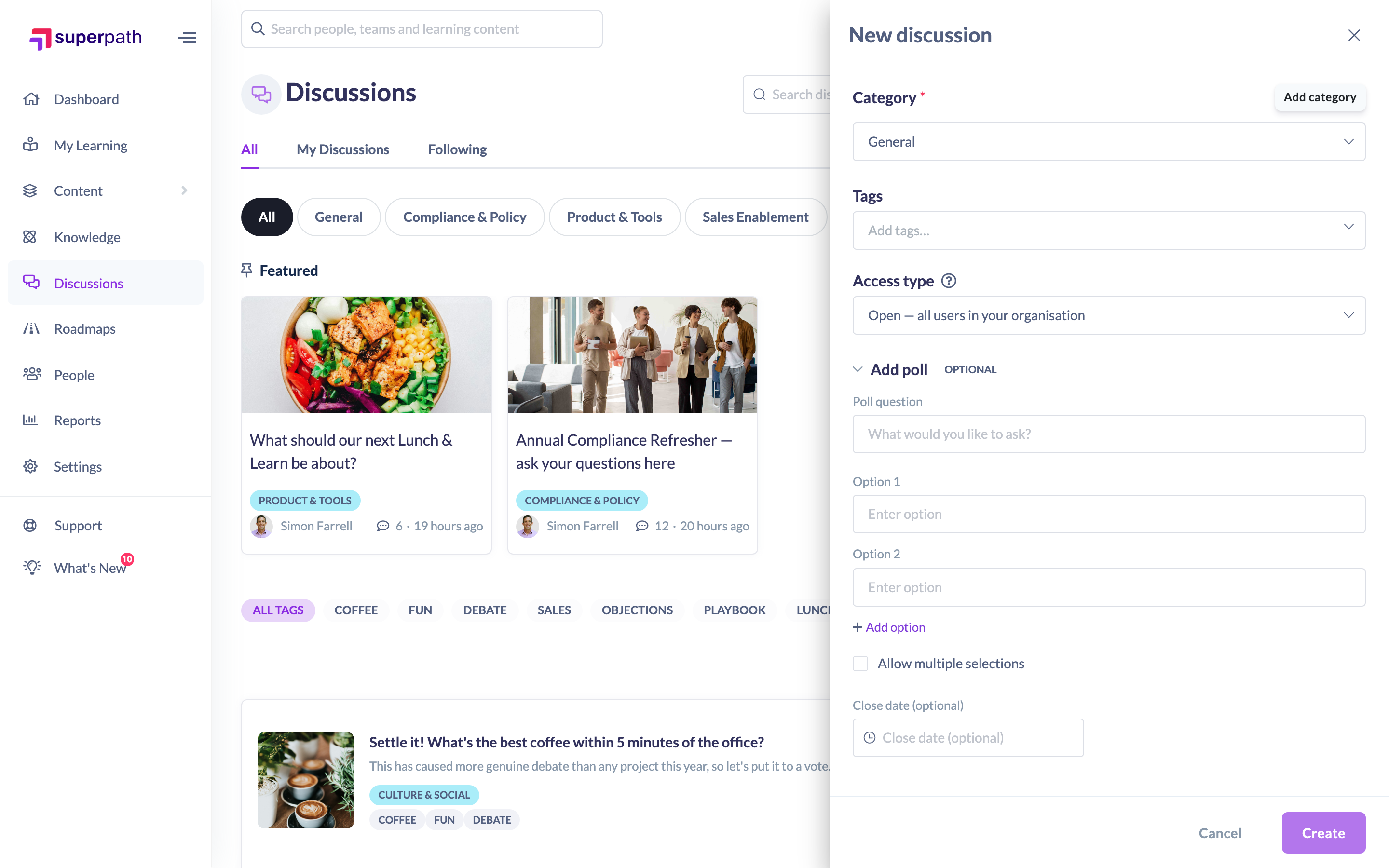
How to add a poll
- Start a new discussion from Discussions → Start discussion (see "How to Start a Discussion").
- In the New discussion panel, scroll to the Add poll section. It's marked Optional and is collapsed by default — click it to expand it.
- In Poll question, type what you want to ask (for example, "What would you like to ask?").
- Fill in the answer options. You start with two blank options and can add more with Add option, up to a maximum of 8. Use the delete icon next to an option to remove it (you must keep at least two).
- (Optional) Tick Allow multiple selections if voters should be able to choose more than one option.
- (Optional) Set a Close date using the date and time picker. After this time the poll stops accepting votes. Leave it blank for a poll that stays open.
- Finish the rest of the discussion and click Create. The discussion is saved first, then the poll is attached to it.
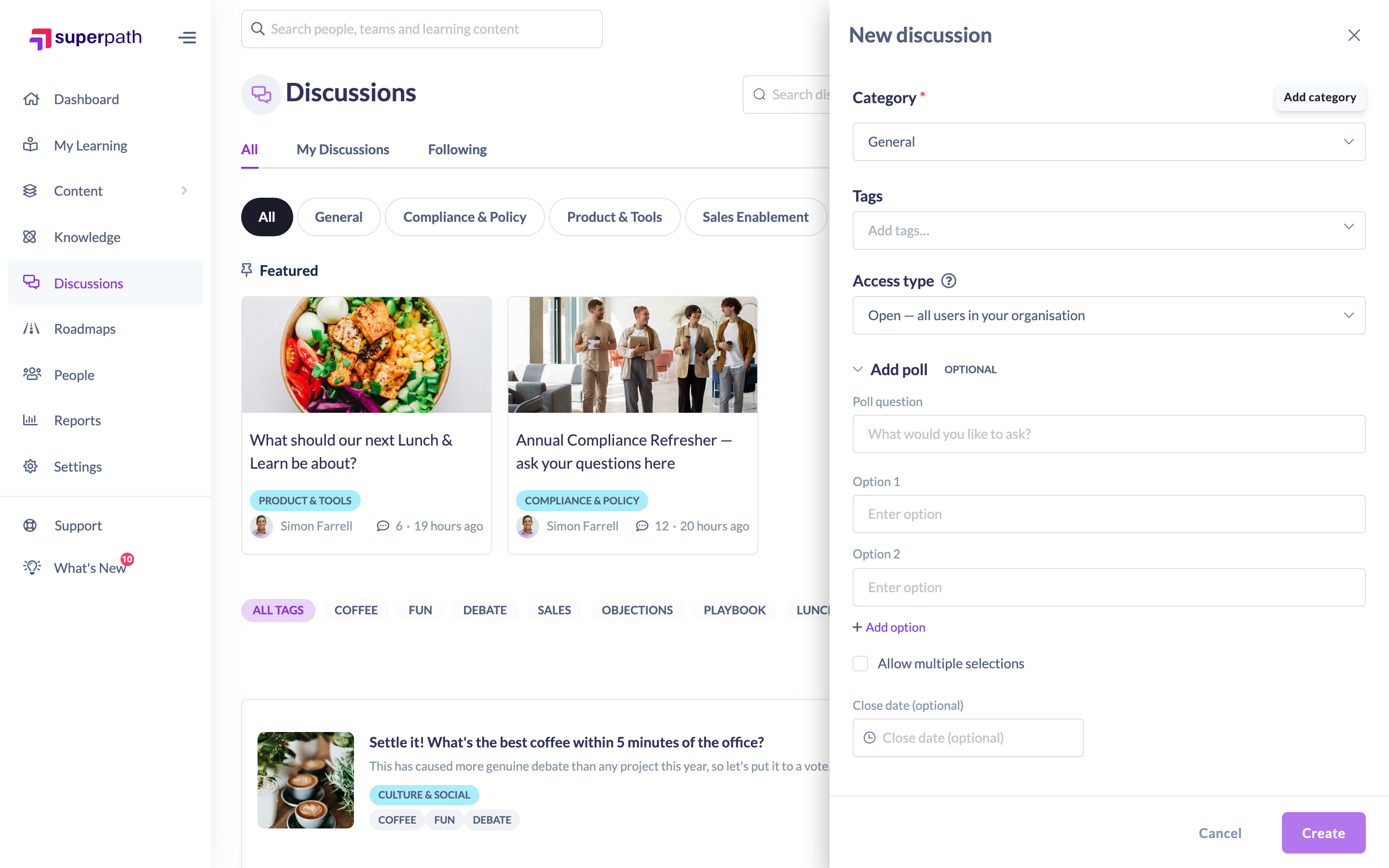
Note: The poll is only saved if you've expanded the section and entered a question with at least two options. A collapsed, empty poll section is ignored.
Things to keep in mind
- A poll needs a question and between 2 and 8 options. You'll be prompted if you try to create it with fewer than two options.
- The poll is created as a second step after the discussion is saved. If the discussion saves but the poll fails, you'll see a "Couldn't save poll" message — the discussion still exists and you can add the poll again by editing it.
- Once voting starts, the poll's question and existing options are locked and can no longer be edited. You can still add new options in some cases, but existing answers stay fixed to keep the results fair.
- A poll's close date is optional. Without one, the poll stays open until someone closes it manually.
FAQs
How many options can a poll have?
Between 2 and 8.
Can people pick more than one answer?
Only if you tick Allow multiple selections when you set the poll up.
Can I add a poll to a discussion that already exists?
Yes — open the discussion, click Edit, and use the poll section in the edit panel.
Can I edit the poll after people have voted?
Editing is locked once voting has started, so the question and existing options can't be changed. Set the poll up carefully before votes come in.
How do I stop a poll early?
Set a close date, or close it manually — see "How to Close a Poll".
Who can do this
Anyone who can start or edit a discussion can add a poll to it, because the poll is part of the discussion form. On the Discussions hub that means Owners, Admins and Managers; on a learning item's in-context Discussions panel it follows your organisation's "who can create discussions" setting. The discussion's original author can also add or edit a poll on their own discussion. Restricted users cannot create discussions and therefore cannot add polls.
Updated on: 16/07/2026
Thank you!