
How to Create an Invite-Only Discussion
How to Create an Invite-Only Discussion
In this article:
- Overview
- How to create an invite-only discussion
- Things to keep in mind
- FAQs
- Who can do this
Overview
An Invite-only discussion is visible only to the specific people you invite. It's the most private access type — ideal for a sensitive topic, a small working group, or a conversation you want to keep to named individuals. Everyone you invite is notified so they know to join.
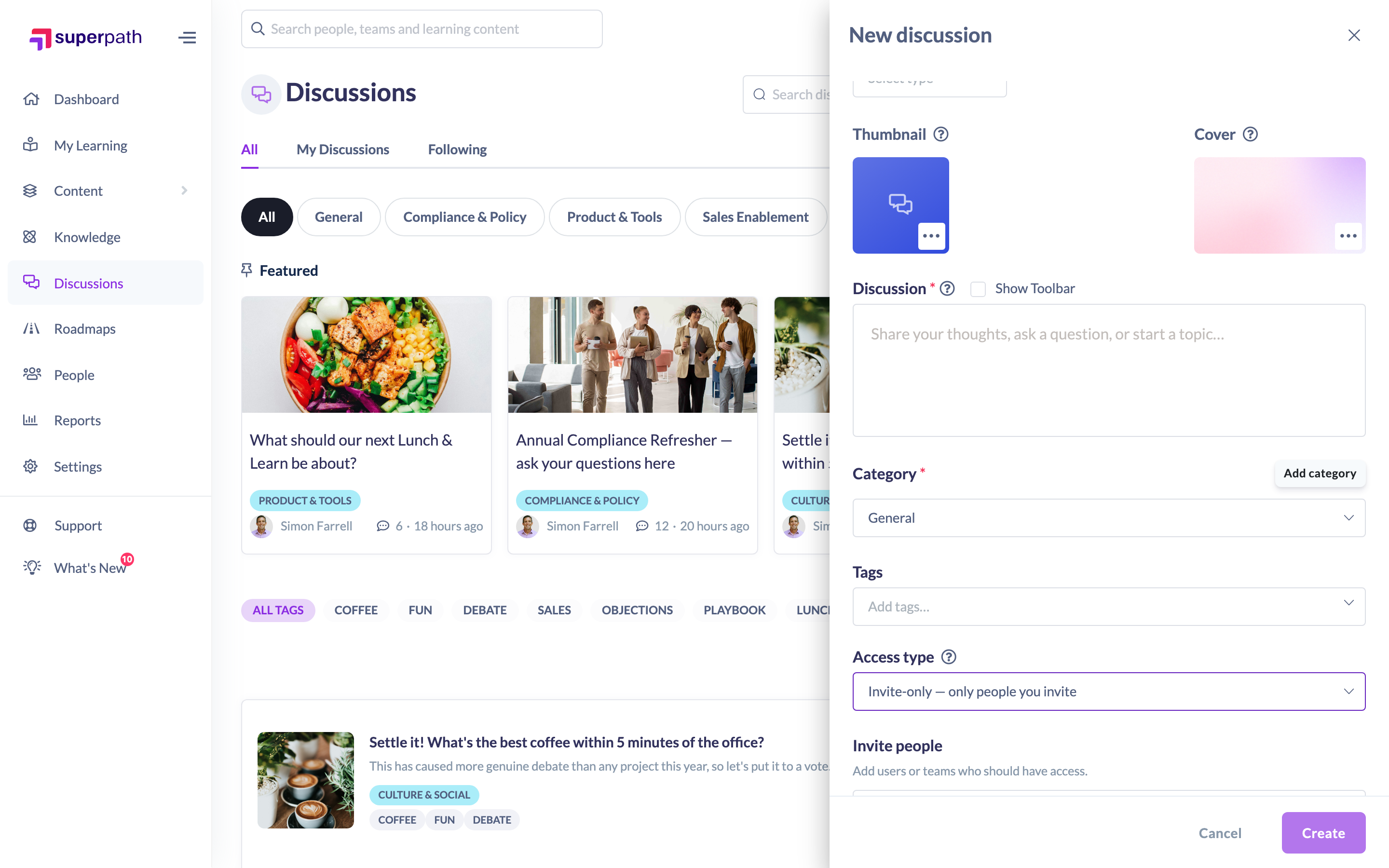
How to create an invite-only discussion
- Start a new discussion from Discussions → Start discussion, or open an existing discussion and click Edit.
- Find the Access type field.
- Choose Invite-only — only people you invite.
- An Invite people field appears. Search for the people you want to add (placeholder: "Search users or teams…") and select them one at a time. You must invite at least one person.
- Finish the discussion and click Create (or Save when editing).

Note: You must invite at least one person and can invite up to 50. If the invite list is empty, the Create button stays disabled.
Things to keep in mind
- An Invite-only discussion is visible only to the people you invite. It won't appear on the hub or in search for anyone else.
- You can invite up to 50 people per discussion.
- Everyone you add gets an "invited" notification so they know about the discussion. When you edit the discussion later and add more people, only the newly added invitees are notified — existing ones aren't pinged again.
- Owners and Admins who moderate discussions can still see Invite-only threads for moderation, even if they weren't invited.
- You can change the access type later by editing the discussion.
FAQs
How many people can I invite?
Up to 50 per discussion.
Do invited people get notified?
Yes. Each person you invite receives a notification. Adding more people later only notifies the new invitees.
What's the difference between Invite-only and Team-only?
Invite-only targets named individuals; Team-only targets whole Teams. See "How to Restrict a Discussion to Specific Teams".
Can I remove someone I invited?
Yes — edit the discussion and adjust the invite list.
Who can do this
Setting a discussion to Invite-only is part of the discussion form, so anyone who can start or edit a discussion can use it. On the Discussions hub that's Owners, Admins and Managers; on a learning item's in-context panel it follows your organisation's "who can create discussions" setting. A discussion's author can also change the access type and invite list when editing their own discussion. Restricted users cannot create or edit discussions.
Updated on: 16/07/2026
Thank you!