
How to Delete a Discussion Category
How to Delete a Discussion Category
In this article:
- Overview
- How to delete a discussion category
- Things to keep in mind
- FAQs
- Who can do this
Overview
If a discussion category is no longer needed, you can remove it from your account settings. Any Discussions still sitting in that category are automatically moved to your default category, so nothing is lost. This article covers deleting a category.
How to delete a discussion category
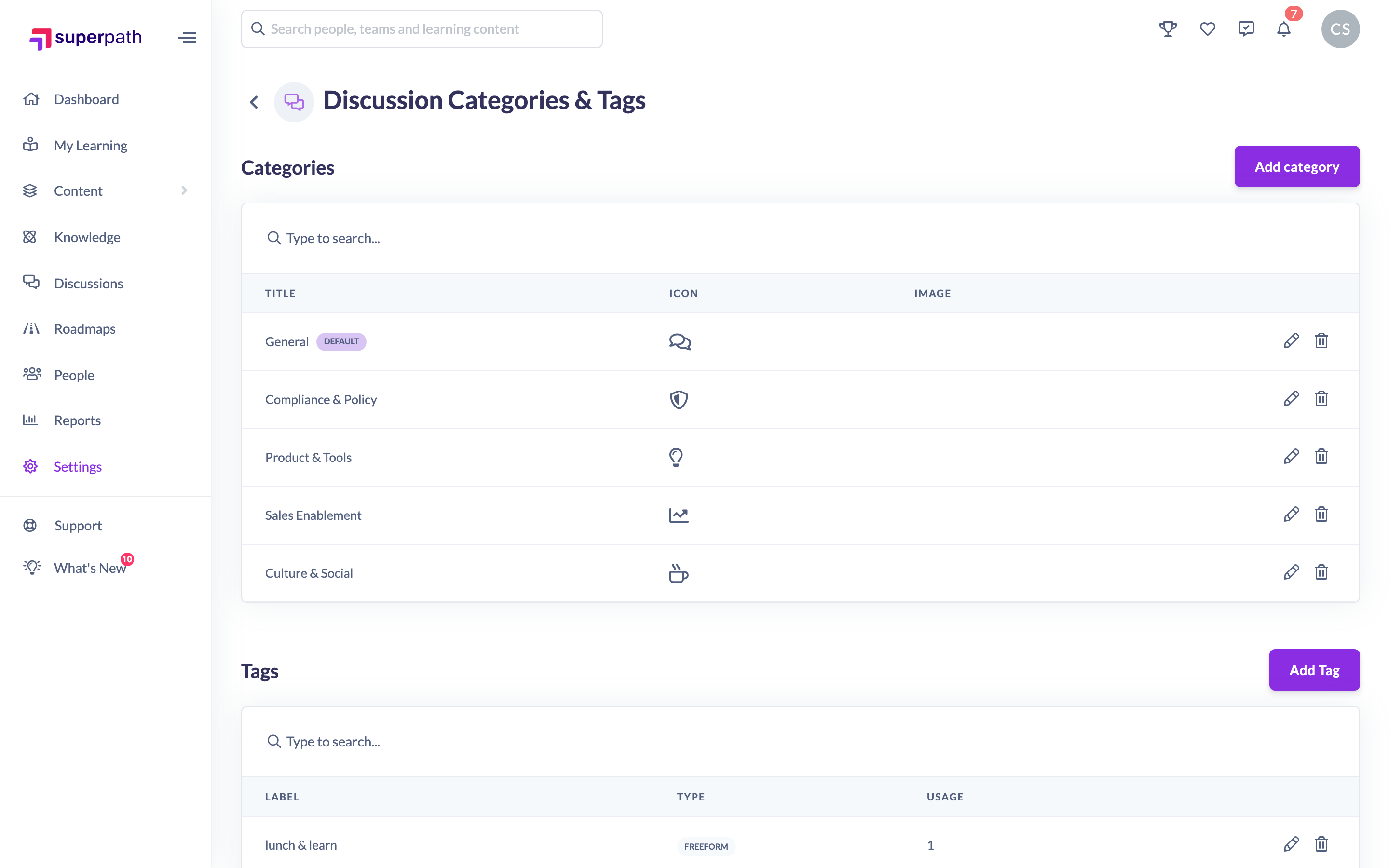
- Go to Settings → Features → Discussion Categories & Tags.
- In the Categories section, find the category you want to remove.
- Click the trash icon in that category's row.
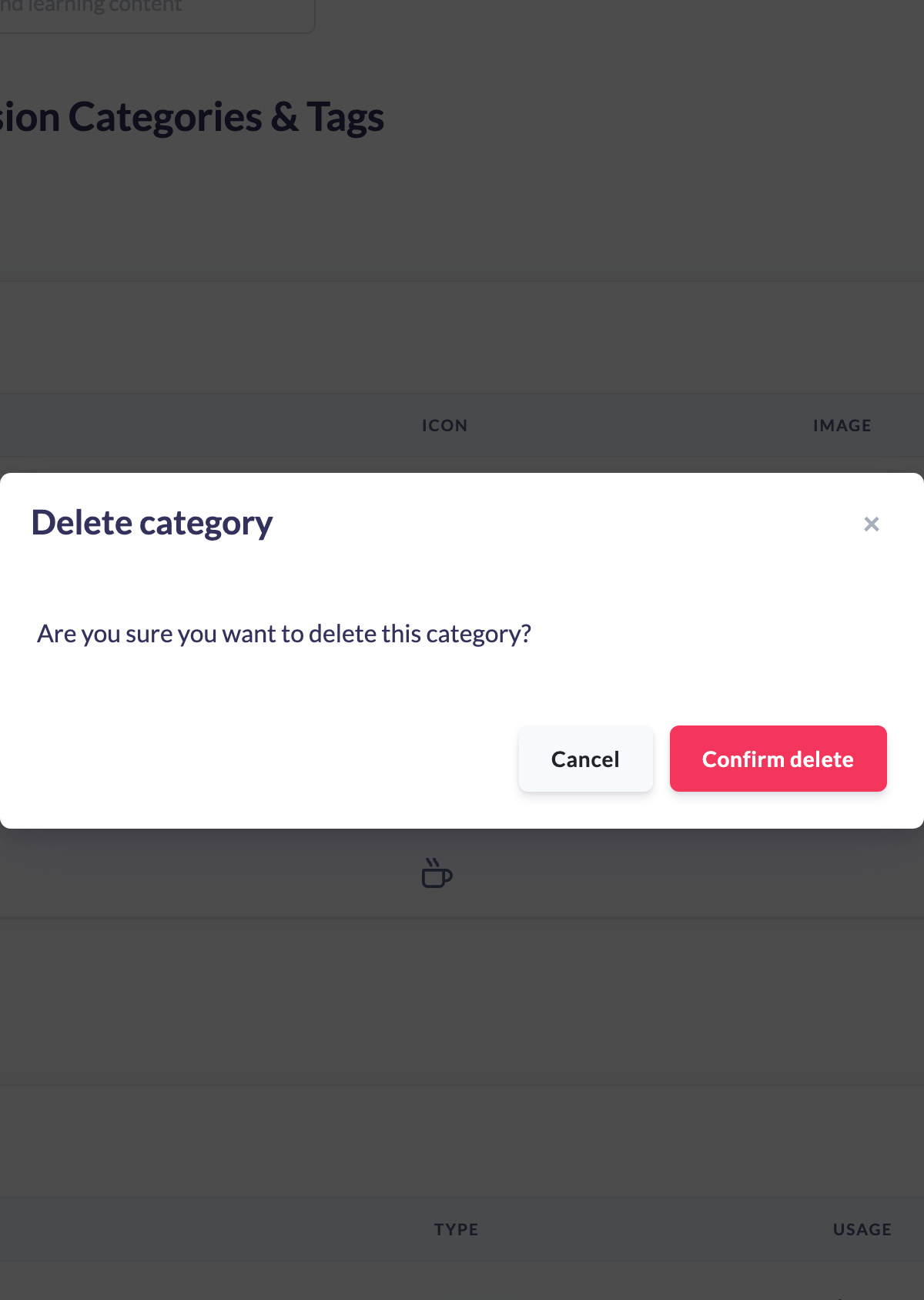
- In the confirmation dialog, read Are you sure you want to delete this category?.
- Click Confirm delete.
Note: You cannot delete the default category. Promote another category to default first, then delete the one you no longer need.
Things to keep in mind
- The default category cannot be deleted — the trash icon is unavailable for it, and the platform will block the deletion if attempted.
- When you delete a category, any Discussions that were in it are reassigned to your current default category automatically.
- Deleting a category cannot be undone — you would need to recreate it.
FAQs
What happens to the Discussions in a category I delete?
They are moved to your default category, so they remain accessible under the new category.
Why can't I delete a particular category?
That category is your default. Every account must keep exactly one default, so you need to set a different category as the default before deleting this one.
Who can do this
Owners and Admins can delete discussion categories. Content Managers and People Managers can view the categories list but cannot delete categories — the action is blocked by the platform. Other roles do not have access to this screen.
Updated on: 16/07/2026
Thank you!