
How to Edit a Discussion
How to Edit a Discussion
In this article:
- Overview
- How to edit a discussion
- What you can change
- Things to keep in mind
- FAQs
- Who can do this
Overview
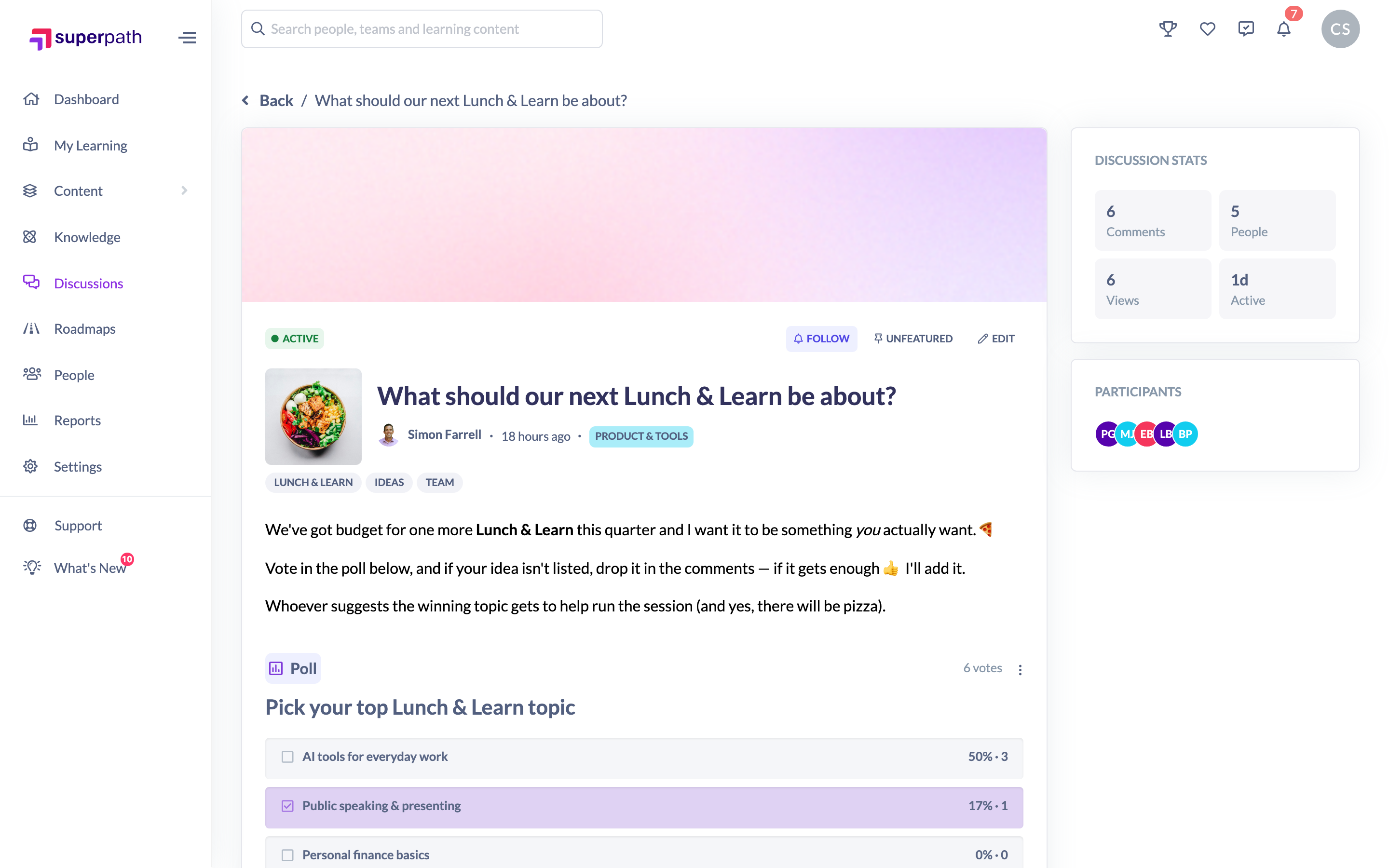
After a discussion is created you can go back and change it — fix a typo in the title, expand the opening statement, adjust the tags, change who can see it, or tidy up a poll. Editing is done from the discussion's own page.
How to edit a discussion
- Open the discussion you want to change (from the Discussions hub, or via its link at
/discussions/<id>). - Click Edit near the top of the discussion. An edit panel slides in from the right with the current details filled in.
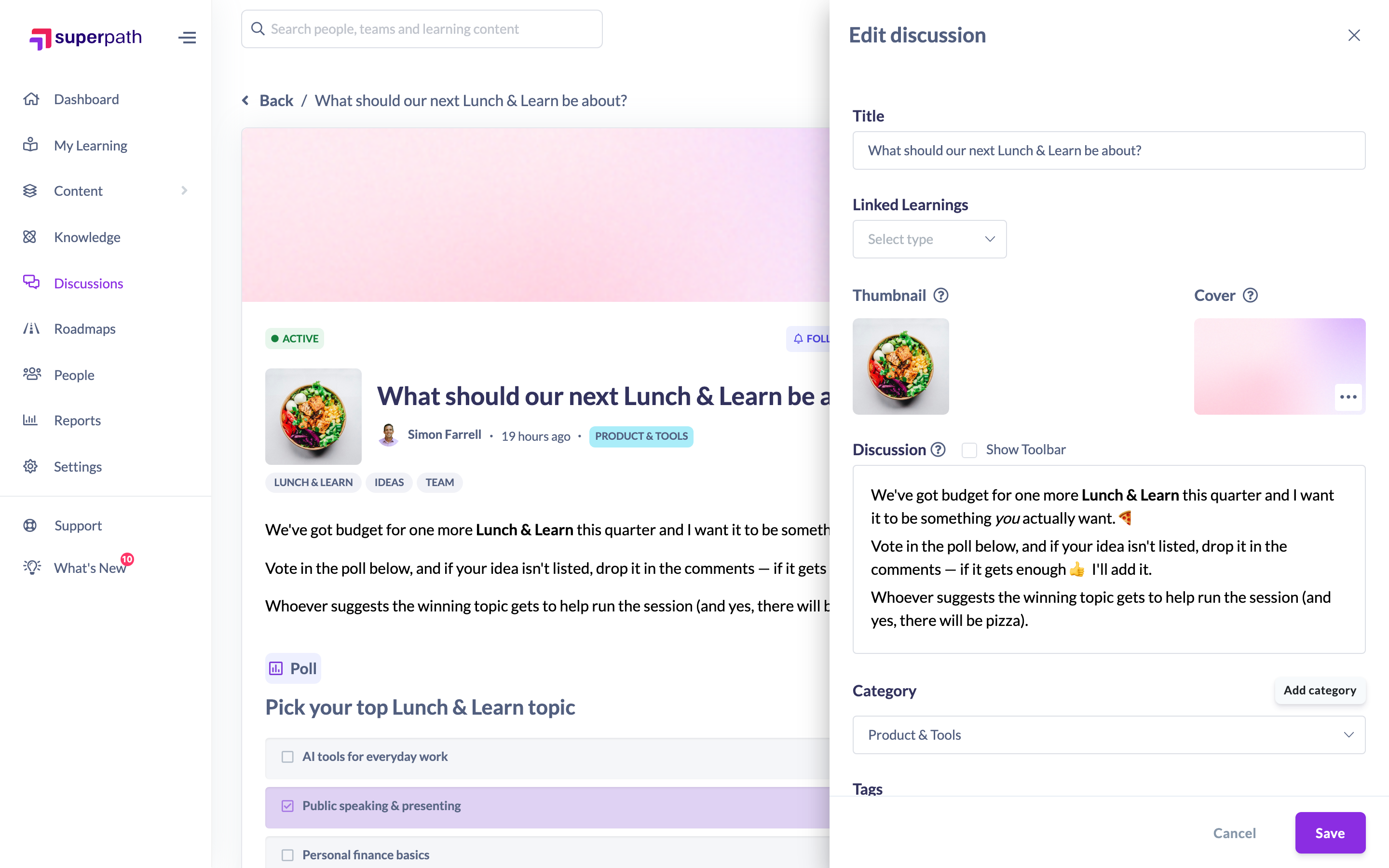
- Change whatever you need to — see What you can change below.
- Click Save. Your changes are applied and the discussion updates.
What you can change
- Title — the headline (5–140 characters).
- Linked Learnings — the linked course, pathway, event or Knowledge article, but only if the discussion isn't already locked to a learning item. If it was started from a learning item's panel, this stays locked.
- Opening statement — the body text (at least 10 characters).
- Category and Tags.
- Access type — switch between Open, Invite-only and Team-only, and adjust the invited people or selected Teams that go with them.
- Poll — edit the question, options, multiple-selection setting and close date. Once the poll has received votes, the question and existing options are locked and can't be changed.
Note: If you change the title, the discussion's web address (its permalink) is regenerated to match the new title, so an old link may no longer resolve.
Things to keep in mind
- You can only edit a discussion you're allowed to — your own, or (for moderators) any discussion in your organisation. If you don't see an Edit button, you don't have permission to edit that thread.
- Poll fields that have already received votes are locked to keep results fair.
- Adding new people to an Invite-only discussion notifies only the people you newly add — existing invitees aren't notified again.
- Changing the title changes the permalink, so share the new link if you've circulated the old one.
FAQs
Where's the Edit button?
On the discussion's own page, near the top. It only shows if you have permission to edit that discussion.
Can I edit someone else's discussion?
Only if you're a moderator (a role with permission to manage discussions). Otherwise you can only edit your own.
Can I change the linked learning?
Yes, unless the discussion was started from a learning item's Discussions panel — in that case the link is locked.
Why can't I edit the poll question?
Because the poll has already received votes. To keep results fair, the question and existing options lock once voting begins.
Who can do this
The Edit button appears for the discussion's original author (who can always edit their own discussion) and for moderators — Owners, Admins, Managers and Content Managers, who can edit any discussion in your organisation. People Managers, Instructors and Employees can edit only the discussions they created themselves. Restricted users cannot edit discussions.
Updated on: 16/07/2026
Thank you!