
How to Edit a Discussion Category
How to Edit a Discussion Category
In this article:
- Overview
- How to edit a discussion category
- Things to keep in mind
- FAQs
- Who can do this
Overview
You can update a discussion category at any time — change its name, description, icon or image, or promote it to be the default category. This article covers editing an existing category from your account settings.
How to edit a discussion category
- Go to Settings → Features → Discussion Categories & Tags.
- In the Categories section, find the category you want to change.
- Click the pencil icon in that category's row.
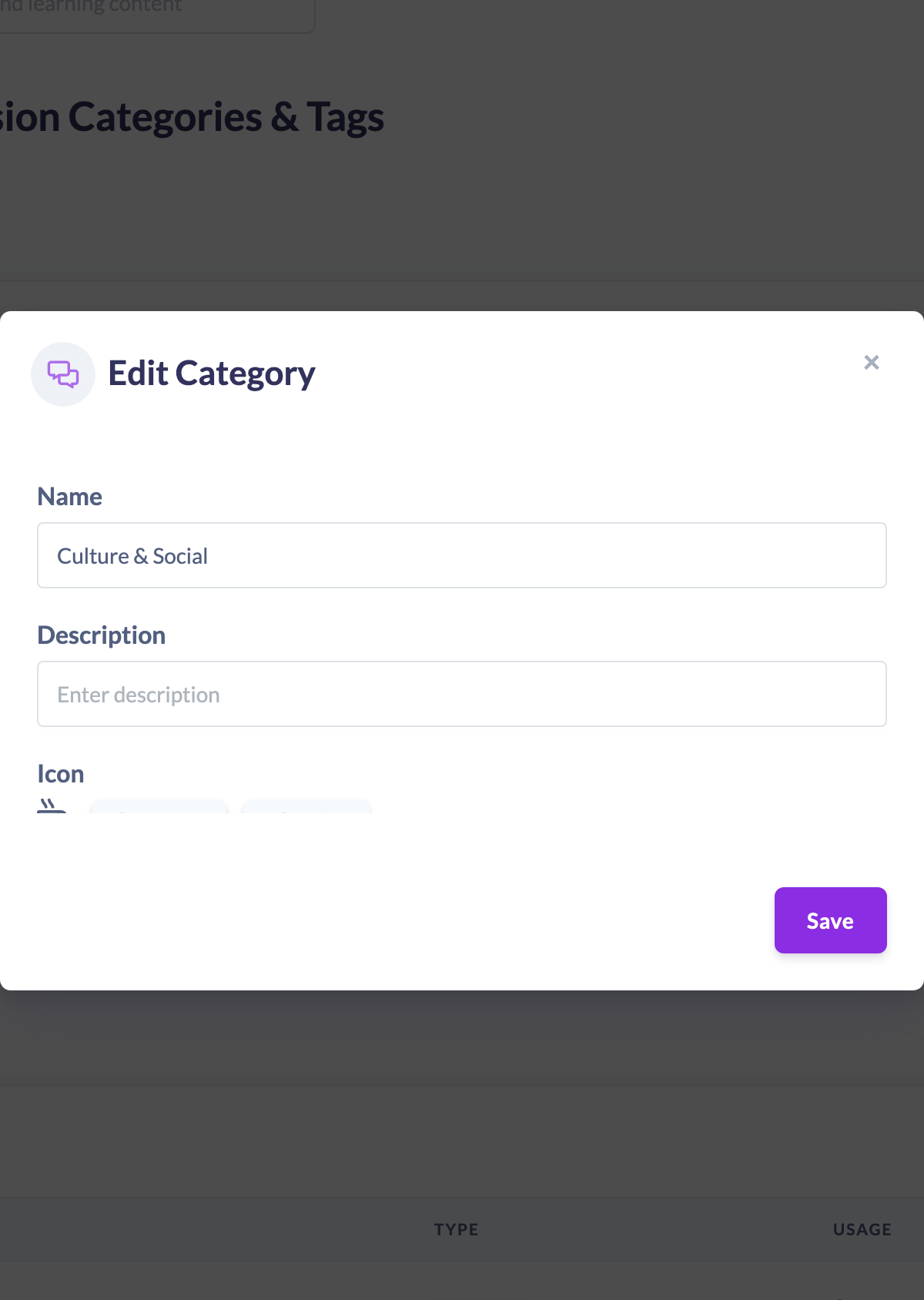
- Update the Name, Description, Icon or Image as needed.
- Optionally turn Set as default category on to make this the default.
- Click Save.
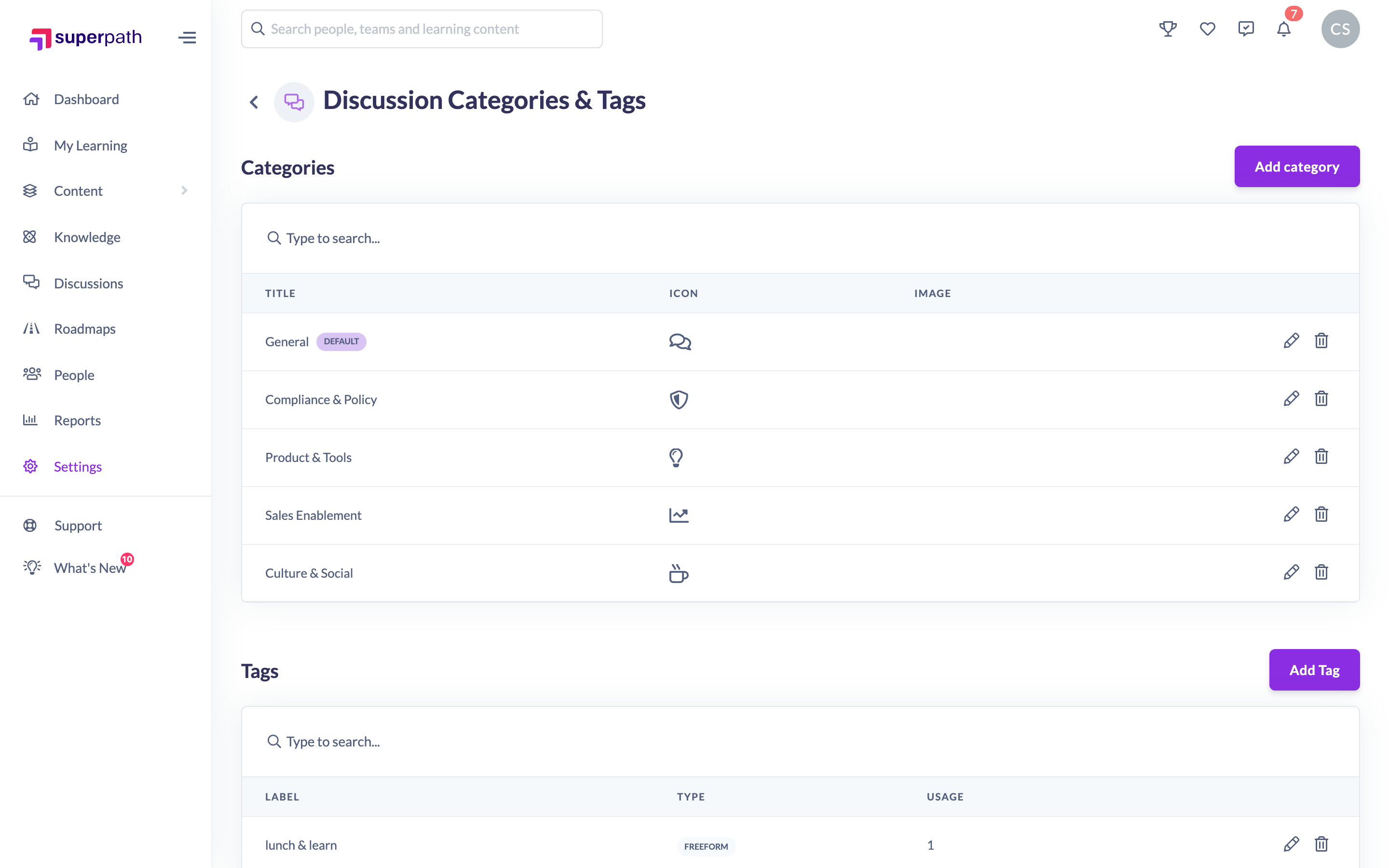
Tip: Use the search box above the list to find a category quickly by title before editing it.
Things to keep in mind
- Name is required — you cannot save a category with an empty name.
- Turning on Set as default category promotes this category and automatically removes the default flag from the category that held it before, so only one default ever exists.
- You cannot turn off the default flag by editing the current default on its own — promote a different category to default instead, which demotes the old one.
FAQs
Can I change which category is the default?
Yes. Edit the category you want as the default and turn on Set as default category. The previous default is demoted automatically.
Will editing a category affect existing Discussions in it?
Renaming or restyling a category keeps its Discussions in place; they simply reflect the updated name and styling.
Who can do this
Owners and Admins can edit discussion categories. Content Managers and People Managers can view the categories list but cannot make changes — although an edit control may appear, the platform blocks the save. Other roles do not have access to this screen.
Updated on: 16/07/2026
Thank you!