
How to Edit a Discussion Tag
How to Edit a Discussion Tag
In this article:
- Overview
- How to edit a discussion tag
- Things to keep in mind
- FAQs
- Who can do this
Overview
You can rename the label members see for a discussion tag from your account settings — useful for tidying up freeform tags members have created, or correcting a curated tag's wording. This article covers editing a tag's display label.
How to edit a discussion tag
- Go to Settings → Features → Discussion Categories & Tags.
- Scroll to the Tags section and find the tag you want to change.
- Click the pencil icon in that tag's row.
- Update the Display Label.
- Click Save.
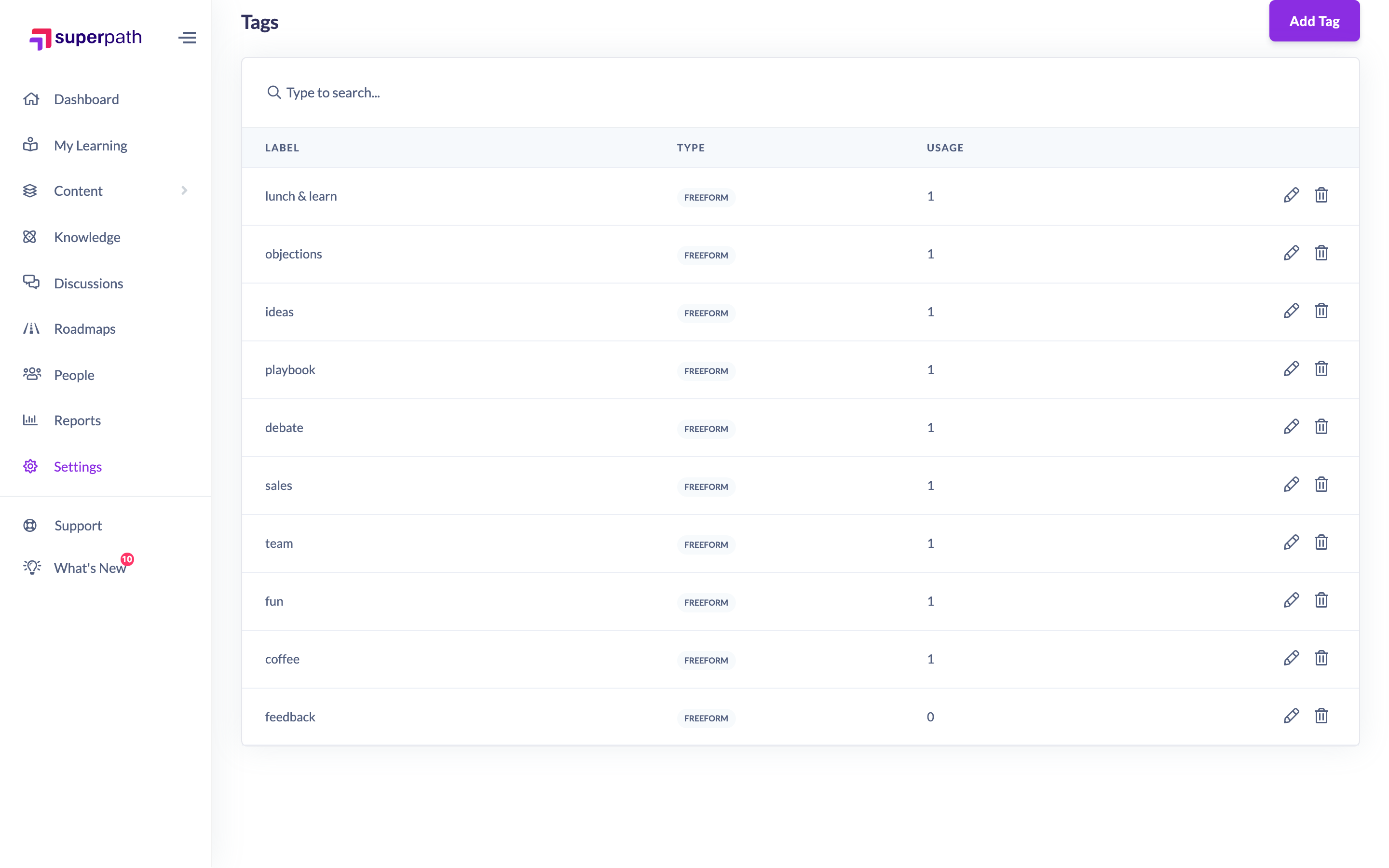
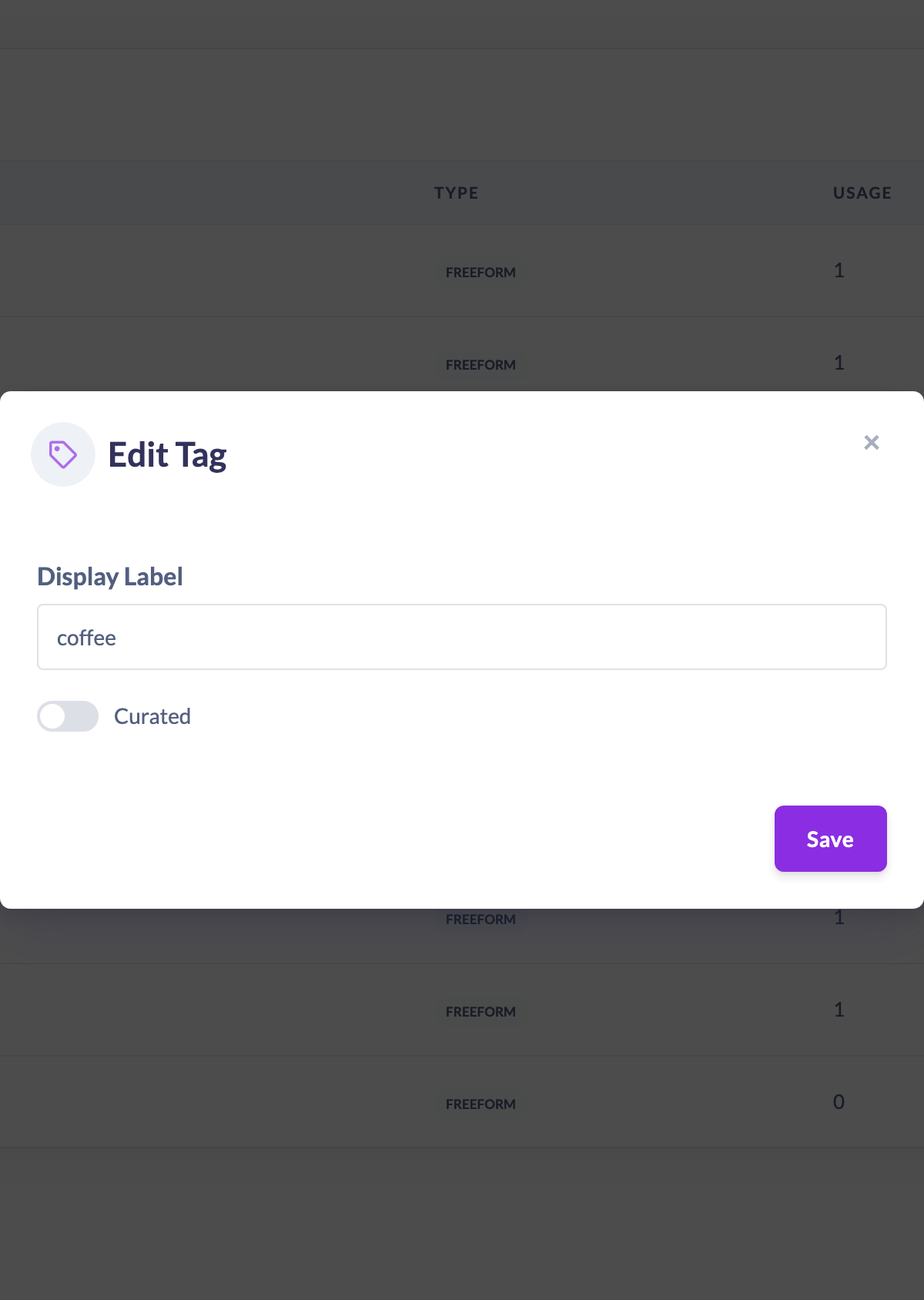
Tip: Use the search box above the tags list to find a tag quickly by its label before editing it.
Things to keep in mind
- Editing a tag changes its Display Label only. The tag's slug (its underlying identifier) is fixed once the tag is created and cannot be changed here.
- Changing the label updates how the tag reads everywhere it appears; the tag's usage history and slug stay the same.
FAQs
Can I change a tag's slug?
No. The slug is set when the tag is created and cannot be edited. If you need a different slug, add a new tag and delete the old one.
Can I turn a freeform tag into a curated one?
Adding a curated tag with the same slug in the Add Tag flow promotes the existing freeform tag to curated. See the article on adding a discussion tag.
Who can do this
Owners and Admins can edit discussion tags. Content Managers and People Managers can view the tags list but cannot make changes — although an edit control may appear, the platform blocks the save. Other roles do not have access to this screen.
Updated on: 16/07/2026
Thank you!