
How to Feature a Discussion
How to Feature a Discussion
In this article:
- Overview
- How to feature a discussion
- How to unfeature a discussion
- Things to keep in mind
- FAQs
- Who can do this
Overview
Featuring a Discussion promotes it to the top of the Discussions Hub so more of your learners notice it. You can feature a Discussion directly from its own page in one click — handy when you're already reading a thread you want to spotlight. Featured Discussions also appear on the Featured Discussions admin page, where you can reorder them and fine-tune how they show on the Hub.
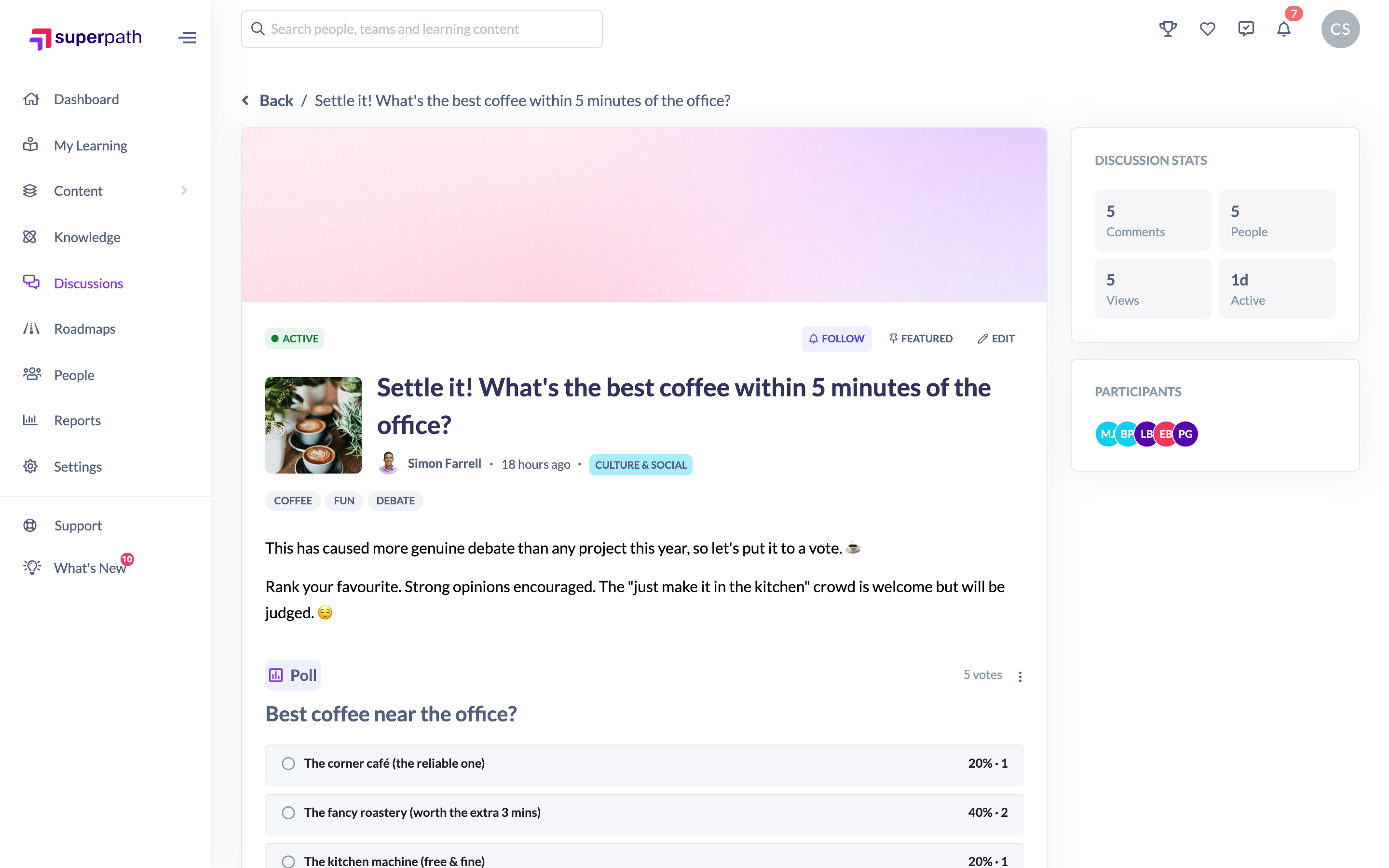
How to feature a discussion
- Open the Discussion at /discussions/.
- In the header actions at the top-right (next to Follow and Edit), find the thumbtack pill.
- Click the Featured pill to feature the Discussion.
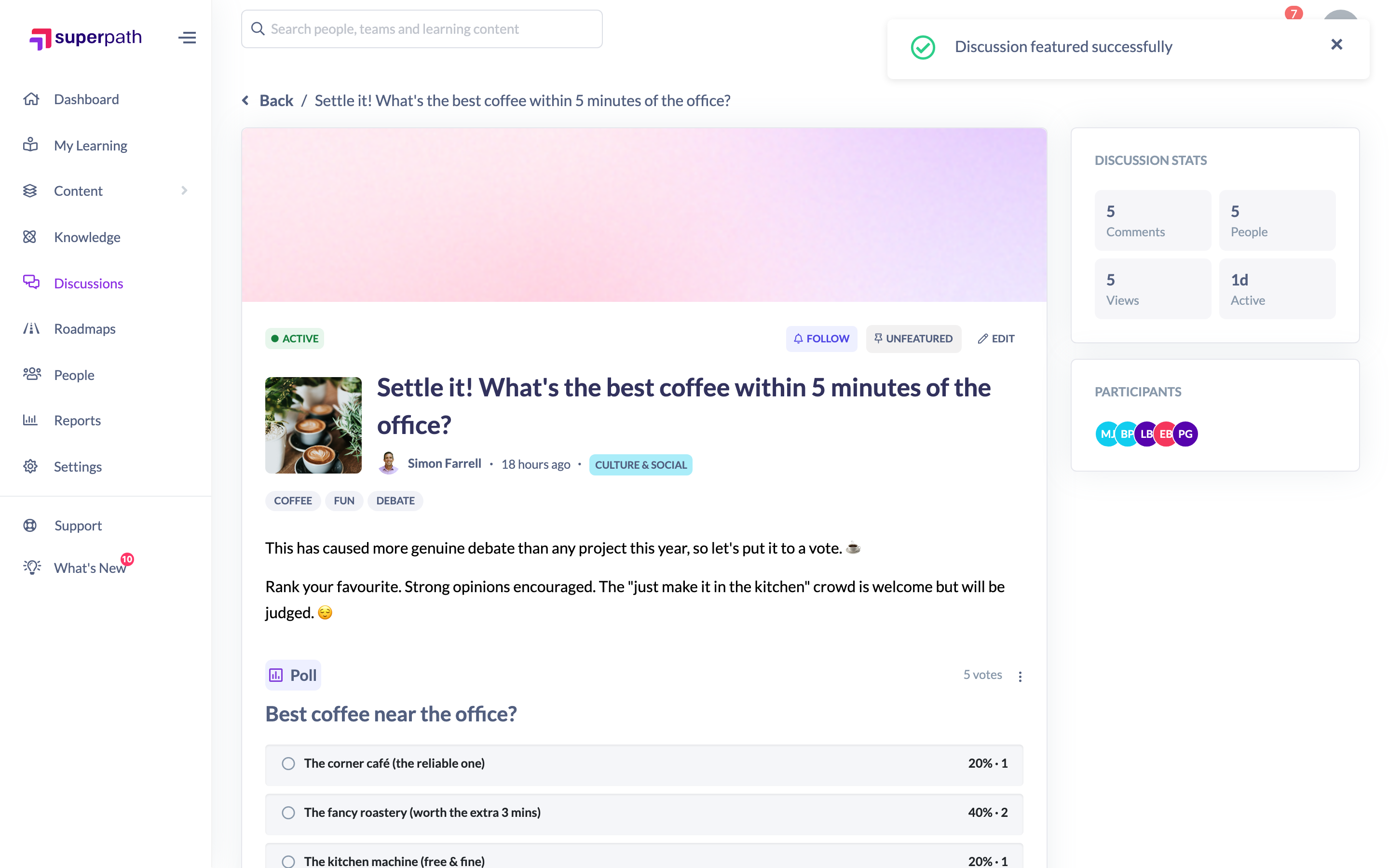
You'll see a "Discussion featured successfully" confirmation. The Discussion now appears in the Hub's featured area and on the Featured Discussions admin page.
How to unfeature a discussion
- On the same Discussion page, the thumbtack pill now reads Unfeatured.
- Click it to remove the Discussion from the featured area.
You'll see a "Discussion unfeatured successfully" confirmation.
Note: This header control lives in the discussion page's action bar (alongside Follow, Mute and Edit), not in a kebab menu.
Things to keep in mind
- The Discussion's creator is notified the first time their Discussion is featured.
- Up to 10 Discussions can be featured at once across your tenant. If you're at the limit, unfeature one before featuring another — otherwise you'll see a message telling you the cap has been reached.
- You can't feature an Archived Discussion. Archiving a Discussion automatically removes it from the featured area, and the header controls are disabled while it's read-only.
- To reorder featured Discussions, toggle the Hub banner spotlight, or remove several at once, use the Featured Discussions admin page — see How to manage featured discussions.
FAQs
Where do featured Discussions appear?
At the top of the Discussions Hub, ahead of the rest of the list, in the order set on the Featured Discussions admin page.
What's the difference between featuring here and the Featured Discussions page?
This page-level control is the quick way to add or remove a single Discussion. The Featured Discussions admin page is where you manage the whole set — reordering them and controlling the Hub banner. The two work together on the same list of featured Discussions.
Is there a limit?
Yes — a maximum of 10 Discussions can be featured per tenant at any time.
Who can do this
Owners and Admins can feature and unfeature Discussions from the discussion page. Managers, Content Managers, People Managers, Instructors, Employees and Restricted users don't see the feature control. The action is unavailable while a Discussion is Archived.
Updated on: 16/07/2026
Thank you!