
How to Manage All Discussions
How to Manage All Discussions
In this article:
- Overview
- How to open the Manage Discussions page
- What the table shows
- Actions you can take
- Things to keep in mind
- FAQs
- Who can do this
Overview
The Manage Discussions page gives you a single table of every Discussion across your tenant, so you can find, review, edit, archive, and delete them from one place. It's the admin counterpart to the learner-facing Discussions Hub.
How to open the Manage Discussions page
- Go to Settings → Features.
- Scroll to the Discussions section.
- In Manage Discussions, click Manage Discussions.
You'll land on the Manage Discussions page (/settings/features/manage-discussions).
What the table shows
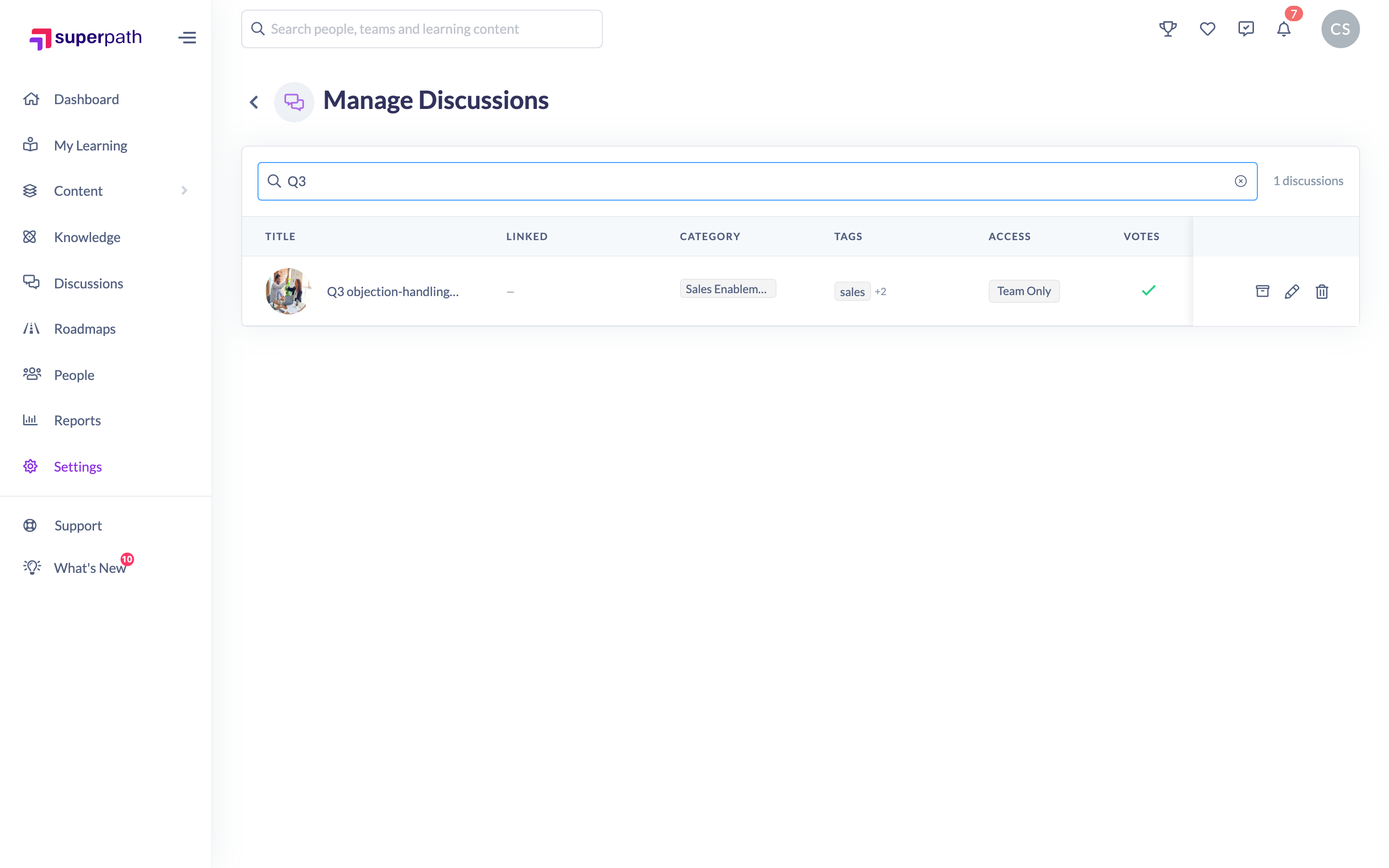
Each row is a Discussion, with these columns:
- Title — the Discussion's name and thumbnail; click it to open the Discussion.
- Linked — the content, Pathway, Event or Knowledge item the Discussion is attached to, if any.
- Category — its category, if one is set.
- Tags — any tags on the Discussion.
- Access — who can see it: Open, Invite Only, or Team Only (hover to see the invited users or restricted Teams).
- Votes — whether voting is enabled on the thread.
- Featured — whether the Discussion is currently featured.
- Status — Active or Archived.
Use the Search by title box to filter the list, and the pager at the bottom to move between pages.
Actions you can take
Each row's actions (on the right) let you:
- Archive / Unarchive — make the thread read-only, or reactivate it. See How to archive or unarchive a discussion.
- Edit — open the editor to change the Discussion's details (title, cover, category, tags, access, poll, and so on).
- Delete — remove the Discussion permanently. See How to delete a discussion.
To feature or unfeature a Discussion, open it and use the control on the discussion page, or use the Featured Discussions page — see How to feature a discussion and How to manage featured discussions.
Things to keep in mind
- This page spans your whole tenant, including Discussions with restricted access — the Access column shows who each one is visible to.
- Deleting from here is permanent and can't be undone; archiving is reversible.
- Featuring and pinning are managed from the discussion page and the Featured Discussions page, not from this table.
FAQs
Can I moderate individual comments from here?
No. This table manages whole Discussions. To pin, hide, or delete individual comments, open the Discussion and use the comment menus — see How to pin a comment, How to hide a comment, and How to delete someone else's comment.
Can I create a discussion from this page?
No — this page is for managing existing Discussions. New Discussions are created from the Discussions Hub.
Why can't a Manager open this page?
The Manage Discussions page lives under Settings and is available only to Owners and Admins.
Who can do this
Owners and Admins can open and use the Manage Discussions page. It sits under Settings and is available only to Owners and Admins — Managers, Content Managers, People Managers, Instructors, Employees and Restricted users can't reach it.
Updated on: 16/07/2026
Thank you!