
How to Start a Discussion From a Course or Pathway Page
How to Start a Discussion From a Course or Pathway Page
In this article:
- Overview
- How to start a discussion from a learning page
- Things to keep in mind
- FAQs
- Who can do this
Overview
You don't have to go to the Discussions hub to start a conversation. While you're working through a course or pathway, you can open a Discussions panel right from the page and start a thread that's automatically linked to that learning. This keeps the question and the learning together, and other learners studying the same item will see it too.

How to start a discussion from a learning page
- Open the learning you're working on — a course from My assignments, or a pathway in the pathway player.
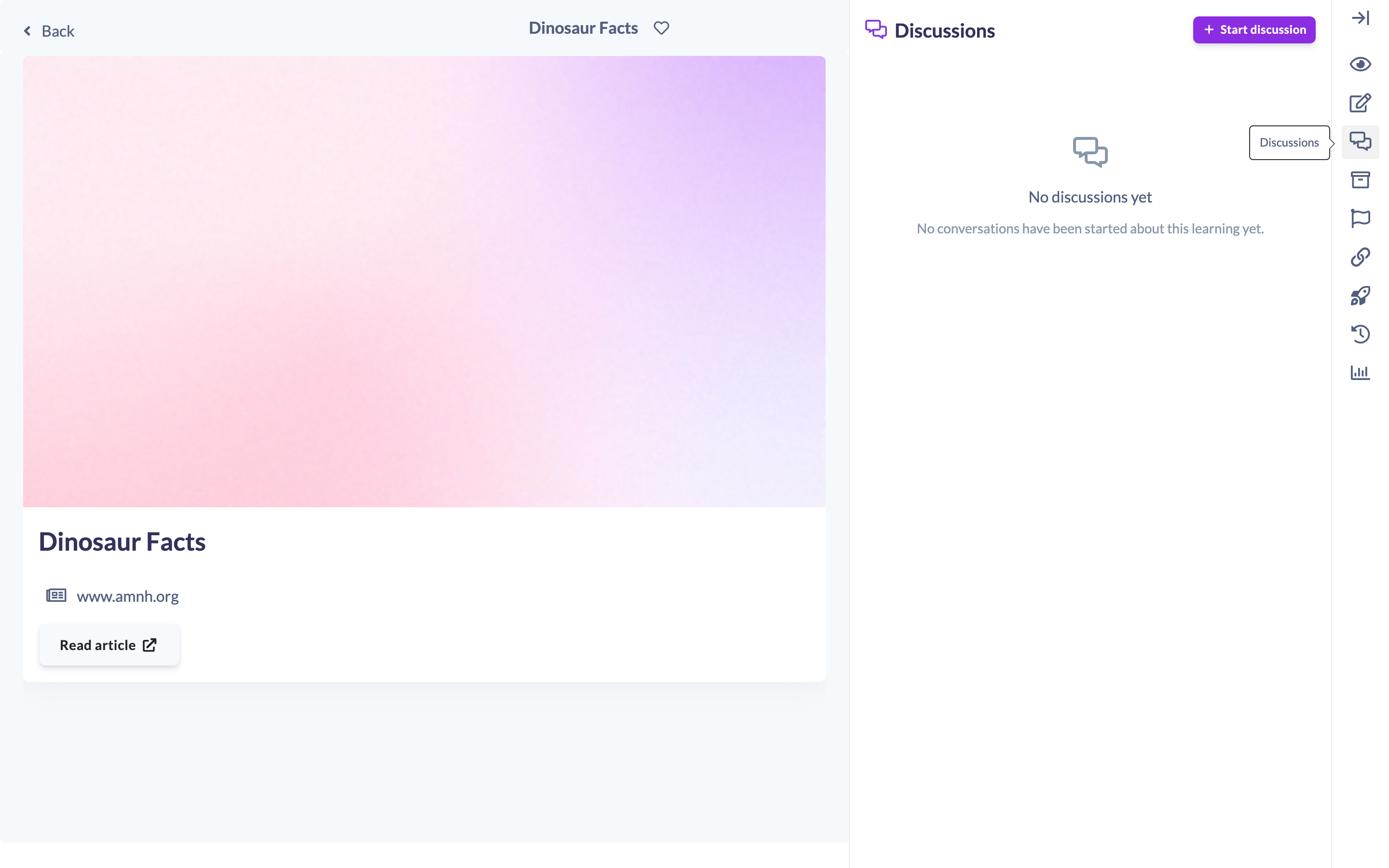
- In the toolbar at the top of the page, click the Discussions icon (the speech-bubbles icon). A panel slides in showing the discussions linked to this learning.
- Click Start discussion at the top of the panel. The New discussion form opens with the learning already linked and locked in.
- Fill in the title, opening statement and any other details, then click Create. Your new thread appears in the panel straight away, linked to this learning.
Good to know: The learning item is pre-filled and locked on discussions started this way, so the conversation always stays attached to the right course, pathway, event or Knowledge article.
Things to keep in mind
- The Discussions icon appears on learning pages only when Discussions is enabled for your organisation and the learning is a supported type — Content (courses), Pathways, Events or Knowledge articles. Roadmap levels don't have this panel.
- For learners, the in-context panel is available only when your organisation's default access type for discussions is Open. If the default is set to something more restrictive, the panel isn't shown on learner pages.
- Who can start a discussion from this panel follows your organisation's "who can create discussions" setting — this is different from the Discussions hub, where the Start discussion button is limited to Owners, Admins and Managers.
- The linked learning can't be changed on a discussion started from this panel — it's locked to the item you started it from.
FAQs
Why can't I see the Discussions icon on a learning page?
It only appears when Discussions is enabled, the learning is a supported type (course, pathway, event or Knowledge), and — for learners — your organisation's default discussion access is Open.
Is the discussion automatically linked to the learning?
Yes, and the link is locked so it stays attached to that item.
Can I still see the discussion on the main Discussions hub?
Yes. A discussion started here behaves like any other — it shows on the hub as well as in the learning's panel.
Can everyone start a discussion this way?
It depends on your organisation's "who can create discussions" setting. By default everyone except Restricted users can, but your admin may limit it to managers and admins, or admins only.
Who can do this
The in-context Discussions panel follows your organisation's "who can create discussions" setting rather than the hub's fixed rule. With the default setting, everyone except Restricted users can start a discussion from a learning page. If your admin sets it to "managers and admins", it's limited to Owners, Admins, Managers, Content Managers and People Managers; if set to "admins only", it's limited to Owners and Admins. For learners specifically, the panel only appears when the organisation's default access type is Open. Restricted users can never start a discussion.
Updated on: 16/07/2026
Thank you!