
How the AI Assistant Makes Changes
How the AI Assistant Makes Changes
In this article:
- Overview
- How a change works, start to finish
- The confirmation card
- When the action affects a group of people
- When one request needs more than one action
- The receipt
- Undoing a change
- What can never be undone
- What the AI Assistant can change
- The safety rails
- Things to keep in mind
- FAQs
- Who can do this
Overview
The AI Assistant does more than answer questions now. Ask it to assign a Pathway, move a due date, create a Team, invite people or change a setting, and it will carry that out for you.
It does it in two beats, and the gap between them is the whole point. First it prepares the change and shows you exactly what will happen: what it will touch, who it affects, what else will fire as a result. Then it waits. Nothing reaches your account until you click Confirm.
The Assistant cannot confirm on your behalf. Confirming is an action taken by you, in your own session, and the request that does it carries nothing but the identity of the prepared action. There is no way for the Assistant to influence what runs at that point, and no instruction from anyone, in a conversation or in a document it reads, can give it one.
How a change works, start to finish
- You ask. Say what you want in plain English, the way you would ask a colleague. "Assign Compliance 2026 to the Field Ops team, due end of March."
- The Assistant checks before it proposes. It works out exactly who and what your request comes to, expanding Teams into their members, and reads the current state of every record it would change. This is a read-only pass. Nothing is written.
- A confirmation card appears in the conversation. It shows the change in full, along with anything the check turned up: people who already have the learning, records that are already complete, workflows that will fire.
- You review it. Cancel it, trim people out of it, or confirm it. It is yours to approve and nobody else's.
- You click Confirm. The Assistant then runs the exact change you approved, under your own permissions rather than any of its own. It cannot reach anything you could not reach yourself.
- A receipt replaces the card. It says what succeeded, what was skipped and why, and what cannot be taken back.
- You have 7 days to undo it. The Undo button sits on the receipt, and on the row in the activity log.
The confirmation card
This is the card every change goes through. It carries a Confirm badge, so it is easy to tell from an ordinary answer at a glance.
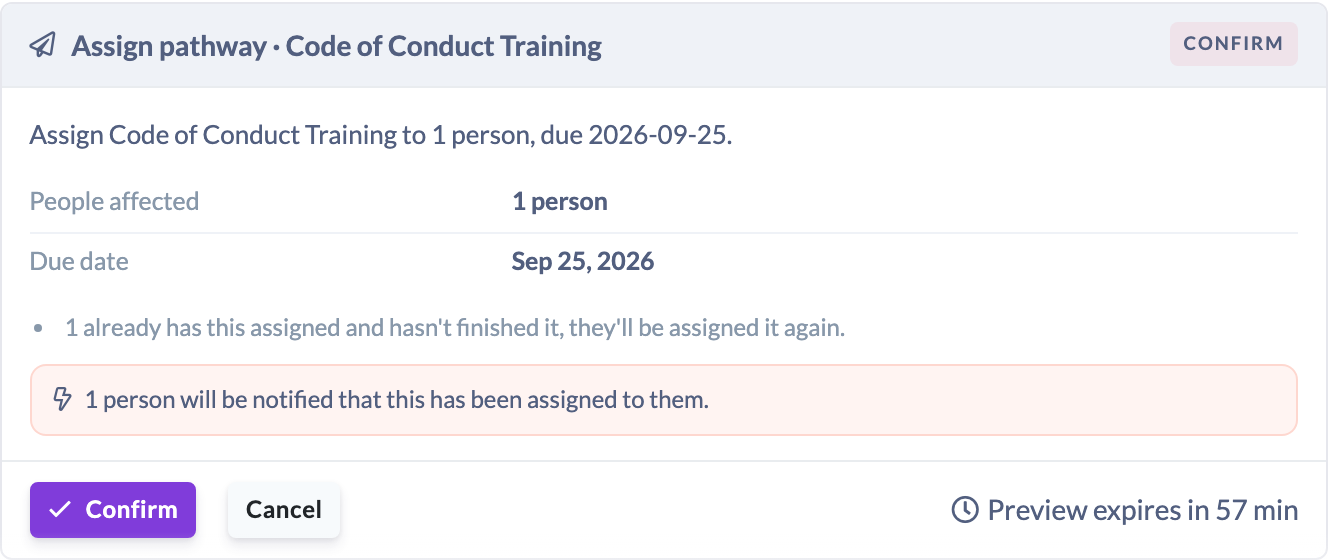
Reading down the card:
- The title names what kind of change it is and what it acts on, for example Assign pathway · Compliance 2026.
- A plain-English summary of the whole change, written by the platform rather than by the model.
- A facts table. For a change to something that already exists, each row shows the old value struck through and the new value beside it. For something being created, the rows are the facts of the thing itself: People affected, Due date and so on.
- What the check found and did not do. People who already have the learning, records already marked complete, people who are not active. These are listed rather than silently dropped.
- What else will happen. A highlighted note lists the knock-on effects: workflows that will run, emails and notifications that will go out, access that will be granted. This is the part that is easy to forget and hardest to reverse, so it sits on the card and not in a tooltip.
- Confirm and Cancel. Confirm runs it. Cancel discards it, and nothing is touched. The card then reads Cancelled. Nothing changed.
- A countdown, reading Preview expires in 58 min.
Why the countdown is there
A prepared action is only good for 60 minutes. The card is a snapshot of your account at the moment it was prepared, and accounts move: people join Teams, learners start courses, records get completed. Confirming an hour-old preview would mean running a change against a picture that is no longer true.
So when the hour is up the card greys out and stops being confirmable. It reads "This preview expired. It wasn't confirmed within the hour, and the data may have changed since." and usually offers Re-run the preview, which asks your original question again so the Assistant prepares a fresh one. An expired preview can only ever be re-prepared. It can never be executed late.
If you try to confirm an expired card anyway, you get told plainly: "This preview has expired. Ask the AI Assistant to prepare the action again so you can review a fresh preview."
When the action affects a group of people
An action that touches a group of people gets a bigger card. Everything above still applies, and underneath it comes a Who this affects section listing every single person by name and email address, with the count beside the heading.
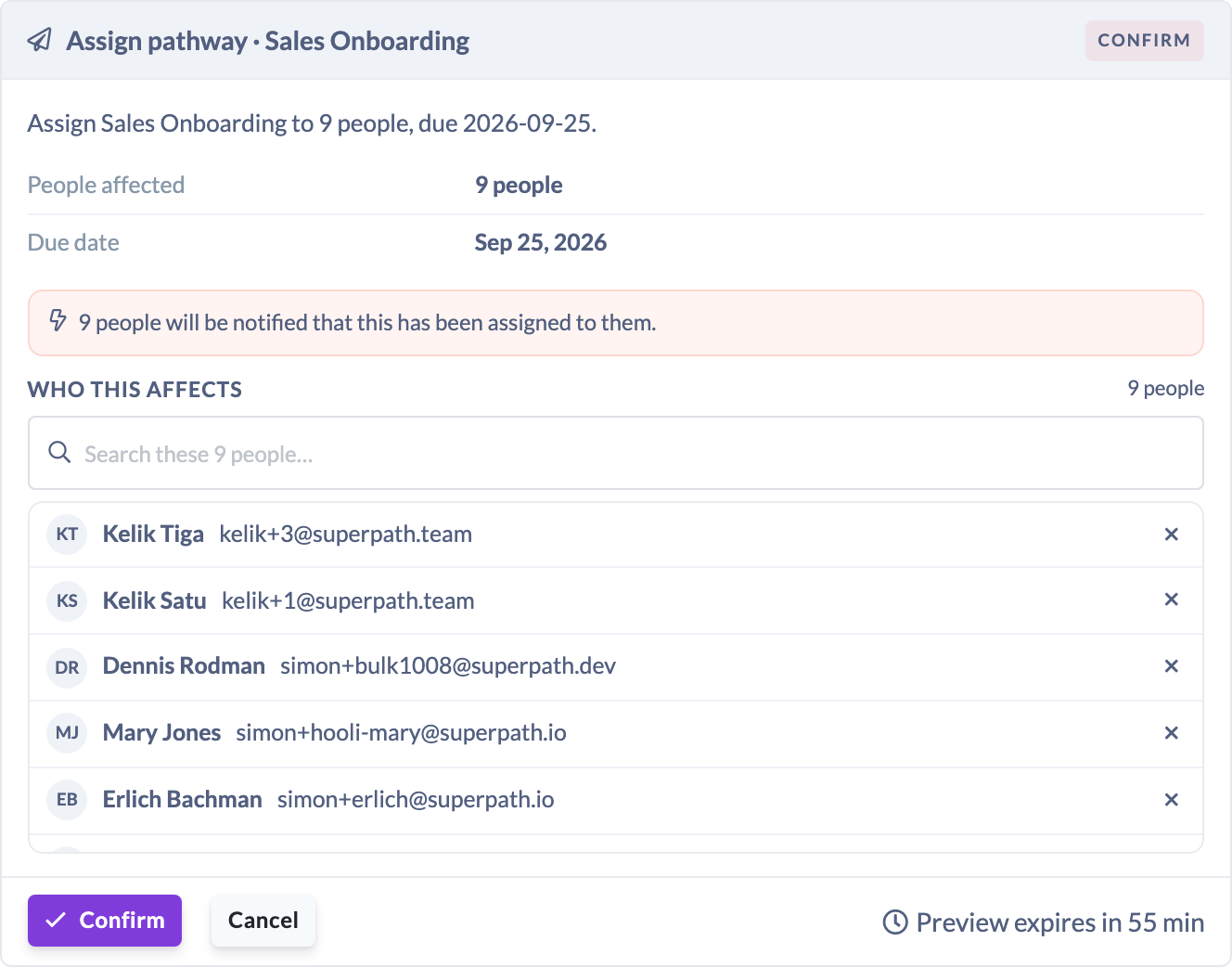
- The whole list is there, not a sample. If the action touches 143 people, all 143 are listed and you can scroll through them.
- A search box appears once the list runs past eight people, so you can check for a particular person without scrolling.
- Confirm stays unavailable for a moment while the list paints. That is deliberate: nobody should be able to approve 143 people before the 143 names have appeared.
Removing somebody before you confirm
Each row has an ×. Click it and that person comes out of the action.
This is not a tidy-up of the list on screen. The Assistant re-runs its whole check against the smaller group and replaces the card with the result, so what you are looking at is always a true readback of what will run. That also means the card can change shape: with fewer people, some of the warnings may disappear, and the counts will be different.
Two things to expect:
- You cannot remove everybody. Take the last person out and it refuses, with "Removing everybody would leave this action with nothing to do. Cancel it instead."
- Not every action has a list you can edit. Updating one person's details, creating a Team, inviting people by email, notifying managers, changing settings and building a draft all have nothing to trim, so no × is shown. If you want a different group, cancel the action and ask again.
When one request needs more than one action
Some requests are really two or three. Ask for "two new teams, one called Sales and one called Marketing" and you get a card for each, stacked in the order the Assistant prepared them.
Each card is its own action from there on. You confirm them separately, in any order, and you can confirm one and cancel the other. Each has its own hour to be confirmed in and its own seven days to be undone, counted from when you confirmed that one rather than from when they were prepared.
Tip: Confirm each card as you read it rather than leaving them stacked. They expire independently, so the first one you read is the first one to run out of time.
The receipt
Once an action runs, its card becomes a receipt in the same place in the conversation. Nothing is appended as a new message, so an action is one card through its whole life.
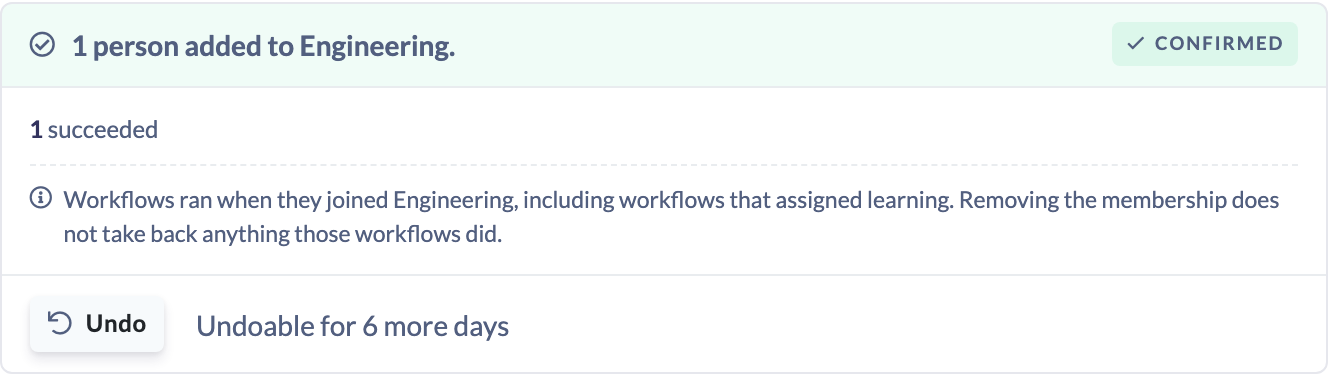
The receipt shows:
- A ✓ Confirmed badge and the platform's own sentence for what happened, for example "Compliance 2026 assigned to 143 people."
- The counts. How many succeeded, and how many were skipped.
- Why anything was skipped. Never a bare number. The reasons are listed, and repeated reasons are shown once rather than 38 times.
- What cannot be taken back. A note listing the parts of this change that no undo will reach, such as notifications that have already gone out or points and Certificates that have been awarded. It is shown whether or not an Undo button is offered.
- A link to what was created, where there is one sensible place to go. View team, View invited people, Open in pathway editor, Open in roadmap editor or Open in workflow editor.
- Undo, with a countdown reading Undoable for 6 more days.
If something goes wrong part way through
An action that fails half way through does not vanish and does not pretend to have worked. It ends in a Failed state and keeps the receipt of how far it got, so the number you see is the true one. There is no Undo on a failed action, because the state it is in is a partial write rather than a completed one. Ask the Assistant again for the part that did not land, or finish it by hand.
Note: For a very large group, the work may be handed to a background queue rather than run while you wait. The receipt says so, and Undo is withheld until it finishes, because until then there is nothing yet to reverse.
Undoing a change
You have 7 days from the moment an action ran. After that the window closes and the button goes.
The Undo button appears in two places, and both use the same rule, so they can never disagree about whether an undo is possible:
- on the receipt card in the conversation;
- on the row in the activity log. See The AI Assistant Activity Log.
For assigning learning, and only for assigning learning, Undo offers a choice:
- Everything removes every record the action created.
- Keep anyone who's started spares the people who have already engaged with the learning, and removes the rest. Nobody loses progress they have made.
Every other action has one honest way to reverse it, so it gets one button. For the two draft builders the button reads Discard draft instead, because nothing was ever visible to your learners.
Who can undo an action:
- the person who asked for it, always;
- any Owner or Admin in your organisation, so a wrong 143-person assignment does not have to wait for somebody to come back from leave;
- Managers can undo only the actions they asked for themselves.
Whoever undoes it, the undo runs under their own permissions, and the log records who did it.
If part of an undo fails
An undo either completes or it does not. If some of it could not be reversed, the action is not marked as undone: it stays exactly as undoable as it was, and you are told what happened so you can try again. Removing an assignment from 143 people and finding 3 of them could not be removed gets you a message naming the 3, and the Undo button is still there.
One case refuses on purpose. If a workflow the Assistant created has been switched on since it was created, the Assistant will not delete it. It tells you so and points you at Settings → Workflows to turn it off or remove it yourself, because something that is now live in your account is not the Assistant's to quietly take away.
What can never be undone
Two things, and the Assistant is loud about both rather than offering a button that would fail.
Marking learning complete. A completion is not a status flag. It awards points, badges, Certificates and CPD points, records learning time, cascades through every step of a Pathway and any nested Pathway, can assign sub-Pathways that those steps unlock, and emails the learner. Setting the status back would leave all of that in place. So there is no Undo on this action at all: "Marking learning complete cannot be undone. The points, badges, certificates and notifications it produced are already in place, so setting the status back would leave the record inconsistent. Change the record by hand if it was completed in error."
Anything already sent. Reminders, notifications to managers, invite emails, the notification that goes with a new assignment, and the email a learner gets when a Roadmap level is completed. A sent message cannot be recalled, so reminders and manager notifications have no Undo button, and every other receipt names in its irreversibles note which messages went out. Undoing an invite stops it being accepted, but the email itself has already arrived.
What the AI Assistant can change
Everything the Assistant is able to do, grouped by what it acts on. Anything not on this list, it cannot do, whatever it is asked.
Learning
What you can ask for | What happens | Can it be undone? |
|---|---|---|
Assign learning | Assigns a Pathway, a Library course, an Event, a Form or a Roadmap level to people and Teams, with an optional due date, availability date and note | Yes. Choose Everything, or keep anyone who has already started |
Change a due date | Moves the due date on learning people already have | Yes |
Mark learning complete | Records learning somebody already has as finished, exactly as marking it complete by hand does | No |
Send a reminder | Sends a reminder about learning somebody already has, by email, Slack and push notification | No |
Build a draft Pathway | Turns an outline you have approved into an unpublished draft Pathway, with its sections, steps and assessments | Yes, as Discard draft |
Build a draft Roadmap | Turns an approved outline into an unpublished draft Roadmap, with its competencies, levels and behaviour descriptions | Yes, as Discard draft |
People and Teams
What you can ask for | What happens | Can it be undone? |
|---|---|---|
Invite people | Invites people to the account by email address, optionally into a Team and with a role | Yes. The invite can no longer be accepted, but the email cannot be unsent |
Update a person's details | Changes one person's first name, last name, job title or Custom Field values | Yes |
Create a Team | Creates a new fixed Team, empty, with an optional parent Team and Team manager | Yes |
Add or remove Team members | Adds people to a fixed Team or takes them out of one. Dynamic Teams are built by their rules, so they cannot be changed this way | Yes, for the membership itself. Anything a workflow did when they joined stays done |
Tell managers about outstanding learning | Sends each manager one message about the learning their own team members have outstanding | No |
Account settings
What you can ask for | What happens | Can it be undone? |
|---|---|---|
Change account settings | Changes settings from a fixed list held in the platform: your platform name and time zone, feature switches such as Roadmaps, Certificates, badges, gamification, SCORM and Discussions, and who can see the Library, Knowledge and Roadmaps | Yes. The previous values are put back |
Refresh your branding | Sets your logo, browser icon, primary colour, login page image and dashboard banner, using what it finds on your own company website | Yes. Your earlier look is restored |
Create a workflow | Creates an automation, deliberately switched off, so you can read it through before it can act | Yes, unless you have switched it on since |
The settings it may touch are a fixed list in the platform, not something the Assistant decides. Ask it for a setting outside that list and it will tell you where to change it yourself instead. Connecting an HR system is one of those: the Assistant points you at Settings → Integrations rather than attempting it.
The safety rails
- 500 people or records is the hard ceiling for a single action. Anything wider is refused before it is even prepared, with the numbers stated: "This action would affect 620 people, which is more than the 500 allowed in a single AI Assistant action. Narrow the group and ask again."
- 50 bulk actions per person per day. Once you have confirmed the day's allowance of the larger actions, further ones are refused until it resets at midnight UTC. It is generous by design: it exists so that nothing can run away, not to get in your way.
- 20 prepared actions per conversation. After that, start a new conversation. Every preview does real work, so this bounds it.
- Every change is logged. Preparing, trimming, confirming, undoing and cancelling each write their own record, naming who did it and when, and those records flow through to your reporting warehouse. Nothing is edited in place, so the trail cannot be rewritten.
- Your permissions, not the Assistant's. A confirmed action calls the same services your own clicks call, with your own permissions. It has no elevated access of its own to lend anybody.
- Confirming is yours alone. Only the person who asked for an action can confirm it, trim it or cancel it. To anybody else, including an Owner, the prepared action does not exist.
Things to keep in mind
- Nothing the Assistant prepares changes anything until somebody clicks Confirm.
- A prepared action expires after 60 minutes and can then only be prepared again from scratch.
- Only the person who asked for an action can confirm, amend or cancel it. Undo is wider: the asker, or any Owner or Admin.
- The undo window is 7 days from when the action ran.
- Marking learning complete cannot be undone, and no message or notification that has been sent can be unsent.
- Deleting a conversation cancels any actions still waiting for approval in it. Actions that already ran are kept, and stay undoable for the rest of their window.
- If the Assistant re-prepares something, for example after you change one of your answers during setup, the earlier version stops being confirmable, so you can never have two versions of the same change waiting side by side.
- A change made by the Assistant is a change like any other: it goes through the same services your own clicks go through, so it lands in your reporting the same way.
- AI can make mistakes. The preview is built from your real data rather than guessed, but read the card before you confirm it. That is what it is there for.
FAQs
Can the AI Assistant change something without asking me?
No. Every change is prepared and then waits for a human to click Confirm. The Assistant has no way to confirm its own work, and nothing written in a conversation, a document or a file it reads can give it one.
What exactly runs when I click Confirm?
The change you were shown, and only that. What you approved was stored when the card was prepared, and confirming replays it. Nothing is re-decided, re-worded or re-derived in between, which is why the preview and the result match.
Why did my confirmation card expire?
Prepared actions last 60 minutes. The card is a snapshot of your account, and after an hour it may no longer be true, so it has to be prepared again rather than run late. Click Re-run the preview and you will get a fresh one.
Can somebody else confirm an action I asked for?
No. Confirming is limited to the person who asked. Anybody else, however senior, sees no such action.
Can somebody else undo it?
Yes, if they are an Owner or an Admin. That is deliberate: a change that needs reversing should not have to wait for the person who made it to be available. Managers can undo only their own actions, and the log records who undid what.
How do I take one person out of a big assignment?
Click the × on their row on the confirmation card. The Assistant re-checks the smaller group and shows you a new card. If the action has no editable list of people, cancel it and ask for the group you want.
Why is there no Undo button on this receipt?
Either the action is one that genuinely cannot be reversed, such as marking learning complete or sending a message, or it did not complete, or the 7 days have passed. A button that always failed would be worse than no button, so it is hidden rather than shown.
Some of my undo failed. What now?
The action is left as it was and is still undoable, so try again. Nothing is marked as undone unless the whole reversal succeeded.
Can it assign learning to everybody in the company at once?
Only up to 500 people in one action. Past that it refuses and tells you the number, so you can narrow the group. That ceiling exists so that no single mis-worded request can reach the whole account.
Does the Assistant have more access than I do?
No. A confirmed action runs with your permissions. If you could not do it yourself, neither can it on your behalf.
Where can I see everything it has done?
On the activity log, with a receipt for every action and an Undo on anything still inside its window. See The AI Assistant Activity Log.
Who can do this
Who can ask the AI Assistant for a change is the same as who can use it at all. Owners and Admins always can. Managers and People Managers can when your organisation's Who can use the AI Assistant setting is on Admins and managers. Content Managers, Instructors, Employees and Restricted users cannot use it on either setting, and the entry points simply do not appear for them. Content Managers are deliberately outside the manager tier, because the role manages content rather than people, so there is no team scope to bound its answers to. See Managing AI Features.
Within that, three finer rules apply. Confirming, trimming and cancelling a prepared action are limited to the person who asked for it. Undoing a completed action is open to that person, or to any Owner or Admin in the organisation, and to Managers for their own actions only. And every confirmed change runs under the permissions of the person who confirmed it, so it can only ever reach what that person could reach by hand.
Updated on: 11/09/2026
Thank you!