
The AI Assistant Activity Log
The AI Assistant Activity Log
In this article:
- Overview
- How to open the activity log
- What each column shows
- The tabs and what each state means
- Searching and filtering
- What you can do from a row
- Who sees whose actions
- Things to keep in mind
- FAQs
- Who can do this
Overview
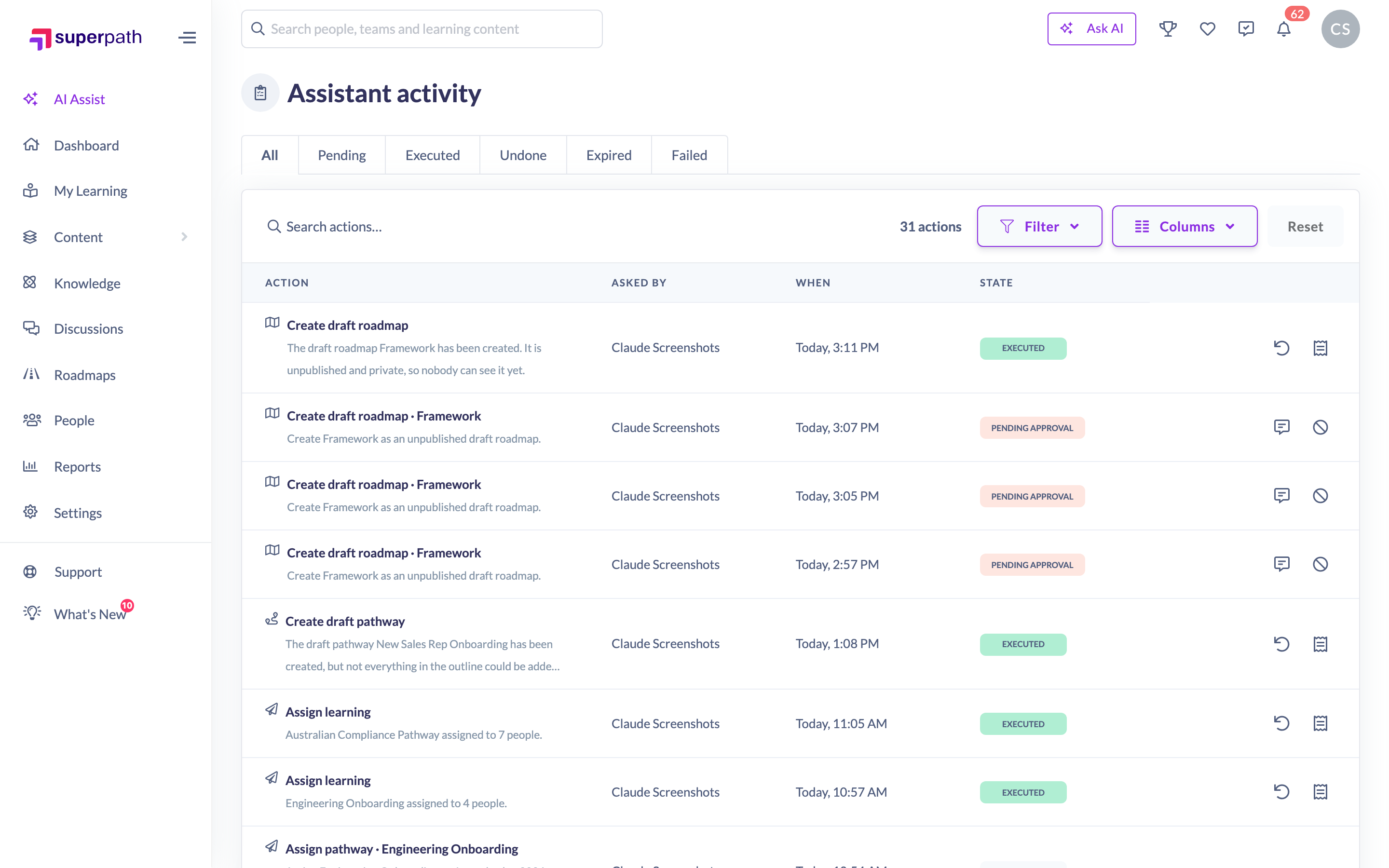
The activity log is the record of everything the AI Assistant has been asked to change: what was prepared, who asked for it, whether it ran, and what it did. Every row keeps its receipt, and anything still inside its undo window can be reversed straight from the page.
It is one page, at /agent/activity, titled Assistant activity.
This article covers the page. For how preparing, confirming and undoing actually work, see How the AI Assistant Makes Changes.
How to open the activity log
Three ways in, depending on where you are:
- From the AI Assistant panel, click the Assistant activity button in the panel header.
- From the AI Assistant home page, click Activity in the header of the Recent conversations section. It is there whether or not anything is waiting, because "what has the Assistant done?" is a question worth asking with an empty approval queue.
- From a Needs your attention card on the AI Assistant home page about actions waiting for approval. Its button opens the log with the Pending tab already selected.
What each column shows
Column | What it holds |
|---|---|
Action | An icon for the kind of change, then what it does and what it acts on, for example Assign pathway · Compliance 2026. Underneath it, the platform's own sentence describing the change: the receipt's sentence once the action has run, and the preview's sentence while it is still waiting |
Asked by | The person who asked the AI Assistant for the change |
When | When the action was prepared, shown as Today, 9:42 am, Tue, 2:03 pm or 14 Aug, 9:12 am depending on how long ago it was |
State | Where the action has got to, as a coloured badge. The states are listed in the next section |
The four columns sort. Click a column heading to sort by it.
There is one more column you can add. Click Columns and tick Action type to show the generic name of the action in its own column: Assign learning, Change due date, Invite people. The Action column names the specific record; Action type names the kind of thing, which is what makes it useful for scanning or filtering.
The last column holds the row's own buttons. See What you can do from a row below.
The tabs and what each state means
Six tabs sit above the table: All, Pending, Executed, Undone, Expired and Failed. The tab you pick is remembered in the page address, so a reload or the browser's back button keeps it.
There are eight states in total, and three of them have no tab of their own because nothing useful sits still in them. They show under All, with their own badge, like everything else.
State | What it means | Tab |
|---|---|---|
Pending approval | The AI Assistant has prepared the change and it is waiting for the person who asked to confirm it. Nothing has happened yet | Pending |
Running | A confirm is in flight. A row holds this for seconds | All only |
Executed | The change ran. Its receipt says what landed | Executed |
Undoing | An undo has been started and is reversing the change | All only |
Undone | The change was reversed. The receipt is the undo's own, so it describes where things stand now | Undone |
Expired | The 60-minute confirmation window closed without anybody confirming it. Nothing happened, and it can only be prepared again | Expired |
Cancelled | Somebody discarded the proposal before it ran, or the conversation holding it was deleted. Nothing happened | All only |
Failed | The change went part way through and then stopped. The row keeps the partial receipt, so you can see exactly what did land | Failed |
The badge colours follow the rest of the platform: green for executed, amber for pending approval, blue while something is in flight, grey for the three outcomes where nothing stands, and red for Failed only. Red in this column therefore means exactly one thing: a change that went partly through and somebody should look at it.
Searching and filtering
The search box sits above the table. It searches what you can actually see on the row: the action's title, the sentence under it, who asked, and the State label. So "compliance", "Priya" and "pending" all work. It searches everything the page has loaded, not just the page you are looking at, and it works together with the tabs and the filters rather than replacing them.
The Filter button offers two narrowings:
- Action type for the kind of change, for example Assign learning or Change settings.
- Asked by for the person who asked.
Both lists are built from the actions actually on the page, so you are never offered a filter that matches nothing. There is no state option in the dropdown on purpose: the tabs are the one control over state.
The Columns button adds and removes columns, as described above, and Reset puts either the filters or the columns back to how they started.
The record count beside the search box, the rows on screen and the pagination total are all the same set, so they cannot disagree. Use the rows-per-page control to show more than ten at a time.
What you can do from a row
Up to two buttons appear at the right of each row, and they appear only where they will actually work.
- Undo (an undo arrow). Reverses a completed change. It is shown only when an undo is genuinely possible: the kind of action must be reversible, it must have completed, the work must not still be running in the background, and the 7-day window must still be open. From here it always undoes everything. For assigning learning, where you can choose to keep anyone who has already started, open View receipt and undo from the card. There is no Undo on a failed row, because a partial write is finished forward or left alone rather than reversed.
- View receipt (a receipt). Opens the receipt for that action, with who asked and when across the top. It is the same receipt card the conversation shows, so the counts, the skip reasons, the note about what cannot be taken back and the undo countdown all read identically in both places. It appears for any row that has a receipt, which includes Executed, Undone and Failed.
- Review (a conversation bubble). For your own Pending approval rows, opens the conversation where the confirmation card lives. That is deliberately where you go to approve something: the full card shows the whole list of affected people, everything else that will fire and the per-person ×, none of which fits in a table cell. There is no Confirm button on this page and there should not be one.
- Cancel (a ban symbol). For your own Pending approval rows, discards the proposal. It writes nothing, so the worst outcome of a mis-click is asking the Assistant again. The row moves to Cancelled and thereafter shows under All.
Review and Cancel only appear on rows you asked for yourself, because both act on your own conversation and your own proposal. Undo has a wider rule, described next.
Note: Rows keep themselves up to date. Confirm something in the panel beside the open log, or let a preview expire while you are looking at the page, and the row moves on its own. You do not need to reload.
Who sees whose actions
This is a role rule, applied by the server rather than by hiding buttons:
- Owners and Admins see every AI Assistant action in the organisation, whoever asked for it. That is what makes the page an audit trail rather than a personal history.
- Managers and People Managers see only the actions they asked for themselves.
The same shape applies to undo. The person who asked for an action can always undo it, and so can any Owner or Admin in the organisation, so a change that needs reversing does not have to wait for one person to be available. Managers can undo only their own. Whoever does it, the log records who.
Because the server decides both which rows you see and who may undo, a row on screen with an open undo window is a row you are allowed to act on.
Things to keep in mind
- The page loads the most recent actions and stops at 500. When it stops early it says so, with Showing the most recent 500 actions. Use the filters or search to narrow. The search, the tabs and the filters work across everything loaded, so narrowing really does find the row you are after. In practice a log has to be very busy to reach the ceiling.
- There is no export button, and that is deliberate rather than missing. Every prepare, trim, confirm, undo and cancel is already written to your reporting warehouse, with the approval details and a link to the records it created, so reporting holds this trail with more detail than a spreadsheet of this table could.
- Cancelled, Running and Undoing have no tab. They are visible under All.
- An expired or cancelled row keeps its sentence and its title, but not the list of people it would have affected. Those details are not kept for a proposal that never ran.
- An executed row keeps its receipt rather than its preview, which is what the undo window and the log itself need.
- Deleting a conversation cancels any of its actions still waiting for approval, and those rows stay here as Cancelled. Actions that already ran are kept, and can still be undone for the rest of their window.
- The page needs the AI Assistant to be available to you, so switching the Assistant off in Settings → Features takes the page away along with the rest of it. Managers and People Managers can only reach it when the Who can use the AI Assistant setting is Admins and managers. See Managing AI Features.
FAQs
Where is the activity log?
At /agent/activity. Get to it from the Assistant activity button in the AI Assistant panel header, or from the Activity link on the AI Assistant home page.
Why can I only see my own actions?
Because you are a Manager or a People Manager. The whole organisation's actions are shown to Owners and Admins.
Why is there no Confirm button on this page?
Approving a change should happen in front of the full confirmation card, where you can see every affected person, everything else the change will set off, and remove somebody before you approve. Confirming a 143-person assignment from a table cell is exactly the un-considered click the confirmation step exists to prevent. Use Review to open the conversation instead.
Why does this row have no Undo button?
One of four reasons: the kind of action cannot be reversed at all, such as marking learning complete or sending a message; the action did not complete; the work is still running in the background; or the 7-day window has closed. The button is hidden rather than shown and failing.
I want to undo an assignment but keep the people who have already started. Can I?
Yes, but not from the row. Click View receipt and undo from the card, where you get the choice between Everything and Keep anyone who's started. The row's own Undo always undoes everything.
What does a Failed row mean?
The change started and stopped part way. Nothing is hidden: the row keeps the receipt of what did land, so you can see the real number and finish the rest. There is no undo, because a partial write is finished forward or left as it is.
Why did an action expire?
Nobody confirmed it within its 60-minute window. Nothing happened. Ask the AI Assistant for it again and it will prepare a fresh preview against current data. See How the AI Assistant Makes Changes.
Can I export the log?
Not from this page. The same trail is in your reporting data with more detail, including the approval record and the records each action created.
Do I need to reload to see new activity?
No. A row updates itself when its action moves on, including a confirm made elsewhere and a preview expiring.
Somebody else undid my action. How do I tell?
The log records who performed each step, so an undo is attributed to whoever did it rather than to the person who originally asked.
Who can do this
Anybody who can use the AI Assistant can open the activity log. Owners and Admins always can. Managers and People Managers can when your organisation's Who can use the AI Assistant setting is Admins and managers. Content Managers, Instructors, Employees and Restricted users cannot use the AI Assistant on either setting, and are sent back to their home page if they try the address directly.
What you see and can do on the page then depends on your role. Owners and Admins see every action in the organisation and can undo any of them that is still inside its 7-day window. Managers and People Managers see only the actions they asked for themselves, and can undo only those. Review and Cancel are limited to your own rows waiting for approval, whatever your role, because confirming and cancelling a prepared action belong to the person who asked for it.
Updated on: 11/09/2026
Thank you!