
The AI Assistant Home Page
The AI Assistant Home Page
In this article:
- Overview
- How to open the home page
- What's on the home page
- Needs your attention
- Recent conversations
- Making the AI Assistant your home page
- The Conversations page
- Deleting a conversation
- Things to keep in mind
- FAQs
- Who can do this
Overview
The AI Assistant home page is a full-screen place to start, rather than the docked panel you get from the Ask AI button. It's the better surface when you want room to think: a large input, suggested questions to get you going, cards telling you what needs your attention, and your recent conversations so you can pick up where you left off.
Asking a question here opens the conversation as its own full page, so a long answer, a confirmation card or a Pathway outline has the whole screen to work with.
You can also make this page the first thing you see when you sign in.
How to open the home page
Three ways:
- AI Assist in the left-hand menu.
- The house icon (Open full page) in the AI Assistant panel header.
- Browse straight to /agent on your platform.

What's on the home page
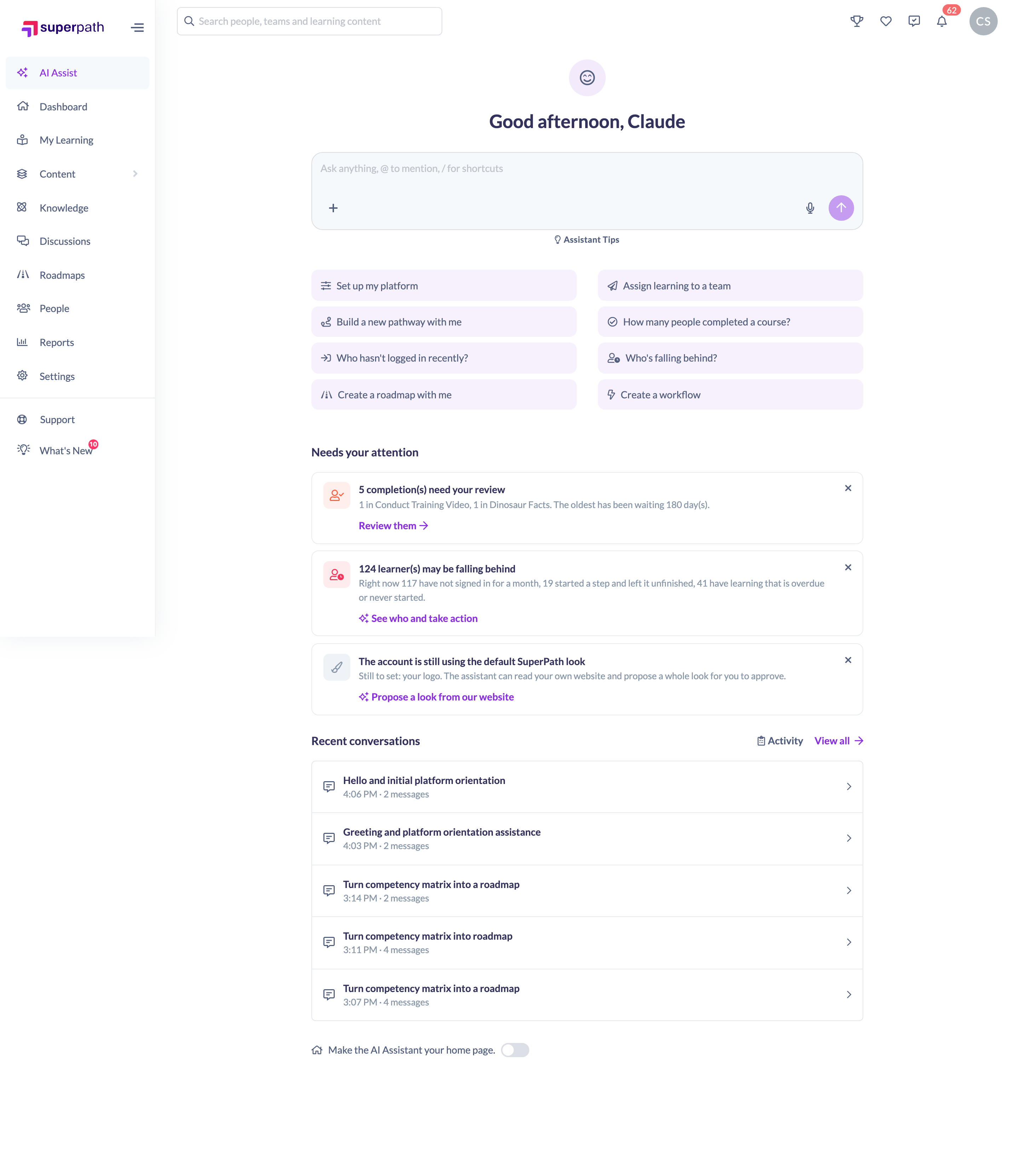
A greeting. The page opens with Good morning, Good afternoon or Good evening and your first name, depending on your local time, followed by a line inviting you to ask about your learning data or how to do anything in the platform.
The question box. A large input where you type your question. Press Enter or click the arrow button to send. If you're an Owner or Admin the placeholder mentions @ for naming people, Teams and content, because @-mentions are available to you. A single message can be up to 10,000 characters, and you can attach a spreadsheet or document with the + button.
Suggested questions. Starter chips sit under the box, a mix of data questions, how-to questions and actions. Click one to ask it. Where a chip names an action without naming the specifics, such as Assign learning to a team, the Assistant opens with a question card rather than guessing. See How to Assign Learning with the AI Assistant.

Needs your attention
Under the question box, the Assistant surfaces a short set of cards about things worth looking at right now. Each one names the situation, gives you a count, and offers a button that takes you straight into it.
What you might see:
- Learners who may be falling behind, broken down by signal: people who haven't signed in for a month, people who are overdue or never started, and people who began a step and left it unfinished.
- Actions waiting for you to confirm, with a warning about how long the oldest preview has left before it expires.
- Completions that need your review.
- An offer to set up your platform with the Assistant, or to pick up a setup walkthrough you started and left. See The Guided Setup Walkthrough.
- A note that the account is still using the default SuperPath look, offering to propose a look from your own website. See How to Change Your Branding with the AI Assistant.
- A note that there's nothing in the Library yet, offering to open the Library or to plan your first course.
Each card has a Dismiss link if it isn't useful to you.
Recent conversations
The page lists your five most recent conversations, each showing its title, when it was last active, and how many messages it holds. Click one to reopen it as a full page with its history, and carry on asking follow-up questions.
If you haven't asked anything yet you'll see "Your conversations will show up here."
Two links sit beside the heading. Activity opens the log of every change the Assistant has made, and View all opens the full Conversations page. See The AI Assistant Activity Log.
Making the AI Assistant your home page
At the bottom of the page is a switch reading Make the AI Assistant your home page. Turn it on and signing in takes you here instead of your dashboard. The wording changes to The AI Assistant is your home page. to confirm it.
The switch works in both directions and your choice is remembered, so turning it off puts your dashboard back permanently rather than until the next sign-in.
Your organisation can also set this as the default for everybody, from Settings → Features. Your own choice always wins over the organisation default, whichever way round the two are set. See Managing AI Features.
Note: The switch isn't shown if your organisation has turned the dashboard off, because there would be nothing to switch back to. The AI Assistant is your home page in that case regardless.
The Conversations page
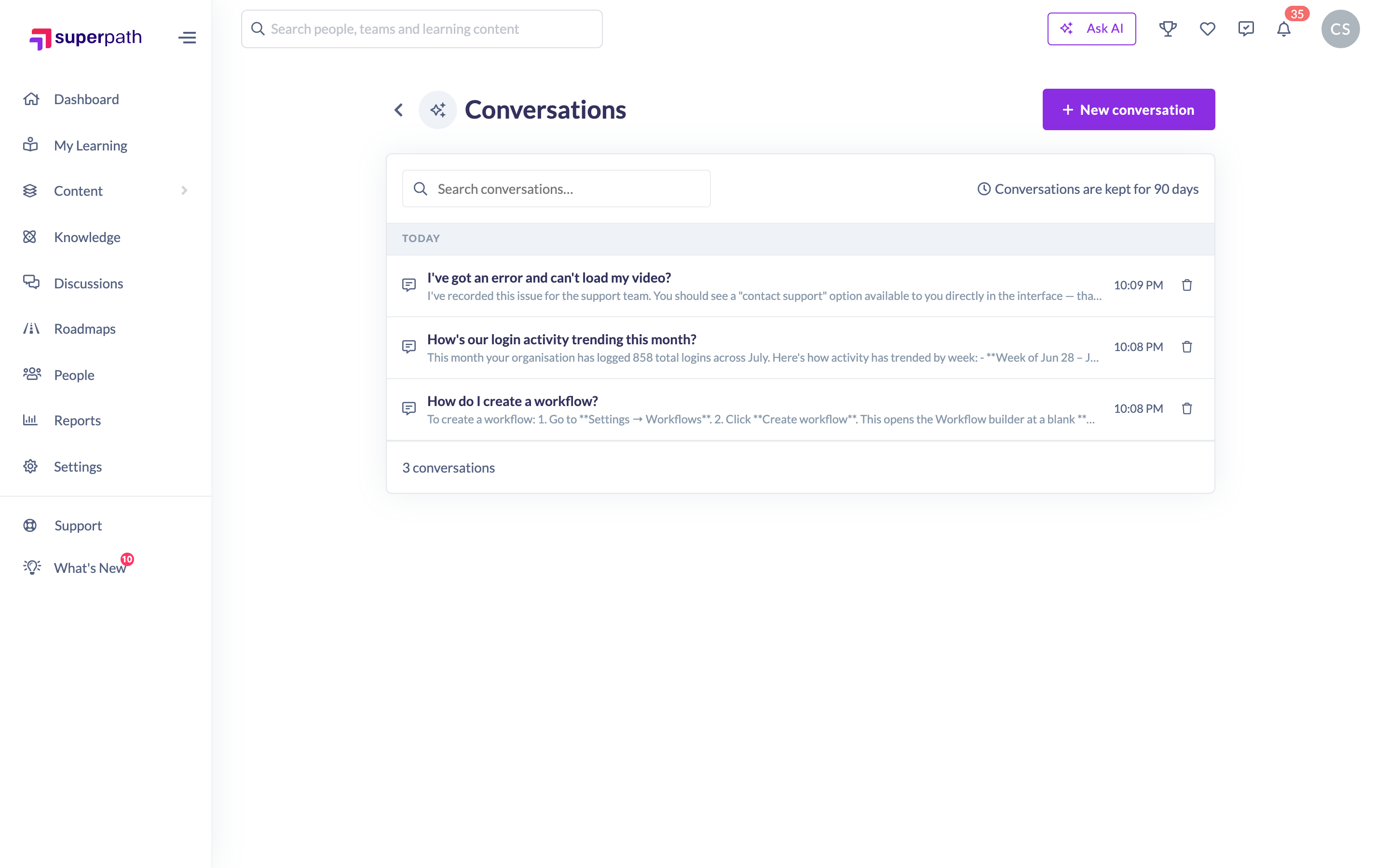
The Conversations page lists everything you've asked, newest first, grouped under Today, Yesterday, Previous 7 days and Older. Each row shows the conversation title, a snippet of the last message, and a timestamp.
- Search filters by conversation title and by the last message, so you can find an answer you remember asking about.
- New conversation starts a fresh thread.
- Paging shows 15 conversations per page, with a pager at the bottom and a running count of how many matched.
Conversations are only ever your own. You can't see anyone else's, and nobody else can see yours.
Deleting a conversation
- Hover the conversation row, either in the panel's history view or on the Conversations page.
- Click the trash icon.
- Confirm when asked. The prompt warns that this can't be undone.
You can also delete the conversation you're currently in from the trash icon in the composer toolbar, or by typing /delete.
Deleting a conversation removes the conversation only. Anything the Assistant actually changed while you were in it stays changed, and stays in the activity log. Use Undo on the action itself if you want to reverse it. See How the AI Assistant Makes Changes.
Things to keep in mind
- Asking from the home page opens the conversation as its own full page. The docked panel is still there from the Ask AI button on every other screen.
- Conversations are kept for 90 days and then removed automatically. The Conversations page notes this at the top right.
- The starter questions on the home page are a general set. Inside the panel they change to match the page you're on. See How to Use the AI Assistant.
- The Needs your attention cards are worked out for you and for your permissions, so a Manager sees cards about their own reports.
- The home page redirects to your dashboard if the AI Assistant isn't enabled for your account or your role can't use it. If your organisation has also turned the dashboard off, you'll land on My Learning instead.
- Deleting a conversation doesn't undo anything the Assistant did in it.
FAQs
Where do I find the AI Assistant?
AI Assist in the left-hand menu opens this page. Ask AI at the top of any screen, or ⌘ + K and Ctrl + K, opens the docked panel.
What's the difference between the home page and the panel?
The home page is a full-screen launch pad with suggested questions, attention cards and your recent conversations, and asking here opens a full-page conversation. The panel is the version that sits beside whatever page you're working on, and it's available everywhere.
Can I make it the page I land on after signing in?
Yes. Turn on Make the AI Assistant your home page at the bottom of the page. Your organisation can set the same thing as a default for everybody, and your own choice always wins.
How long are my conversations kept?
90 days, then they're deleted automatically.
Can anyone else see my conversations?
No. Conversations are private to the person who had them. The activity log is different: it records the changes the Assistant made, and an Owner or Admin can see the whole organisation's.
Can I get back a conversation I deleted?
No. Deleting is permanent, which is why you're asked to confirm.
If I delete the conversation, does that undo what the Assistant did?
No. The change stays, and stays in the activity log. Undo it from the action itself.
How many recent conversations does the home page show?
Five. Click View all for the complete list.
Why has a card disappeared from Needs your attention?
Either you dismissed it, or the situation behind it is resolved. The cards are worked out fresh each time the page loads.
Who can do this
The AI Assistant home page is available to anyone whose role can use the AI Assistant, which depends on your organisation's Who can use the AI Assistant setting. Admins only covers Owners and Admins, while Admins and managers also covers Managers and People Managers. Content Managers, Instructors, Employees and Restricted users cannot use the AI Assistant on either setting, and the home page redirects them away.
@-mentions in the question box are available to Owners and Admins only. The Make the AI Assistant your home page switch is available to everyone who can use the Assistant, and only ever changes your own landing page.
Turning the AI Assistant on, choosing the access level, and setting the organisation-wide home page default are all done in Settings → Features by an Owner or Admin. See Managing AI Features.
Updated on: 22/09/2026
Thank you!