
How to Build a Roadmap with the AI Assistant
How to Build a Roadmap with the AI Assistant
In this article:
- Overview
- How to start a Roadmap build
- Route 1: building by interview
- Route 2: importing a competency matrix from a spreadsheet
- What the proposed mapping card shows you
- Editing the mapping before you approve it
- When it says it could not read something
- Approving the mapping or the outline
- Confirming the draft, and what gets created
- Opening the draft in the Roadmap editor
- Undoing a draft Roadmap
- Size limits on a matrix
- Things to keep in mind
- FAQs
- Who can do this
Overview
A Roadmap in SuperPath is a skills matrix for a role: the Competencies people are expected to show, at each Level. You give somebody a Level and they work through the behaviours it asks for.
The AI Assistant can build one with you two ways, and which one you want depends on whether the matrix already exists somewhere:
- By interview. You describe your Levels and Competencies in conversation, the Assistant proposes the whole matrix on a card, and you approve it.
- By importing a spreadsheet. You attach the .xlsx or .csv your matrix already lives in, and the platform reads it and puts back what it found for you to check and correct.
Either way the end result is the same: an unpublished, private draft Roadmap that nobody can see until you publish it, created only after you have approved the matrix and then confirmed the action. For the general mechanics of confirming and undoing, see How the AI Assistant Makes Changes.
Note: Roadmaps have to be switched on for your account before any of this applies. If Roadmaps is off under Settings → Features, there is nothing for a Roadmap build to create. See Managing AI Features.
How to start a Roadmap build
Any of these gets you there:
- From the Roadmaps page. Click Create Roadmap, then Build with the AI Assistant at the top of the menu. It opens the AI Assistant on a new conversation with "Help me build a career roadmap" already sent. Note that this is a different thing from Auto Generate Roadmap in the same menu, which is the older one-shot generator rather than a conversation.
- From the Assistant itself. Open it with Ask AI, ⌘ + K (Mac) or Ctrl + K (Windows), and ask. "Create a roadmap for our field engineers" is enough.
- From the AI Assistant home page. Click the Create a roadmap with me chip, or Turn our competency matrix into a roadmap if you have the spreadsheet ready.
- From the guided setup, where Turn a competency matrix into a roadmap is offered as a next step: "Upload the spreadsheet and I will map it, right here in chat." See The Guided Setup Walkthrough.
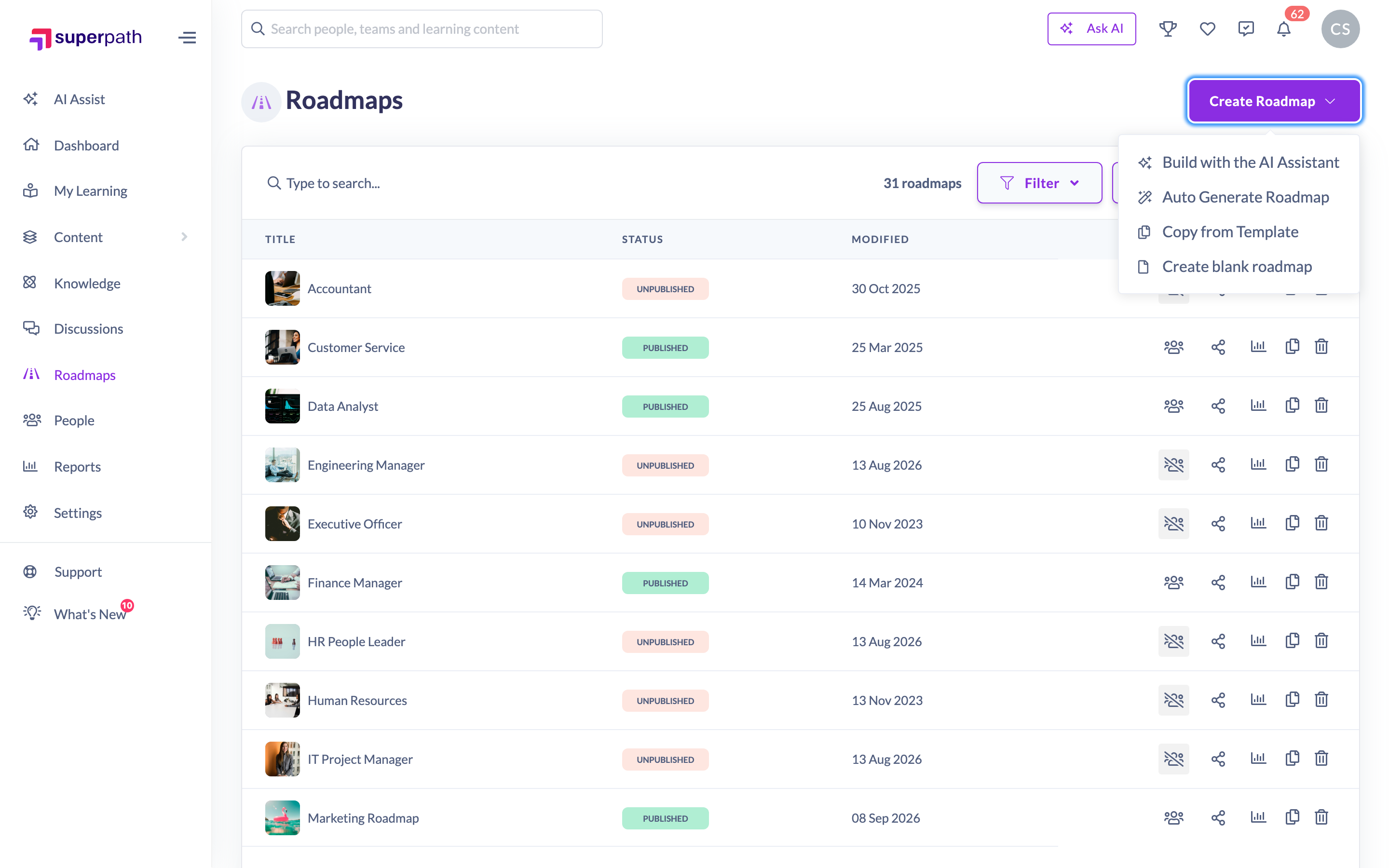
If you have the spreadsheet, use it. The import route takes every Competency, Level and behaviour out of your own cells rather than out of the Assistant's head, which is both faster and more accurate.
Route 1: building by interview
If you have no spreadsheet, the Assistant interviews you. A Roadmap is a grid rather than a sequence, so the questions are different from a Pathway's, and it works in a particular order:
- Levels first. The Levels are the ladder every behaviour is written against, so they come before the Competencies. A matrix built the other way round ends up with rungs that do not line up.
- Then the Competencies. It is told not to pad these. Six you can name are worth more than twelve it inferred, and a Competency nobody can write a behaviour for does not belong in the matrix.
- Then one behaviour per Competency per Level, in your words: what somebody at that Level actually does. Not the Level's name restated, and not two behaviours in one cell.
It will not invent a Level to square off the table, and a cell you have not decided is left out rather than filled in for you. A partly unwritten matrix is still a matrix, and you finish it later in the Roadmap editor.
The interview has a budget of at most five questions for the whole build, fewer when you have already said enough. Questions arrive on a question card, one at a time, with an Other row so you can always write your own answer.
When it has enough, it puts the whole matrix up on an outline card badged Structure only: Competencies down the side, Levels across the top, the behaviour in each cell. Nothing has been created at that point. Read it, and either click Approve structure & draft content or click Ask for changes and say what is wrong in the composer.
If your organisation has AI guidelines set at Settings → Features, a line above the card reads Applied your organisation's AI guidelines. Those are standing rules the AI follows whenever it generates anything for you, so they shape how the behaviours are worded. They are worth writing before you build.
Good to know: The interview route's matrix card is read-only. The Competency and Level titles and the behaviours are not editable in place there, so corrections are conversational: say what you want changed and the Assistant proposes a new matrix. The import route's card, below, is the editable one.
Route 2: importing a competency matrix from a spreadsheet
- Open the Assistant and attach your spreadsheet with the + button in the composer, or drag the file onto it.
- Say what you want, for example "Turn our competency matrix into a roadmap".
- The platform reads the file and puts what it found on a proposed mapping card. This can take a moment on a large workbook.
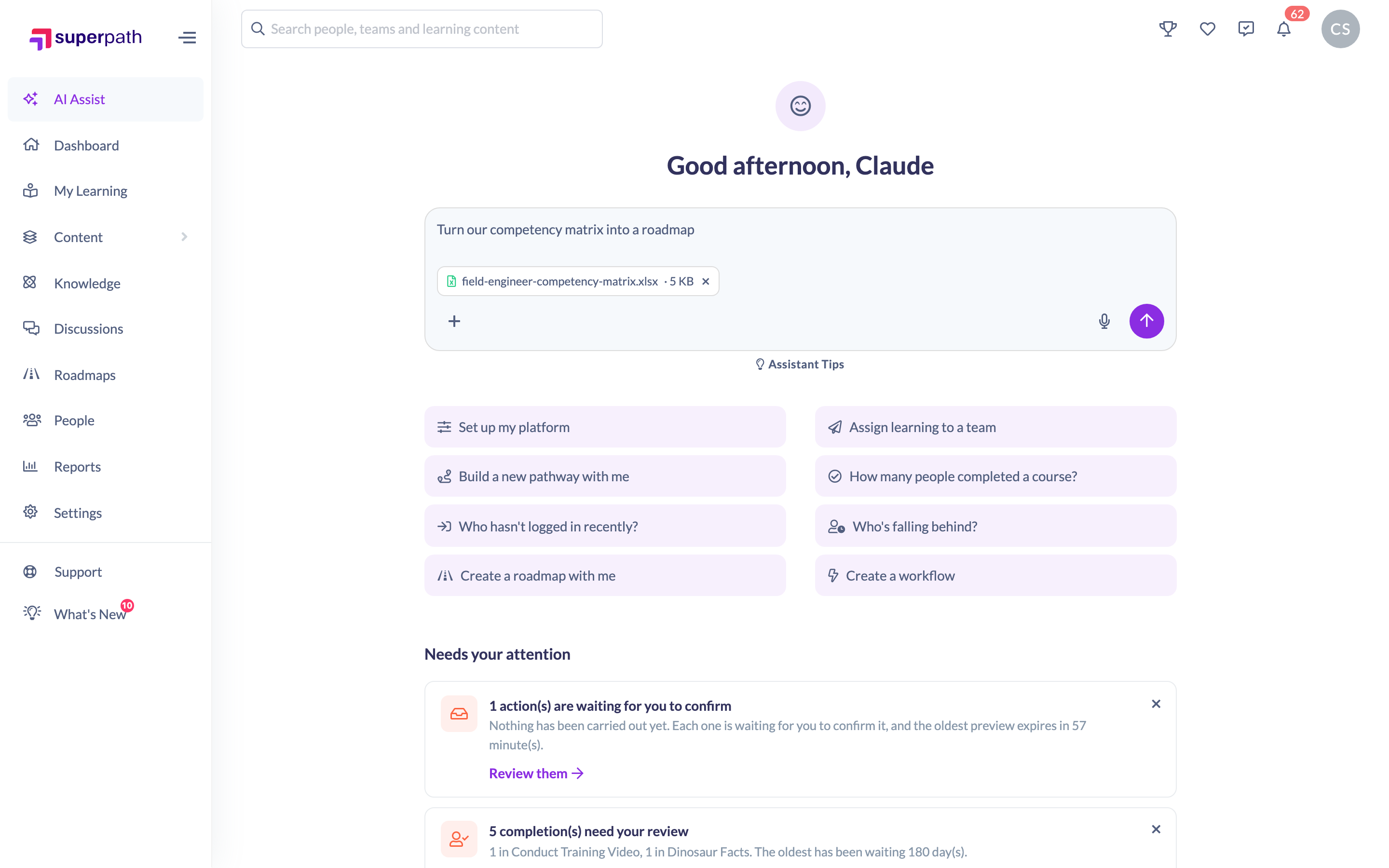
What you can attach:
- .xlsx or .csv only, for a matrix. PDFs and Word documents are read too, but as background material for a Pathway rather than as a matrix.
- 10 MB maximum, and one file per message. Attach more than one and you will see "One file per message. I've taken the first one."
- Slides are not supported: "I can only read Excel (.xlsx), CSV, PDF and Word (.docx) files. Slides aren't supported."
- A file that cannot be opened as a spreadsheet is refused with the likely reason: "That file could not be opened as a spreadsheet. It may be damaged, password-protected or saved in an older format. Re-save it as .xlsx or .csv and upload it again."
The one rule worth knowing before you start is that the platform reads your cells and nothing else. Every Competency title, every Level title and every behaviour on the card came out of a cell of your file, word for word. Nothing is tidied, rephrased, summarised or invented, and a cell your file left blank is left blank for you to write.
Your matrix does not have to be laid out any particular way. It works out for itself whether the Competencies run down the side or across the top, it skips a title row above the headings rather than reading it as a Competency, and it handles merged and centred heading bands. Only one sheet is read: it picks the one that looks most like a matrix and names every other sheet it did not read.
What the proposed mapping card shows you
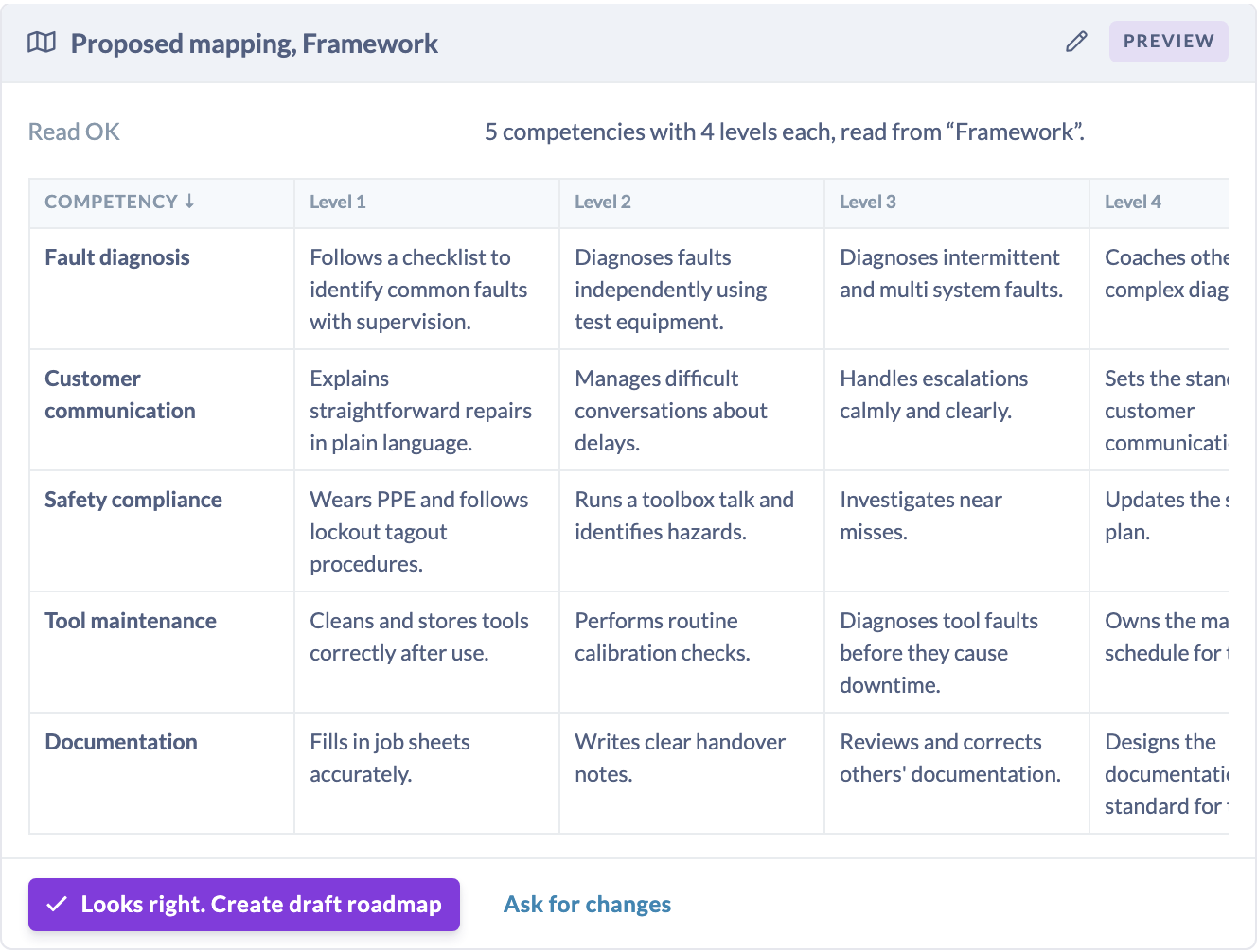
The card has a header, a report, and the matrix itself.
The header reads Proposed mapping followed by the Roadmap's name, or Proposed mapping, not named yet where your file gave no name to use. The badge says Preview on a clean read and Needs your help on a partial one.
The report is a two-row table:
- Read OK says what it managed, for example "6 competencies with 4 levels each, read from Sheet1", and calls out anything it read by inference so you can check it. A heading centred across columns rather than properly merged is reported that way, with a "Check that is right" on the end.
- Couldn't read lists what it left out, one line each, naming the exact row or column so you can find it in your own file. See the next section.
A Level order warning, where it applies. This is the one thing on the card the Assistant is allowed to author, so it is called out with a warning triangle: "Your file didn't say what order the levels run in, so this order is my suggestion. Please check it before approving." Where your Levels are numbered (L1, Level 2, Tier 3, and so on) the order is a fact read from your file, it is put into ascending order for you even if the file ran highest first, and no warning appears. Where they are named rather than numbered (Foundation, Practitioner, Expert) the order they appear in the file is kept and you are asked to confirm it: "Your levels are not numbered, so I have kept them in the order they appear in the file: ... Tell me if that is not lowest to highest." Answer in the composer and the Assistant reads the file again in the order you gave.
The matrix, with Competencies down the side and Levels across the top. It scrolls sideways inside the card, so a wide matrix does not stretch the panel. Where your file grouped Competencies into themes and the layout allowed it, the theme appears in grey brackets after the Competency name.
Questions, in their own table under the matrix, each with a warning triangle. These are the things it would not guess at, for instance "'Ownership/Init.' (row 7), is that one competency or two?" or "'Comms.' (row 9), is that one competency or two?" A heading it asked about is not mapped at all until you answer, because guessing would put a Competency in your Roadmap that your file does not contain. Answer these in the composer, in your own words, and it re-reads the file.
Editing the mapping before you approve it
Four things are editable directly on the card, and every change stays local until you approve it:
- The Roadmap's name. Click the pencil in the header. If your file gave no usable name you must fill this in, and until you do, the approve button is disabled with the reason on it: "Give this roadmap a name first."
- A Competency title. Click the title, type, press Enter. Esc cancels.
- A Level title. Same, on the column heading.
- A behaviour in any cell. Click the cell and type. An empty cell shows the prompt "Blank in your file. Describe ..." so it is still something you can click.
Flagged cells are the ones tinted with a warning border. A flag means the platform did not write a behaviour there and is asking you to. Hover one and it tells you why: where your file had a placeholder such as a dash, N/A or TBC, it says "Your file had 'TBC' here" and keeps your own marker rather than treating it as a behaviour. Where a cell had two different behaviours under the same merged heading, it left it empty rather than picking one, and says so. Where there is no particular reason, the tooltip is just "Click to write this behaviour".
Click Fix the flagged cells and it takes you to the first one and opens it for editing. That button sends nothing, it just moves you. The flag clears as soon as you write something in the cell.
You do not have to fill them all in. A cell you leave blank is simply left out of the draft, and you can add the behaviour in the Roadmap editor later.
What you cannot change here is the structure. You cannot add, remove or reorder Competencies or Levels on this card. That is deliberate rather than an omission: every behaviour is held against its Competency and Level by position, so reordering them here would risk every cell in the matrix ending up against the wrong pair. Structural changes are conversational. Say "drop the Safety competency" or "there should be a fifth level above Expert" and the Assistant re-reads or re-proposes.
When it says it could not read something
Anything in the Couldn't read list means exactly that: the platform did not map it, and it is telling you rather than guessing. It never quietly maps something else in its place. The commonest lines you will see:
- "Sheet 'Notes', I read the matrix from 'Framework' and did not read this one." Only one sheet is read.
- "Row 3, the merged headings above your level names group them, so I used the level names underneath and left the groupings out."
- "Columns E to G, extra label columns I did not use."
- "Row 12, there is no competency name on it, so I left it out."
- "Rows 20 to 34, a second table starts here, and I read only the first one." Two frameworks on one sheet means it reads the first.
- "Rows 5 to 7, the competency name is merged across these rows, so I cannot tell which behaviours belong to which row."
- "4 cells are empty in your file, fill them in here, or leave them and add the behaviour later."
- "'Framework', I cannot tell which way round the matrix is, so I read no competencies or levels from it."
Anything at all in that list makes the read a partial one, and a partial read behaves differently: the badge changes to Needs your help, the matrix table is not shown yet, and under the card you are asked How would you like to fix this? with up to four ways forward:
Option | What it does |
|---|---|
Describe the layout to me | You tell it where things are, for example "the competencies are in column B, and the levels are the merged bands across the top", and it reads the file again |
Show me what you read, and I will fix it here | Opens the part it did read as the editable table, so you can correct it in place. Not offered when it mapped nothing at all, since there would be nothing to open |
I will tidy the file up and attach it again | Closes the card so you can fix the spreadsheet and start again |
Forget the file, and build it by interview instead | Drops the file and switches to the interview route above |
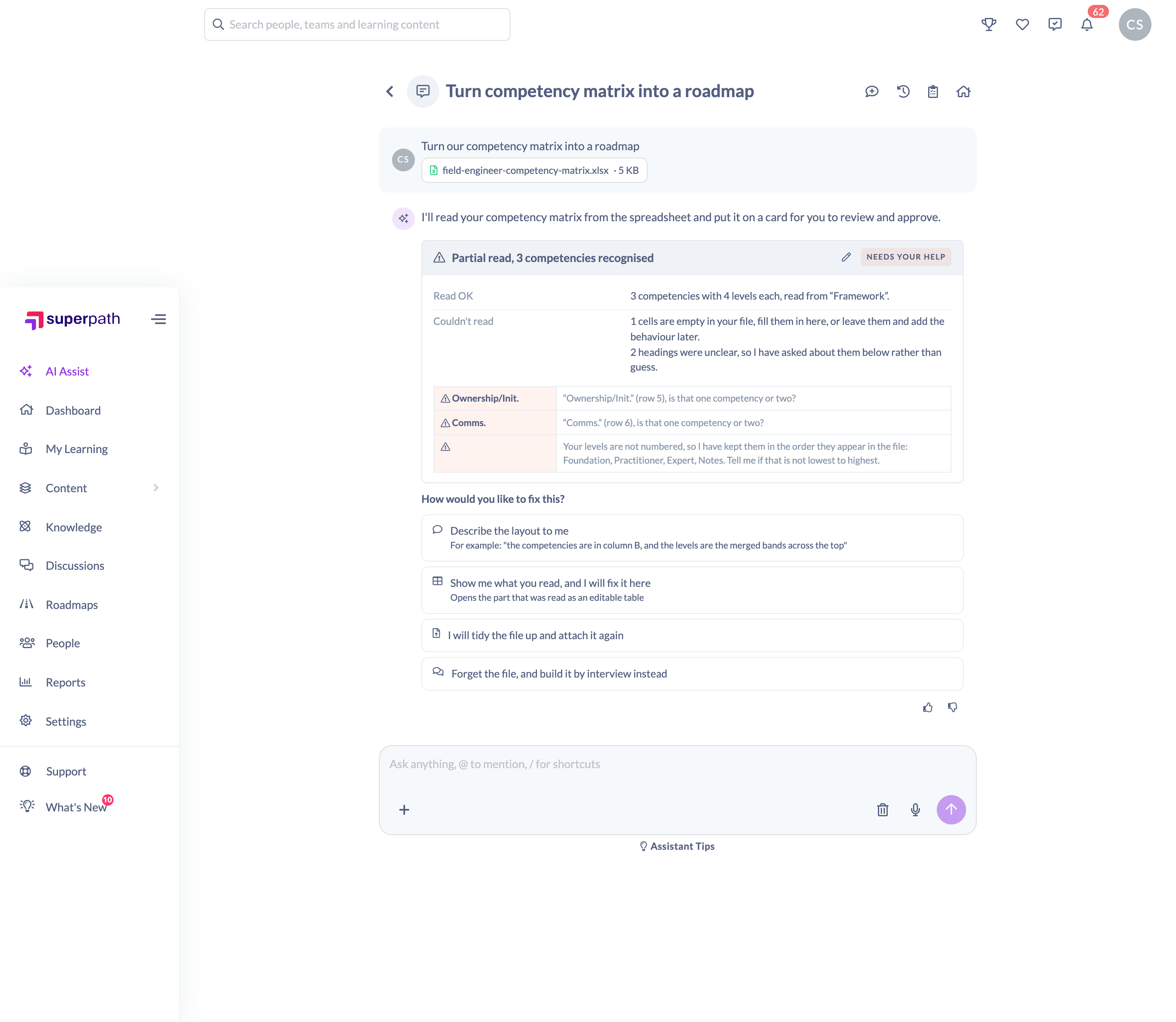
The most common cause of a read that maps nothing is a layout it cannot orient, which usually means the headings are not in a recognisable row or the Competency and Level axes both look alike. Describe the layout to me is the quickest fix for that.
Approving the mapping or the outline
On the mapping card the button reads Looks right. Create draft roadmap. On the interview route's outline card it reads Approve structure & draft content. They do the same job.
This is the consent step, and it is the only thing that lets the Assistant build. Ask it to skip ahead and it tells you: "There is no approved outline for me to build. Ask me for a roadmap outline first, then approve it on the card, I only build what you have approved."
One approval, one draft. An approval is spent the moment a draft is prepared from it. Ask for a second Roadmap off the same matrix and it declines and points you at the first one. If you want another, ask for a new matrix and approve that. The card also locks once you have approved it, and stays locked when you reopen the conversation, so an approval cannot be spent twice from the transcript.
If you edit the matrix down to nothing before approving, there is nothing left to build and it says so: "The approved outline has no competencies or no levels left in it, so there is no matrix to build. Ask me for a new outline and approve that one."
Confirming the draft, and what gets created
Approving hands you a confirmation card headed Create draft roadmap, summarising the action as "Create as an unpublished draft roadmap." Its diff shows the Name and a Status of Unpublished, and it always states both consequences:
- "It is created unpublished, so nobody can see it. Publishing is a separate step, and never one I take."
- "It is private as well as unpublished, so it stays out of the roadmap library until you say otherwise."

Click Confirm within the hour, or the preview expires and has to be re-run because the data behind it may have moved on.
While it works you see progress a behaviour at a time: "Created the draft roadmap Field Engineer Capability, now adding its behaviours", then "Behaviour 12 of 24 added, Fault diagnosis at Developing". Leave the panel open until the receipt appears, because that is where the undo lives.
What ends up on your account:
- The Roadmap, unpublished and private, with you as its owner.
- Its Competencies and Levels, in the order you approved, with any themes your file grouped them under.
- One behaviour for each cell you approved. Cells you left blank are simply absent, and you can write them in the editor.
No AI runs at this point. What you approved is written exactly as you approved it, behaviour for behaviour, so nothing can drift between the card you read and the Roadmap you get.
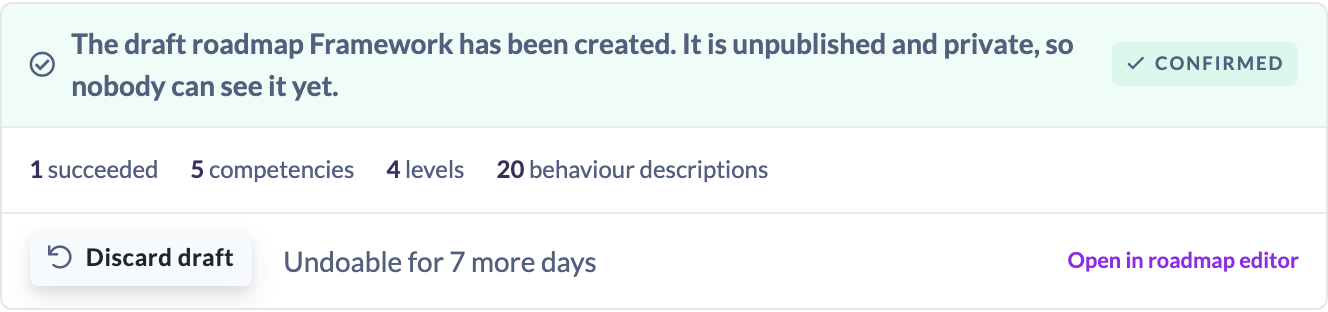
The receipt reads "The draft roadmap has been created. It is unpublished and private, so nobody can see it yet." If some behaviours could not be added you get a partial receipt instead: "The draft roadmap has been created, but not every behaviour could be added to it. Open it in the roadmap editor to see what is there." It names each one it missed, and a failed behaviour never takes the Roadmap down with it.
Opening the draft in the Roadmap editor
The receipt carries an Open in roadmap editor link straight to the new Roadmap. That is where you finish it: fill in any blank cells, add descriptions, attach learning to the Levels, and publish it when you are happy.
Because the draft is private as well as unpublished, it stays out of the Roadmap library until you change that yourself. You can also reach it from the Roadmaps page at any time without the conversation.
Undoing a draft Roadmap
The undo button on the receipt reads Discard draft, because nothing was ever visible to anybody. It deletes the Roadmap again along with all of its behaviours, and it is available for 7 days after the build, with the receipt counting the days down.
It refuses in one case, and for a good reason: if somebody is already working through a Level on the Roadmap, deleting it would take their progress with it. You get " already has somebody working through a level on it, so deleting it would take their progress with it. It has been left in place, delete it from the Roadmaps page if that is what you want."
See How the AI Assistant Makes Changes for the full undo rules and The AI Assistant Activity Log for the record of what was built.
Size limits on a matrix
A Roadmap has real limits, and the import refuses a file over them rather than quietly building part of it. The counts it quotes are what is in your file, including headings it could not resolve, so the number matches what you would count yourself.
Limit | What you are told |
|---|---|
30 Competencies | "That matrix has 35 competencies and a roadmap can hold at most 30. Split it into more than one roadmap, or trim the file and upload it again." |
10 Levels | "That matrix has 12 levels and a roadmap can hold at most 10. Trim it to the levels you want and upload it again." |
300 behaviour descriptions | "That matrix has 340 behaviour descriptions and a roadmap can hold at most 300. Trim it down and upload it again." |
50,000 cells in a sheet, and 200,000 across the workbook | "That spreadsheet is too big for me to read: 62000 cells, and I can read at most 50000. Trim it down to the competency matrix itself and upload it again." |
10 MB per file | "That file is too large. The most I can read is 10 MB." |
There is also a size budget on the mapping itself, which is what a matrix of very long behaviour descriptions can hit even when the counts are fine: "That matrix is too large for me to put to you. The limit is 32 KB. Trim the spreadsheet down to the competencies, levels and behaviours you want on the roadmap, then attach it again."
If your framework is genuinely bigger than 30 Competencies, split it into more than one Roadmap. That is usually the right answer anyway, since a Roadmap describes a role.
Things to keep in mind
- Nothing is created until you confirm. The mapping card creates nothing, and approving it creates nothing either.
- What you get is an unpublished, private draft, not assigned to anybody. The Assistant cannot publish a Roadmap and cannot assign a Level as part of a build. Assigning a Level is a separate action, covered in How to Assign Learning with the AI Assistant.
- On the import route, every word of the matrix comes from your file. The platform will not fill a blank cell, tidy your wording or infer a behaviour, and the Assistant is not allowed to write one into a cell either.
- Check the Level order whenever the card warns you about it. Numbered Levels are read from the file and put in ascending order; named Levels keep the file's own order and are the Assistant's suggestion until you confirm them.
- You can edit Competency titles, Level titles, behaviours and the Roadmap's name on the mapping card. You cannot add, remove or reorder Competencies or Levels there. Ask for those changes in the composer instead.
- The interview route's matrix card is read-only. Corrections there are conversational.
- Only one sheet is read, and every other sheet in the workbook is named as not read.
- A partial read hides the matrix until you choose one of the four ways forward. That is intentional: a table you have not been told the gaps in is a table you would approve without meaning to.
- Attachments are 10 MB maximum and one file per message. Slides are never supported.
- AI guidelines at Settings → Features shape the wording the Assistant generates, which matters on the interview route. On the import route the wording is yours, so guidelines change little.
- Roadmaps must be switched on for your account.
- AI can make mistakes. Read the mapping properly before approving it, and read the draft before publishing it.
FAQs
Which route should I use?
If the matrix exists in a spreadsheet, import it. Every Competency, Level and behaviour then comes from your own cells rather than from the Assistant. Use the interview when you are starting from nothing.
Does approving the mapping create the Roadmap?
No. Approving says the mapping is right. The Roadmap is created after that, when you confirm the Create draft roadmap card.
Is the Roadmap published or visible to anyone?
No. It is created unpublished and private, so it stays out of the Roadmap library until you change that yourself.
Does my spreadsheet have to be laid out a particular way?
No. It works out whether the Competencies are the rows or the columns, skips a title row, and copes with merged and centred heading bands. If it genuinely cannot tell which way round the matrix is, it says so and asks, rather than guessing.
Why is a cell blank when my file has something in it?
Two likely reasons. If your file had a placeholder such as a dash, N/A or TBC, that is kept as a marker rather than treated as a behaviour, and the cell is flagged for you to write. If a merged heading had two different behaviours under it, the cell is left empty rather than one of them being picked.
Why did it ask whether a heading is one Competency or two?
Because it is genuinely ambiguous, usually a slash ("Ownership/Initiative") or an abbreviation ("Comms."). It would rather ask than put a Competency in your Roadmap that your file does not contain. An ampersand is not treated as ambiguous, so "Quality & testing" stays one Competency.
Are the Levels in the right order?
If they are numbered, yes: that order is read from your file and sorted lowest to highest for you. If they are named, the order is the one they appear in the file and the card asks you to check it. Tell the Assistant if it is wrong and it re-reads the file in your order.
Can I add a Level or a Competency on the mapping card?
No. Titles and behaviours are editable there; the structure is not, because behaviours are held against Competencies and Levels by position. Ask for the change in the composer and the Assistant re-proposes.
Do I have to fill in every blank cell before approving?
No. Blanks are left out of the draft and you can add them in the Roadmap editor later. A partly written matrix is still a matrix.
My matrix is too big. What now?
Split it into more than one Roadmap, which is usually right anyway since a Roadmap describes a role, or trim the file down to the Competencies, Levels and behaviours you actually want.
What is the difference between this and Auto Generate Roadmap?
Build with the AI Assistant is a conversation: you are interviewed or your spreadsheet is read, you see and edit the matrix, and you approve it before anything is created. Auto Generate Roadmap is the older one-shot generator on the same menu.
Can I get rid of a draft it built?
Yes. Use Discard draft on the receipt within 7 days. After that, or if somebody is already working through a Level on it, delete it from the Roadmaps page instead.
Who can do this
Owners and Admins can build a Roadmap with the AI Assistant, and so can SuperPath Admins. Managers can too, but only when your organisation's Who can use the AI Assistant setting at Settings → Features is set to Admins and managers.
People Managers can use the AI Assistant on the Admins and managers setting, but they cannot create Roadmaps at all in SuperPath, so the Roadmap builder is not available to them. Content Managers, Instructors, Employees and Restricted users cannot use the AI Assistant, whichever setting is chosen, even though Content Managers can create Roadmaps by hand.
Roadmaps must also be switched on for the account. Turning the AI Assistant on, choosing who can use it, enabling Roadmaps and setting your AI guidelines are all done in Settings → Features by an Owner or Admin. See Managing AI Features.
Updated on: 11/09/2026
Thank you!