
How to Change Account Settings with the AI Assistant
How to Change Account Settings with the AI Assistant
In this article:
- Overview
- How to ask
- What the assistant can change
- What it cannot change
- Confirming the change
- Undoing a settings change
- Settings the guided setup asks about
- Things to keep in mind
- FAQs
- Who can do this
Overview
You can ask the AI Assistant to change a bounded set of your account's settings in plain English, instead of finding the right tab yourself. It reads what the setting is now, shows you the old value and the new one on a confirmation card, and applies nothing until you confirm it.
The list of settings it can touch is fixed in SuperPath's code rather than decided in the moment, so it cannot be talked into changing something outside that list. Everything else stays a job for the Settings pages, and when you ask for one of those the assistant says so and points you at the right page.
Ask for several settings at once wherever you can. One request becomes one confirmation card and one undo, which is easier to read and much easier to reverse than five separate ones.
For how confirming and undoing work across the whole assistant, see How the AI Assistant Makes Changes. For branding, which has a flow of its own that reads your website, see How to Change Your Branding with the AI Assistant.
How to ask
- Open the AI Assistant with Ask AI at the top of any screen, or ⌘ + K (Mac) / Ctrl + K (Windows). See How to Use the AI Assistant.
- Say what you want changed. "Turn on Certificates", "Switch on CPD points and let managers add them by hand", "Change who can see the Library to admins only" and "Turn Badges and Gamification on" all work.
- The assistant prepares the change and shows you a card headed Change settings.
- Read the card and click Confirm, or Cancel.

It will not tell you a setting has been changed while it is still waiting for you, and it will not ask you to confirm by typing "yes" in the conversation. The card is the only place a change is approved.
If everything you asked for is already set that way, the assistant tells you there is nothing to change. That is a normal answer rather than a fault.
What the assistant can change
There are 29 settings on the list. They fall into four groups.
Your look
Setting | Where it lives |
|---|---|
Logo | Settings → Theme |
Browser icon | Settings → Theme |
Primary colour | Settings → Theme |
Login page image | Settings → Theme |
Dashboard banner image | Settings → Theme |
Dashboard banner title | Settings → Theme |
These are the same six settings the branding flow proposes. If you want the assistant to work them out from your own website rather than naming each one yourself, see How to Change Your Branding with the AI Assistant.
Feature switches
Each of these is on or off for the whole account.
Setting | Where it lives |
|---|---|
CPD points | Settings → Features |
Adding CPD points manually | Settings → Features |
Roadmaps | Settings → Features |
Knowledge base | Settings → Features |
Discussions | Settings → Features |
Certificates | Settings → Features |
Adding certificates manually | Settings → Features |
Access expiry | Settings → Features |
Badges | Settings → Gamification |
Gamification | Settings → Gamification |
Learning requests | Settings → Library |
Public events | Settings → Library |
SCORM | Settings → Library |
Self-serve in the private library | Settings → Library |
Self-serve in the public library | Settings → Library |
Who can do what
These take one of three values: Everyone, Managers & Admins or Admin Only.
Setting | Where it lives |
|---|---|
Who can see the library | Settings → Library |
Who can see knowledge | Settings → Features |
Who can see roadmaps | Settings → Features |
Who can add CPD points by hand | Settings → Features |
Who can add a certificate by hand | Settings → Features |
Who can start a discussion | Settings → Features |
Note: Two of these need a second switch to mean anything. Who can add CPD points by hand only does something when Adding CPD points manually is on, and the same is true of the certificate pair. So if you ask only for the access level, the assistant adds the switch to the same change automatically and shows you both rows on the card. Without that you could approve a setting, get a receipt saying it was applied, and still find that nobody could add a CPD point.
Two more, during guided setup only
Setting | Where it lives |
|---|---|
Platform name | Settings → General |
Time zone | Settings → General |
These two can only be set while the assistant is walking you through setting your platform up. Ask for either at any other time and it refuses, names the setting and points you at the General tab, where you can change it yourself whenever you like. See The Guided Setup Walkthrough, How to Change Your Organisation and Platform Name and How to Change Your Timezone.
What it cannot change
Anything not in the four groups above. When you ask, the assistant says plainly that it cannot change that setting, and names the settings page where you can. It will not offer a workaround and it will not attempt something adjacent instead.
Some of the exclusions are deliberate rather than accidental, and are worth knowing:
- Who may approve and assess all learnings. This one is Owner-only on the settings page, and approval powers are not something to delegate through a tool. See Allowing Admins to Approve and Assess All Learnings.
- The AI course builder, and who can use it. Switching it on does more than flip a switch: it connects the product that builds the courses and creates an integration record for it, which an undo could not unwind. A change that cannot honestly be reversed does not belong on the list. See Managing AI Features.
- The AI Assistant's own master switch. That is SuperPath's, not your account's, and the assistant must certainly not be able to switch itself back on.
- How people sign in. Sign-in methods live on the Security tab and can lock people out of the account, so they stay a deliberate, manual change. See How to Enforce a Login Authentication Type.
- Whether the dashboard is shown at all. The branding flow can switch the welcome banner on as part of building it, but turning the dashboard itself on or off is not a setting the assistant will change on request.
- The Library and Knowledge banners.
- Your custom subdomain. See Setting Up Your Custom Subdomain for SuperPath.
Everything else under Settings is the same answer: notifications, workflows, SSO, auto-registration, the welcome email, CPD categories, Certificate expiry notifications and the rest. The assistant is happy to tell you how to change any of them, and How to Use the AI Assistant covers asking it how-to questions.
Confirming the change
The card is headed Change settings and carries:
- A one-line summary naming the settings and how many will change.
- A before → after row for each one, in readable words rather than field names. Badges: off → on. Who can see the library: Everyone → Admin Only.
- What else happens because of it. Turning a feature off removes it for everyone in the account the moment the change lands. Moving an access level changes who can see that part of the platform, for everyone, straight away. Changing the Logo also updates the logo shown on every Pathway, and undoing it changes them all back.
- A note about any setting you named that already holds the value you asked for. It is dropped from the change and left alone, so the card and the change describe the same set.

Click Confirm to apply it, or Cancel to walk away with nothing changed. The preview expires an hour after it was prepared, and the card counts that down. If it expires, ask the assistant to prepare it again so you are reviewing current values.
Only the person who prepared the change can confirm it. Asking for the same settings again in the same conversation replaces the earlier card rather than adding a second one, so there is never more than one version of a settings change waiting to be approved.
Once applied, you get a receipt naming what was changed. The change goes through the platform's own settings service, so it is validated and recorded in your account's history exactly as it would be if you had made it on the settings page yourself, and it appears in the Activity log. See The AI Assistant Activity Log.
Undoing a settings change
A confirmed settings change can be undone for 7 days, from the Undo button on the receipt or in the Activity log. Undoing writes the previous values back through the same path, so any knock-on effects run again in reverse.
The previous values are read immediately before the change is applied, not when the card was prepared. So if somebody edited a setting by hand in between, the undo puts back what was actually there rather than what the card happened to show.
One limit is stated honestly rather than hidden. A setting that had no previously recorded value cannot be put back, because there is nothing to restore. When that happens the setting is named, and the summary says the restore was partial rather than reporting a clean undo over a setting still holding the new value. In practice this only affects on/off settings that had never been set either way: a text setting that was empty is recorded as empty and restored to empty. If none of the previous values were recorded, the undo does not run at all and the assistant tells you to set them yourself on the settings pages.
Undo is available to the person who prepared the change and to any Owner or Admin in the account.
Settings the guided setup asks about
If you are being walked through setting your platform up, the features come to you differently. Instead of asking for each one, you get a card headed The features I asked about with a switch per feature and, where a feature has one, a Who can use it dropdown underneath that appears only once the switch is on.
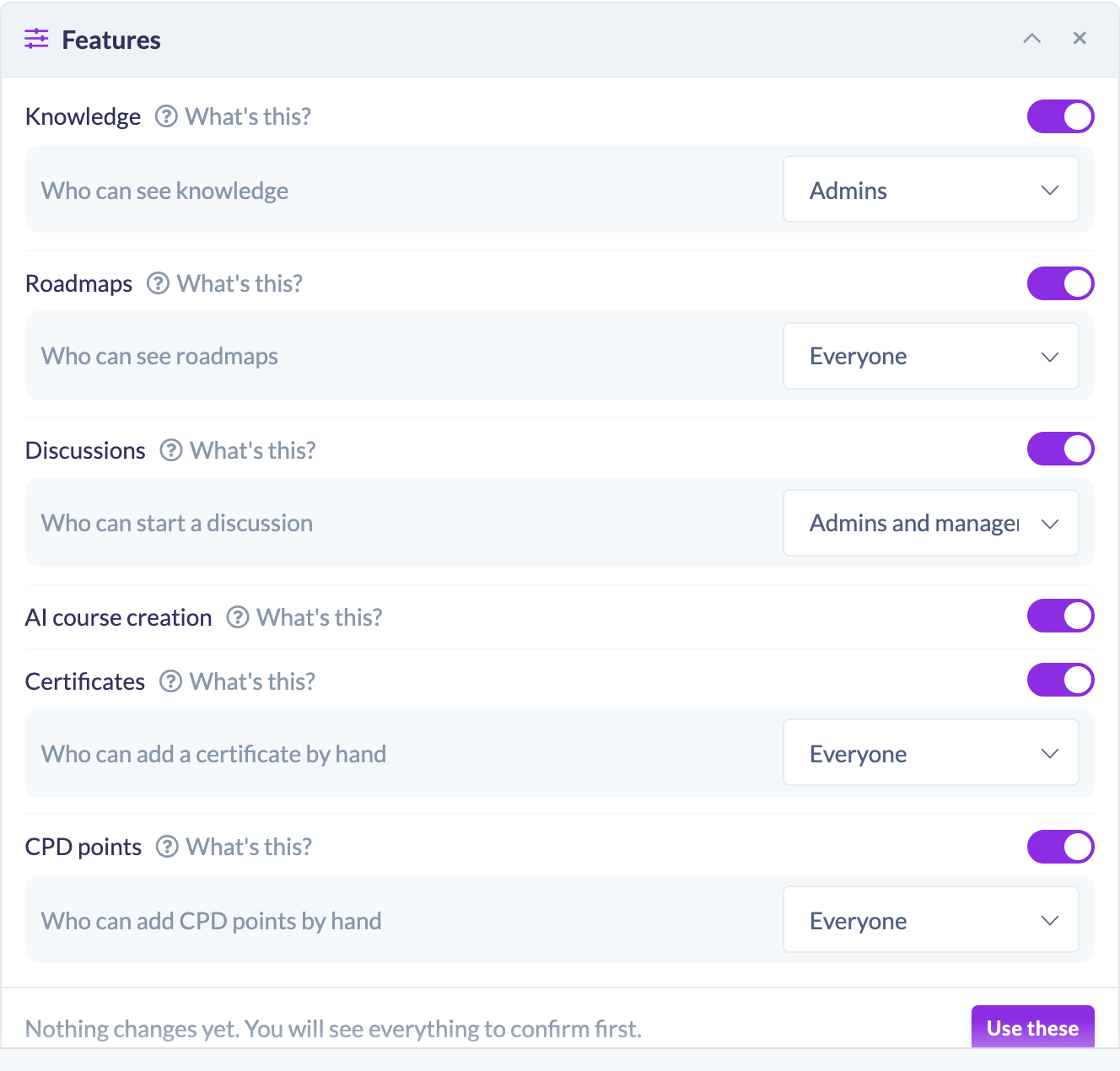
Each switch opens on your account's own current value, so the card is a true picture of your platform rather than an all-off list. Only a row you actually change becomes part of the answer. What's this? beside a row explains what the feature does.
Nothing is applied by that card. Everything you choose across the whole walkthrough is gathered into one confirmation card at the end, which means one thing to read and one undo for the lot. See The Guided Setup Walkthrough.
The walkthrough does ask whether you want AI course creation, and records your answer, but it deliberately does not switch it on for you. The assistant tells you afterwards that this one switch is yours to flip and links you to the Features tab, for the reason given above: it cannot be undone cleanly, and a batch promising one undo must not carry something it can only partly reverse.
Things to keep in mind
- Nothing changes until you confirm it, and a prepared change expires an hour after it was made.
- Ask for everything you want in one go. One request means one card to read and one undo.
- A setting that already holds the value you asked for is dropped from the change and reported as left alone.
- If everything you asked for already matches, the assistant refuses. That is normal, not an error.
- Asking again in the same conversation replaces the earlier prepared change rather than stacking a second one.
- Feature switches and access levels carry the assistant's strongest confirmation gate, because they change what an entire account can see and do. A branding field asked for alongside one of them takes the stronger gate too: a change is only as safe as the riskiest thing in it.
- Each person can confirm up to 50 of those stronger actions a day, resetting at midnight UTC, and each conversation can hold up to 20 prepared actions before you need to start a new one.
- A settings change affects nobody in particular, so its card carries no list of people and there is no way to trim it. Cancel and ask again if it is not what you wanted.
- Changes are historied like an Admin-made change, so your audit trail is not affected by having asked the assistant.
- The assistant only ever reads and writes your settings under your own permissions, so it cannot change something you could not change yourself.
FAQs
Can I change several settings at once?
Yes, and you should. One request becomes one confirmation card and one undo, which is much easier to review and to reverse than several separate changes.
Why did it add a setting I did not ask for?
Two access levels do nothing without a second switch. Asking to set Who can add CPD points by hand adds Adding CPD points manually to the same change, so you do not end up approving a setting that governs nothing. Both rows are shown on the card before you confirm.
Why did it say there is nothing to change?
Every setting you named is already set that way. Nothing is wrong.
Can it change the platform name or the time zone?
Only while it is guiding you through setting your platform up. At any other time it refuses and points you at Settings → General, where you can change either yourself.
Can it turn on the AI course builder?
No. Switching that on also connects the product that builds the courses and creates an integration record for it, which an undo could not unwind, so it is deliberately left off the list. Turn it on yourself under Settings → Features. See Managing AI Features.
Can it change who may approve and assess learnings?
No. That setting is Owner-only on the settings page and is deliberately excluded.
Can it change how people sign in?
No. Sign-in methods can lock people out, so they stay a manual change on the Security tab.
What happens to a change I never confirm?
Nothing. The preview expires after an hour and no setting is touched. Ask again whenever you like.
Can somebody else confirm the change I prepared?
No. Confirming is limited to the person who prepared it. Undoing is open to that person and to any Owner or Admin.
Can I undo a change?
Yes, for 7 days, and it puts the previous values back. A setting that had no previously recorded value cannot be restored, and the undo names it rather than claiming otherwise.
Who can do this
Changing account settings with the AI Assistant is limited to Owners and Admins, and that is stricter than access to the assistant itself. Who can open the assistant depends on your organisation's Who can use the AI Assistant setting, which can extend it to Managers and People Managers, but the settings tools are never offered to them: applying a change needs the tenant-settings update permission, which only Owners and Admins hold, so a Manager could only ever be walked to a card that failed on them. Content Managers, Instructors, Employees and Restricted users cannot use the AI Assistant at all.
This matches the settings pages themselves. The Settings area is restricted to Owners and Admins, so nobody gains a way in by asking the assistant, and nobody who could already change a setting loses one.
Confirming a prepared change is limited to the person who prepared it. Undoing one is open to that person and to any Owner or Admin in the account. Turning the AI Assistant on and choosing its access level is done in Settings → Features by an Owner or Admin, covered in Managing AI Features.
Updated on: 11/09/2026
Thank you!