
How to Assign Learning with the AI Assistant
How to Assign Learning with the AI Assistant
In this article:
- Overview
- Starting an assignment
- The five questions
- What happens to people who already have it
- What the AI Assistant can assign
- Checking the preview before you confirm
- Removing someone before you confirm
- Confirming and reading the receipt
- Undoing an assignment
- What it will not do
- Things to keep in mind
- FAQs
- Who can do this
Overview
Assigning learning is the AI Assistant's flagship action. You describe who should get what, the Assistant asks the five things every assignment needs, and then it shows you exactly who would be affected before anything happens. Nothing is assigned until you click Confirm yourself.
It can assign a Pathway, a course or any other Library content, a Form, an Event, or a single level of a Roadmap, to one person or to a whole group of Teams and individuals at once.
The preview, confirm and undo mechanics described here are the same ones every AI Assistant action uses. For the full picture of how staged actions work, see How the AI Assistant Makes Changes. To find an assignment you made earlier, see The AI Assistant Activity Log.
Starting an assignment
There are two ways in, and both end up at the same place.
Use the starter prompt. On the AI Assistant home page and in a fresh conversation in the side panel, there is a chip reading Assign learning to a team. It names the action and deliberately names neither the learning nor the Team, because one click is the point. Click it and the Assistant opens its question card straight away.
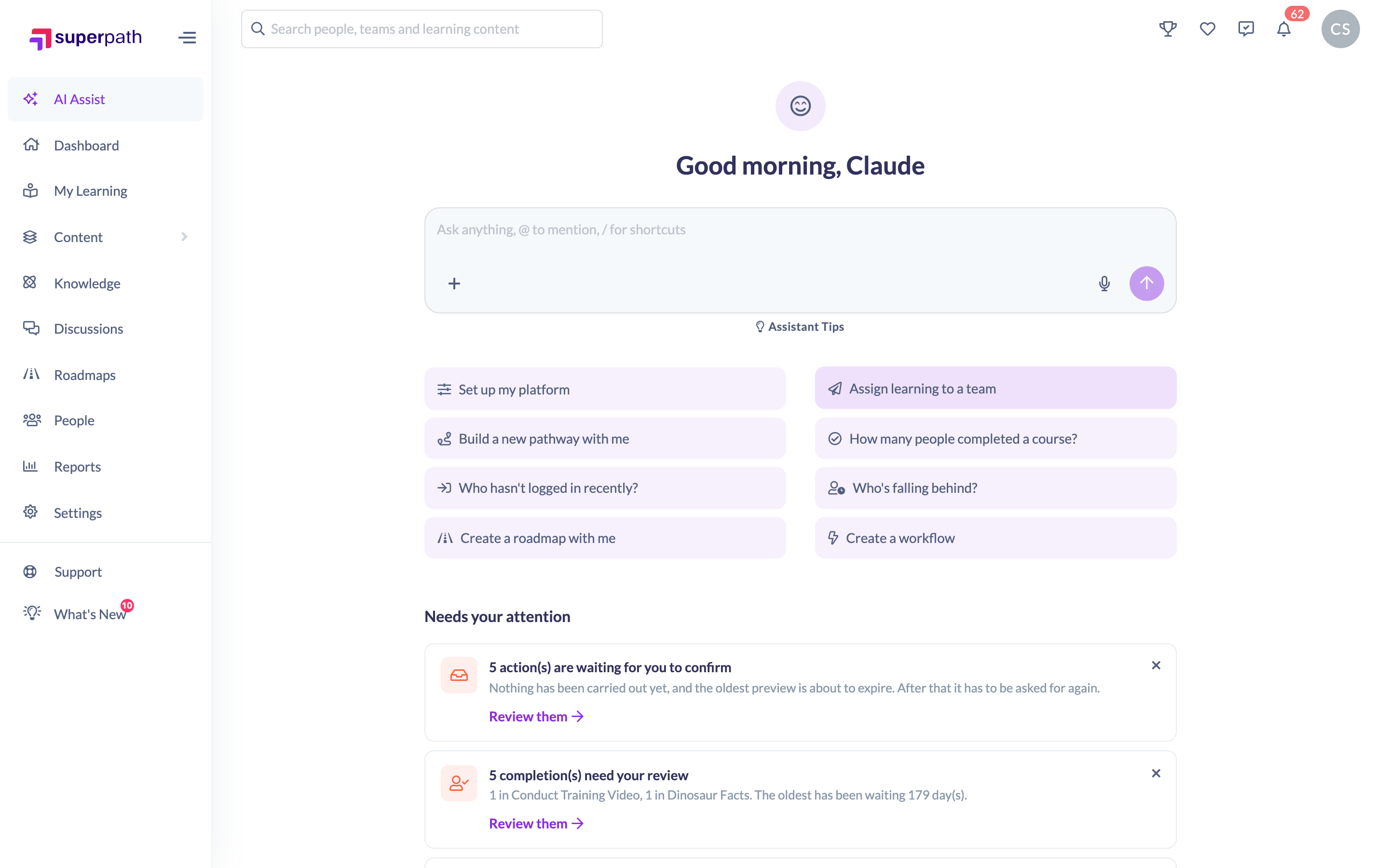
Or just ask. Type what you want in your own words. "Assign Fire Safety to the Sales team", "Give everyone in Field Ops the new onboarding pathway except Priya", "Assign the Q4 feedback form to Jane Smith, due at the end of the month". If your sentence already answers all five questions, the Assistant skips the card and goes straight to the preview. If it does not, you get the card for whatever is still missing.
On a person's profile there is also an Assign a course to this person chip, which uses the page you are on so you do not have to name them.
If you are an Owner or Admin you can type @ followed by a name to pin the question to an exact record rather than describing it. Managers and People Managers type names normally and the Assistant resolves them within the people they are allowed to see.
The five questions
When anything is missing, the Assistant asks with a single card that steps through five questions in order. The set is fixed by the platform, not composed by the Assistant, so you get the same five every time, in the same words. A counter in the top left shows how far through you are.

- Who should this go to? Answer with people, Teams, or a mixture. Teams expand to all their members, including sub-teams and Dynamic Teams. If you are an Owner or Admin, the @ picker on this question is narrowed to people and Teams, so asking for "Sales" will not offer you a course called Sales.
- What learning should I assign? The picker here is narrowed to the things that can actually be assigned: a Pathway, Library content, an Event or a Form.
- When should it be due? Deliberately open, so "in the next 2 weeks", "before the 30th" and "no due date" are all real answers. Relative dates are worked out against today's date.
- For people who already have this learning: three fixed choices, covered in the next section.
- Should we let them know? Type a note instead if you would like them to read one. Choose Yes, let them know or No, do not tell them. Or type something, and the Assistant takes that as yes plus the note you want each person to read alongside the assignment.
A few things about the card itself:
- Press Enter or click Next to move on. The number keys 1 to 6 pick an option on the question in front of you.
- The last question's button reads Send, and only then does everything go back at once. Nothing is sent to the Assistant until you finish the last question.
- Skip tells the Assistant nothing at all for that question, rather than telling it "no". Skip the notify question and people are notified, because that is the platform default. Skip the already-have-it question and the default choice applies.
- Other, none of these opens a text box in place so you can answer in your own words. It is offered on every question except the already-have-it one, where the platform accepts exactly three values.
- Closing the card with the × abandons the questions and keeps the conversation.
- Reloading the page part way through starts the card again at question one, because a half-answered set is not stored anywhere.
What happens to people who already have it
This is the question people most often get wrong, so it is worth reading properly. It is the same three-way choice the platform's own assign dialog puts in front of you, with the same wording and in the same order.
The heading is For people who already have this learning: and anyone who has never had it before is always assigned, whichever option you pick.
Option | What it does |
|---|---|
Assign only if completed (default) | They completed it before, so they get it again. Anyone with it in progress is left alone. |
Always assign | Everyone gets it again, completed or in progress. |
Never assign | No one gets it again, completed or in progress. |
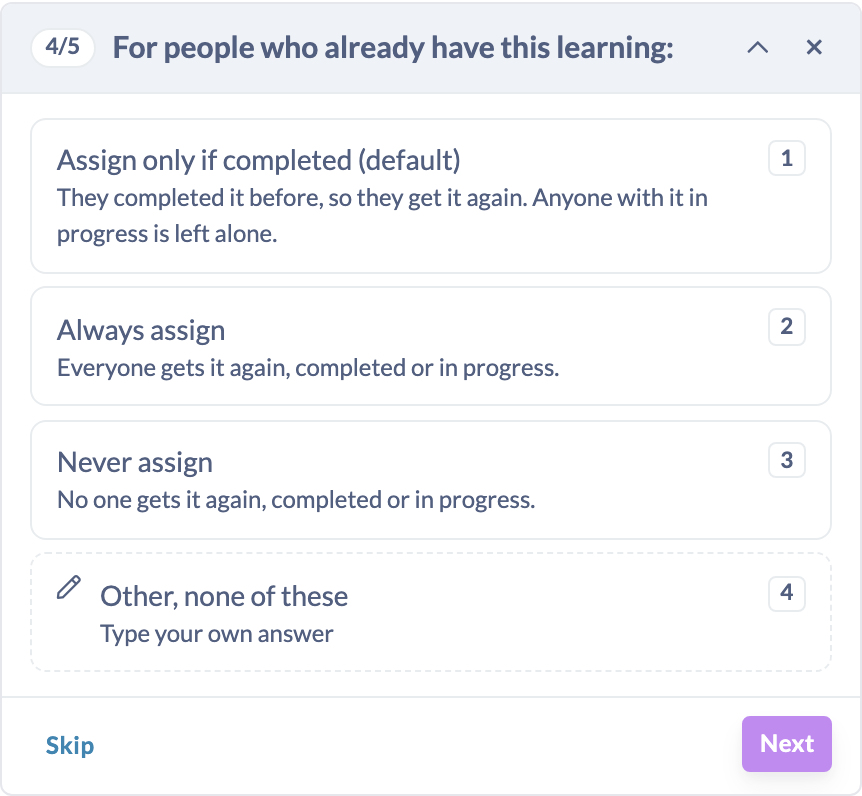
Assign only if completed (default) is how a yearly refresher works. Someone who finished last year's compliance course gets this year's copy, and someone who is halfway through their current one is not interrupted, because re-assigning them would reset the progress they were part way through.
Always assign is for the case where you genuinely want everybody to start again, including the people who are mid-course. Use it knowingly: it creates a fresh record over an in-progress one.
Never assign only reaches people with no record at all. It is the right choice when you are topping up a group and do not want to touch anyone who has already been given the learning.
Note: Roadmap levels ignore this choice completely. A level someone has already completed is never assigned again, and a level they are still working on is reused in place rather than duplicated. The Assistant tells you so on the preview instead of pretending the choice applies.
What the AI Assistant can assign
Five kinds of learning, and the confirmation card names which one so you can check it at a glance.
- A Pathway. The card reads Assign pathway. Each person gets the whole Pathway, with every step inside it.
- A course or other Library content. The card reads Assign course.
- A Form. The card reads Assign form.
- An Event. The card reads Assign event.
- A level of a Roadmap. The card reads Assign roadmap level. This is the only one the Assistant cannot go straight ahead with: it needs the specific level, and it has no way of knowing which one you mean, so it reads the Roadmap and shows you that Roadmap's levels to pick from before it stages anything.
Courses, Forms and Events all behave the same way once assigned. Pathways and Roadmap levels are their own kind of record, which is why the already-have-it rules differ for Roadmap levels.
Anything outside that list cannot be assigned this way. Knowledge articles, Skills and Certificates are not assignable learning, so asking the Assistant to assign one will not produce a confirmation card.
Checking the preview before you confirm
Once the Assistant has all five answers it prepares the assignment and shows you a confirmation card. Nothing has happened yet. The card is a faithful readback rather than an estimate, because the preview is computed with the same code that will do the work, including how Teams expand.

The card carries:
- A plain summary, for example "Assign Compliance 2026 to 143 people, due 2026-10-31."
- A Confirm badge, so you can tell a pending action from a finished one at a glance.
- Who this affects, listing every person by name and email, in the order the Teams expanded. Above eight people a search box appears so you can check for a particular name. Confirm stays disabled until that list has actually painted, so nobody can approve 143 people before seeing who they are.
- Warnings, one line each, saying what was found and what is being done about it.
- What else happens as a result. If people are being notified you will see something like "143 people will be notified that this has been assigned to them."
- A countdown, reading Preview expires in 58 min. The preview is good for an hour. After that the data may have moved, so it will not confirm and you re-run it instead.
The warnings are worth reading rather than skimming, because they are how the Assistant is honest about who is not in the list:
- "12 have already completed this, they'll be assigned it again." They are in the count, on purpose.
- "3 already have this assigned and haven't finished it, skipped. Ask me to reassign them if you want them included." They are not in the count, and the sentence tells you how to change that.
- "3 already have this assigned and haven't finished it, they'll be assigned it again." What you see instead if you chose Always assign.
- "2 people not active, skipped." Inactive people are skipped, exactly as they are on the platform's own assign screen.
For a Roadmap level the wording changes to match the different rules, for example "1 has already completed this level, skipped, because a completed roadmap level is never re-assigned."
If the group resolves to nobody at all, you get no card. A confirmation card with a live Confirm button and a ticking expiry timer, for an action that cannot do anything, is worse than a sentence, so the Assistant refuses instead and tells you why: "Nobody is left to assign Compliance 2026 to, so there is nothing to confirm." followed by the specific reason. An empty confirmation is never shown.
Removing someone before you confirm
If the list is nearly right, trim it rather than starting again.
- Find the person in the Who this affects list.
- Click the × at the end of their row.
- The whole preview is recalculated on the server over the smaller group, and a fresh card replaces the one you were looking at.
The recalculation matters. The list is never just trimmed in your browser: the same checks run again over the reduced group, so what the card promises is still exactly what will happen. Taking a large group down to a single person also drops the card down to a lighter confirmation, because it is no longer a group action.
The × only appears when there is more than one person on the list. Removing the last person would empty the action, which is a cancel, so use Cancel for that.
Confirming and reading the receipt
- Read the list and the warnings.
- Click Confirm. This is your own action, in your own session, and the Assistant cannot do it for you or ask you to confirm in chat.
- The card shows Making the changes… while it works. For a large group this takes a moment, so leave the panel open.
- The same card then turns into a receipt, in the same place in the conversation. One card for the whole life of the action, rather than a trail of messages.
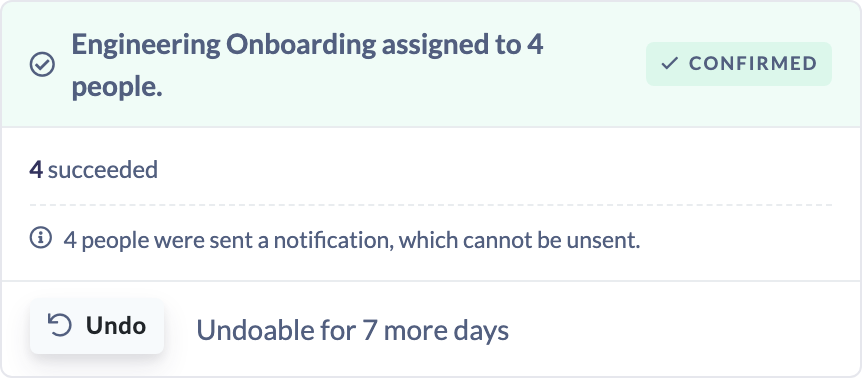
The receipt tells you what actually happened, not what was planned:
- The headline, for example "Compliance 2026 assigned to 143 people." or "Compliance 2026 assigned to 140 people, 3 skipped."
- The counts, as 143 succeeded and 3 skipped.
- Why each skip happened. A bare count with no reason is exactly the half-truth the receipt exists to avoid.
- What cannot be taken back. If people were notified you will see "143 people were sent a notification, which cannot be unsent."
- A Confirmed badge, and how long you have to undo.
Very large groups are handed to a background queue. When that happens the receipt says "This is still running in the background. The receipt will fill in when it finishes, and it can't be undone until then." and completes itself once the work is done.
Undoing an assignment
You have 7 days from confirming, and the receipt tells you how much of that is left, for example Undoable for 6 more days.
- Click Undo on the receipt.
- Because an assignment is the one action where this genuinely matters, you are asked Undo: and offered two choices.
- Everything removes every record the action created.
- Keep anyone who's started removes only the records nobody has touched yet, and leaves the rest in place.
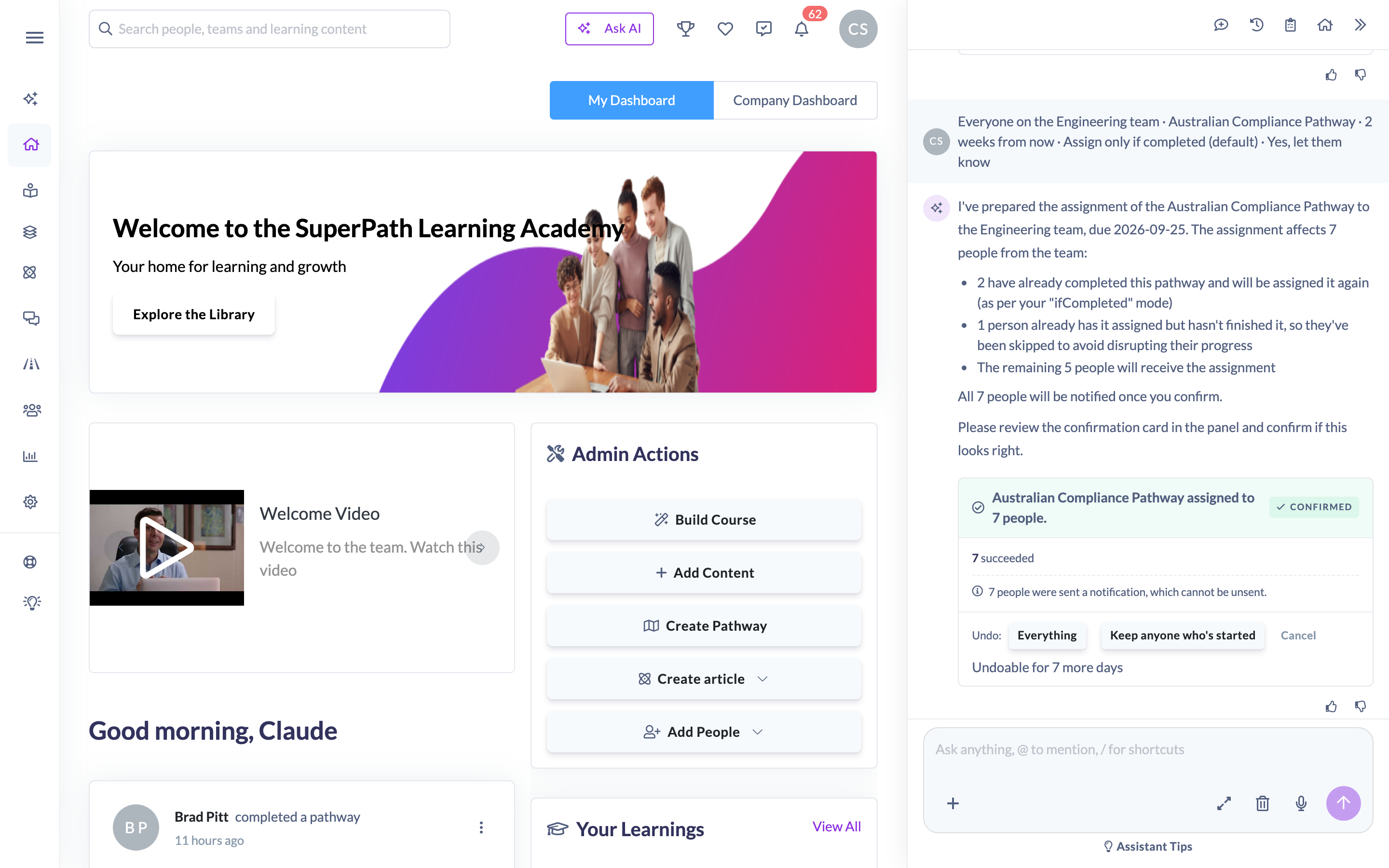
The second option exists because removing a record somebody has already made progress on is not lossless. Someone counts as having started if the learning is in progress, awaiting approval, approved or complete, or if they have any recorded progress at all.
The undo receipt says what it did, for example "Removed Compliance 2026 from 140 people who had not started it. 3 left in place." It also repeats the one thing undo cannot reach: "Notifications already sent for this deployment cannot be unsent."
If part of an undo is refused, nothing is marked as undone and you can simply undo again. The records that did go are reported as already gone on the second attempt.
What it will not do
- More than 500 people in one action. Name a group that expands past it and you get "That works out to 812 people, more than the 500 the AI Assistant will assign to in one action. Narrow the group and ask again." The check runs before anybody's records are read, so a request naming several large Teams is refused quickly rather than after a long wait.
- Assign to nobody. An empty group is refused with the reason, never shown as an empty confirmation card.
- Guess a Roadmap level. It will always ask you which level, and it will not list the levels out in its reply or invent one.
- Assign learning you cannot see, or to people you are not allowed to reach. Your own permissions are applied when the preview is built and applied again when you confirm, so the Assistant can never reach further than you can.
- Confirm its own work. Every assignment waits for a person to click Confirm.
- Assign anything that is not a Pathway, Library content, a Form, an Event or a Roadmap level.
- Duplicate a Roadmap level. A level somebody already holds is never assigned twice.
Things to keep in mind
- Nothing is assigned until you click Confirm. Up to that point the card is a preview and cancelling it changes nothing.
- A preview is good for 60 minutes. After that the underlying data may have moved, so you re-run it rather than confirming a stale list.
- You have 7 days to undo, and notifications sent along the way can never be unsent.
- Confirming actions that affect a group is capped at 50 a day per person. It is a generous ceiling whose job is to stop a runaway loop, not to get in your way.
- Up to 500 people in a single action.
- The group is frozen at the moment the preview is built. Somebody who joins the Team after that is not included, which is deliberate: you confirmed a list you had read.
- Inactive people are always skipped, on every option.
- Whoever staged the assignment is recorded as the person who assigned it, and that is the name each learner sees.
- Assignments made this way are marked as coming from the AI Assistant, so they are reportable separately from ones made by hand.
- You can also set the date the learning becomes available, if you say so in your own words. The card does not ask about it, because five questions is the whole set.
- A Pathway or a course assigned this way behaves exactly like one assigned from the platform's own assign screen. The same notifications, the same records, the same reporting.
FAQs
Does the AI Assistant assign anything without asking me?
No. It prepares the assignment, shows you exactly who is affected, and waits. Nothing is created until you click Confirm yourself, and it cannot confirm on your behalf.
Why is it asking me five questions when I only asked for one thing?
Because all five are decisions the platform's own assign screen puts in front of you every time, and two of them are hard to reverse. A notification cannot be recalled, and re-assigning somebody mid-course resets what they were part way through. If your original sentence already answered all five, you will not see the card at all.
What is the difference between the three "already have this learning" options?
Assign only if completed (default) gives it again to people who finished it and leaves anyone mid-course alone. Always assign gives it again to everybody, finished or not. Never assign gives it to nobody who already has a record for it. They are the same three choices as the platform's assign dialog.
Some people are missing from the list. Why?
The warnings on the card say why, one line per reason. The usual causes are that they already have it and have not finished it, or that they are not active. If it is the first, ask the Assistant to reassign them and they will be included.
Can I take someone out of the group before confirming?
Yes. Click the × beside their name. The whole preview is recalculated over the smaller group, so the card still shows precisely what will happen.
It said nobody was left. What does that mean?
The group resolved to nobody once the skips were applied, so there was nothing to confirm and no card was created. The message names the specific reason, and where there is a way forward it says so.
Can I undo an assignment?
Yes, within 7 days. You can remove everything, or choose Keep anyone who's started so people who have already made progress keep their record.
Will undoing an assignment unsend the notifications?
No. Notifications cannot be recalled. The receipt says so plainly both when the assignment lands and when you undo it.
Why will it not assign to my whole company at once?
A single action is capped at 500 people. Split it into smaller groups, or use a Dynamic Team and assign in stages.
Why did it ask which level of my Roadmap?
A Roadmap level is the one kind of learning the Assistant cannot work out for itself. It reads the Roadmap and shows you its levels rather than guessing.
My preview expired. Have I lost anything?
No. Nothing was assigned. Ask again and a fresh preview is built against current data.
Who can do this
Owners and Admins can assign learning with the AI Assistant, account-wide. Managers and People Managers can too, but only when your organisation's Who can use the AI Assistant setting is set to Admins and managers, and only for the people who report to them. Content Managers, Instructors, Employees and Restricted users cannot use the AI Assistant at all, so they cannot assign learning through it.
Your own permissions are applied twice over: once when the preview is built, and again when you confirm. So the Assistant can never assign learning you would not be allowed to assign yourself, or reach people you would not be allowed to reach.
Turning the AI Assistant on and choosing who can use it is done in Settings → Features by an Owner or Admin. See Managing AI Features.
Updated on: 11/09/2026
Thank you!