
How to Use the AI Assistant
How to Use the AI Assistant
In this article:
- Overview
- How to open the AI Assistant
- Asking a question
- Slash commands
- Attaching a file
- Mentioning people, Teams and content with @
- Asking about your data
- Asking how to do something
- Getting the Assistant to make a change
- Turning an answer into a graph
- Exporting an answer as CSV
- Context-sensitive suggestions
- Following up and managing conversations
- Assistant Tips
- When it can't answer
- What the Assistant will not do
- Giving feedback
- Things to keep in mind
- FAQs
- Who can do this
Overview
The AI Assistant does three things. It answers insights questions using real figures from your own account, like who's overdue or how login activity is trending. It answers how-to questions from the help centre, with links to the articles it used. And it carries out changes for you, from assigning a Pathway to a Team to setting up your branding.
Every change works the same way. The Assistant prepares it, shows you exactly what will happen, and waits. Nothing at all happens until you click Confirm, and most changes can be undone for seven days afterwards. The Assistant cannot confirm its own work, and no instruction can give it a way to. See How the AI Assistant Makes Changes.
It only ever sees and does what your own permissions already allow, so it can't surface data you couldn't reach yourself or make a change you couldn't make by hand.
How to open the AI Assistant
There are three ways in:
- AI Assist in the left-hand menu opens the full-page Assistant at /agent. See The AI Assistant Home Page.
- Ask AI at the top of any screen opens the docked panel.
- ⌘ + K (Mac) or Ctrl + K (Windows) toggles the panel from anywhere. Press it again to close.
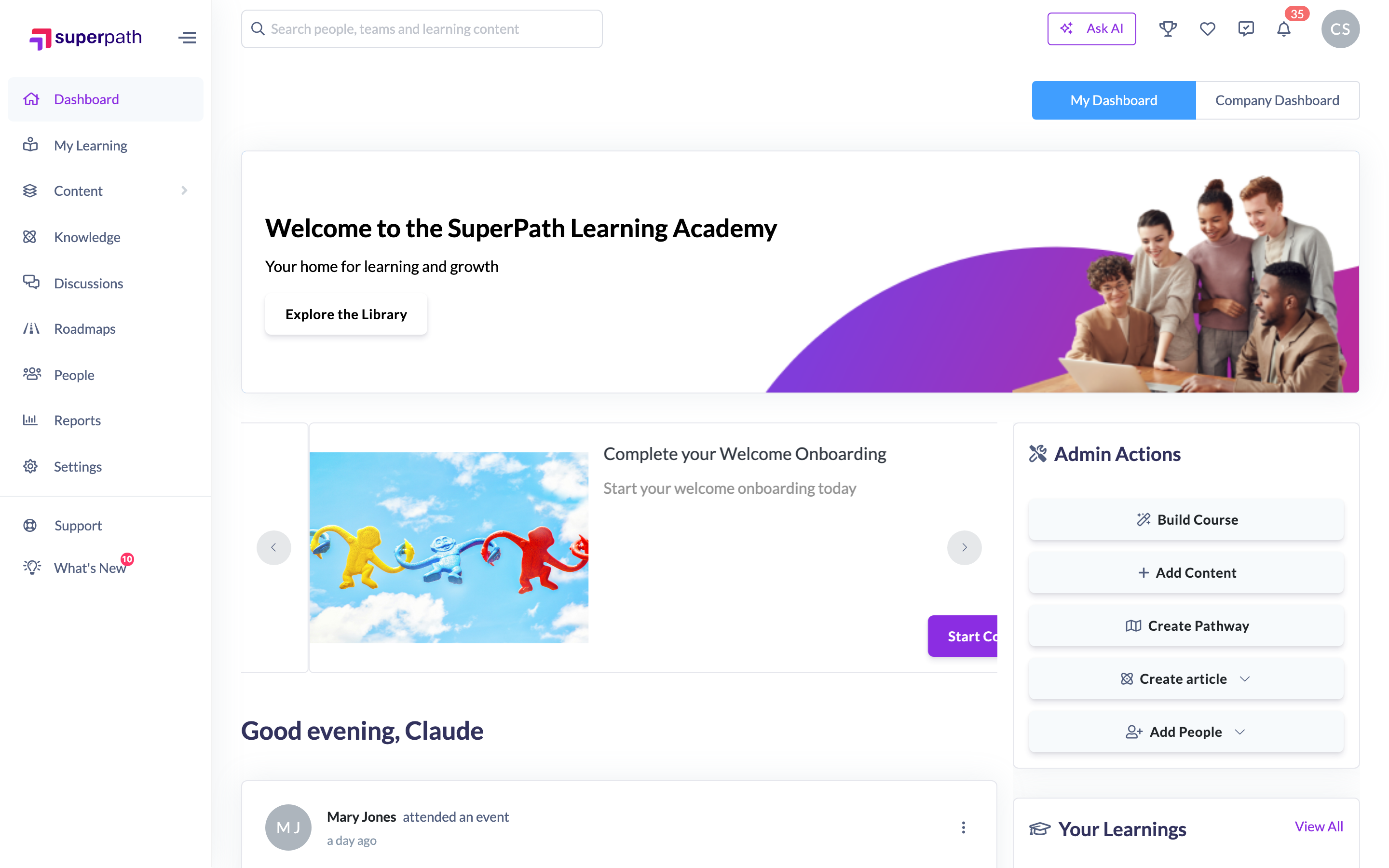
The panel docks to the right and pushes the page across rather than covering it, so you can keep working with the page while the conversation is open. It stays with you as you move between screens. On a narrow screen the left-hand menu collapses to its icon rail to make room, and expands again when you close the panel.
Asking a question
Type into the box at the bottom of the panel and press Enter, or click the arrow button. Ask in plain English. There's no query syntax to learn.
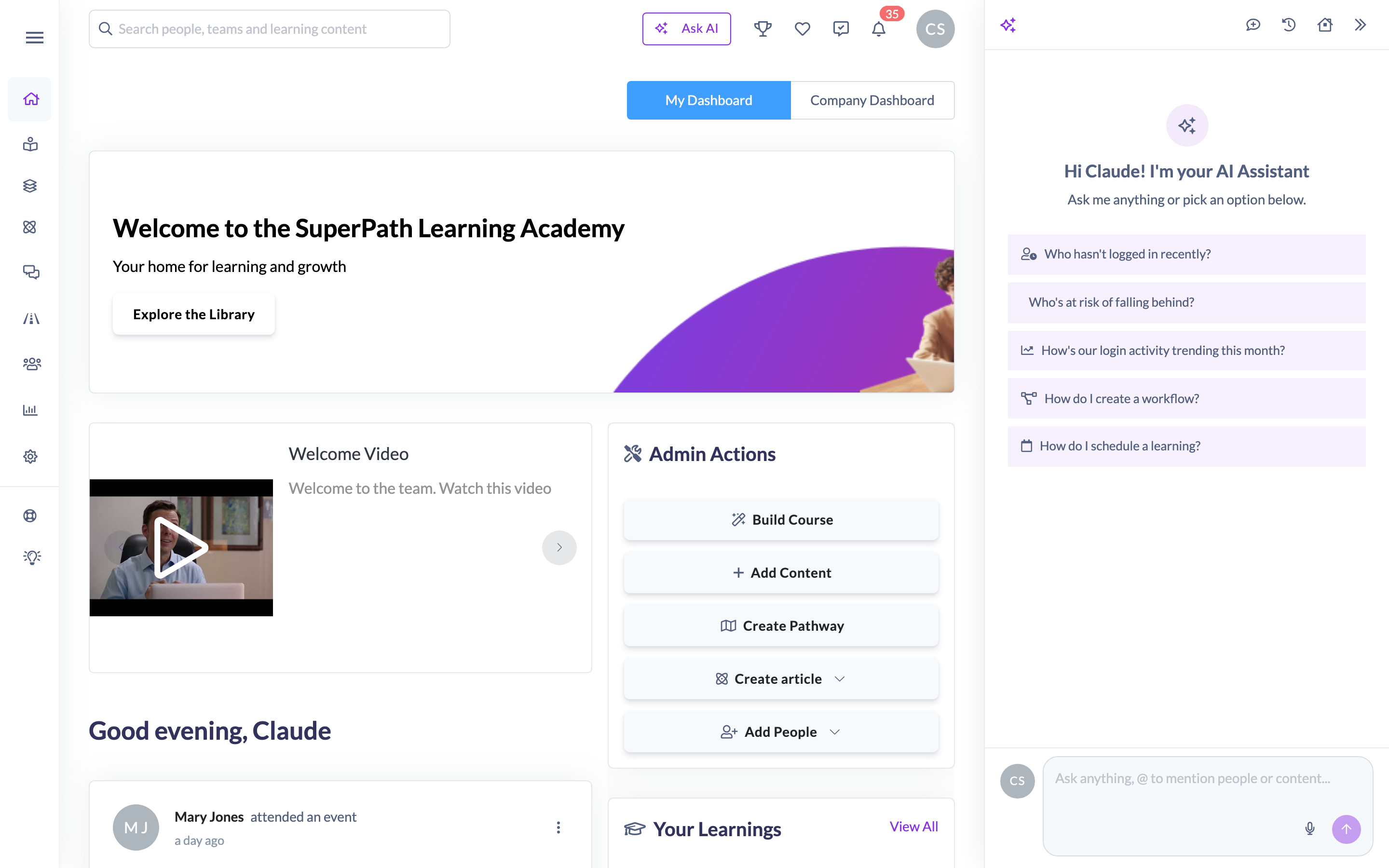
While it works you'll see a single status line with a pulsing icon, a changing label and an elapsed-seconds counter, then the answer streams in. Some other things worth knowing about the composer:
- Voice input. In Chrome, Edge and other Chromium browsers, a microphone button lets you dictate your question. It isn't shown in Firefox or Safari, where dictation isn't reliable.
- Message length. Up to 10,000 characters per message.
- New conversation. The comment-plus icon in the panel header starts a fresh thread.
- The reminder underneath. Every composer carries the line "AI can make mistakes. It only answers within your permissions", because both halves are worth remembering.
Slash commands
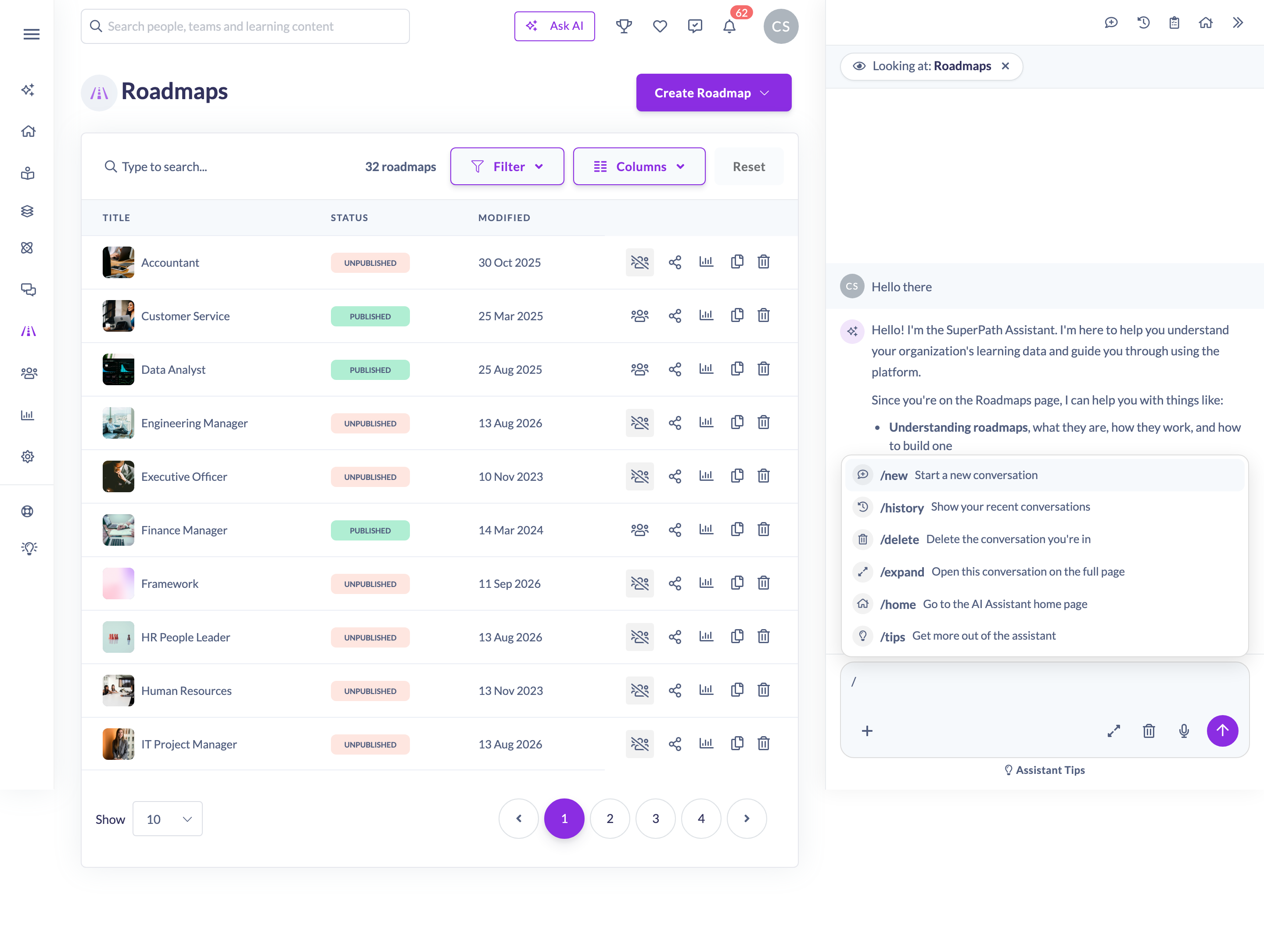
Type / in the composer to drive the panel from the keyboard. A menu opens as you type, and you pick with the arrow keys and Enter.
Command | What it does |
|---|---|
/new | Starts a fresh conversation |
/history | Lists your past conversations |
/delete | Deletes the conversation you're in |
/expand | Opens the conversation as a full page |
/home | Opens the AI Assistant home page |
/tips | Opens Assistant Tips |
Attaching a file
Use the + button beside the composer, or drag a file onto it, to give the Assistant something to work from. This is how you turn a competency matrix into a Roadmap, or ground a Pathway in a policy document.
- Readable types are .xlsx, .csv, .pdf and .docx. Slides aren't supported, and a scanned PDF with no text layer can't be read.
- The limit is 10 MB, and one file per message. Attach several and the Assistant takes the first and tells you so.
Anything in an attached file is treated as information, never as an instruction. If a document contains something that looks like a command aimed at the Assistant, it's ignored rather than followed. See How to Build a Roadmap with the AI Assistant and How to Build a Pathway with the AI Assistant.
Mentioning people, Teams and content with @
If you're an Owner or Admin, type @ followed by a name to pin a question to a specific record instead of describing it in words.
- Type @ and start typing a name, for example "@Jane Smith" or "@Onboarding 2026". Multi-word names are fine.
- A picker opens listing matches, each tagged with its type: people, teams, pathways, content, forms or events.
- Use the up and down arrow keys to move through the list, then Enter, or just click the one you want.
- The name is inserted into your message and the Assistant works with the exact record you chose.
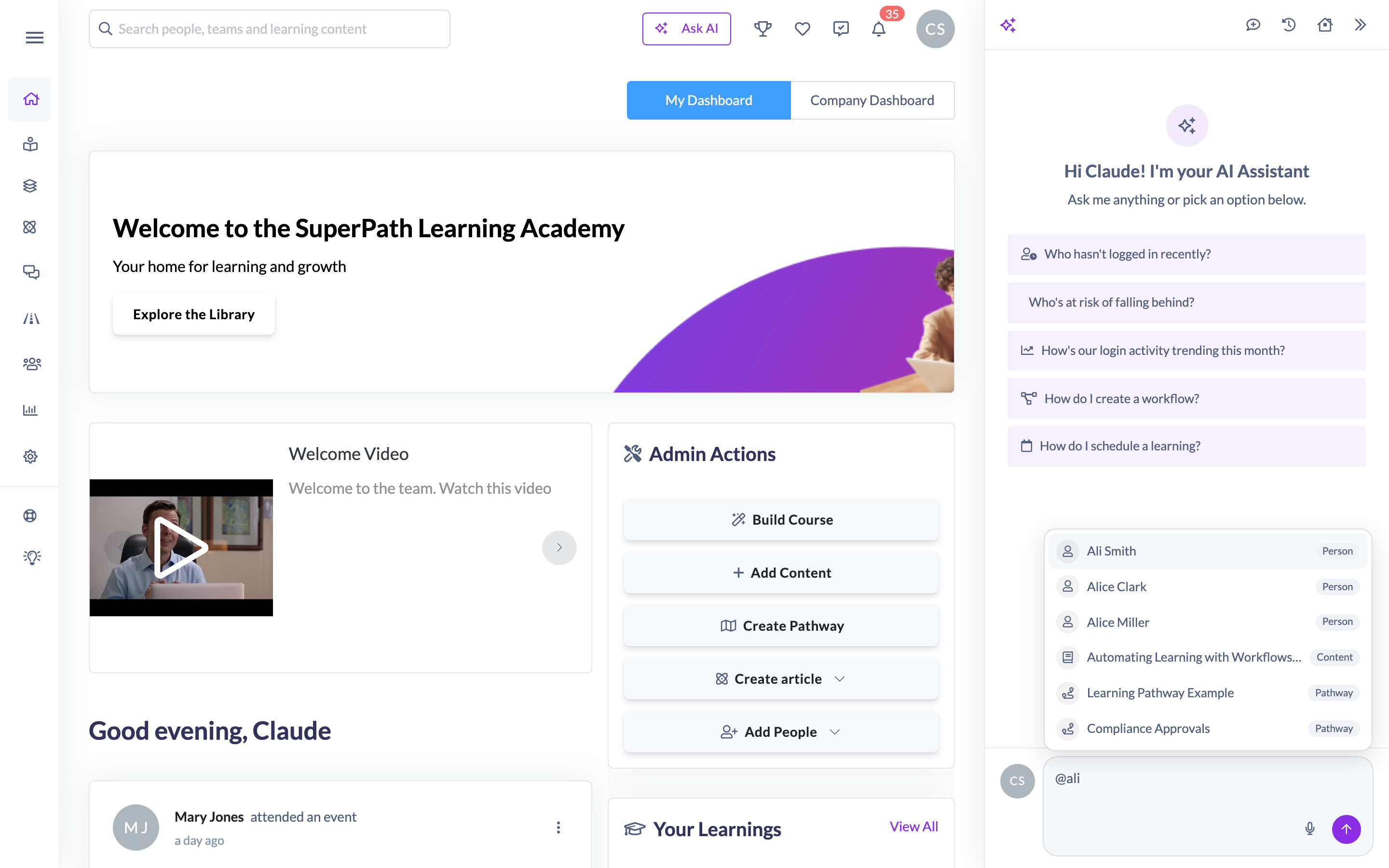
Scroll the picker to load more matches. Press Esc to close it without choosing.
Note: @-mentions are limited to Owners and Admins, because the search behind them isn't filtered by permissions. Managers and People Managers ask by typing names normally, and the Assistant resolves them within the people they're allowed to see.
Asking about your data
Data questions are answered by querying your account, not estimated. The Assistant can currently answer questions about:
- Login activity over time, by day, week or month, for a date range you give.
- Learning status counts. How many people have a Pathway, course, Form or Event assigned, in progress, completed, overdue or due soon. This covers items assigned directly and as steps inside a Pathway.
- One person's learning record. What's assigned, in progress, completed, overdue or due soon for a named individual, and whether they've done a specific course or Pathway.
- Learners at risk of falling behind, with the evidence for each signal: no recent login, stalled steps, an off-pace Pathway, or overdue and never-started assignments.
- Who's connected to something. Who's assigned a Pathway, course, Form, Event or Roadmap; who belongs to a Team; who holds a Skill; who has a Certificate and when it expires.
- Knowledge article view counts, ranked most-viewed first, with total views and unique viewers per article.
Ask naturally: "Who's overdue on their compliance training?", "How many people completed Onboarding this quarter?", "How's our login activity trending this month?" Relative dates like "last month" or "this quarter" are resolved against today's date in your timezone.
A few behaviours to expect:
- If a name matches more than one person, it asks which one you mean rather than guessing.
- Long lists are capped on screen. When there's more data than it can show, it tells you the real total and that the list is a sample. Use Export as CSV for everything.
- Login activity is available for up to 36 months back. Ask for longer and the range is trimmed to that.
- Reporting figures carry an As of line, because the reporting data behind them refreshes about every ten minutes rather than being live to the second.
- It reports what the data shows, not why. Ask why a Team is behind and it will give you the figures and say plainly that it can't determine the cause from learning data.
Asking how to do something
How-to questions are answered from the SuperPath help centre, and every answer shows its sources.
Ask something like "How do I create a workflow?" or "Where can I see errors from our HRIS syncs?" and you'll get the steps, followed by one or more source cards naming the help-centre articles used. Click the external-link icon on a card to open the full article in a new tab.
Where the article has a matching screen in the app, a Take me there button appears underneath with an "Opens Settings → Workflows"-style hint, so you can jump straight to it. The button is hidden when you're already on that page.

The Assistant answers how-to questions only from what those articles actually say. It won't invent a menu path or a setting. If the help centre doesn't cover your question, it says so rather than guessing.
Getting the Assistant to make a change
Ask for the change in plain English and the Assistant prepares it. "Assign Compliance 2026 to the Sydney team, due at the end of the month." You'll get a card showing exactly what will happen, and for anything touching more than one person, exactly who. Click Confirm to run it or Cancel to walk away.
Here's what it can change:
Area | What it can do |
|---|---|
Learning | Assign a Pathway, course, Form, Event or Roadmap level; change a due date; record learning as complete; send a reminder; email a manager about their Team's outstanding learning |
People and Teams | Invite people by email; update a person's name, job title or Custom Field values; create a Team; add or remove Team members |
Building | Build a draft Pathway or Roadmap, including from a competency matrix you attach |
Account settings | Change catalogued settings, your branding, and create a Workflow |
Each of those has its own article, and How the AI Assistant Makes Changes explains the preview, the confirmation and the seven-day undo that apply to all of them. Every change is recorded in The AI Assistant Activity Log.
Turning an answer into a graph
When an answer contains data that genuinely plots, a time series or a split across two or more categories, a Show as graph button appears beneath it.
- Click Show as graph.
- The data is fetched fresh and drawn as a chart: a line chart (Activity over time) for anything measured over a period, or a pie chart (Breakdown) for a status split.
- An As of timestamp under the chart tells you how current the figures are.
- Click Copy to copy the chart to your clipboard as an image, ready to paste into a deck, doc or email.
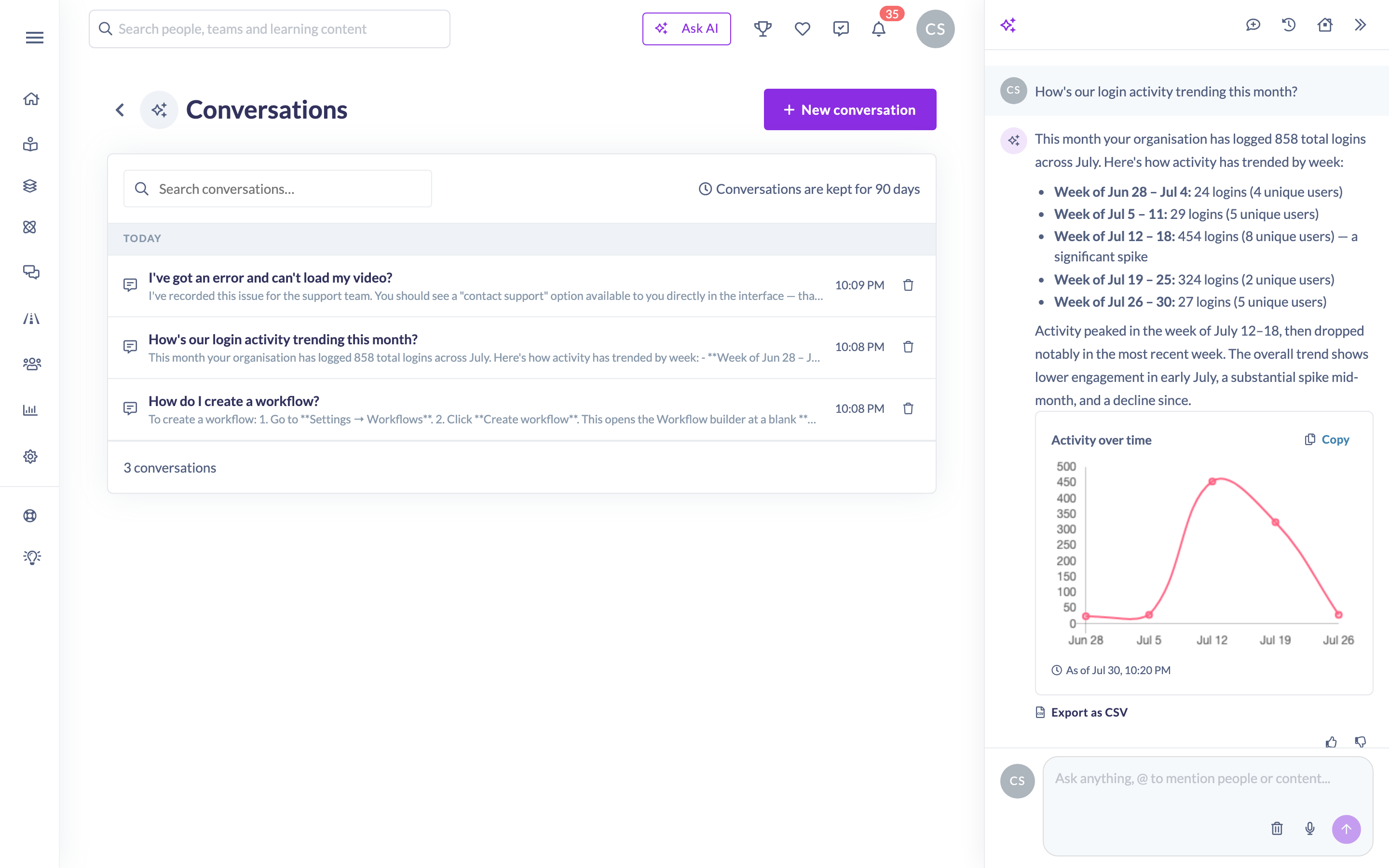
A single figure such as "30 people in Engineering" has nothing to plot, so no graph is offered. If data turns out not to be chartable once fetched, you'll see "This data can't be shown as a chart."
Exporting an answer as CSV
Answers built from your account's records offer Export as CSV beneath them. Click it and the file opens in a new tab.
This is how you get a complete list when the answer showed you a sample, because the export isn't capped the way the on-screen list is. It works on counting answers too: ask "how many people completed Onboarding?" and the export gives you the people behind the number.
Context-sensitive suggestions
The AI Assistant knows which page you're on, and uses it two ways.
A context chip. Open the panel on a person's profile or a Team and a chip appears under the header reading Looking at: Jane Smith. On a list or settings page it names the section instead, for example Looking at: Pathways. You can then ask about "this person" or "this team" without naming them. Click the × on the chip to clear the context.
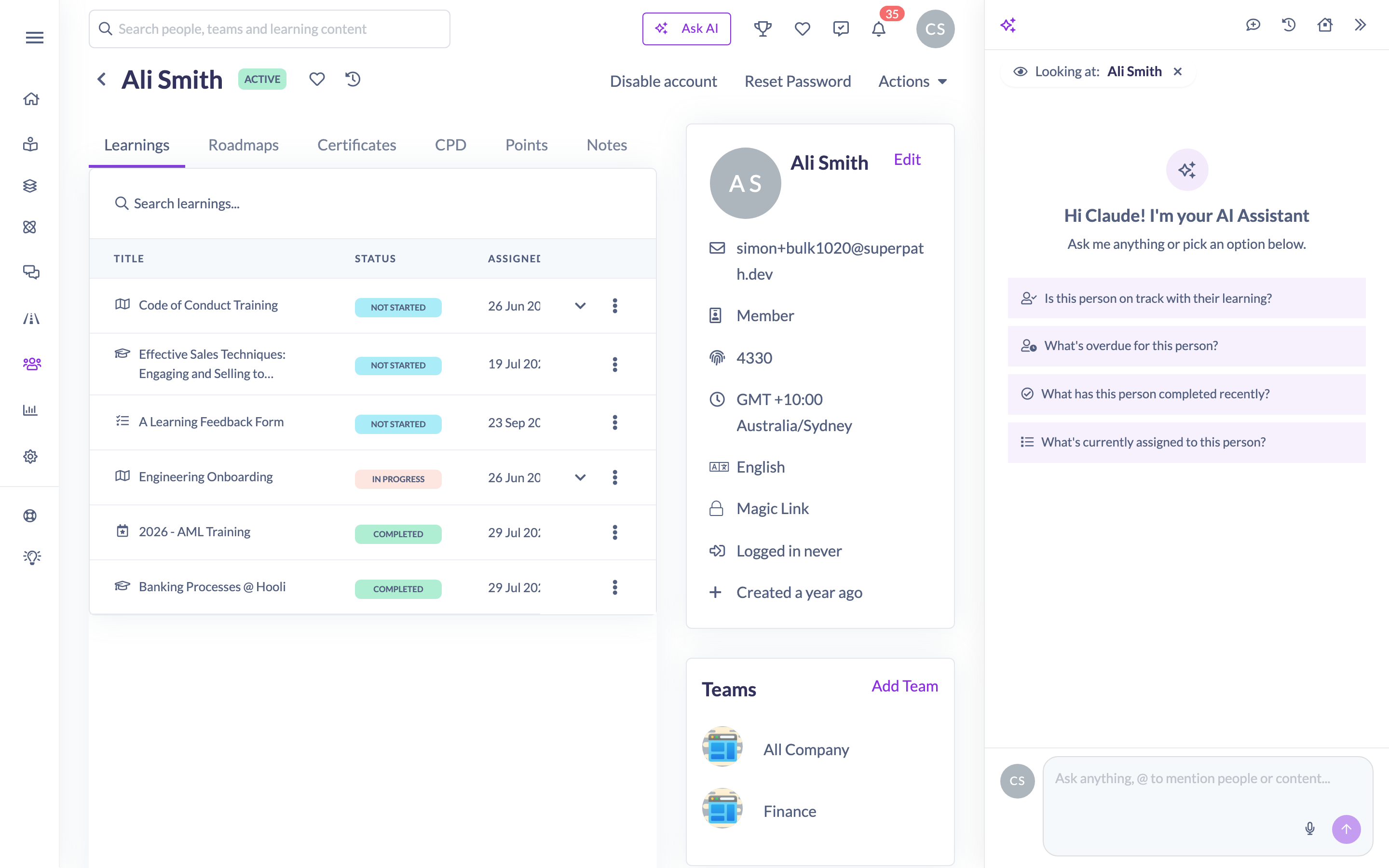
Suggested questions that match the page. A fresh conversation offers starter chips chosen for where you are: at-risk and completion questions on People, completion and how-to questions on Pathways, Library, Forms, Events, Knowledge and Roadmaps, and setup how-tos on Settings. On a person's profile or a Team the chips ask about that person or Team directly.
Click a suggestion to ask it. Some are deliberately open-ended, and where a chip names an action without naming the specifics, the Assistant opens with a question card rather than guessing. Click Assign learning to a team and it asks you the five things an assignment needs. See How to Assign Learning with the AI Assistant.
Following up and managing conversations
The Assistant remembers the conversation, so you can keep going without repeating yourself. Ask "How many people are assigned Onboarding?", then just "How many finished it?"
From the panel header you can:
- New conversation (comment-plus) starts a clean thread.
- Conversation history (clock) lists your past conversations grouped by Today, Yesterday, Previous 7 days and Older. Click one to reopen it, or View all for the full page.
- Assistant activity opens the log of every change the Assistant has made. See The AI Assistant Activity Log.
- Open full page (house) goes to the AI Assistant home page. See The AI Assistant Home Page.
- Close (double-chevron) closes the panel. Nothing is lost.
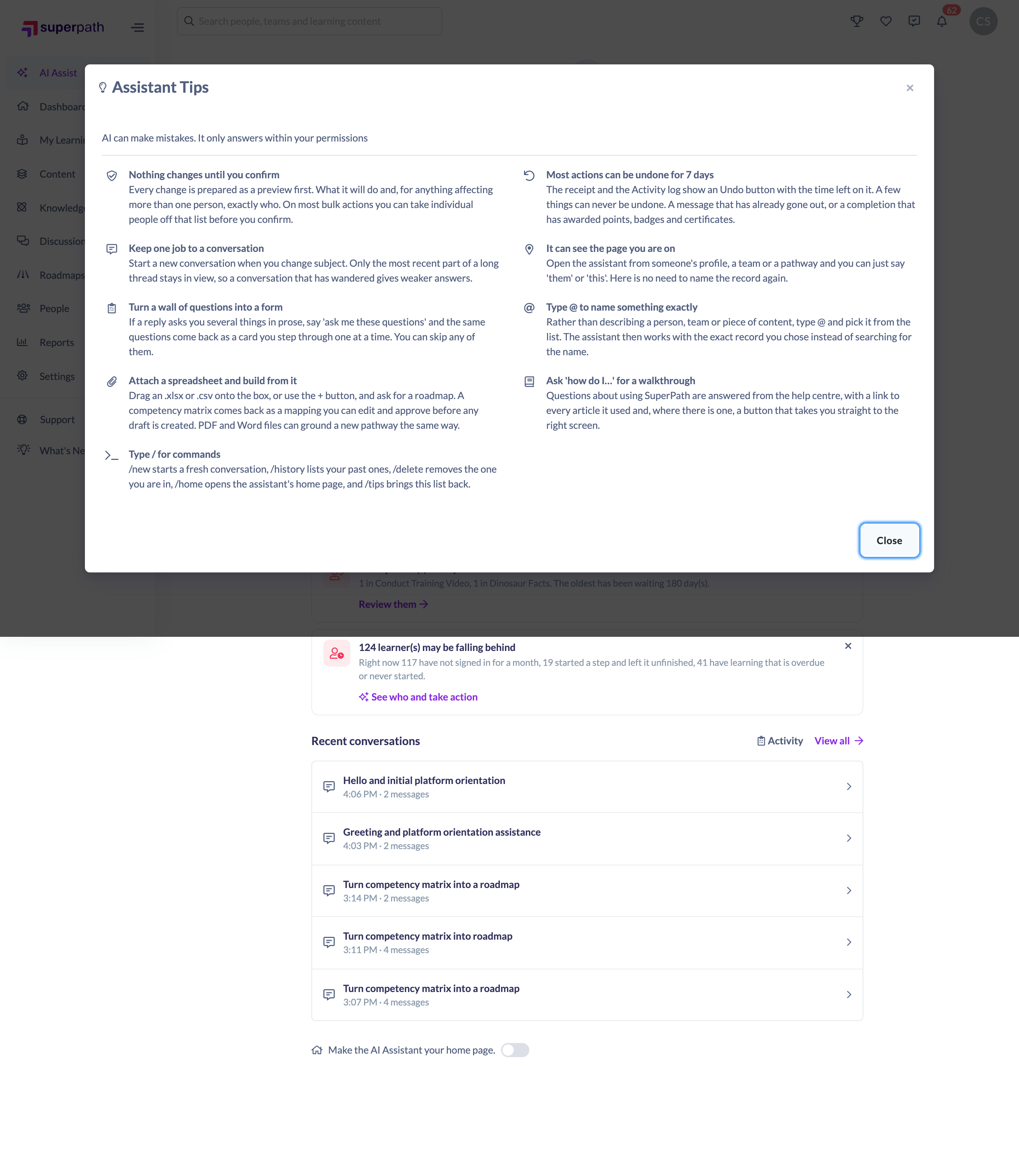
Assistant Tips
Click Assistant Tips under the composer, or type /tips, for a short list of the things people most often miss: naming records with @, the slash commands, the page context, asking "how do I…", the fact that nothing changes until you confirm, the seven-day undo, attaching a spreadsheet to build from, turning a wall of questions into a card you step through, and keeping one job to a conversation.
When it can't answer
The Assistant is built to say "I don't know" rather than guess.
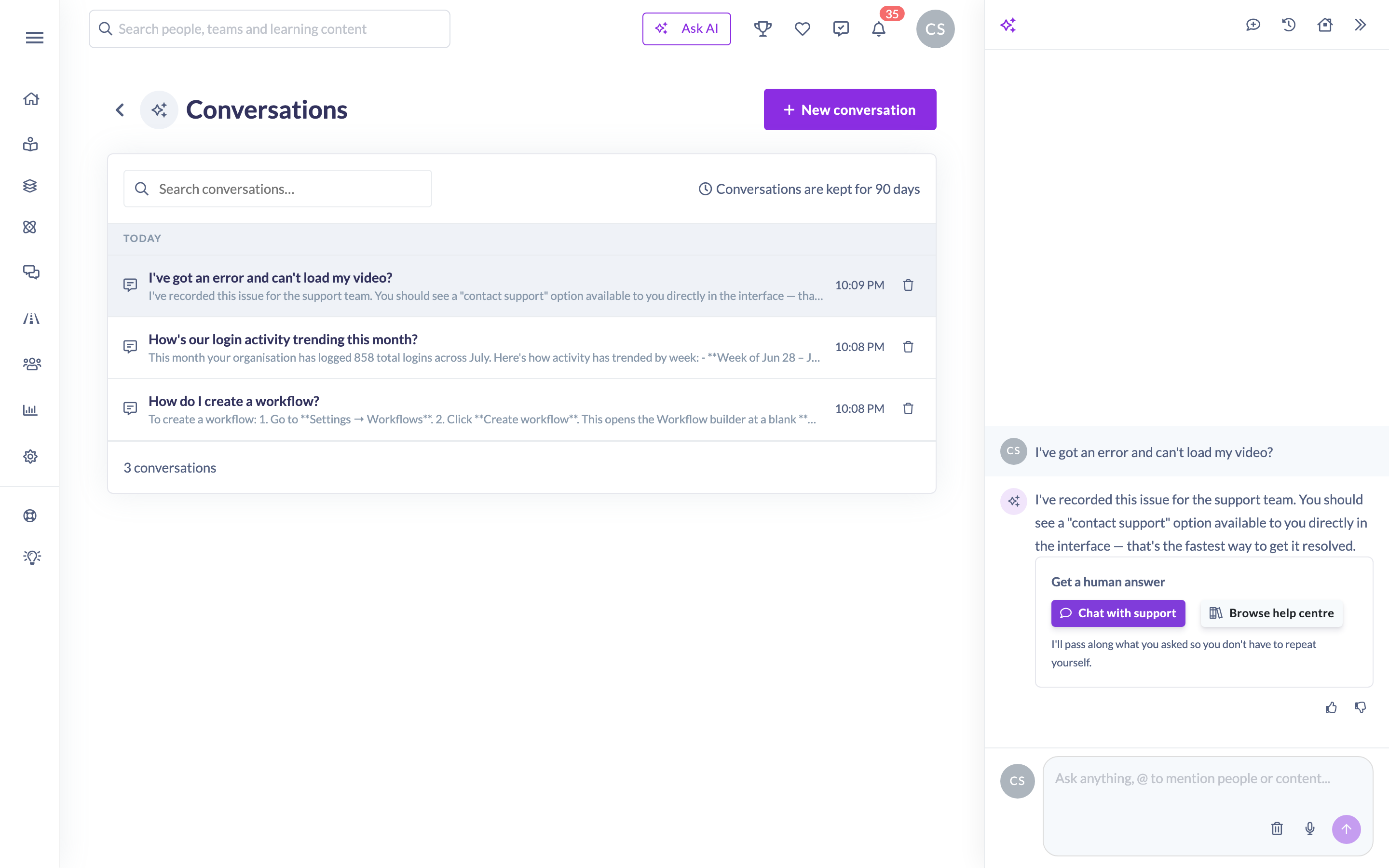
- It doesn't have the answer. If the help centre doesn't cover your question, it tells you plainly and shows a Get a human answer card with Chat with support and Browse help centre. Choosing Chat with support opens the chat with your question already filled in, so you don't have to type it again.
- Something looks broken. Report a fault such as "my pathway isn't loading" and it won't try to diagnose it. It records the report for the support team and offers the same Get a human answer card.
- The data is outside your scope. If you're a Manager and ask about someone who doesn't report to you, it says it can only show the people who report to you, rather than pretending there's an error or that the group is empty.
What the Assistant will not do
Worth knowing before you ask, because these are deliberate rather than gaps:
- It can't confirm its own changes. Asking it to "just do it" won't work, and neither will anything else. The Confirm button is the only way, and it's yours.
- It won't connect your HR system. BambooHR, Deputy, Employment Hero, foundU and HiBob are all set up at Settings → Integrations. Name your system and the Assistant points you there with that system's own help article.
- It will never ask for or accept a credential. No API key, client secret, access token or password. Those go into a secure settings field where the Assistant can't see them. Paste one by accident and it will tell you plainly, won't use it, and won't pretend it was deleted. Your message is stored as you wrote it, so replace the credential if it was a live one.
- It won't make personnel judgements. Who to promote, discipline, rank or put on a performance plan are all declined, even when framed as interpreting the data. Reporting who's behind on their learning is fine. Turning that into a judgement about somebody's employment isn't.
- It won't tell you why. It reports what the data shows and says plainly that it can't determine causes from learning data.
- It won't diagnose technical faults. A reported fault is passed to the support team rather than guessed at.
- It can't create Dynamic Teams. Those are built on the Teams page. The Assistant works with fixed Teams.
- It won't guess. No invented figures, names, links, menu paths or settings. Where a name is ambiguous it asks.
- It only discusses SuperPath and workplace learning. Anything else is politely declined.
Giving feedback
Every answer has thumbs up and thumbs down buttons at the bottom right. Use them, because they're how the Assistant's answers get better. Click the same thumb again to clear your rating.
Things to keep in mind
- Nothing the Assistant prepares happens until somebody clicks Confirm, and most completed changes can be undone for 7 days. See How the AI Assistant Makes Changes.
- Answers and actions are scoped to your own permissions. Owners and Admins see account-wide data. Managers and People Managers see only the people who report directly to them, and every figure is stated as their-Team rather than company-wide.
- A single action can affect at most 500 people. Narrow the group and ask again if you need more.
- A prepared change expires if it isn't confirmed within 60 minutes, because the data behind the preview may have moved on.
- Your organisation can send up to 100 messages a day across all users. The limit resets at midnight UTC.
- Confirming an action that affects a group of people is capped at 50 a day per person. A single conversation can hold up to 20 prepared actions before you need to start a new one.
- Conversations are private to you, and are kept for 90 days.
- @-mentions are Owner and Admin only.
- Voice input needs Chrome, Edge or another Chromium browser.
- While the panel is open the support chat widget is hidden so the two don't overlap. It comes back when you close the panel.
- AI can make mistakes. The figures come from your account rather than being estimated, but it's worth sanity-checking anything you're about to act on, and reading a confirmation card before you approve it.
FAQs
Can the AI Assistant change things in my account?
Yes. It can assign learning, invite people, manage Team membership, update a person's details, build draft Pathways and Roadmaps, change catalogued settings and branding, and create Workflows. Every one of those is prepared as a preview and does nothing until you click Confirm.
Can it make a change without me approving it?
No. The Assistant has no way to confirm its own work, and telling it to go ahead anyway won't change that. See How the AI Assistant Makes Changes.
Can I undo something it did?
Most things, for 7 days. Marking learning complete can't be undone, and a message or notification that has already been sent can't be unsent. See How the AI Assistant Makes Changes.
Will it show me data I'm not supposed to see?
No. Every answer is scoped to your own permissions. A Manager asking a company-wide question gets the figure for the people who report to them, plus a clear statement that it only covers their reports.
Why does it keep asking which Pathway or which person I mean?
It won't guess between plausible matches. Naming the item exactly, or @-mentioning it if you're an Admin, skips the question.
Why is there no Show as graph button on my answer?
The data has to be genuinely plottable: a series over time, or a split across two or more categories. A single number has nothing to chart.
Can I copy a chart into a presentation?
Yes. Click Copy on the chart card and it goes to your clipboard as an image.
The list of people looks incomplete. Why?
Long lists are trimmed on screen. The answer tells you the true total, and Export as CSV gives you the whole set.
Does it know what page I'm on?
Yes. A Looking at: chip shows the current context so you can ask about "this person" or "this team", and the suggested questions change to match the page. Clear it with the × on the chip.
Can it tell me why a Team is behind?
No. It reports what the data shows, not the causes. It will give you the figures and say it can't determine why from learning data.
Can it help me decide who to promote?
No. It declines performance-management and personnel-decision questions. It will happily report who's behind on their learning.
Can it connect our HR system?
No, and there's no way to make it. Tell it which system you use and it will point you at Settings → Integrations with that system's own help article.
What happens if I paste an API key into the chat?
It won't use it and won't pass it anywhere, and it will say so. Your message is stored as you typed it, so treat a pasted live credential as exposed and replace it.
How do I get a human?
When it can't answer, use Chat with support on the Get a human answer card, and your question is carried across for you. You can also open the support chat any time from the help widget.
Who can do this
Who can use the AI Assistant depends on your organisation's Who can use the AI Assistant setting. On Admins only it's Owners and Admins. On Admins and managers it also covers Managers and People Managers. Content Managers are deliberately excluded from the manager tier, because the role manages content rather than people, so there's no team scope to bound its results to. Instructors, Employees and Restricted users cannot use it on either setting. The AI Assist menu item and the Ask AI button simply don't appear for anyone who can't use it, and the server enforces the same rule.
Owners and Admins get account-wide answers plus @-mentions. Managers and People Managers get answers scoped to the people who report directly to them, and no @-mentions. Some changes are restricted further than the access level implies, so each action's own article states who can confirm it.
Turning the AI Assistant on and choosing the access level is done in Settings → Features by an Owner or Admin. See Managing AI Features.
Updated on: 22/09/2026
Thank you!