
How to Add a Discussion Tag
How to Add a Discussion Tag
In this article:
- Overview
- How to add a discussion tag
- Things to keep in mind
- FAQs
- Who can do this
Overview
Discussion tags let members label Discussions with keywords. Tags come in two kinds: Curated tags, which you create as an Admin to steer members towards a consistent set of labels, and Freeform tags, which are created automatically whenever a member types a new tag on a Discussion. This article covers adding a curated tag from your account settings.
How to add a discussion tag
- Go to Settings → Features → Discussion Categories & Tags.
- Scroll to the Tags section and click Add Tag.
- Enter a Slug — a short, lower-case identifier such as
product-design. Spaces and other characters are converted to hyphens automatically as you type. - Enter a Display Label — the human-friendly text members see, for example
Product Design. - Turn on Curated to mark the tag as curated.
- Click Add.
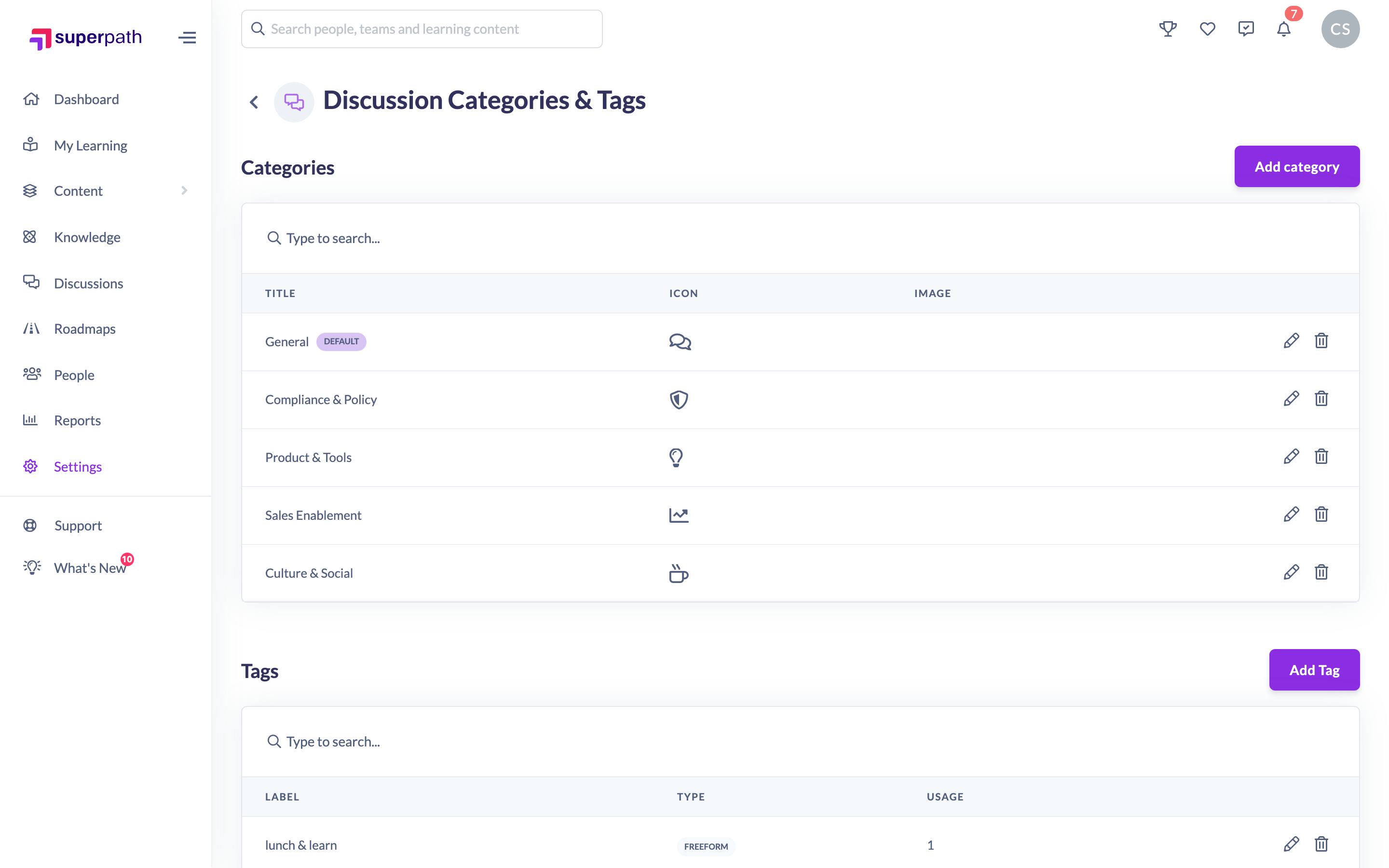

Good to know: In the tags list, curated tags show a Curated badge and freeform tags show a Freeform badge. The Usage column shows how many times each tag has been used.
Things to keep in mind
- The Display Label is required, and a new tag also needs a Slug.
- If a freeform tag with the same slug already exists, adding it here promotes that existing tag to curated rather than creating a duplicate.
- Members can add up to 8 tags per Discussion. Any brand-new tag a member types becomes a freeform tag automatically.
FAQs
What's the difference between a curated and a freeform tag?
Curated tags are ones you deliberately create to guide members. Freeform tags are created automatically the first time a member types a new tag on a Discussion.
What is the slug for?
The slug is the tag's underlying identifier. Members see the display label, but tags are matched and de-duplicated by their slug.
Do I need to create every tag manually?
No. You only need to add curated tags. Freeform tags appear on their own as members use them.
Who can do this
Owners and Admins can add discussion tags. Content Managers and People Managers can view the tags list but cannot add tags — the action is blocked by the platform. Other roles do not have access to this screen.
Updated on: 16/07/2026
Thank you!